 Connected Performance
Managing Athletes & Groups
Add, edit, and organize athletes in your organization. Use groups to manage athletes collectively for scheduling, reporting, and communication.
Overview
Add, edit, and organize athletes in your organization. Use groups to manage athletes collectively for scheduling, reporting, and communication.
How To
Viewing Athletes
- Navigate to Users > Athletes in the sidebar
- Browse the athlete list
- Use search and filters to find specific athletes
Adding a New Athlete
- Click Add Athlete or + New
- Enter athlete information:
- Name
- Email address
- Phone (optional)
- Position/sport details
- Assigned coach
- Click Save
- Athlete receives an invitation email
Editing Athlete Profiles
- Click an athlete's name to open their profile
- Click Edit
- Update information as needed
- Click Save
Deactivating Athletes
When an athlete leaves:
- Open their profile
- Click Deactivate or toggle status
- Confirm deactivation
Deactivated athletes:
- Cannot log in
- Don't receive new assignments
- Historical data is preserved
Reactivating Athletes
- Filter by inactive athletes
- Find the athlete
- Click Reactivate
Creating Athlete Groups
- Navigate to Users > Athlete Groups
- Click Create Group or + New
- Enter group name (e.g., "Varsity Pitchers")
- Add athletes to the group
- Click Save
Adding Athletes to Groups
- Open a group
- Click Add Athletes
- Select athletes from the list
- Click Add
Or from an athlete profile:
- Open the athlete's profile
- Find the Groups section
- Add them to existing groups
Removing Athletes from Groups
- Open the group
- Find the athlete
- Click Remove
Using Groups for Bulk Actions
With groups, you can:
- Assign workouts to all group members
- Apply schedule templates
- Send group messages
- Generate group reports
Group-Based Scheduling
- Go to Schedule
- Click Add Workout
- Select a group instead of individual athletes
- All group members receive the workout
Managing Multiple Groups
Athletes can belong to multiple groups:
- Position groups (e.g., "Pitchers")
- Team groups (e.g., "Varsity")
- Training groups (e.g., "Morning Session")
Tips
- Use groups to mirror your actual team structure
- Create temporary groups for special programs
- Keep groups updated as rosters change
Troubleshooting
Athlete not receiving invitation? Check email address accuracy. Resend the invitation. Ask athlete to check spam.
Can't add athlete to group? Verify athlete is active. Check your permissions.
Related
- User Roles & Permissions
- Scheduling Workouts for Athletes
- Coaches Workbench
Video Walkthrough
Managing Athletes
This guide will show you how to efficiently manage athletes using the Connected-performance application
From accessing athlete profiles to inputting assessments and filtering by coach or training type, you'll learn how to navigate the platform effectively for athlete management.
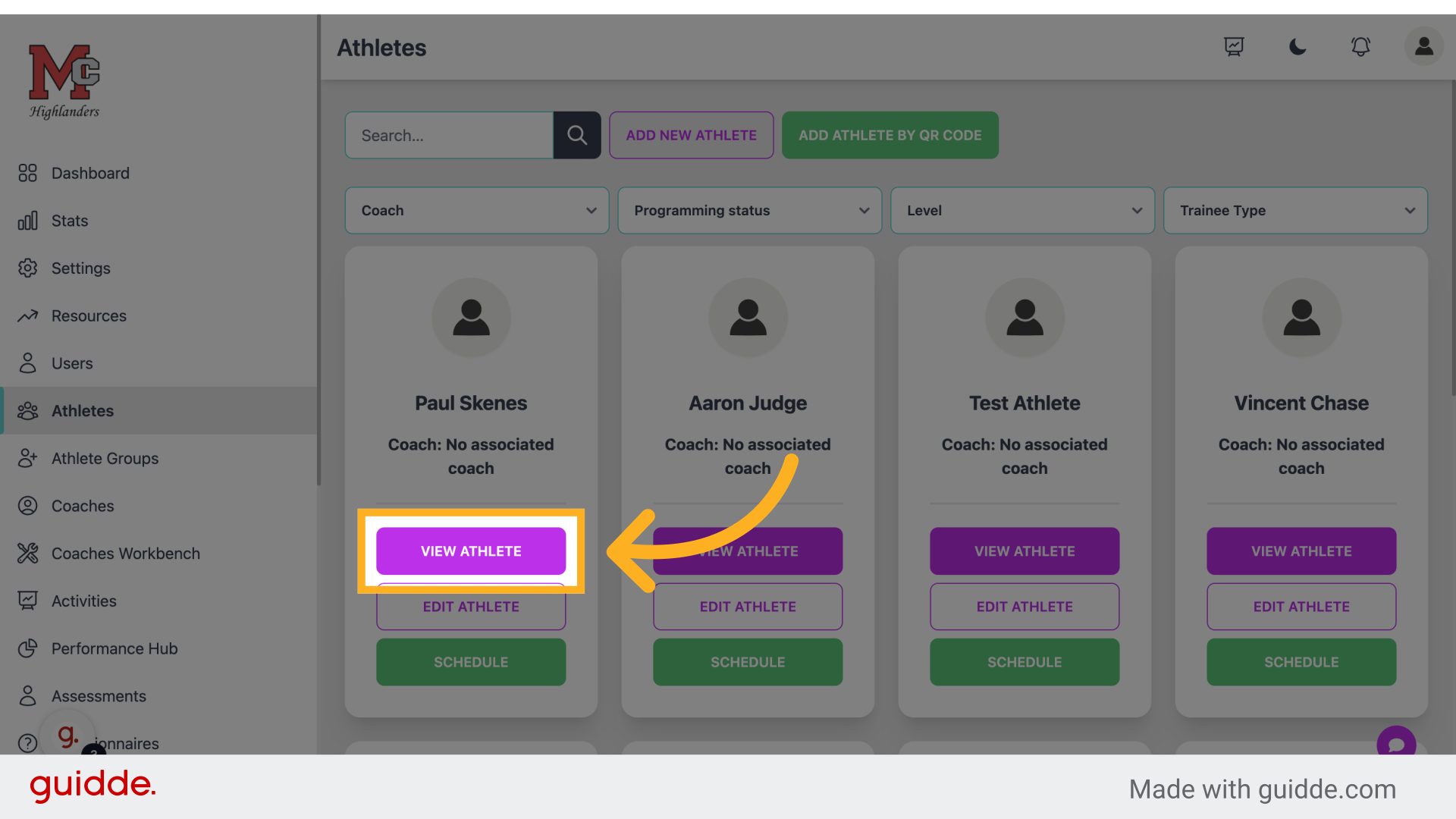
Step 2 — Click "View Athlete"
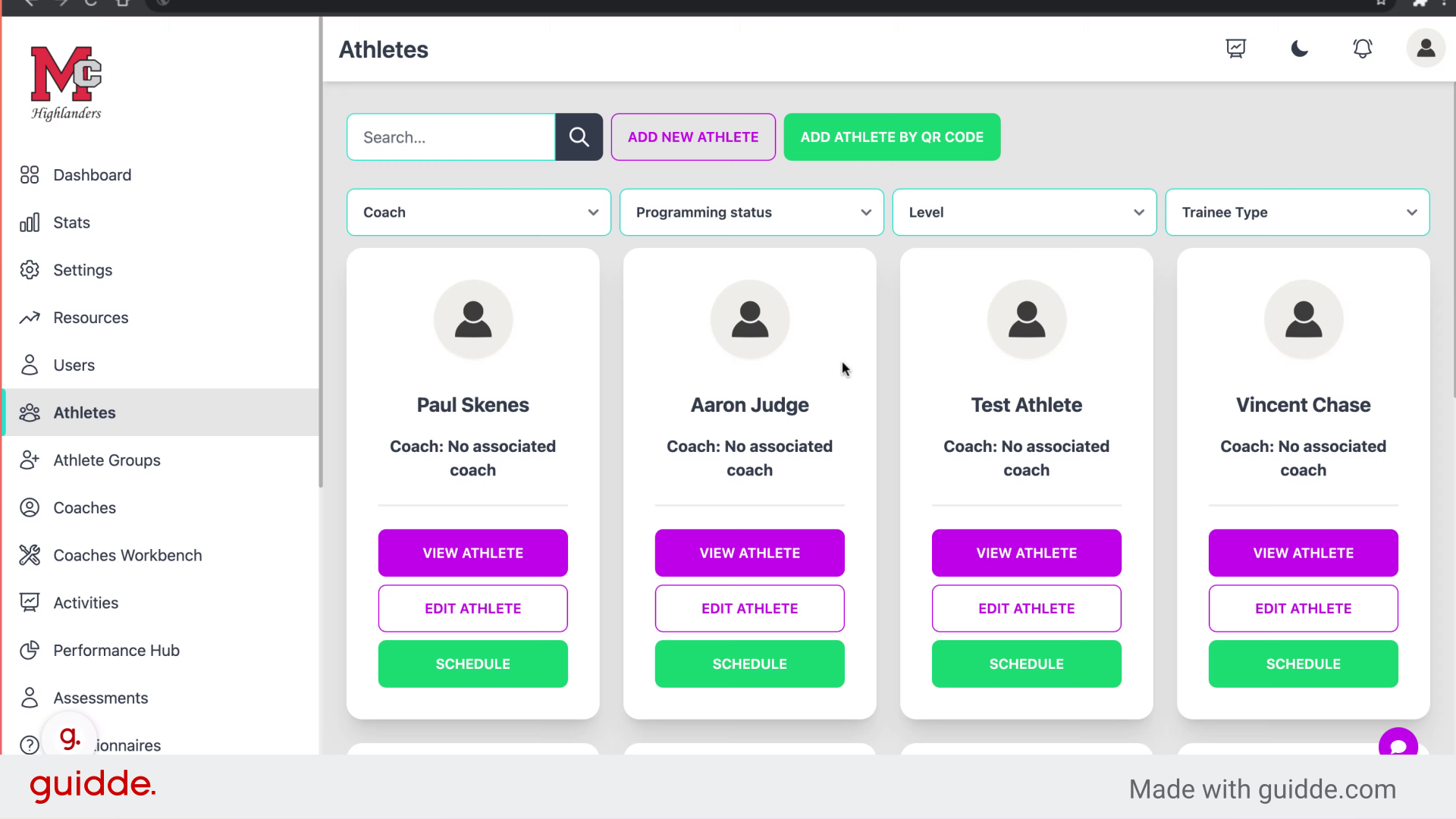
Access the athlete profile.
Step 3 — Click "Schedule"
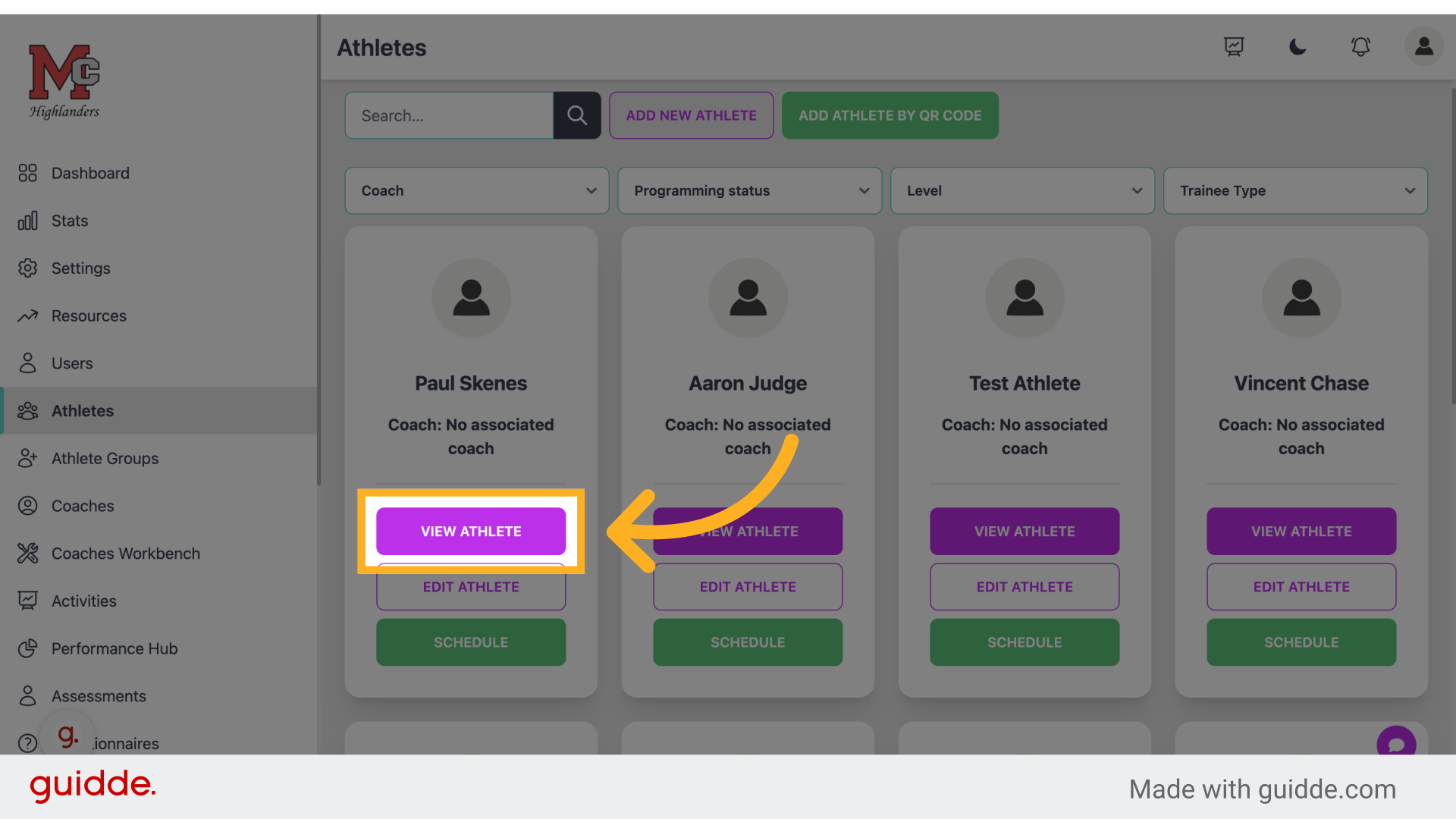
View the training schedule.
Step 4 — Click "Athletes"
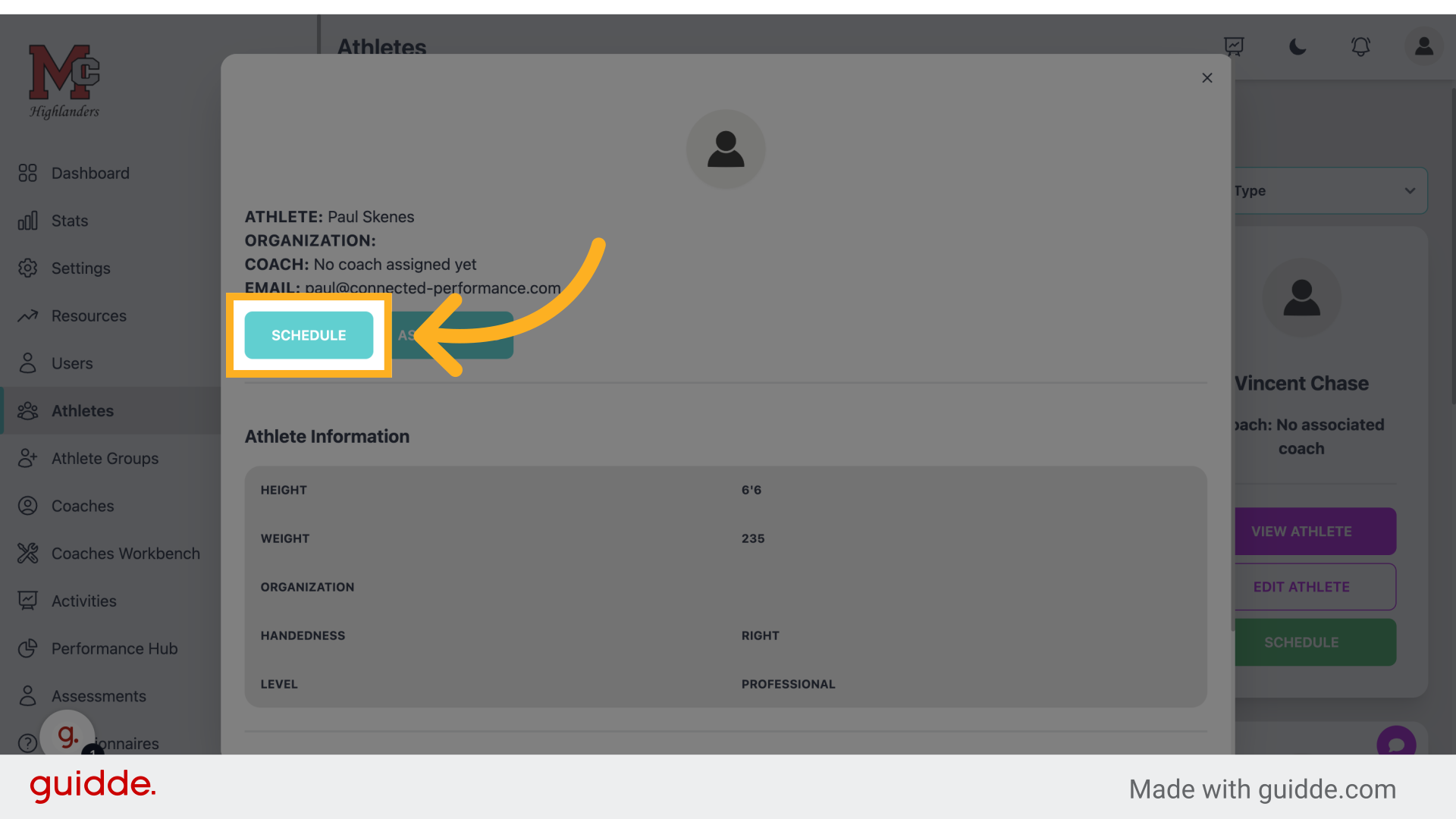
Navigate to the athletes section.
Step 5 — Click "View Athlete"
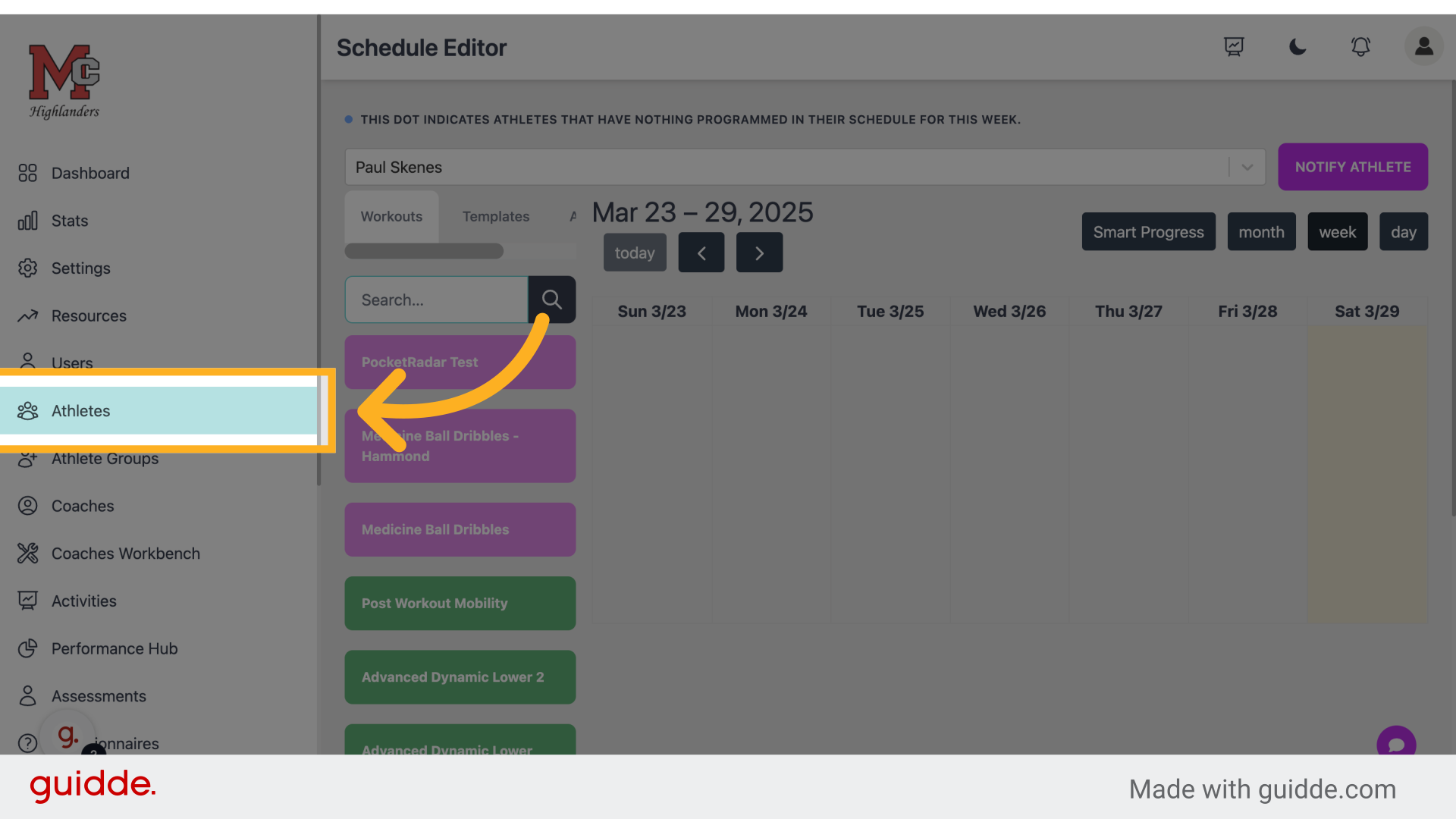
Access the athlete's profile.
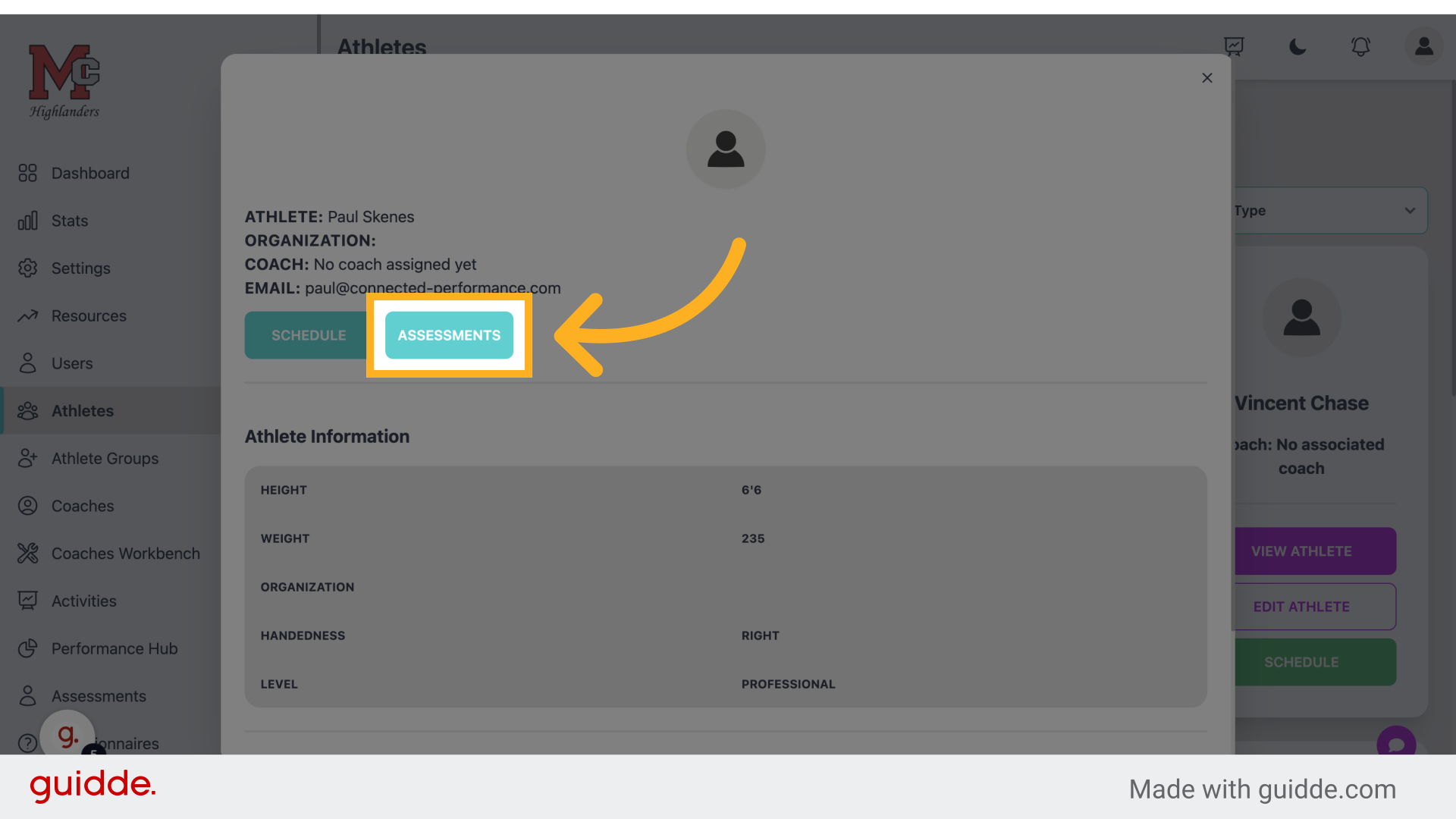
Step 6 — Click "Assessments"
View athlete assessments.
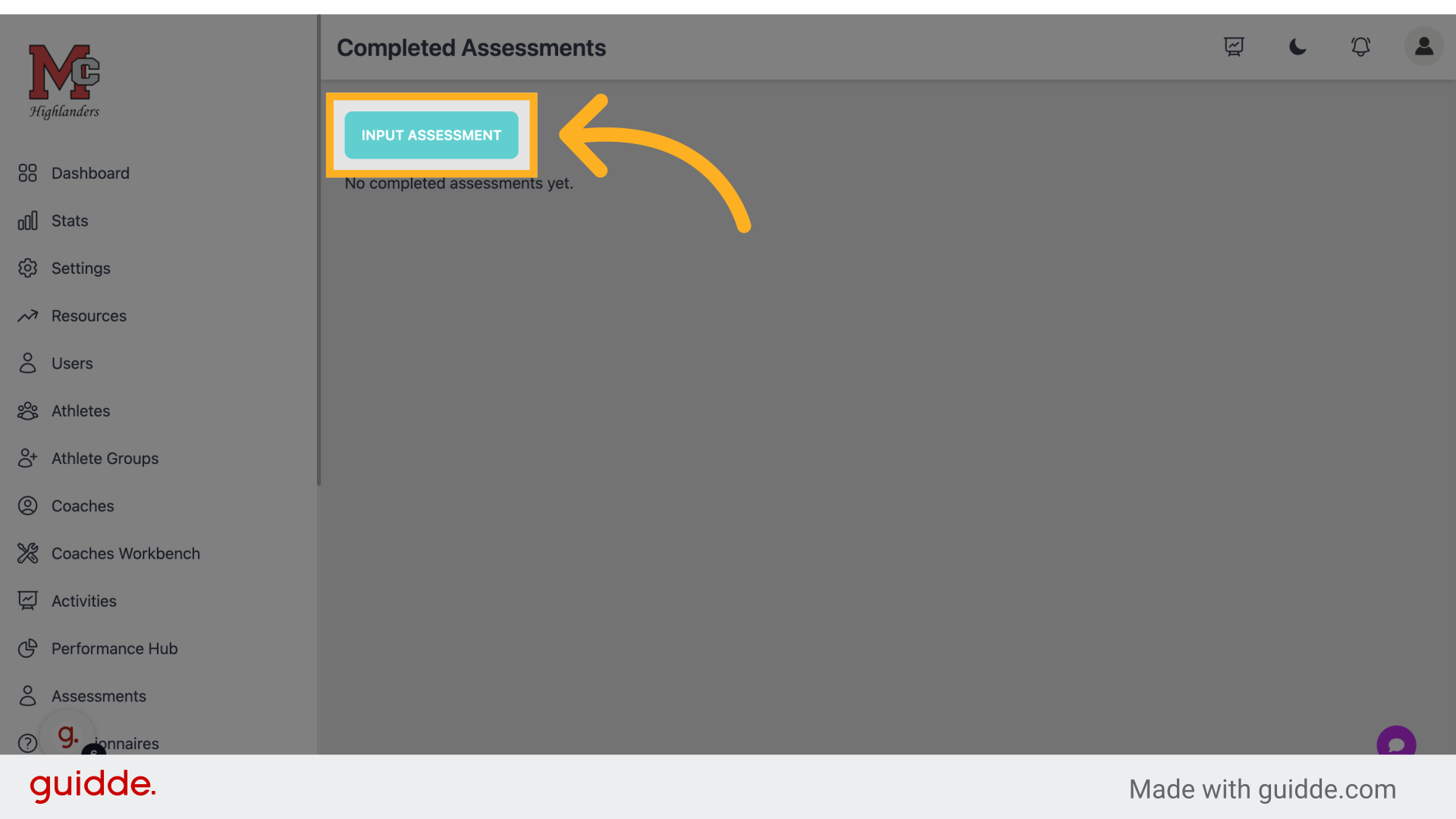
Step 7 — Click "Input Assessment"
Enter a new assessment.
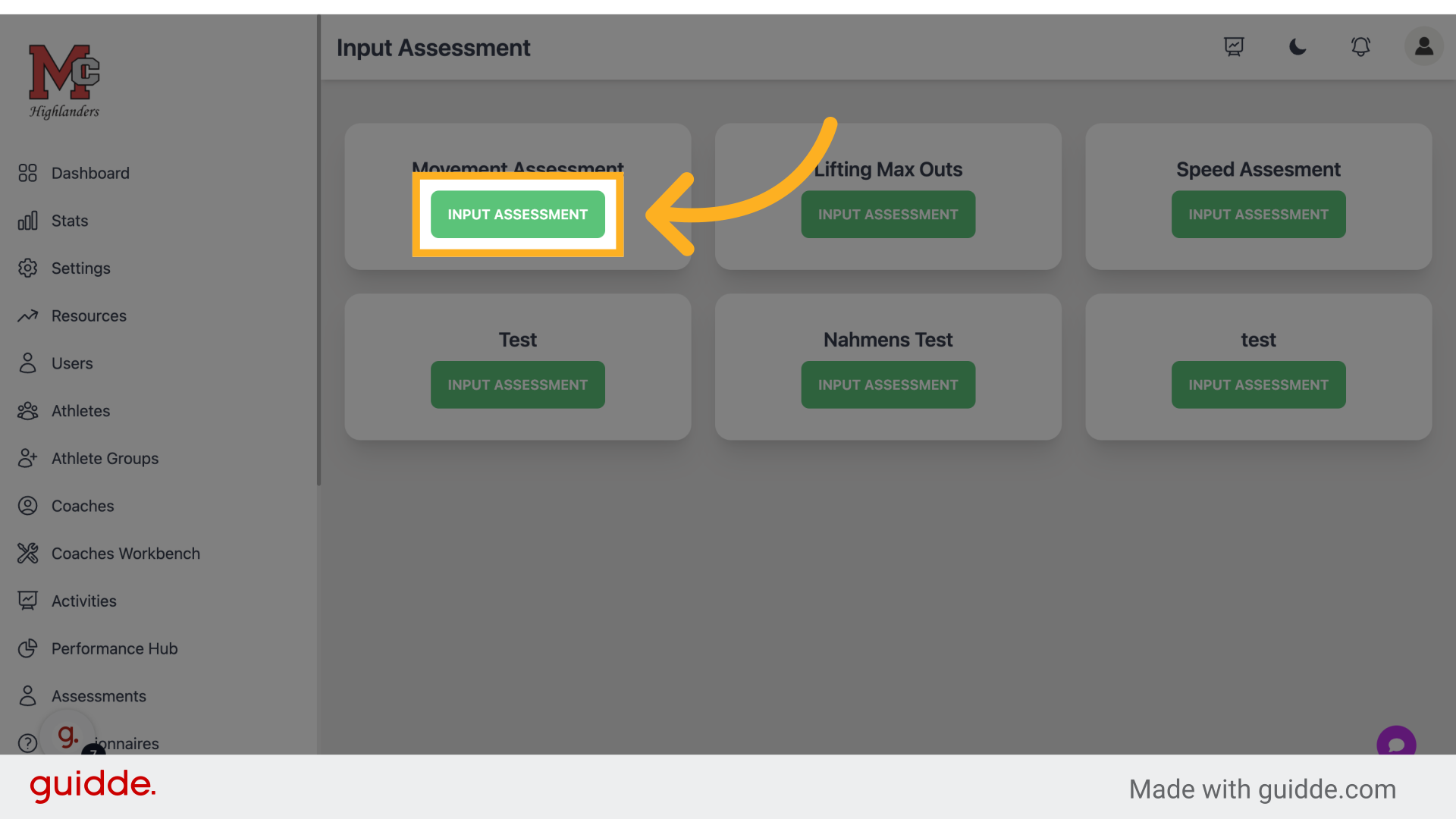
Step 8 — Click "Input Assessment"
Record another assessment.
Step 9 — Click "Athletes"
Return to the athletes' section.
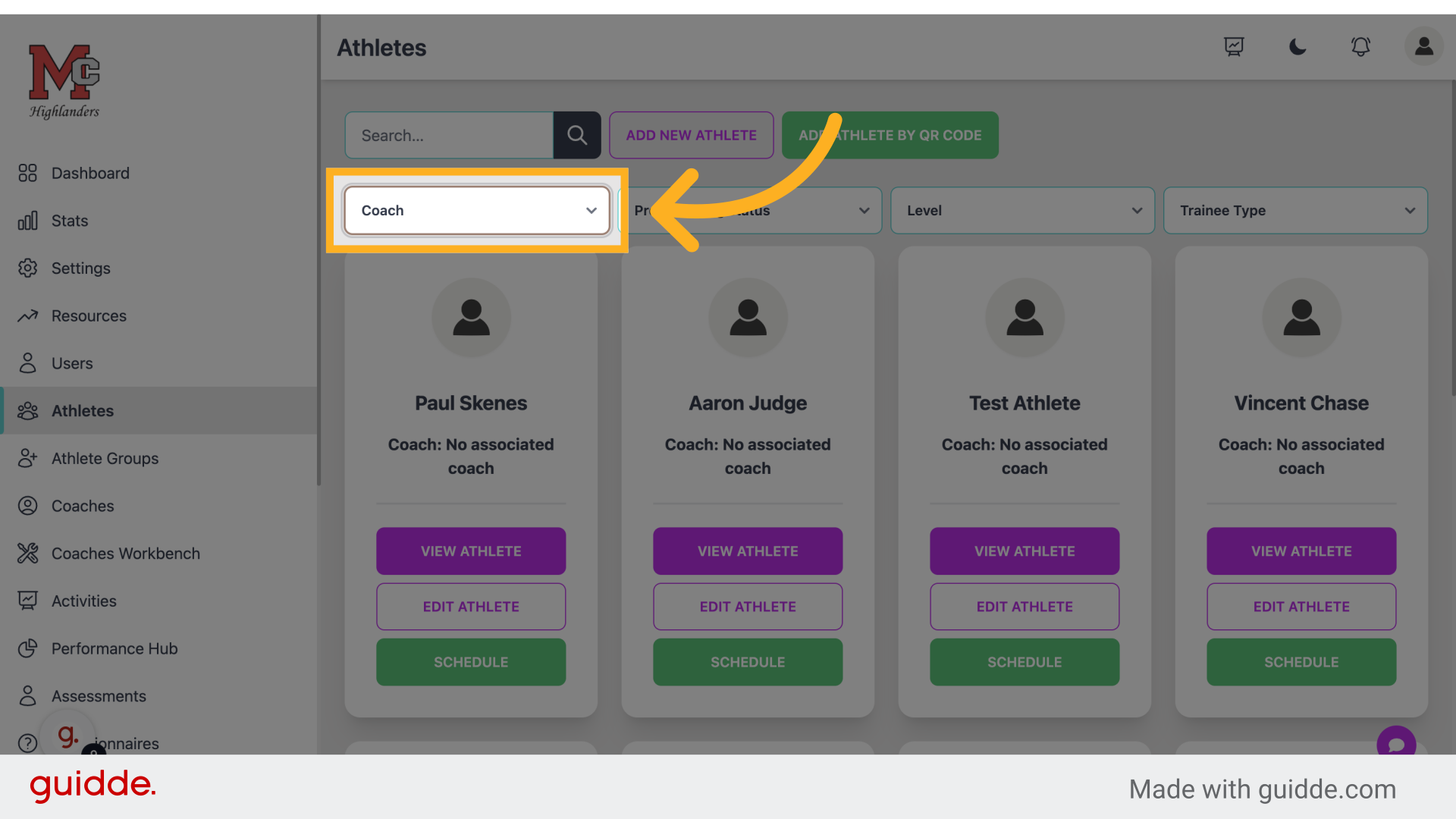
Step 10 — Choose A Coach
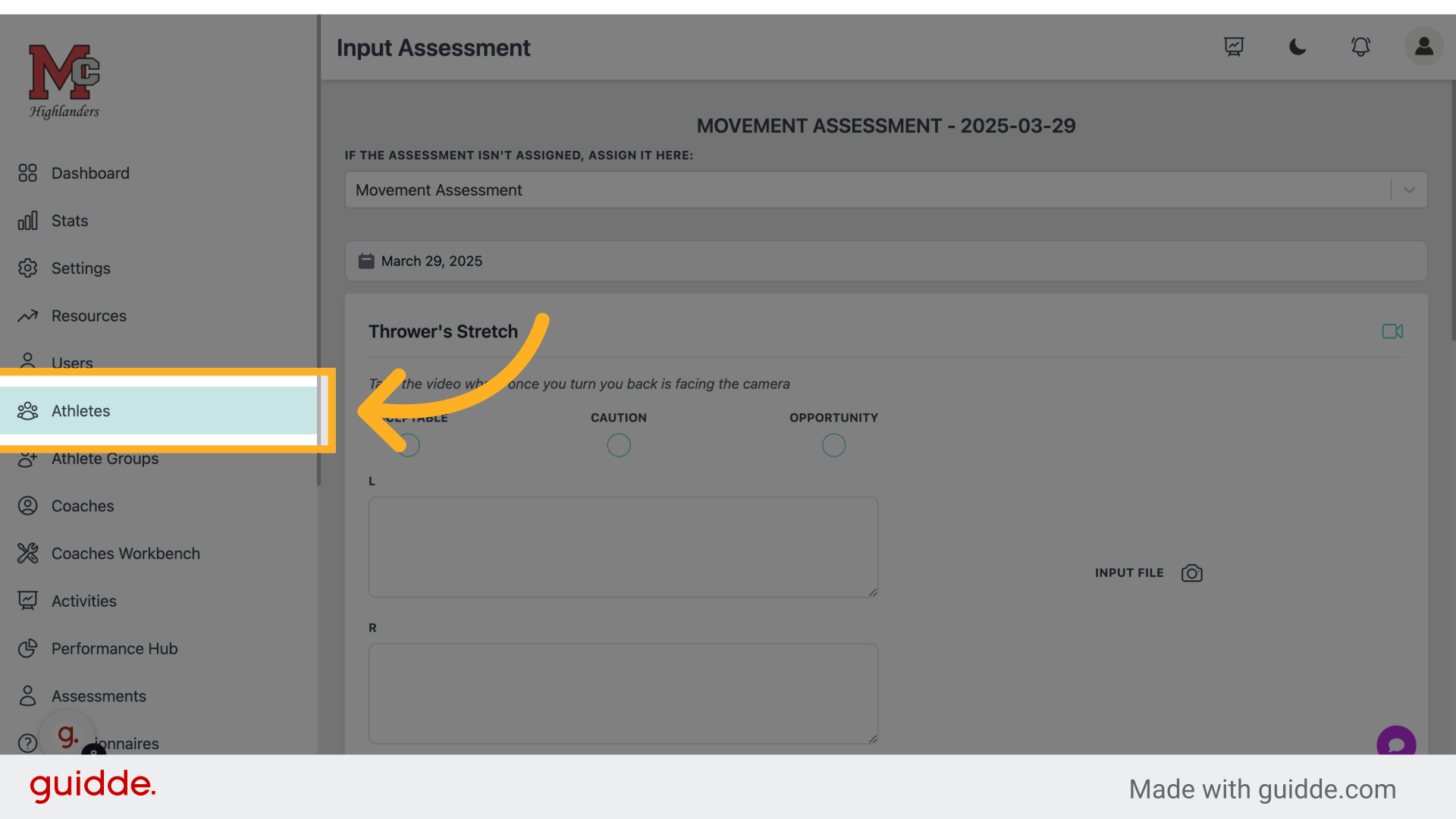
Filter athletes by coach.
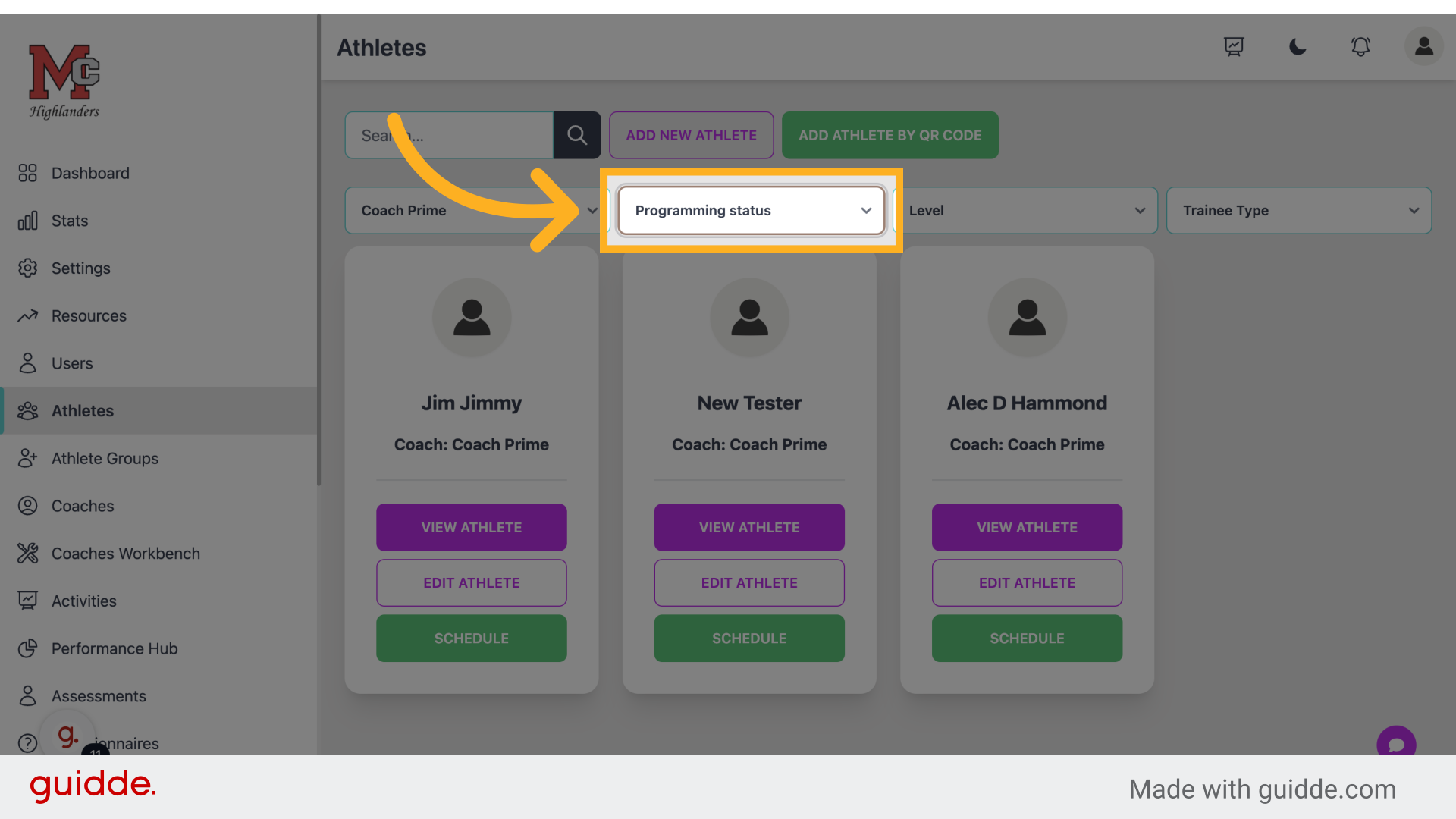
Step 11 — Click "Programming status"
Check the programming status.
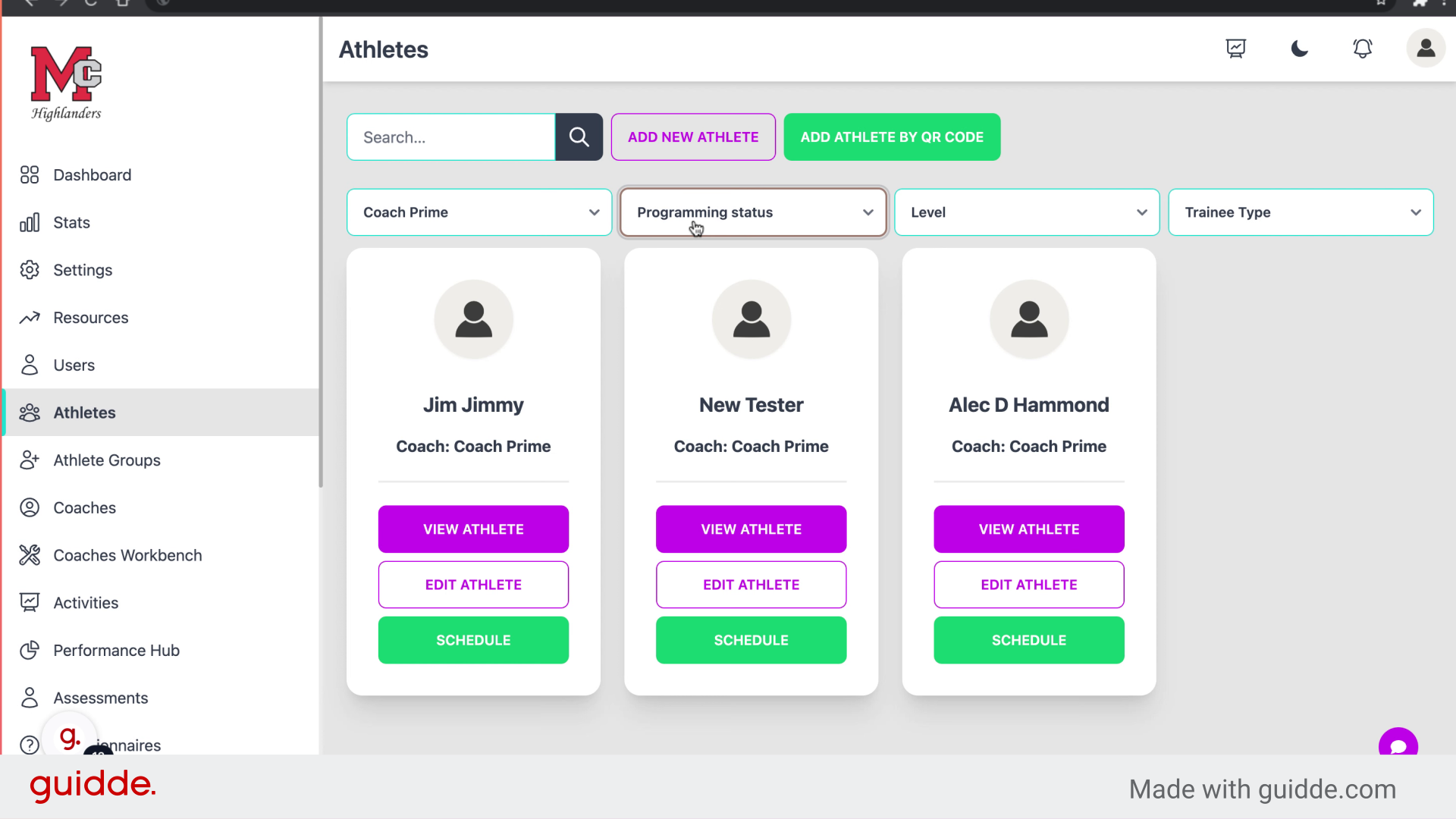
Step 12 — Fill "Programming status"
Enter the desired text.
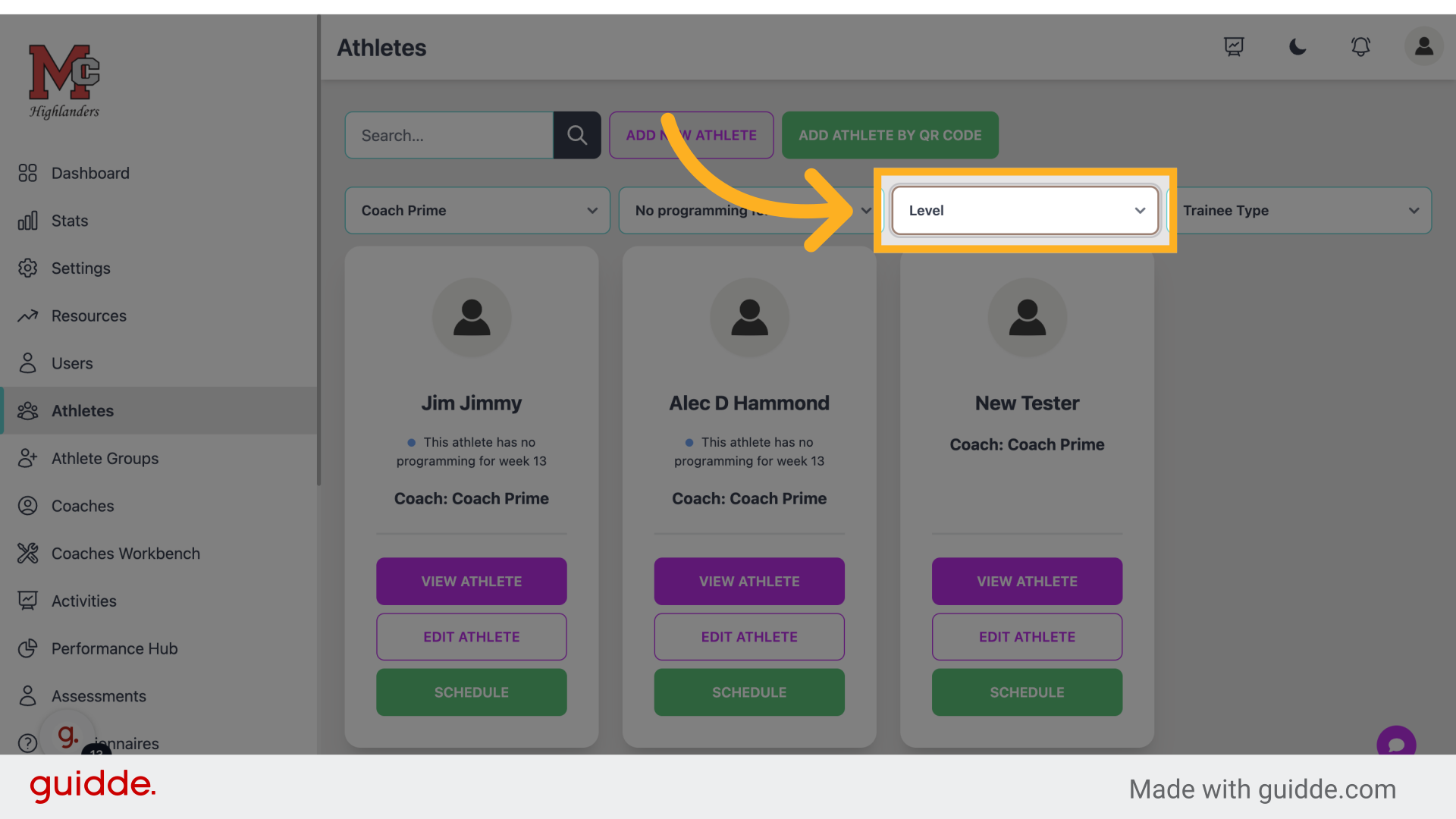
Step 13 — Click "Level"
Filter athletes by level.
Step 14 — Click "Trainee Type"
Filter athletes by training type.
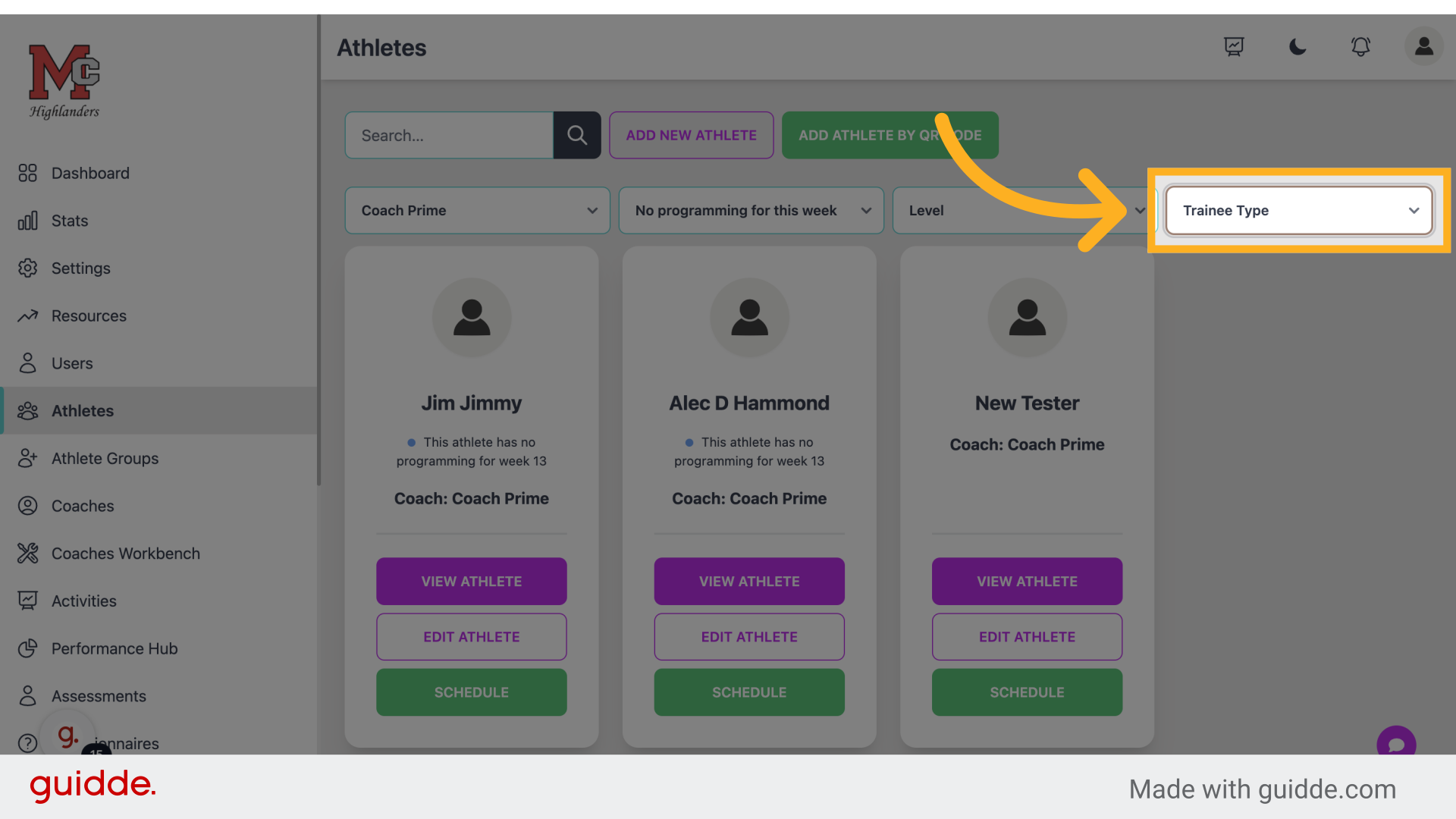 The guide covered accessing athlete profiles, viewing schedules, inputting assessments, and filtering athletes by coach, level, and training type in the Connected-performance application. Master athlete management with these steps.
Referenced by
- 'Athlete Custom Fields & Info Requests'user management
- 'Athlete Profile'user management
- 'Chat'communication
- 'Coaches Workbench'scheduling
- 'Creating & Managing Questionnaires'assessments questionnaires
- 'Forms'payments
- 'Kisi Door Access'integrations
- 'Parents & Guardians'user management
- 'Resources'communication
- 'Schedule Editor'scheduling
- 'Training Activities & Levels'facility
- 'Understanding Your Dashboard (Coaches)'getting started
- 'User Roles & Permissions'user management