 Connected Performance
How To Bulk Schedule Athlete Groups
This guide will walk you through bulk programming groups in the Connected-performance application
How To Bulk Program Groups
This guide will walk you through bulk programming groups in the Connected-performance application
From accessing athlete groups to propagating schedules, follow the detailed steps below to efficiently manage group programming tasks.
Step 2 — Click "Athlete Groups"
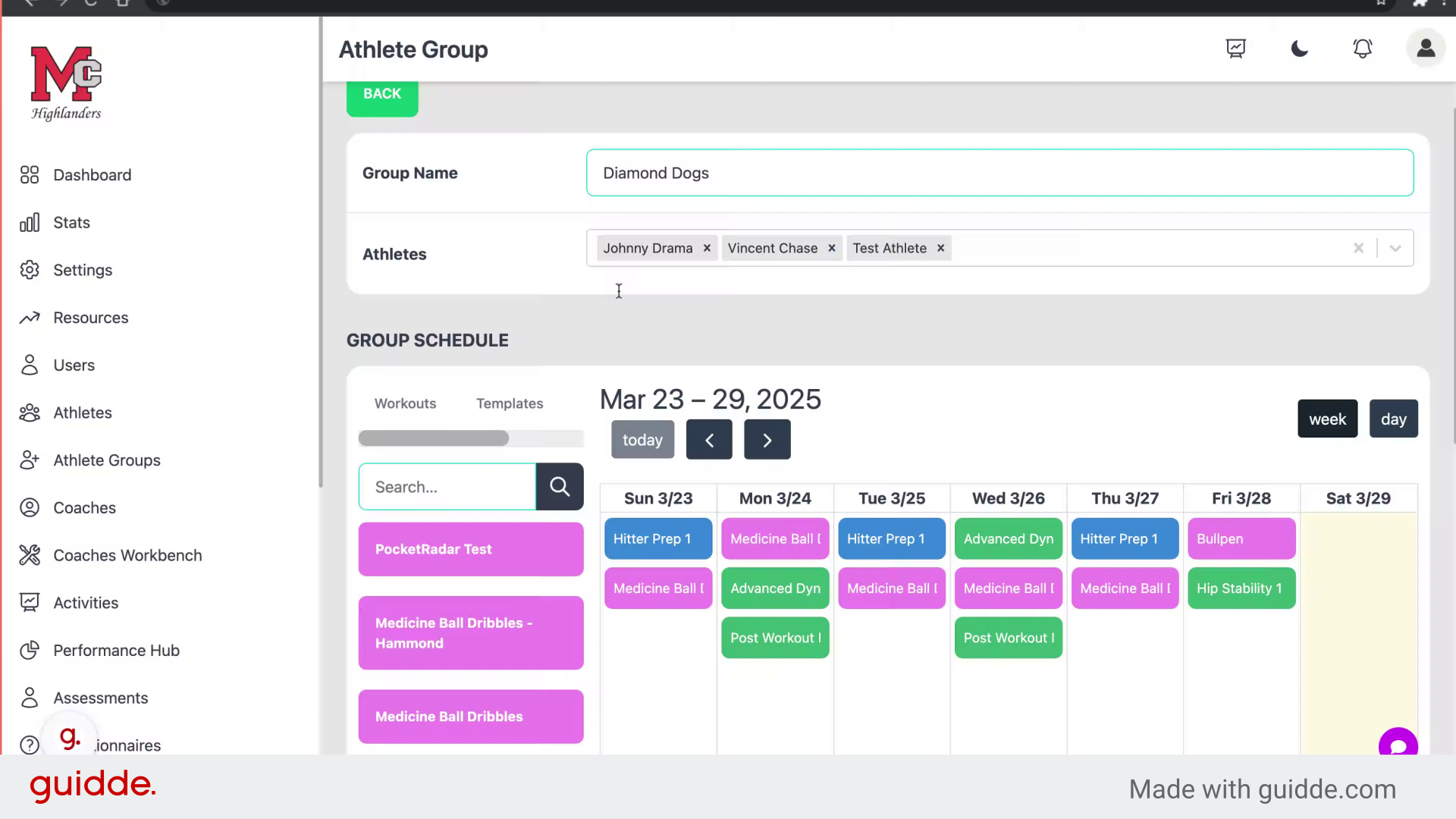
Access the Athlete Groups section.
Step 3 — Click "Edit Group"
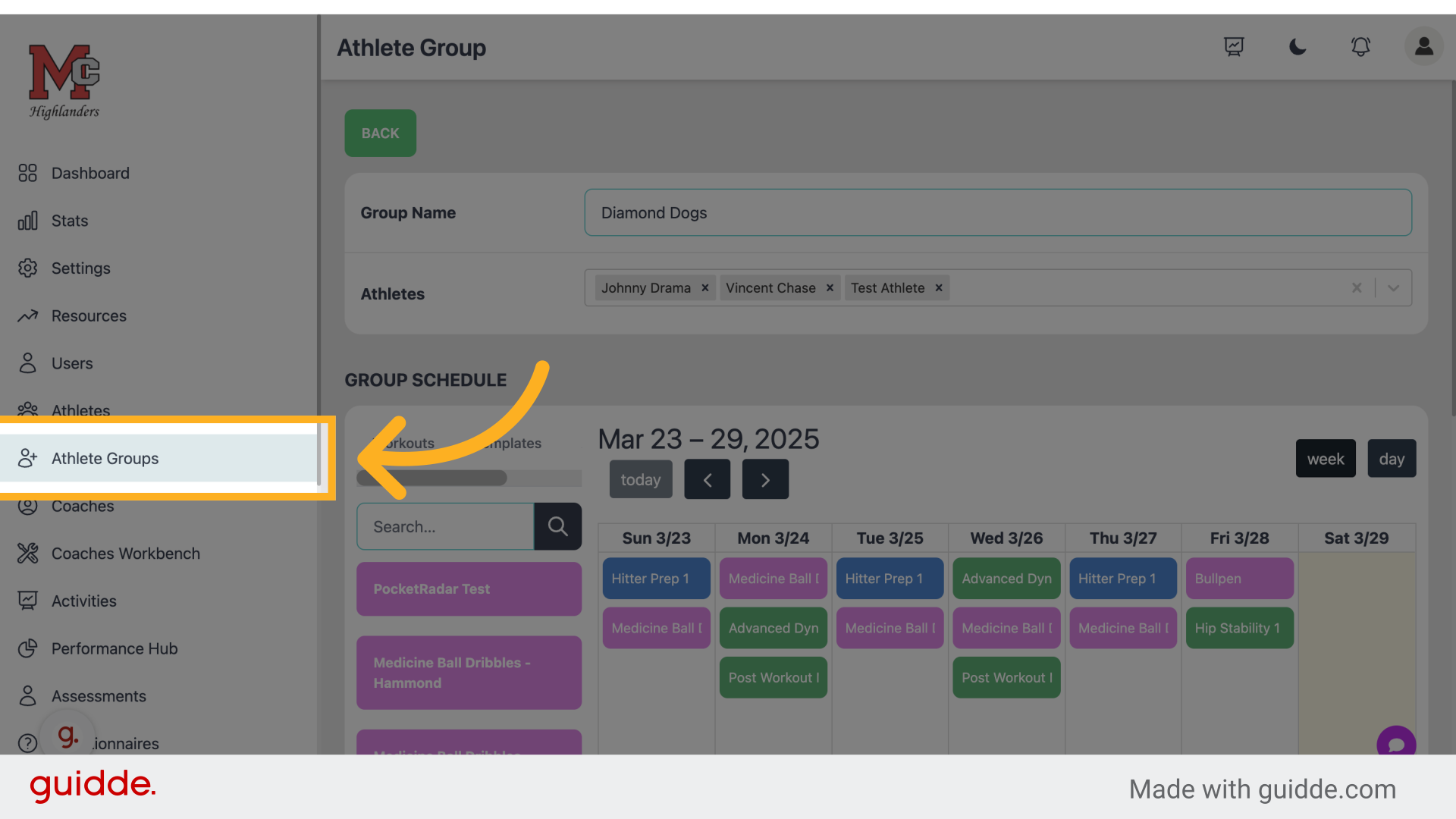
Select the group you want to edit.
Step 4 — Drag a workout
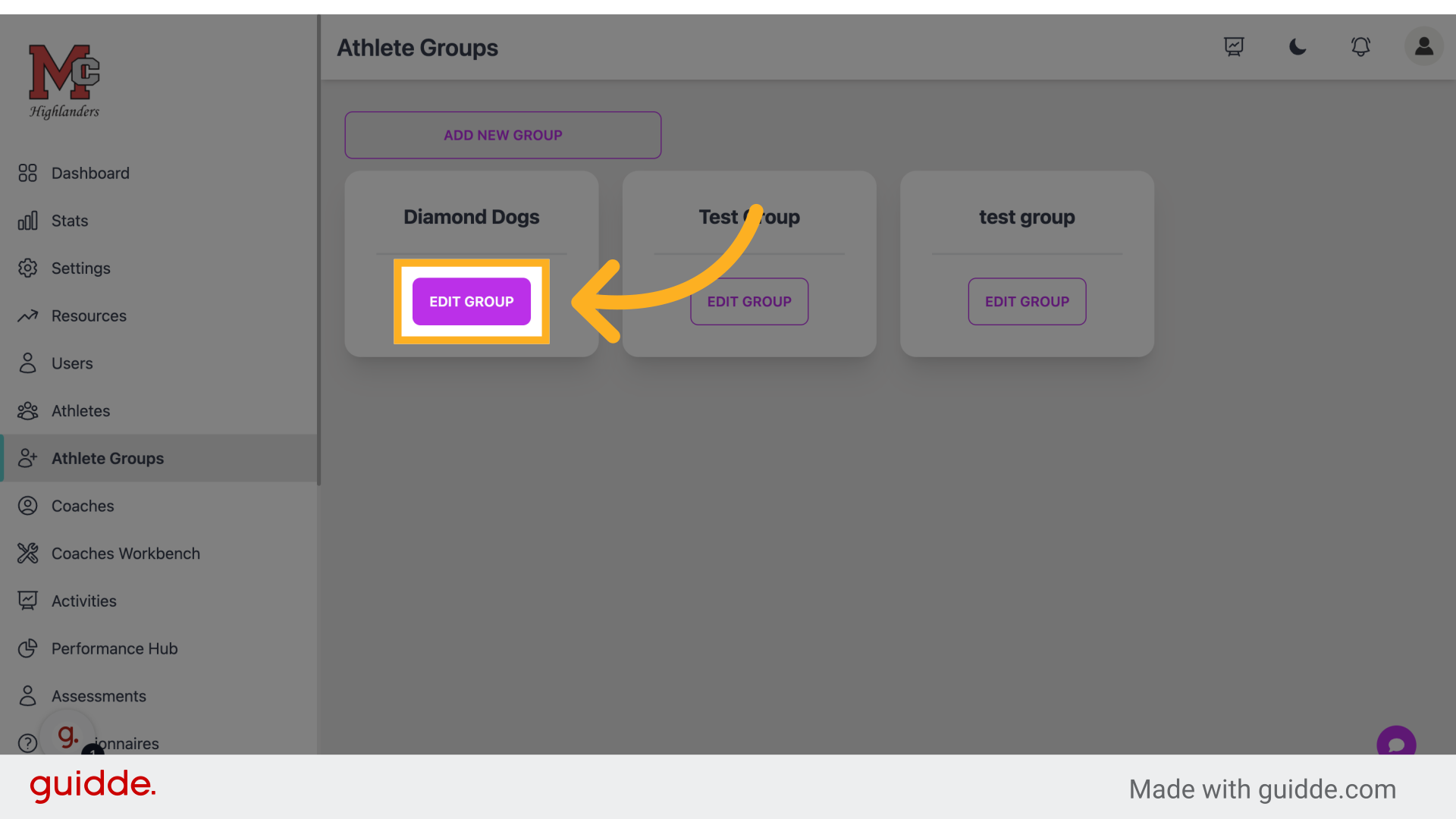
Choose the workout you'd like to program.
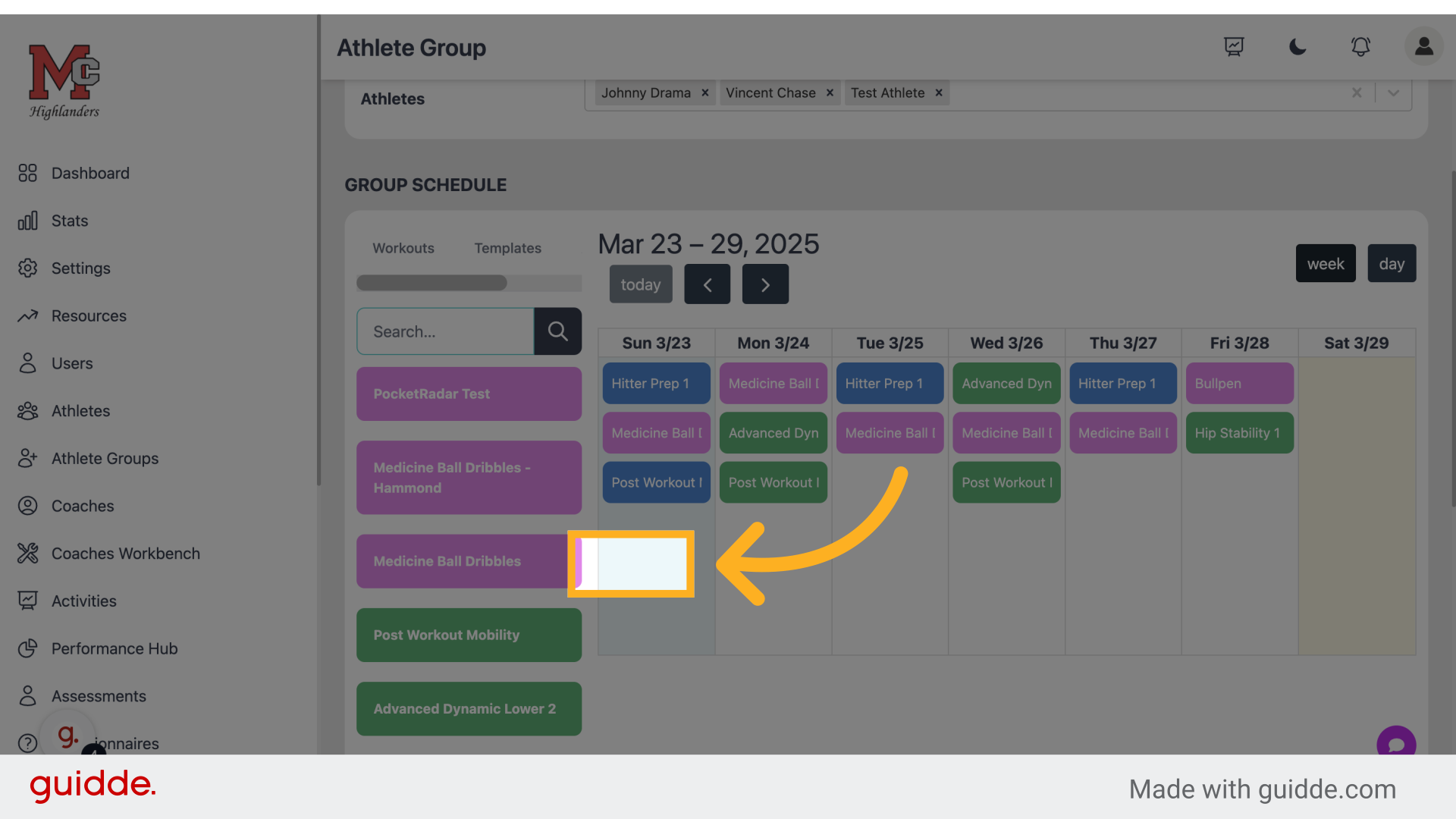
Step 5 — Double click the white space on any day
Navigate to the designated location on any day you'd like to copy, paste, or delete.
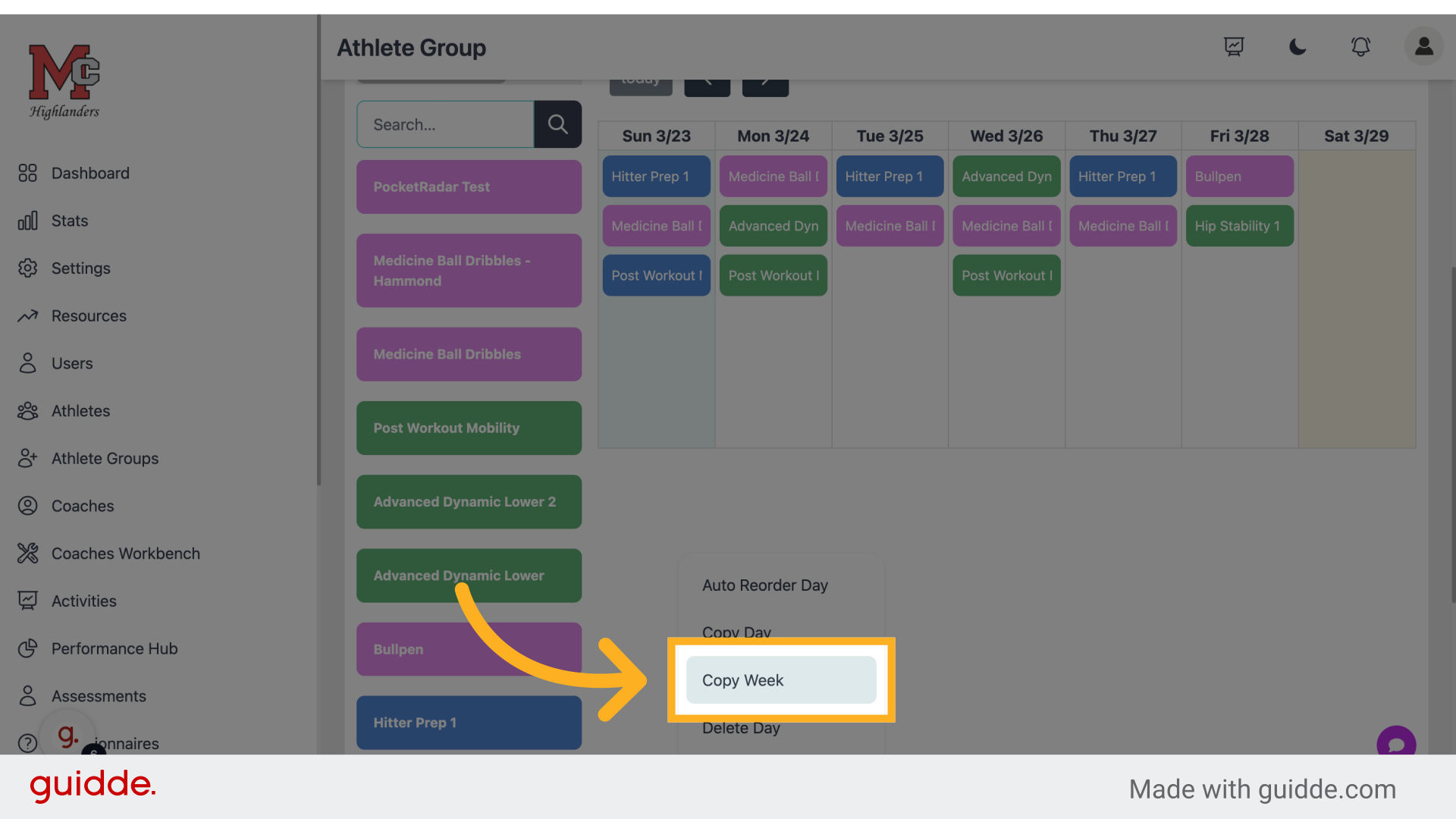
Step 6 — Click "Copy Week"
Duplicate the current week's schedule.
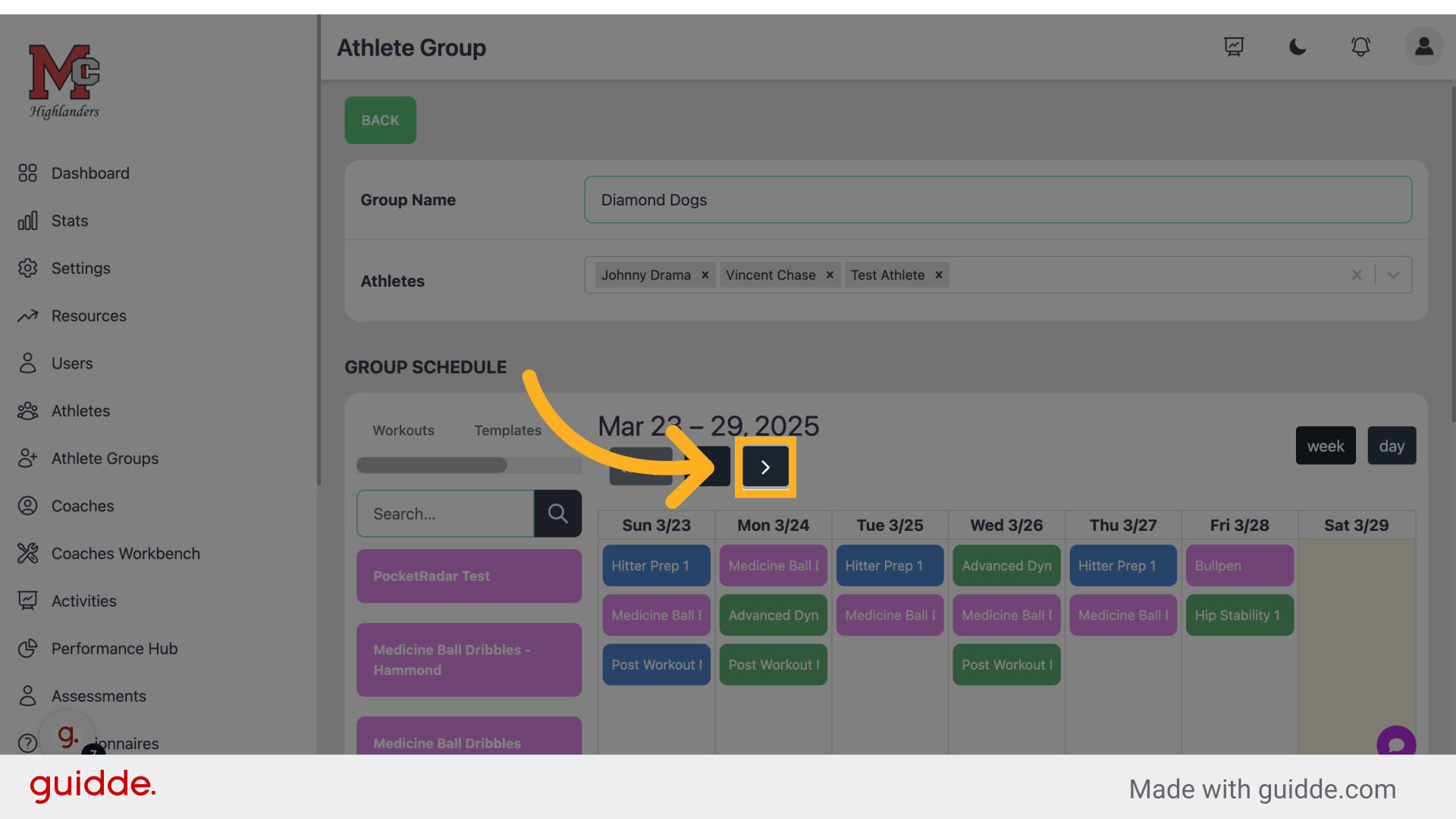
Step 7 — Toggle To The Next Week
Go to the specified location.
Step 8 — Click here
Access the designated area.
Step 9 — Click The Blank Space To Add a Workout
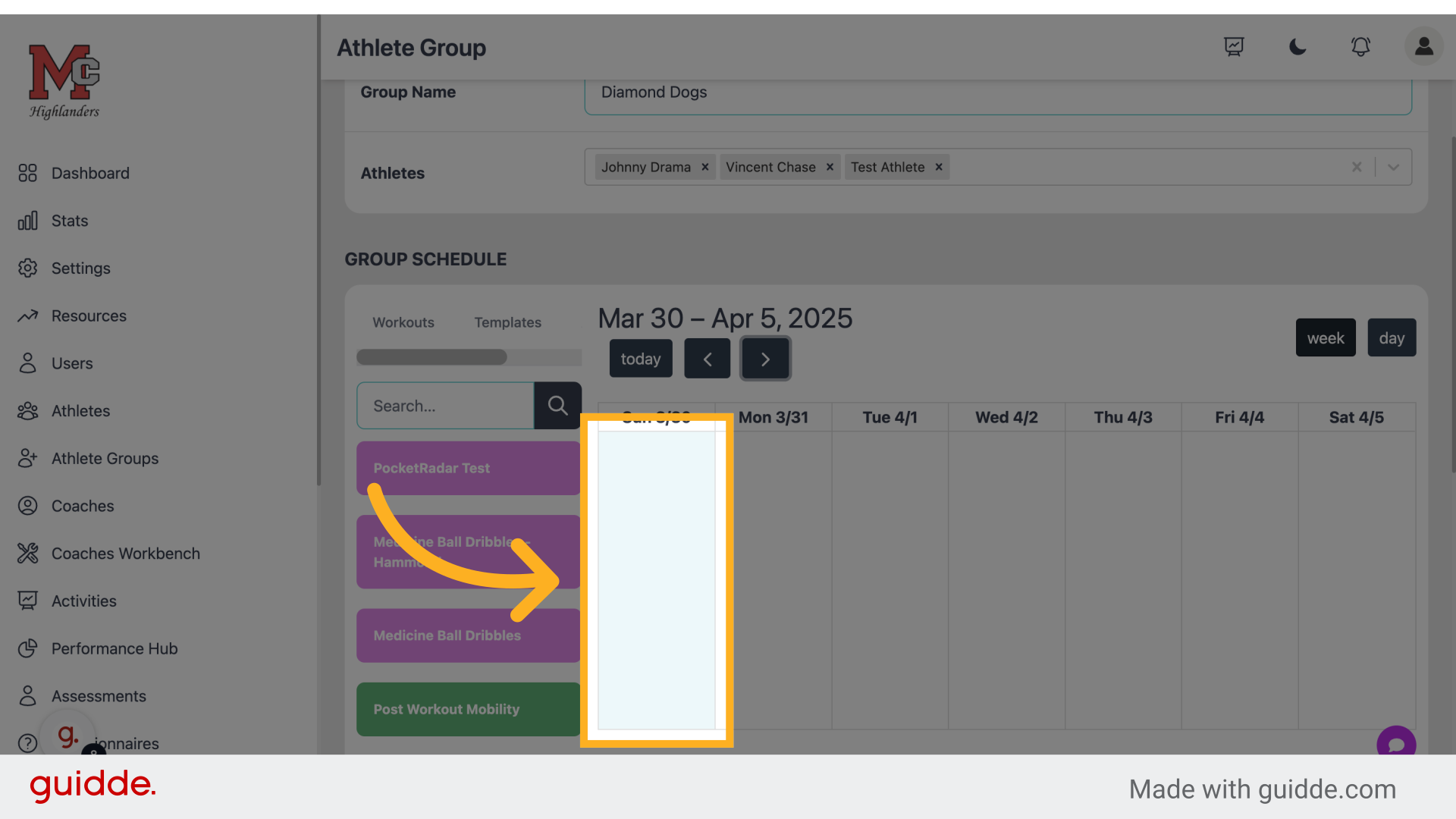
Navigate to the designated location.
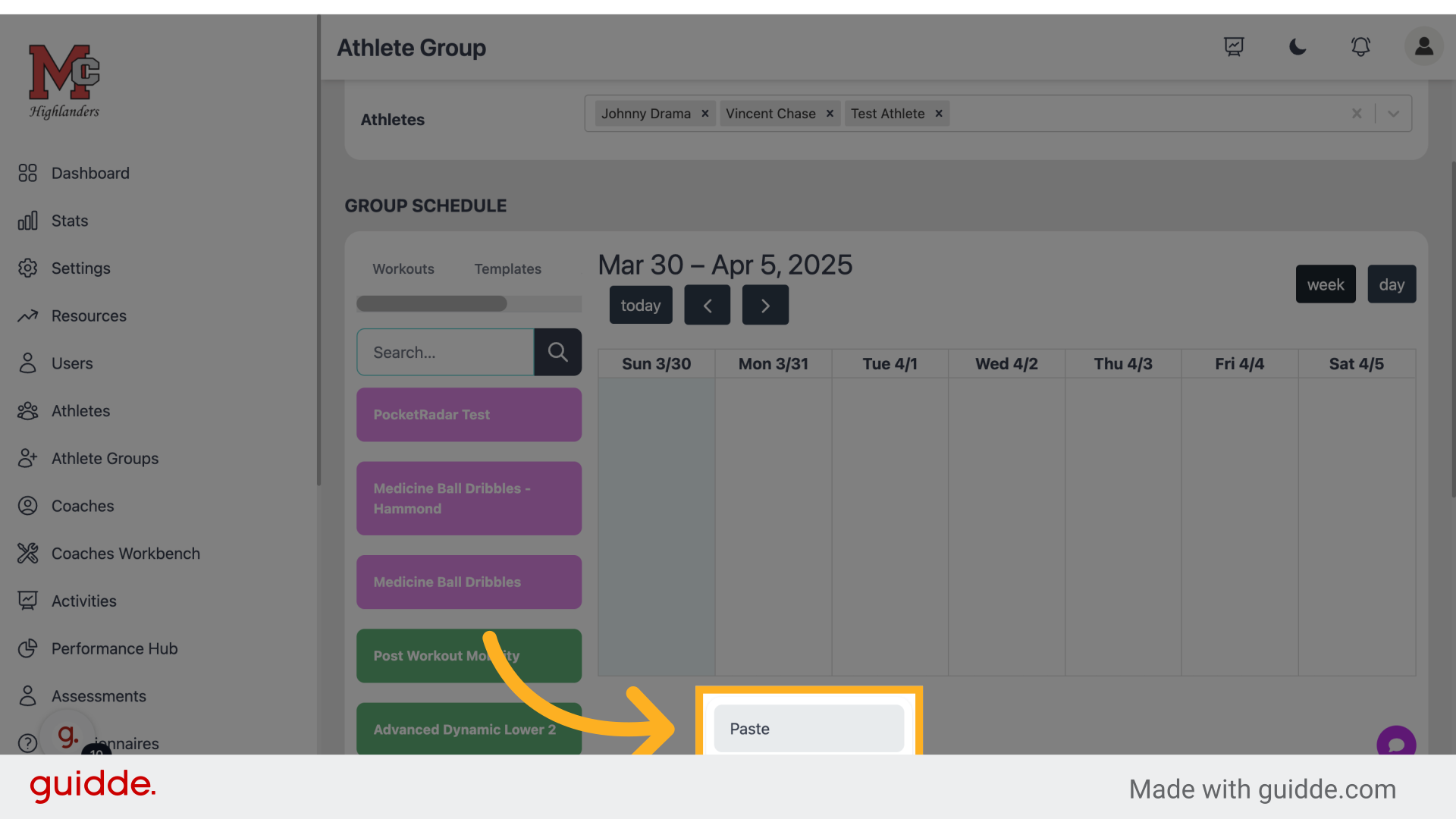
Step 10 — Click "Paste"
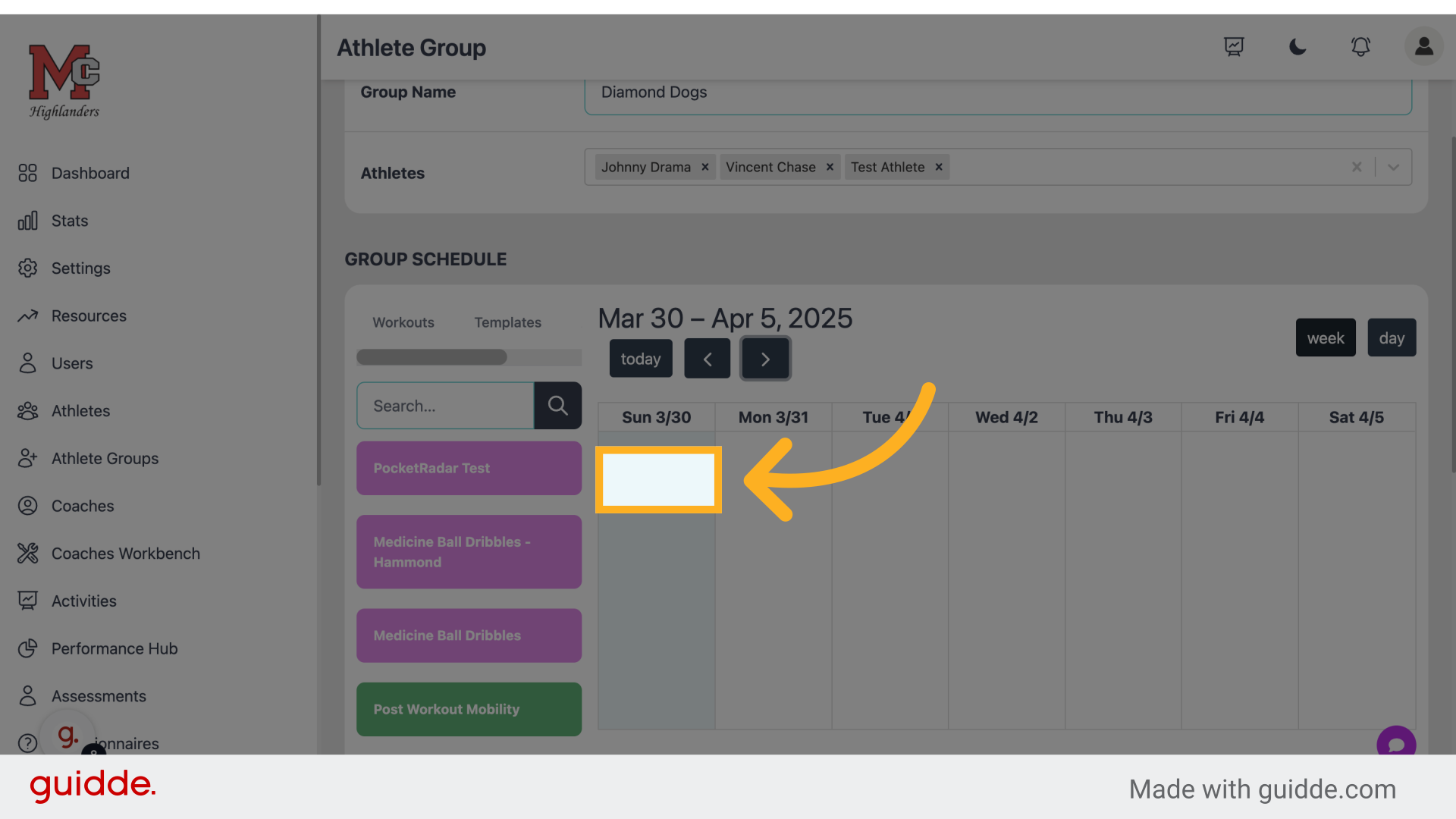
Paste the copied schedule.
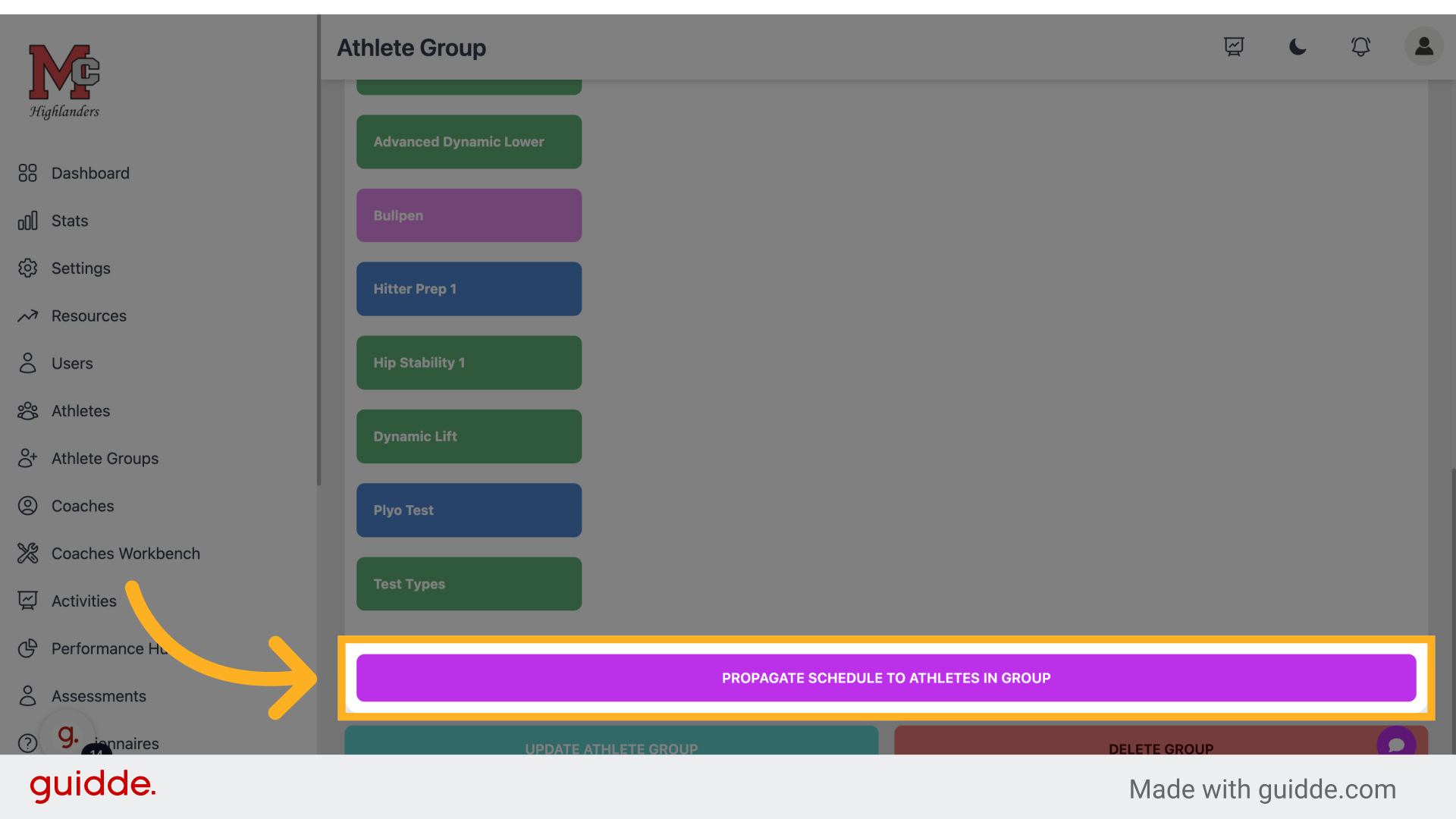
Step 11 — Click "Propagate schedule to athletes in group"
Apply the schedule changes to all athletes in the group.
 This guide covered a range of actions in the Connected-performance app, from editing groups and workout options to duplicating schedules and propagating changes to athletes. By following these steps, you can effectively handle bulk programming tasks for employee training.
Referenced by
- 'Schedule Editor'scheduling