 Connected Performance
Link Your Resources
In the realm of employee training, efficiently managing resources is key
In the realm of employee training, efficiently managing resources is key
This guide will walk you through the steps needed to link resources on Connected-performance, ensuring a seamless and organized training experience.
Step 2 — Click "Add new Resource"
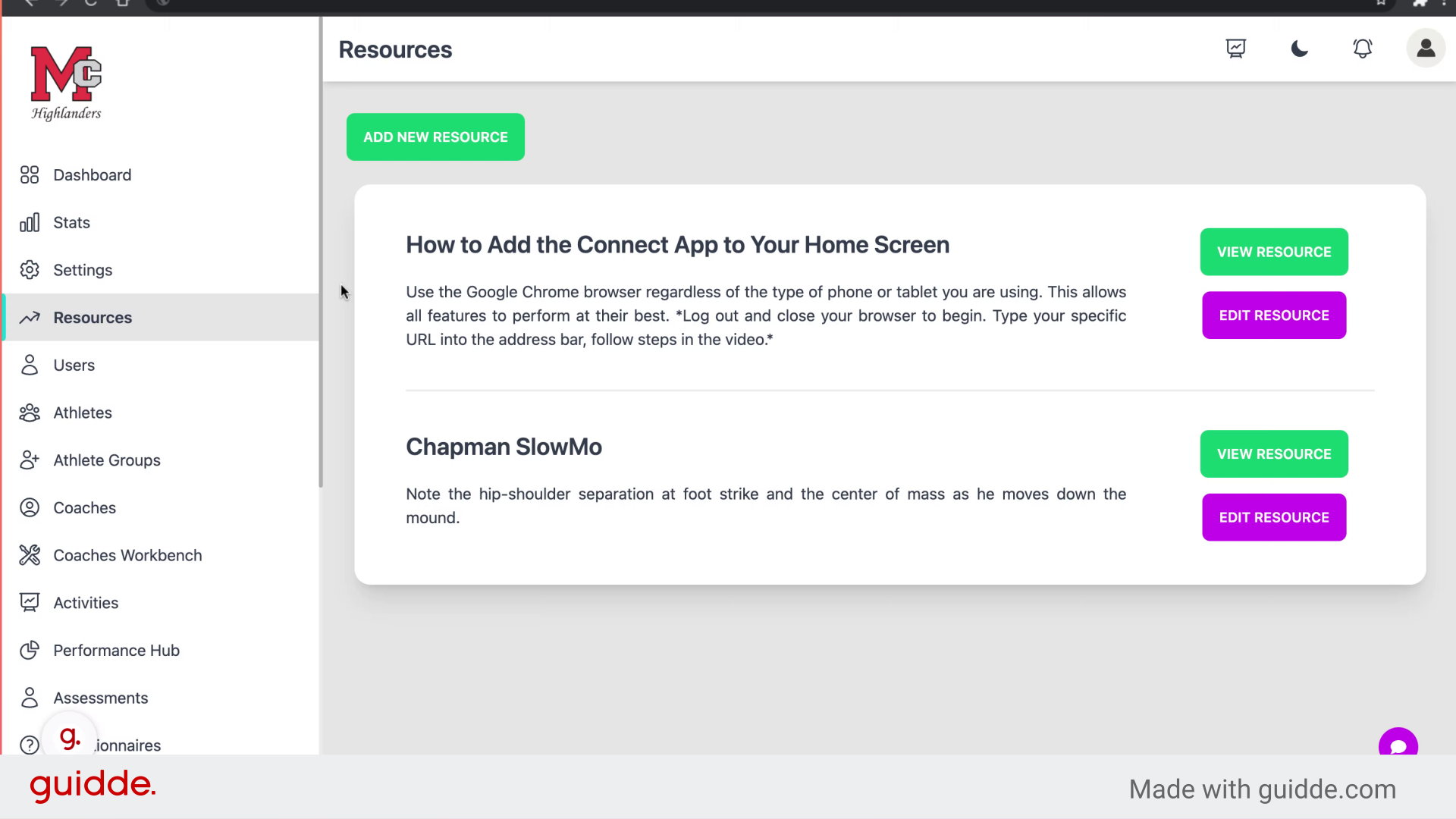
Add a new resource by clicking the designated button.
Step 3 — Click here
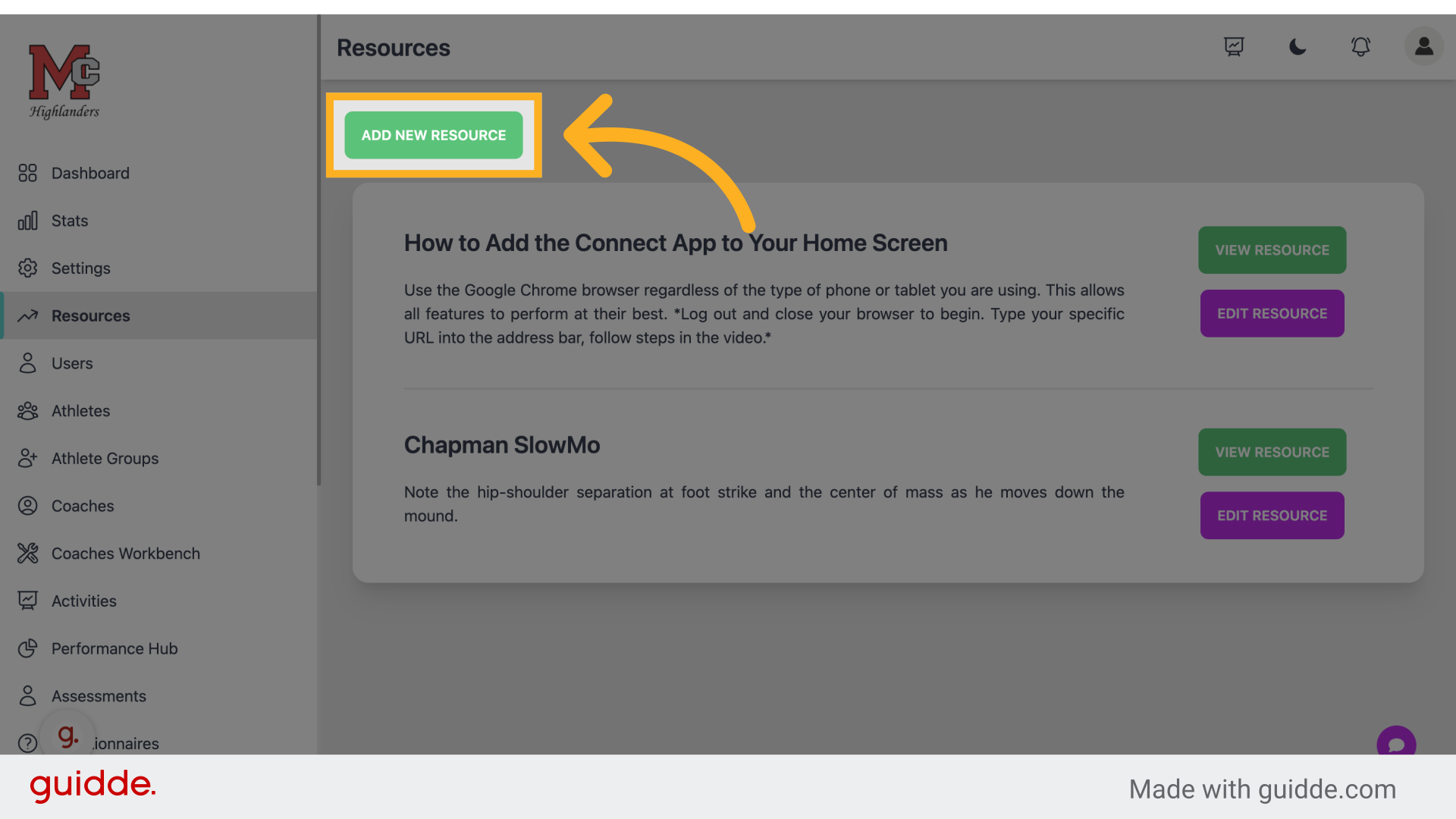
Navigate to the specified section by clicking on the link provided.
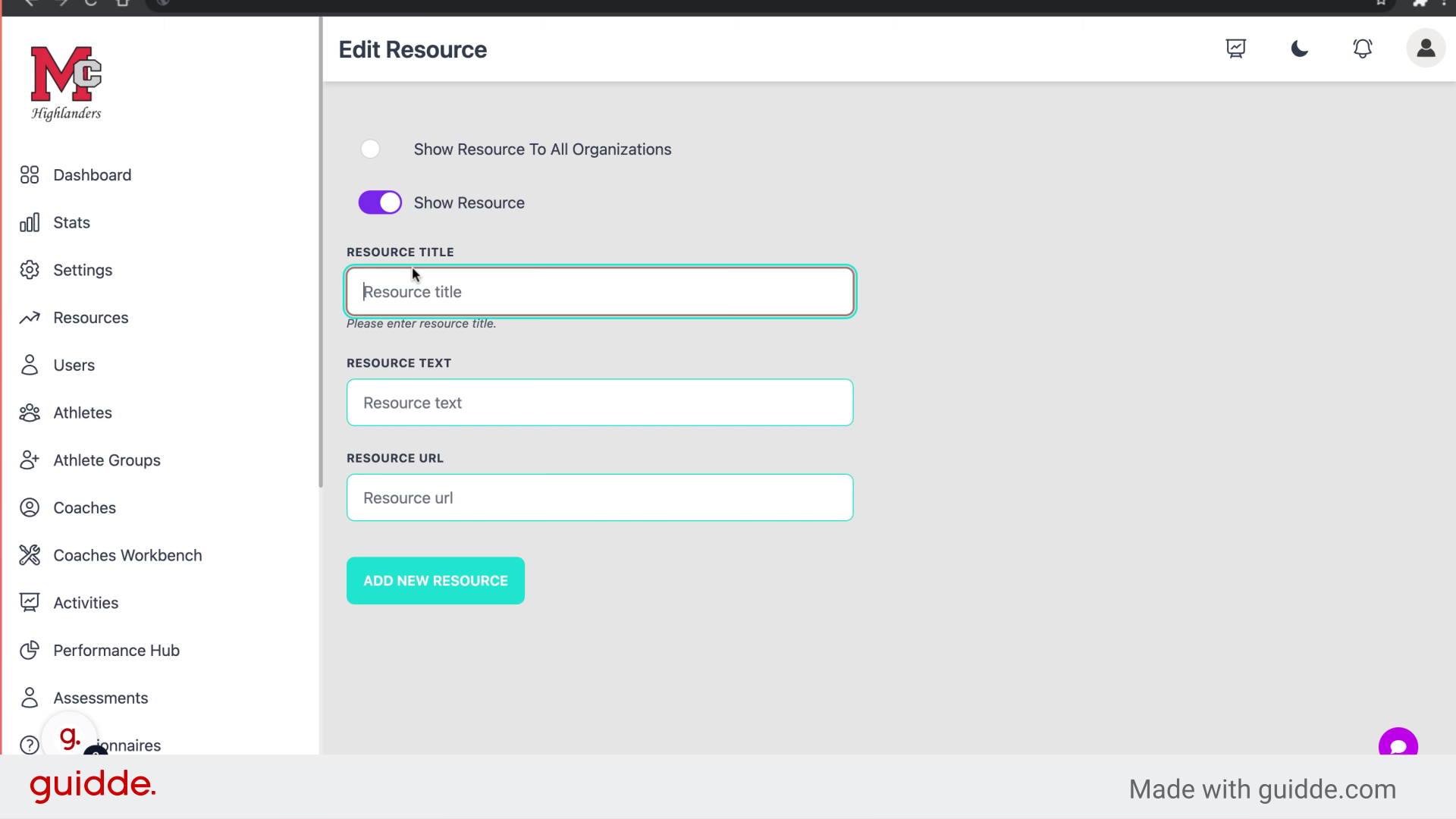
Step 4 — Click "Resource title"
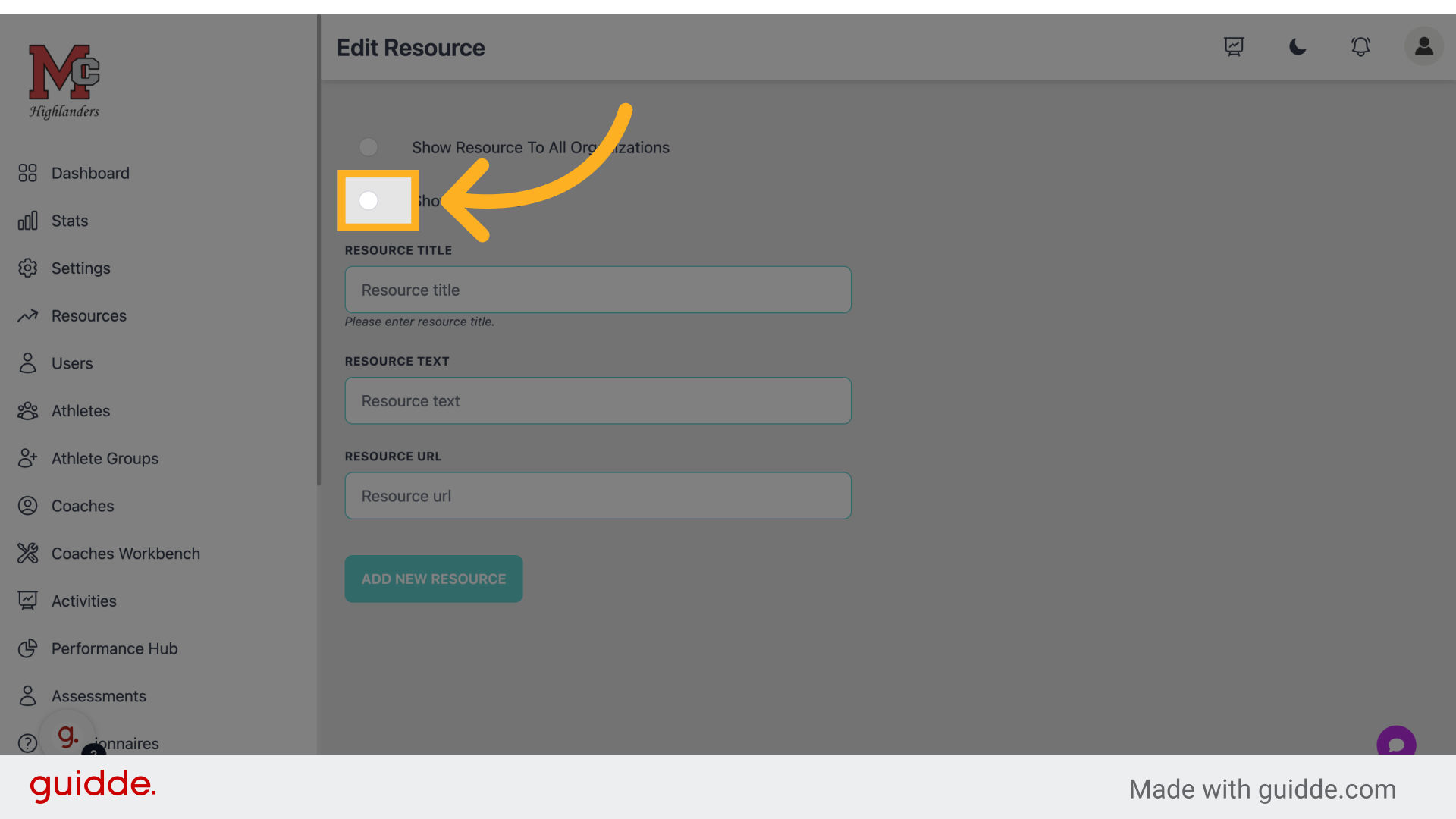
Select the resource title field to input relevant information.
Step 5 — Fill "How to access the app"
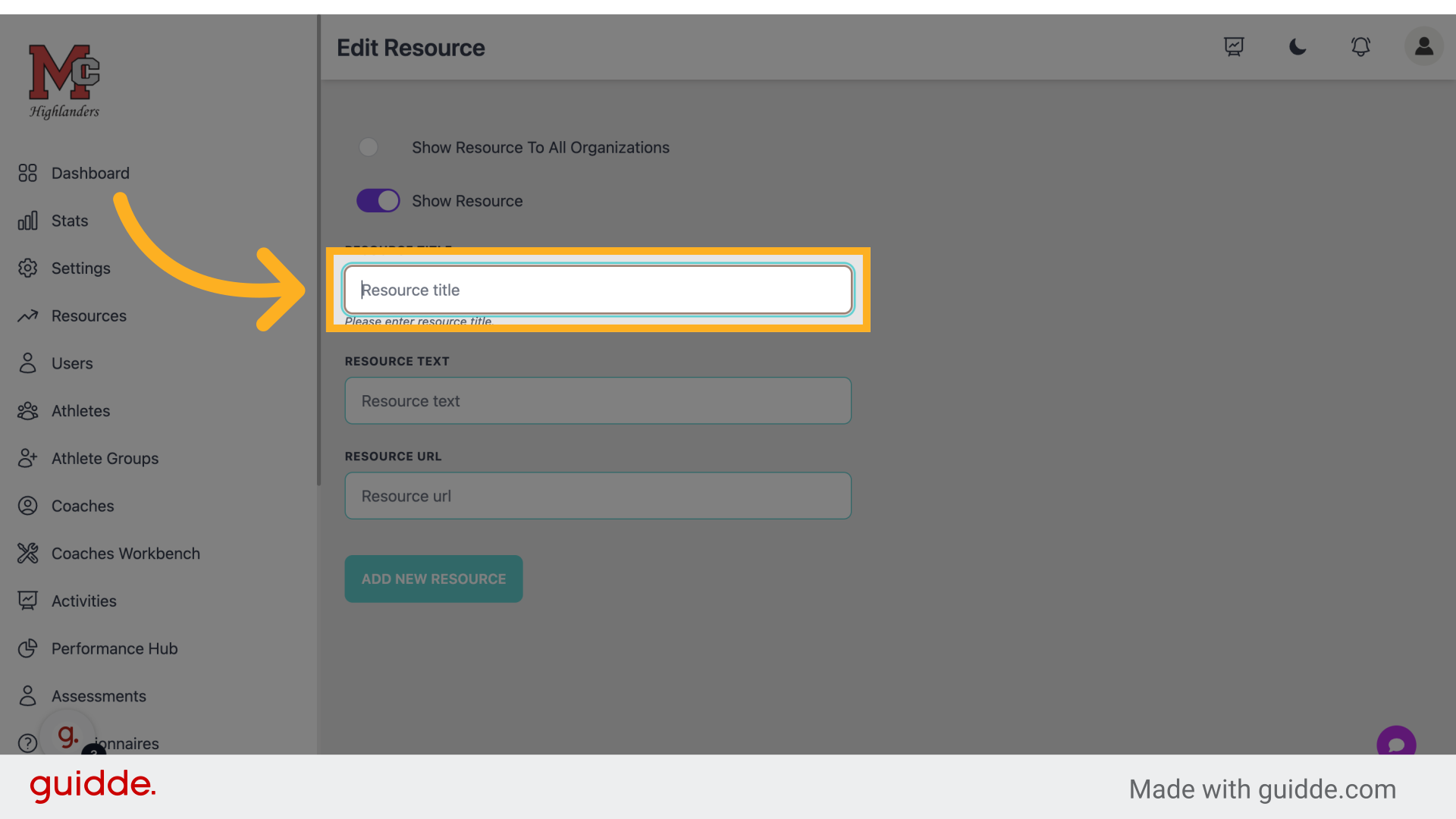
Fill in "How to access the app"
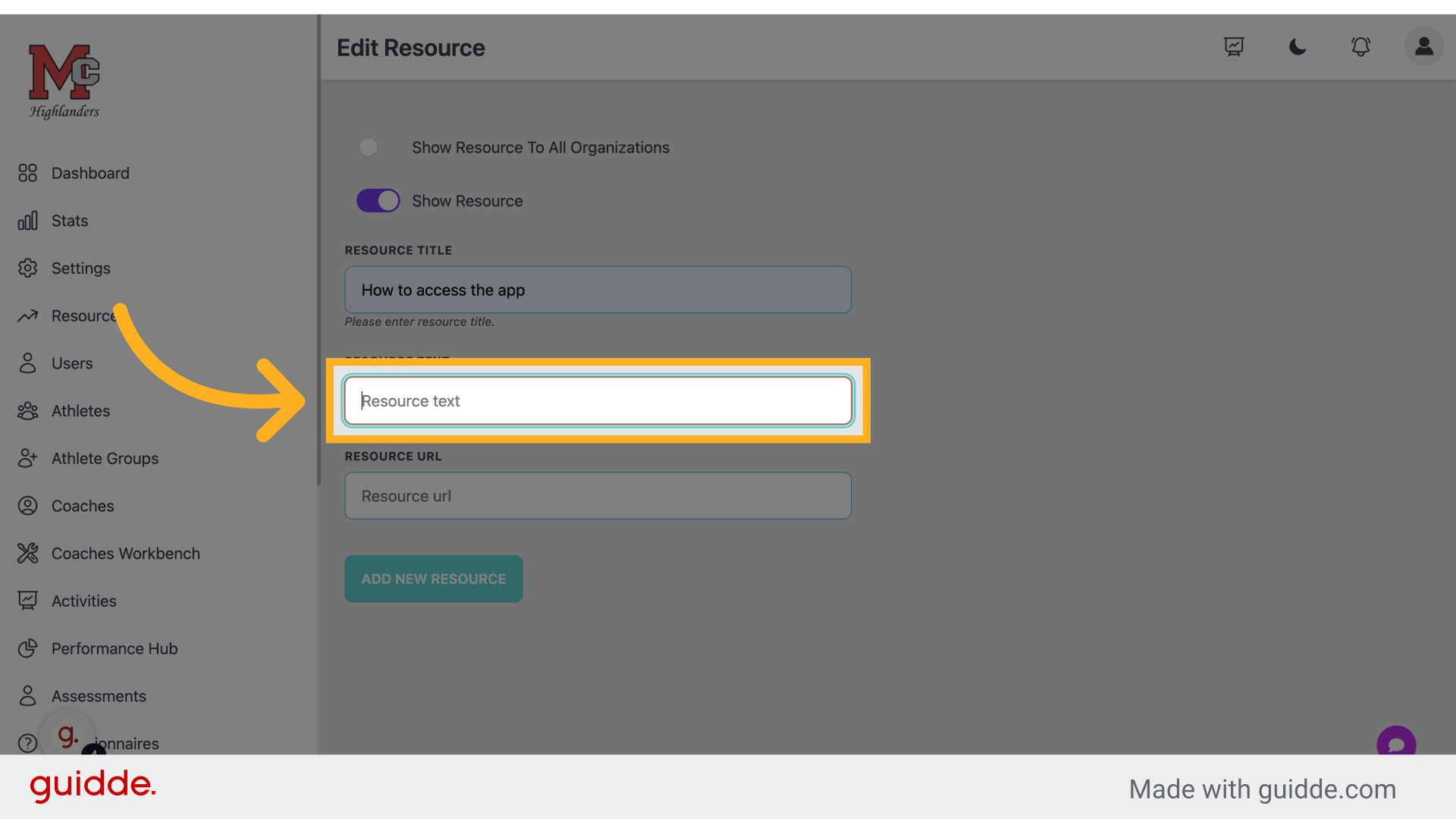
Step 6 — Click "Resource text"
Access the resource text section for content input.
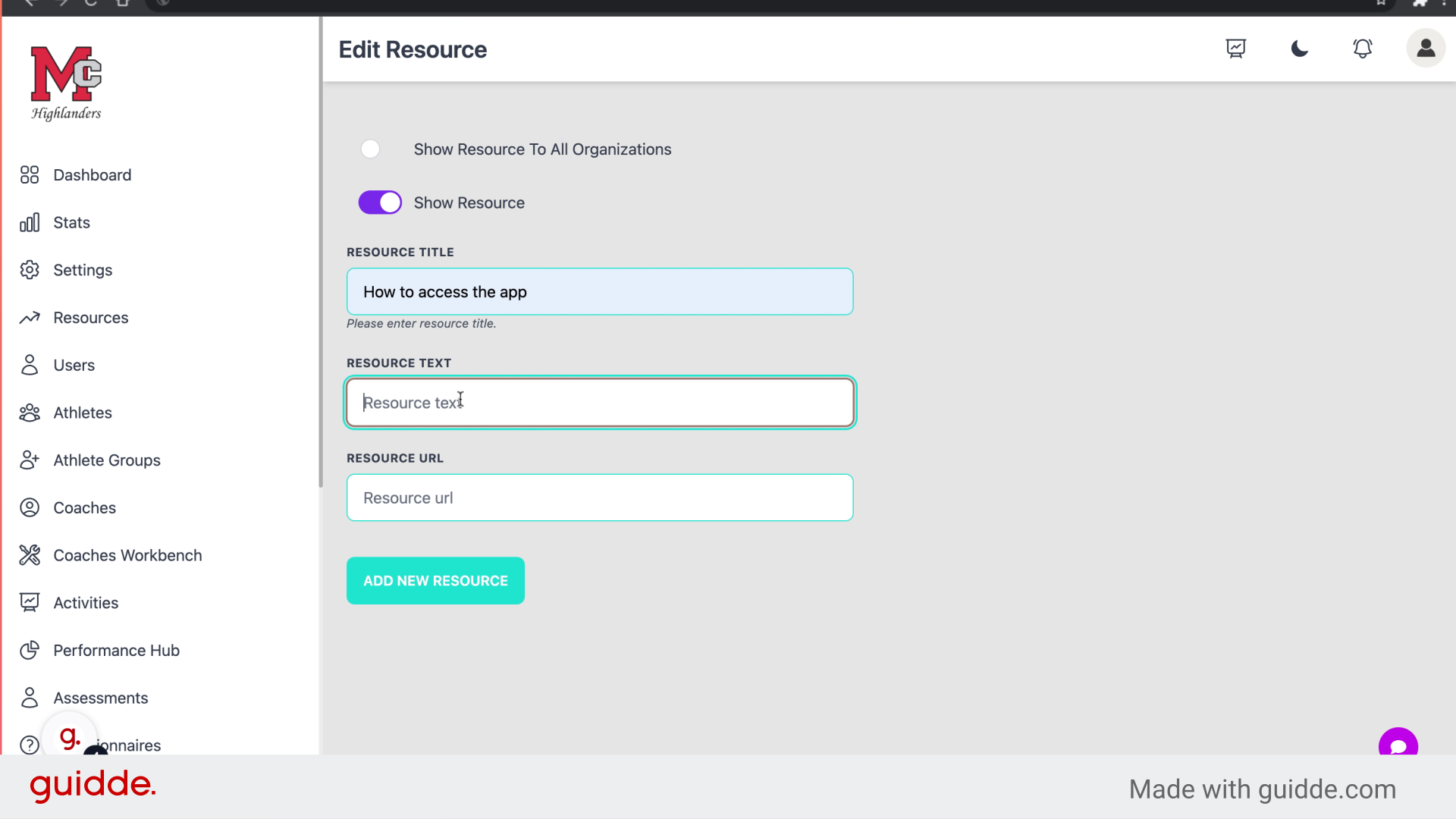
Step 7 — Fill "Access our app!"
Enter "Access our app!" in the provided field
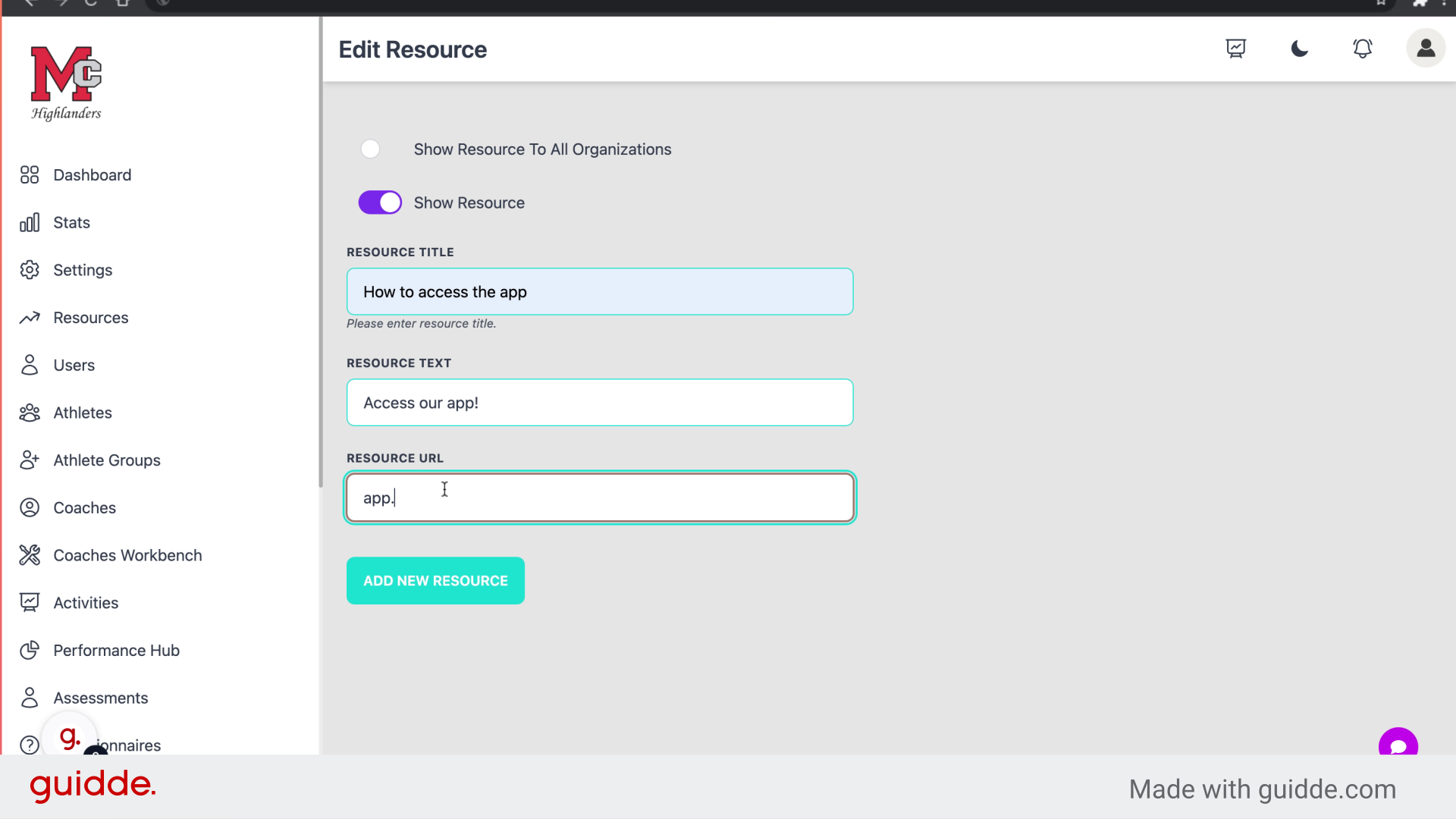
Step 8 — Click "Resource url"
Open the resource URL field to insert the link.
Step 9 — Fill In Your URL
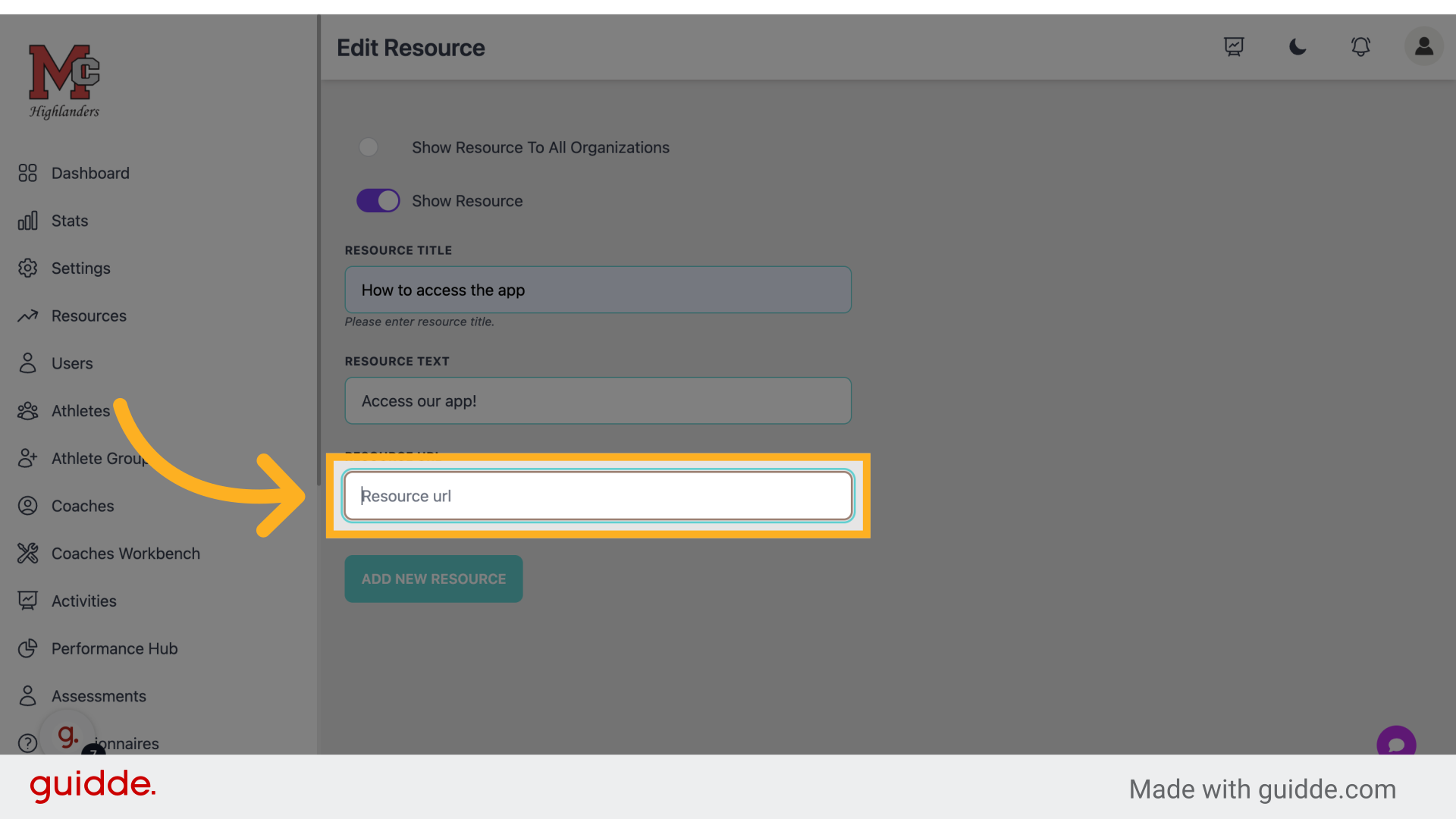
Fill in the text box with the URL you choose
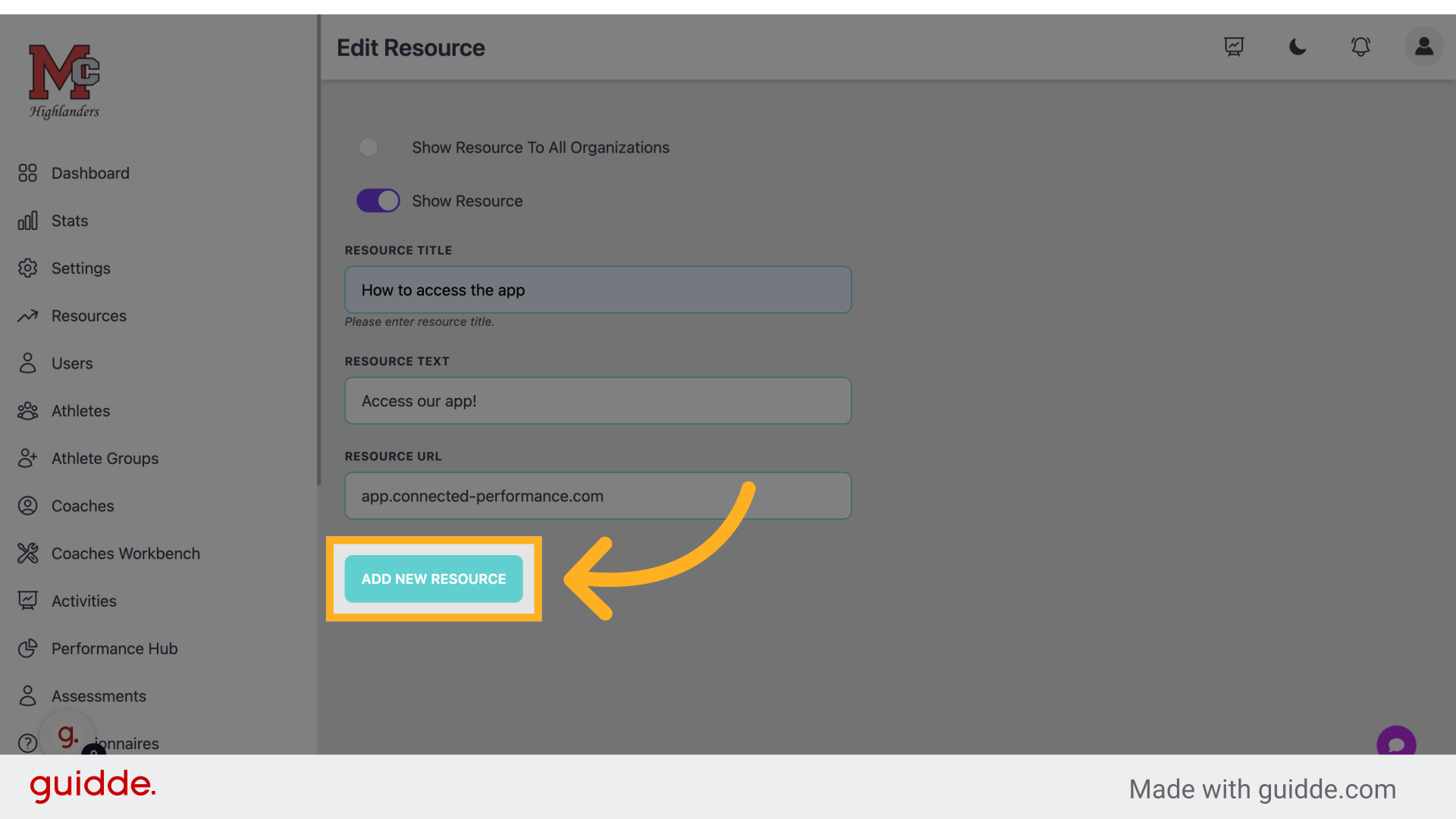
Step 10 — Click "Add new resource"
Add another resource by clicking the respective button.
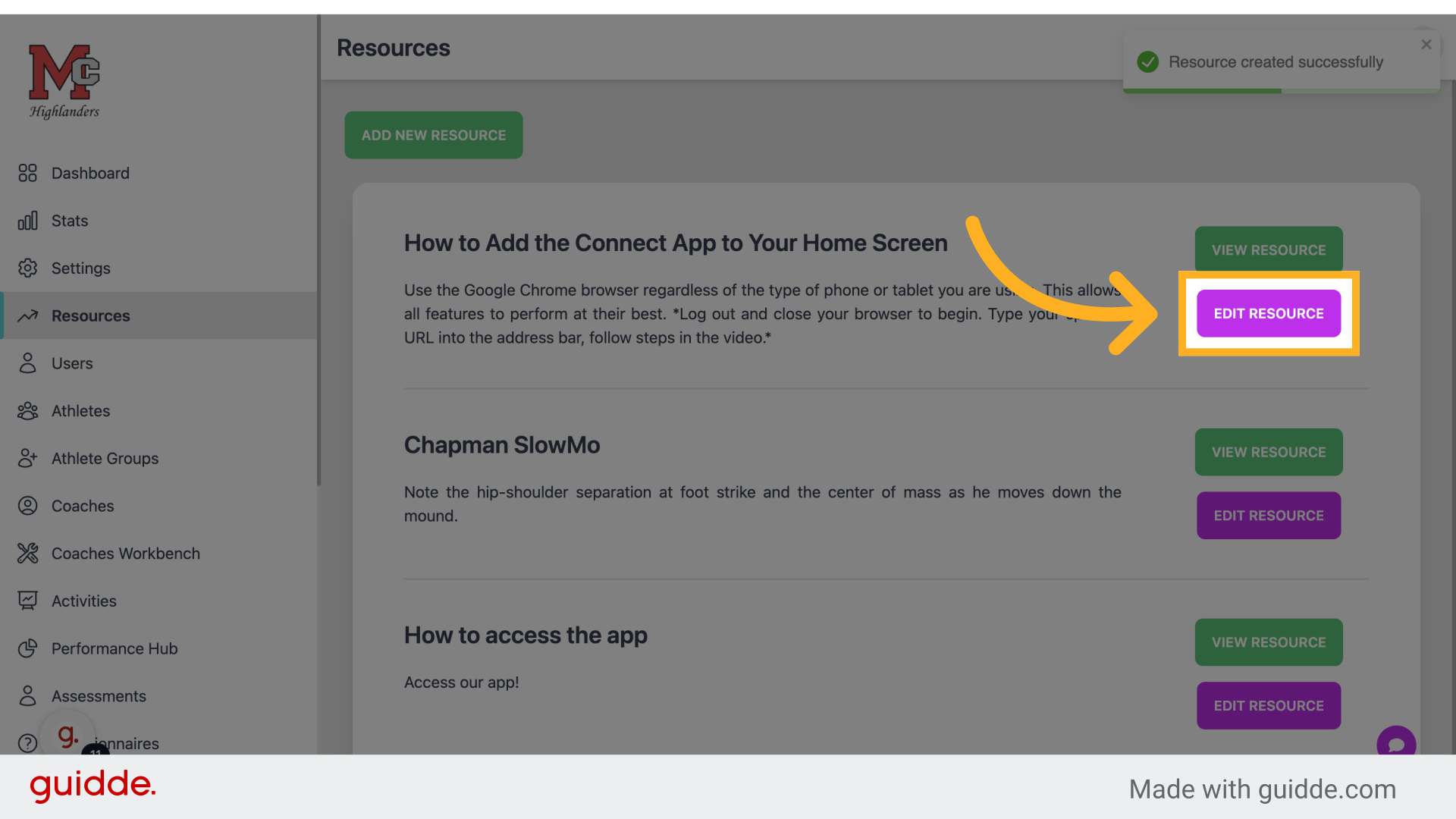
Step 11 — Click "Edit Resource"
Modify a resource by selecting the edit option.
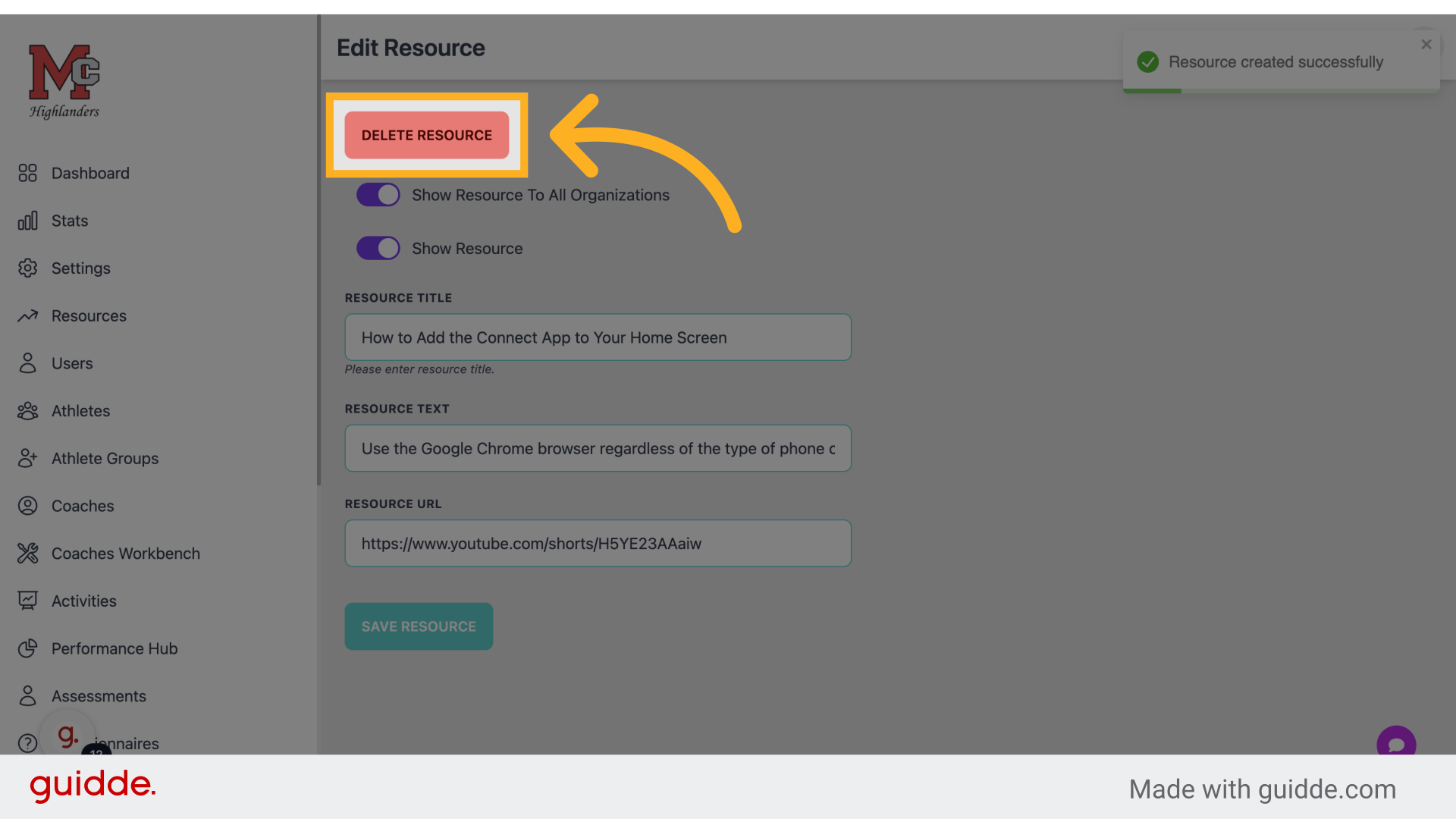
Step 12 — Click "Delete Resource"
Remove a resource by choosing the delete option.
Step 13 — Click "Delete Resource"
Confirm the deletion of a resource.
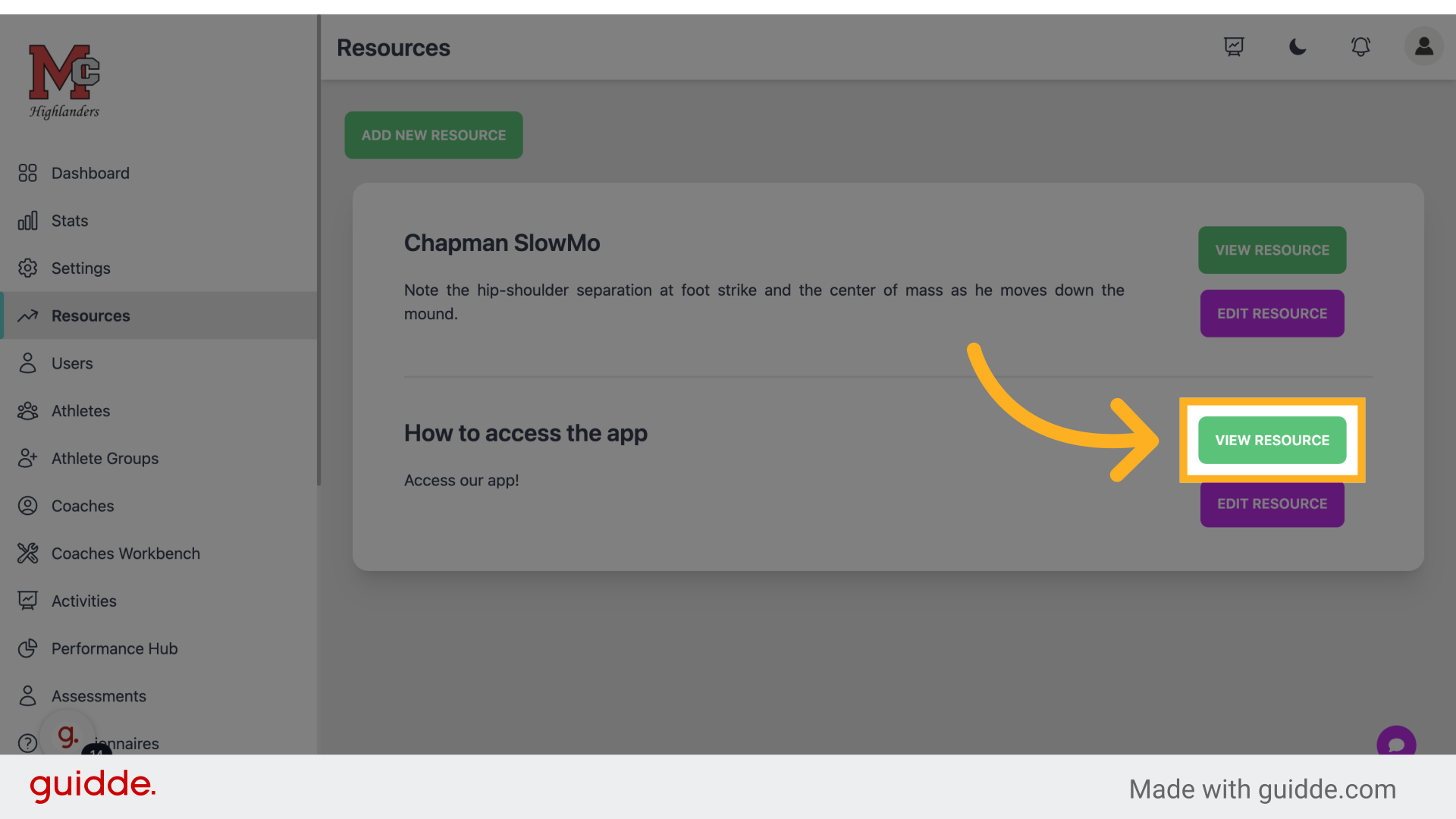
Step 14 — Click "View Resource"
Access the resource details by selecting view.
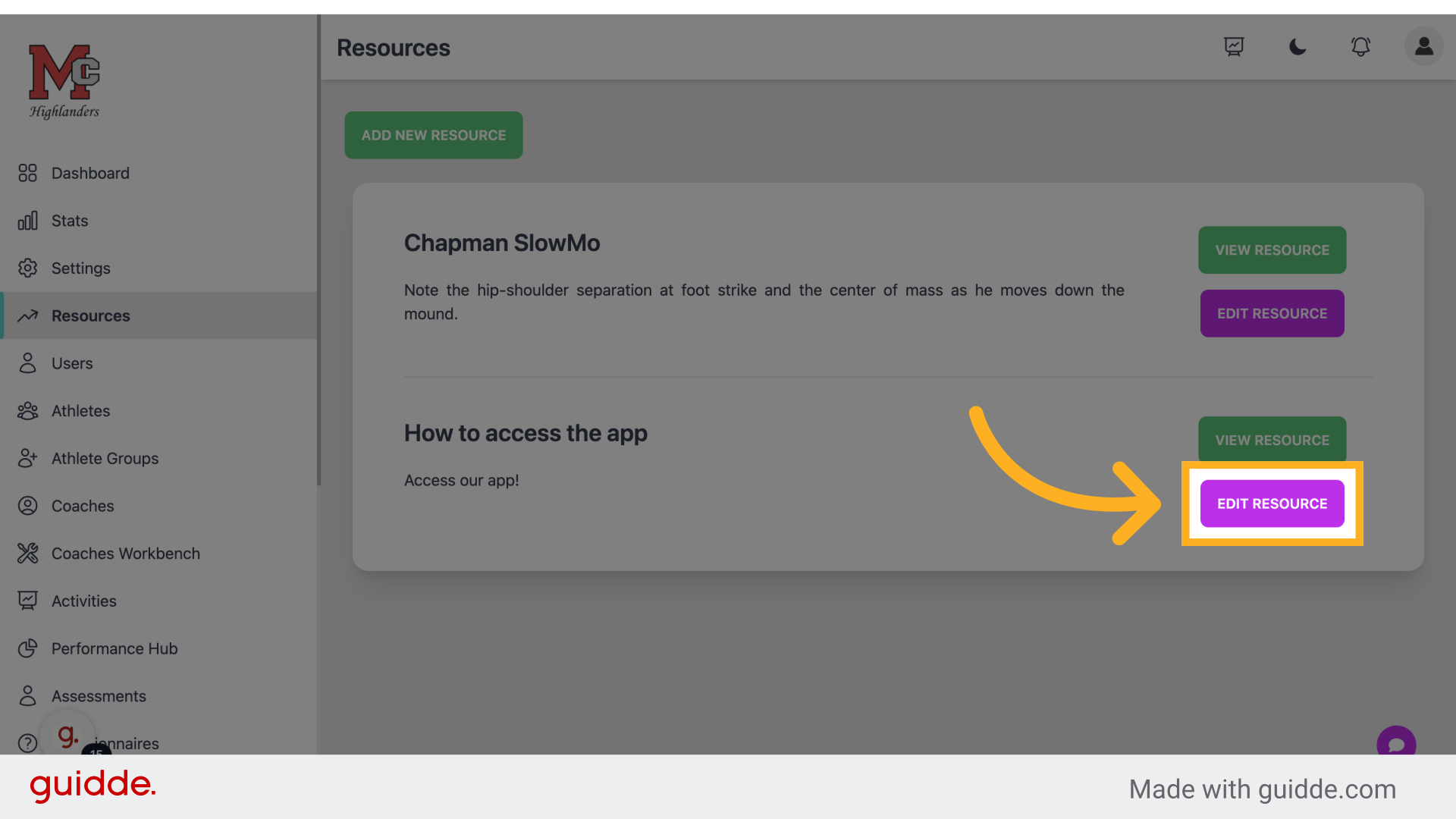
Step 15 — Click "Edit Resource"
Make changes to a resource by clicking edit.
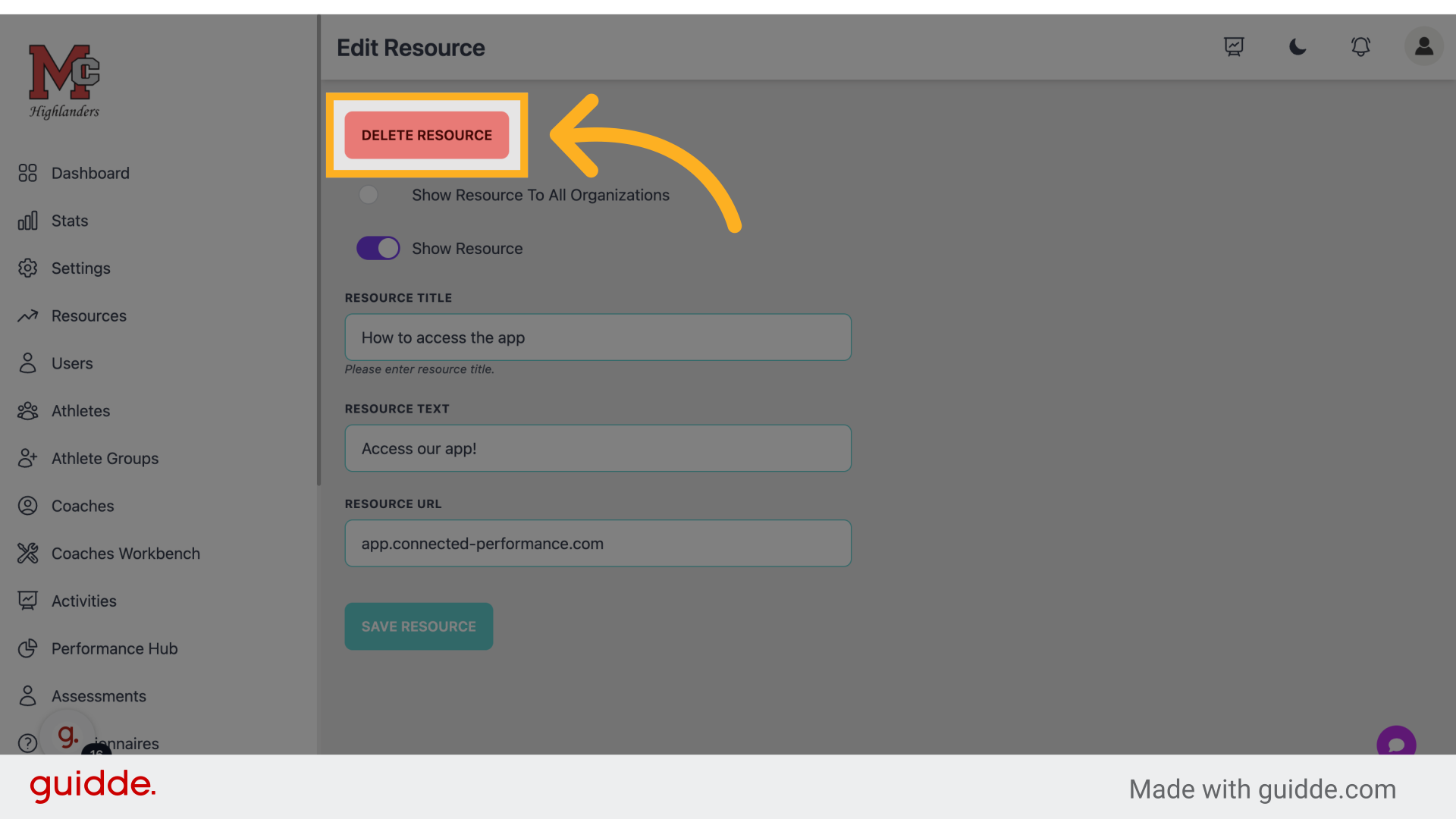
Step 16 — Click "Delete Resource"
Delete a resource permanently.
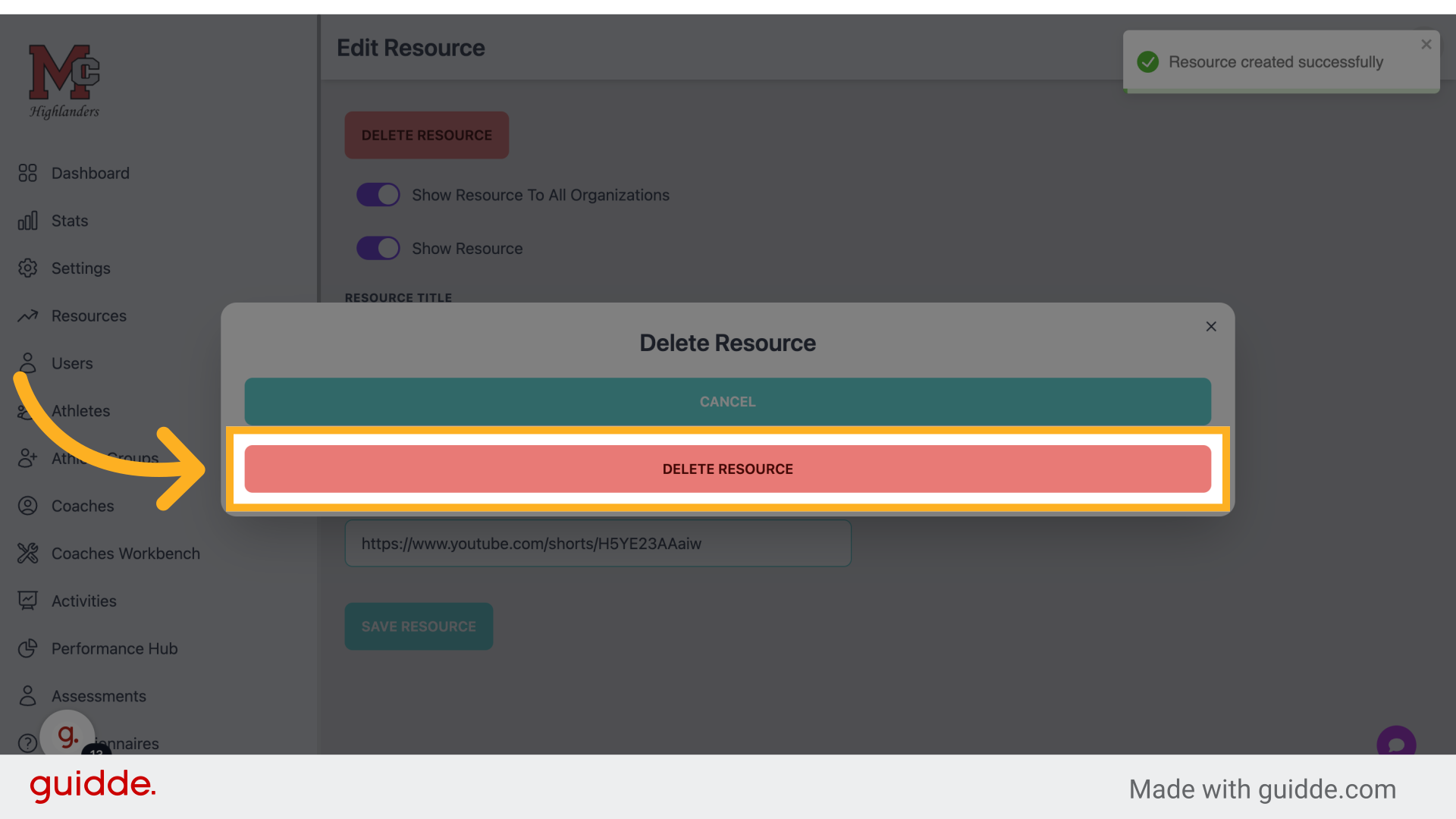
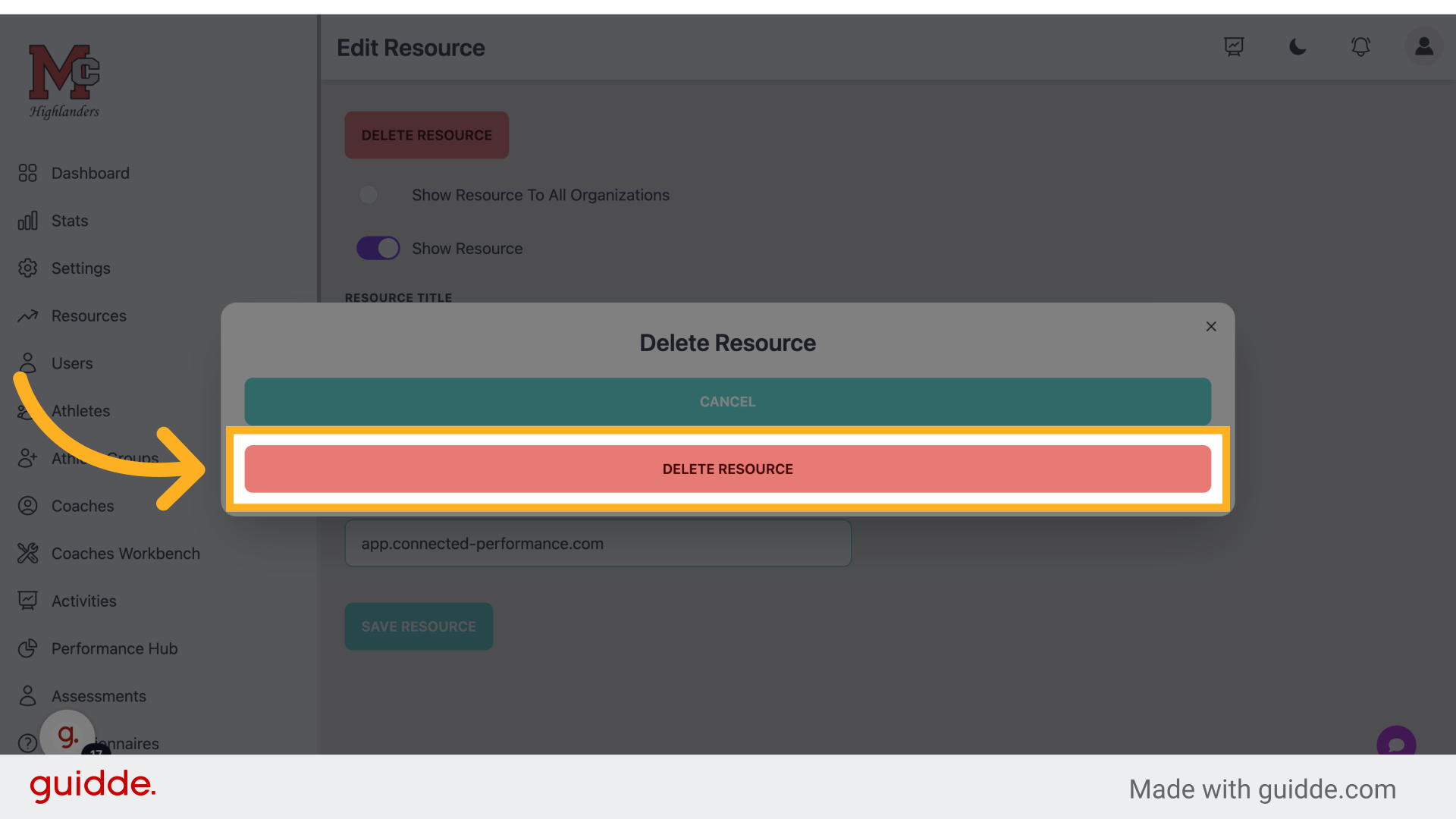
Step 17 — Click "Delete Resource"
Confirm the deletion of the resource.
 This guide covered the process of linking resources on Connected-performance for employee training purposes. From adding and editing resources to deleting and viewing them, this guide provides a comprehensive walkthrough for effective resource management.
Referenced by
- 'Resources'communication