 Connected Performance
Creating & Managing Questionnaires
Questionnaires collect information from athletes through forms and surveys. Use them for readiness checks, intake forms, feedback surveys, and wellness monitoring.
Overview
Questionnaires collect information from athletes through forms and surveys. Use them for readiness checks, intake forms, feedback surveys, and wellness monitoring.
How To
Accessing Questionnaires
- Navigate to Data Tracking > Questionnaires in the sidebar
- View existing questionnaires or create new ones
Creating a Questionnaire
- Click Create Questionnaire or + New
- Enter questionnaire details:
- Name - Clear title (e.g., "Daily Wellness Check")
- Description - Brief explanation for athletes
- Add questions to the form
- Configure submission settings
- Click Save
Adding Questions
For each question:
- Click Add Question
- Select question type:
- Short Text - Brief text response
- Long Text - Paragraph response
- Number - Numeric input
- Single Select - Choose one option
- Multi Select - Choose multiple options
- Scale - Rating scale (1-5, 1-10, etc.)
- Date - Date picker
- File - Upload attachment
- Enter the question text
- Mark required or optional
- Add options for select questions
Setting Up Recurring Questionnaires
For daily/weekly check-ins:
- Edit the questionnaire
- Enable Recurring
- Set frequency (daily, weekly, etc.)
- Choose which days
- Select athletes or groups
- Save
Athletes automatically receive the questionnaire on schedule.
Assigning One-Time Questionnaires
- Open the questionnaire
- Click Assign
- Select athletes or groups
- Set due date (optional)
- Click Send
Viewing Responses
- Click on a questionnaire
- View Responses tab
- Filter by athlete, date, or status
- Click individual responses to see details
- Export responses for analysis
Analyzing Questionnaire Data
- View trends over time for recurring questionnaires
- Compare responses across athletes
- Use reports to identify patterns (e.g., low sleep scores)
Editing Questionnaires
- Open the questionnaire
- Click Edit
- Modify questions or settings
- Save changes
Note: Editing doesn't change already-submitted responses.
Tips
- Keep daily questionnaires short (3-5 questions) for compliance
- Use scales for easy tracking of trends over time
- Set up wellness questionnaires to monitor athlete readiness
Troubleshooting
Athletes not receiving recurring questionnaire? Check the recurrence settings and athlete assignments. Verify the questionnaire is active.
Missing responses? Use filters to find specific submissions. Check if athlete completed the questionnaire.
Related
- Creating & Managing Assessments
- Single Athlete Reports
- Managing Athletes & Groups
Video Walkthrough
How to Create Questionnaires
Learn how to efficiently create questionnaires for employee training using Connected-performance
Follow the engaging steps below to navigate the platform seamlessly and set up your questionnaires effortlessly.
Step 2 — Click "Add Questionnaire"
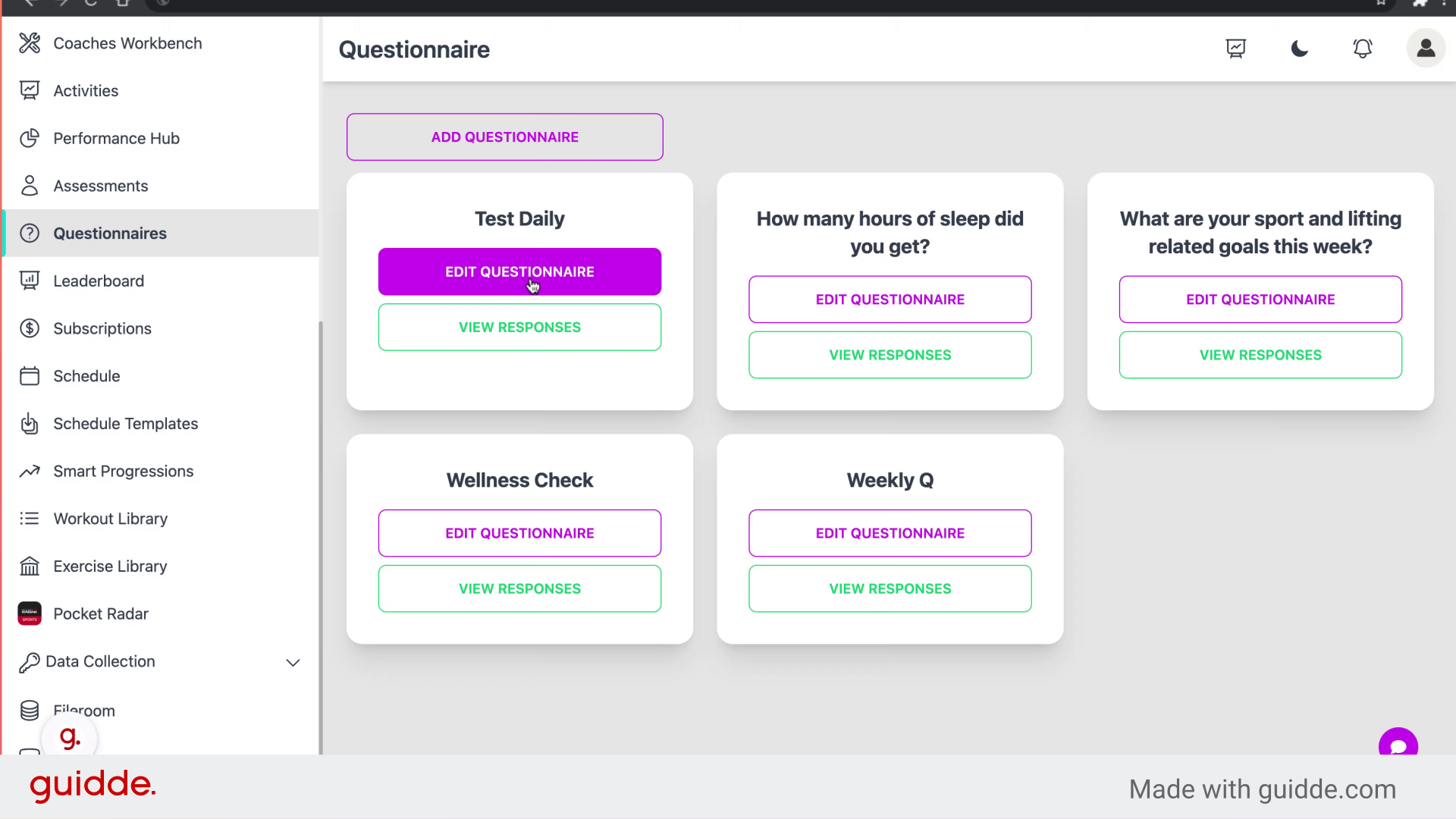
Click on "Add Questionnaire."
Step 3 — Add Start Date
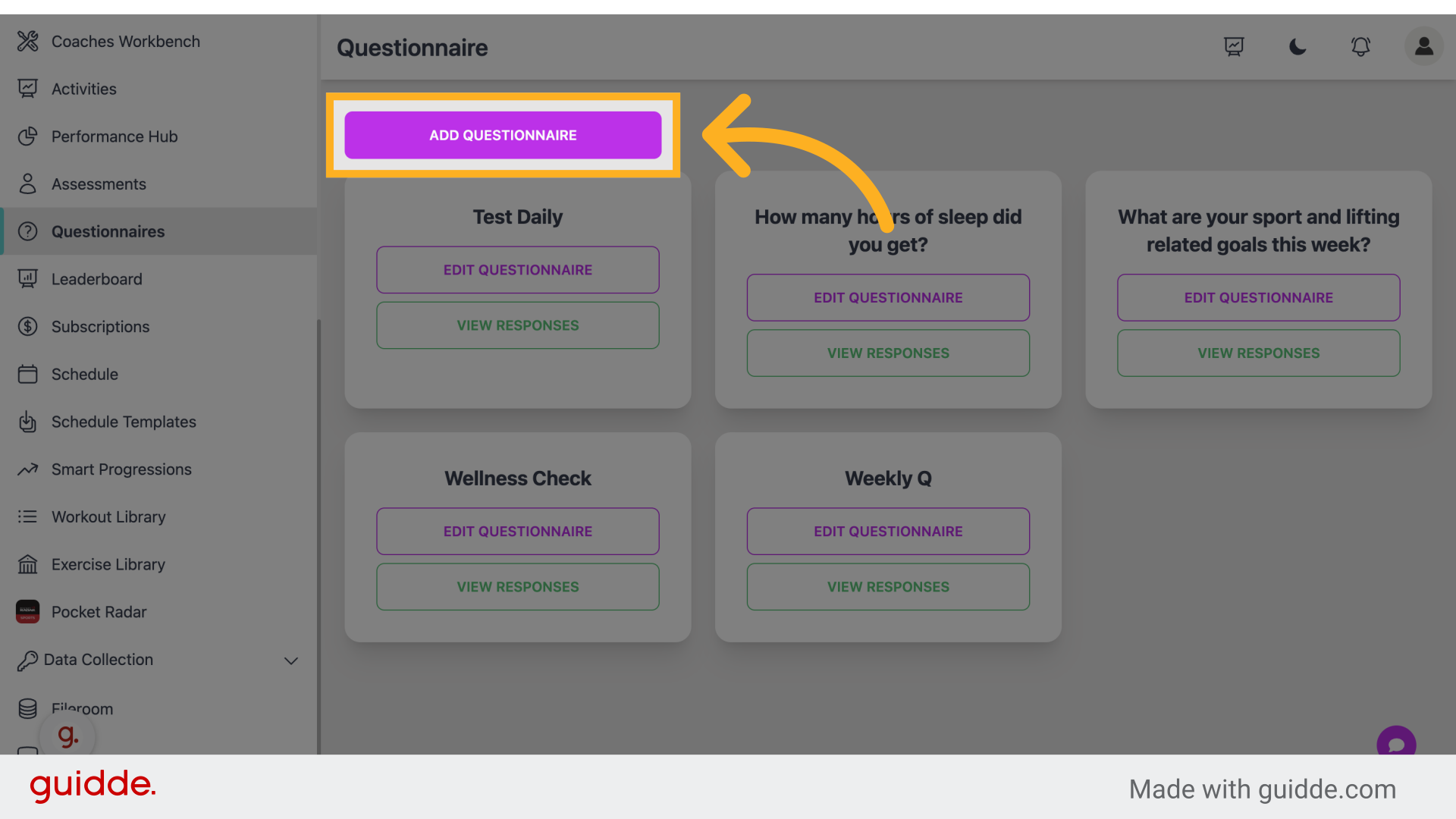
Step 4 — Add Your Questionnaire Frequency
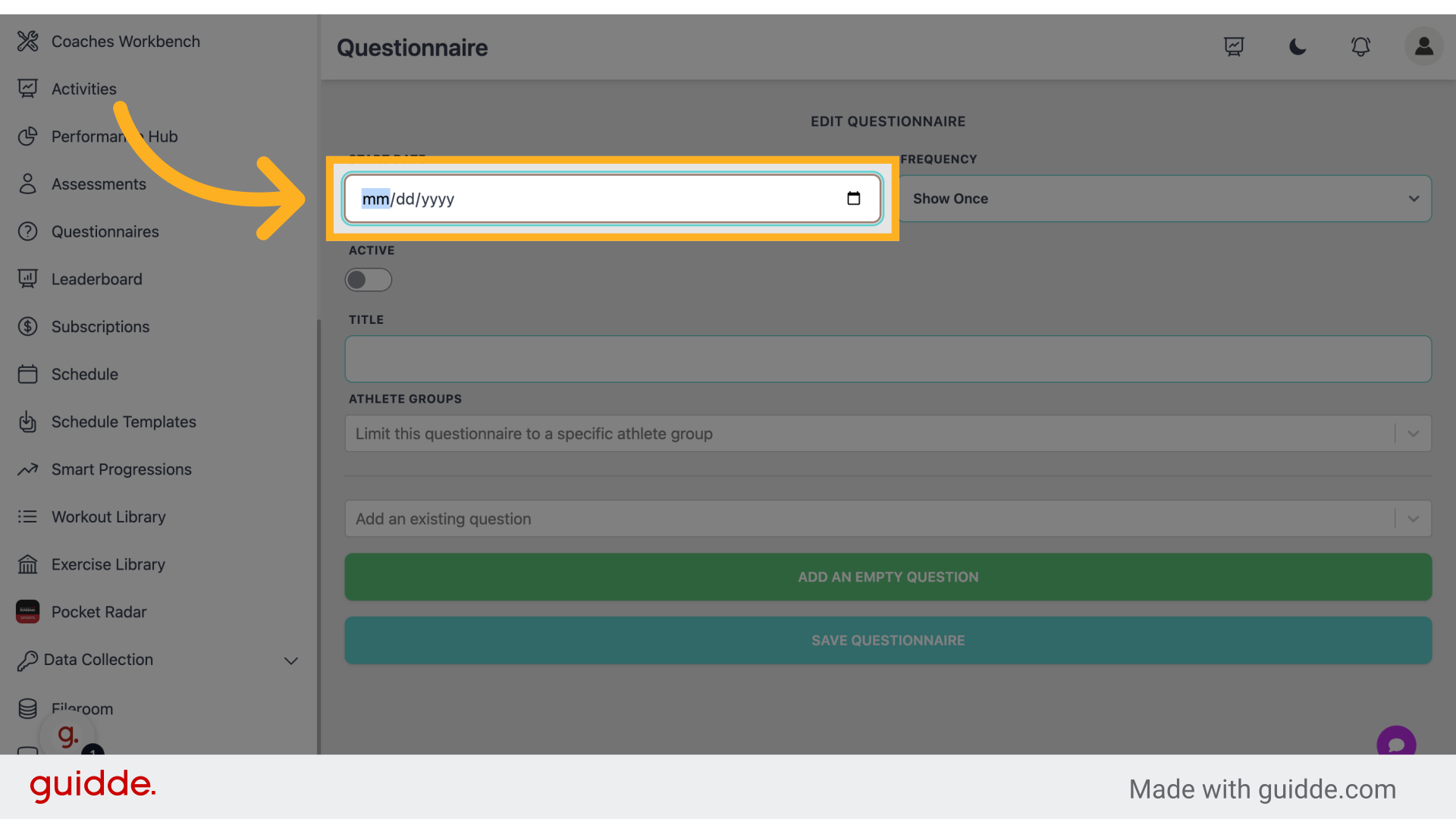
Select the desired frequency type.
Step 5 — Turn Your Questionnaire On or Off
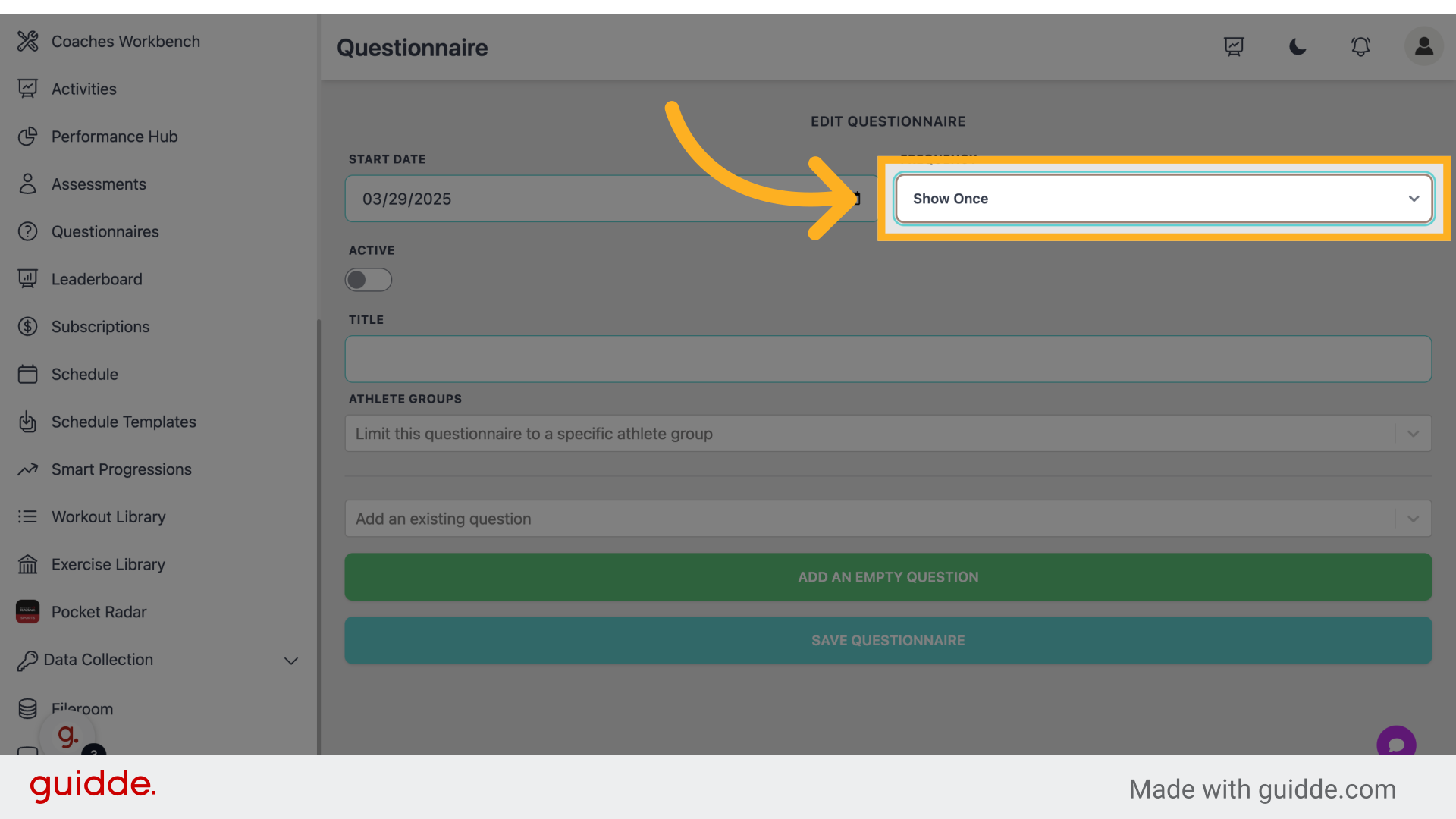
Click on the option "on."
Step 6 — Add Your Question
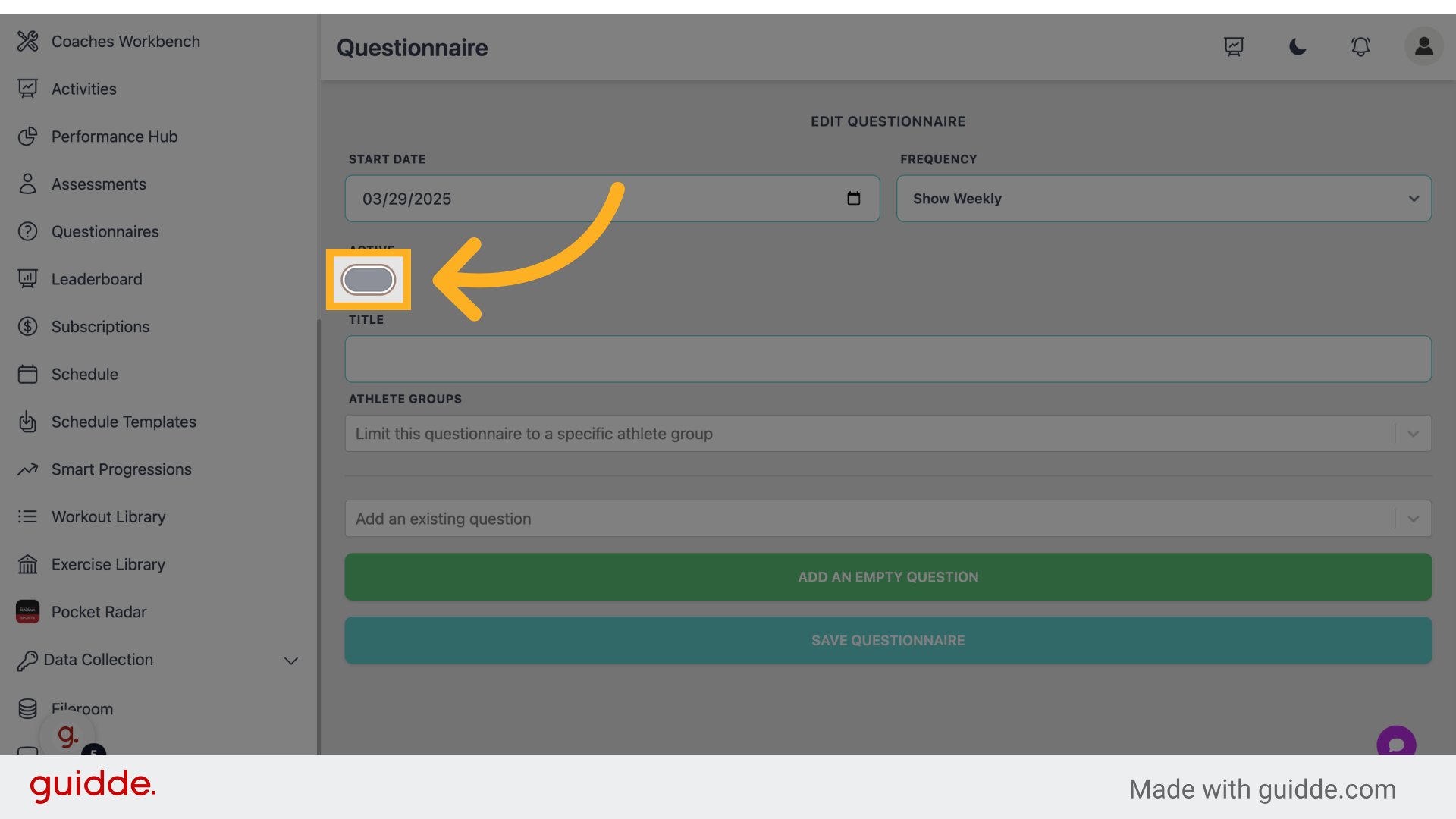
Click on the specified location.
Step 7 — Pick A Group
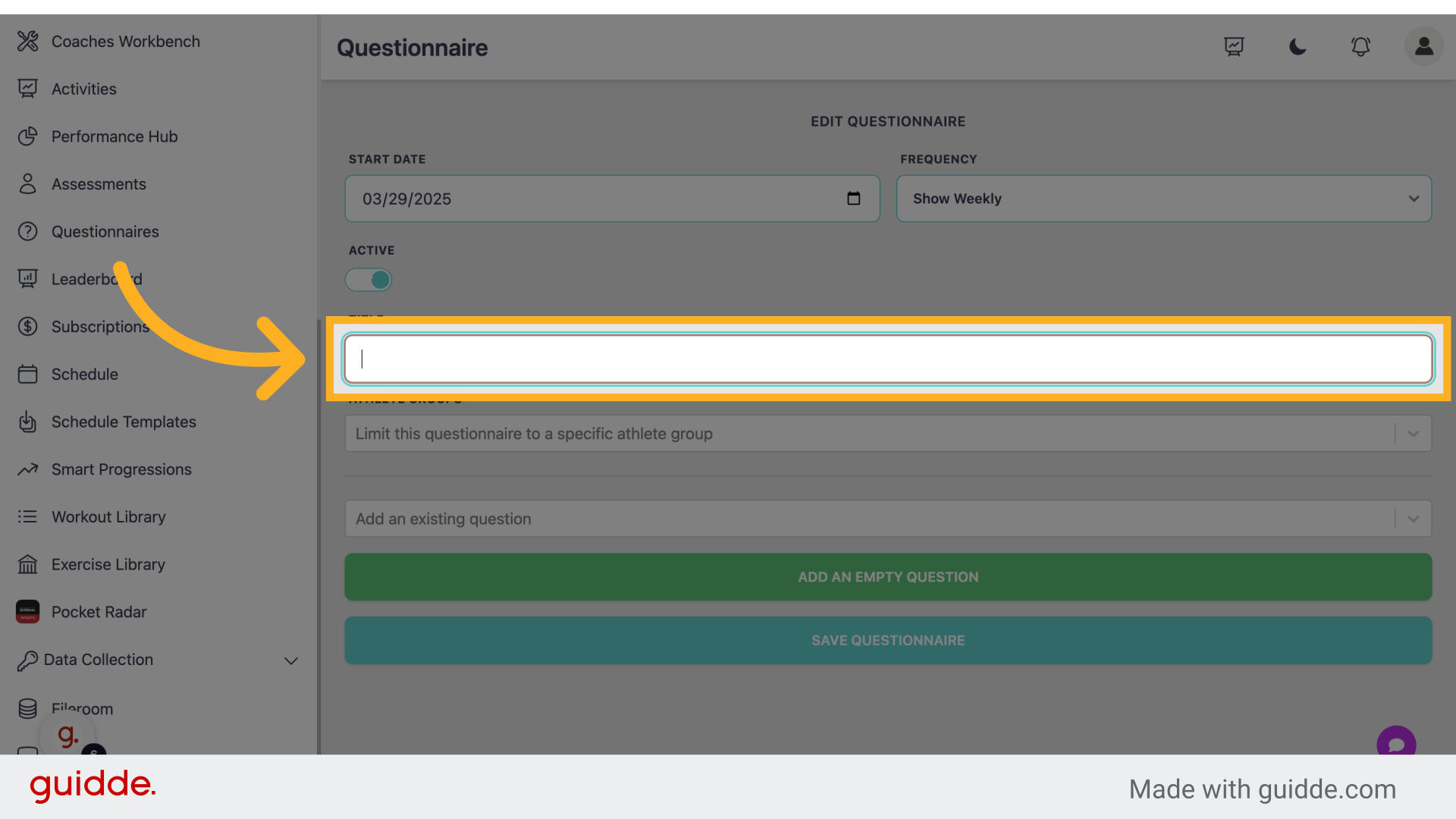
Groups are optional. If one group is assigned only that group will receive the questionnaire.
Step 8 — Choose a previous question or build a new one
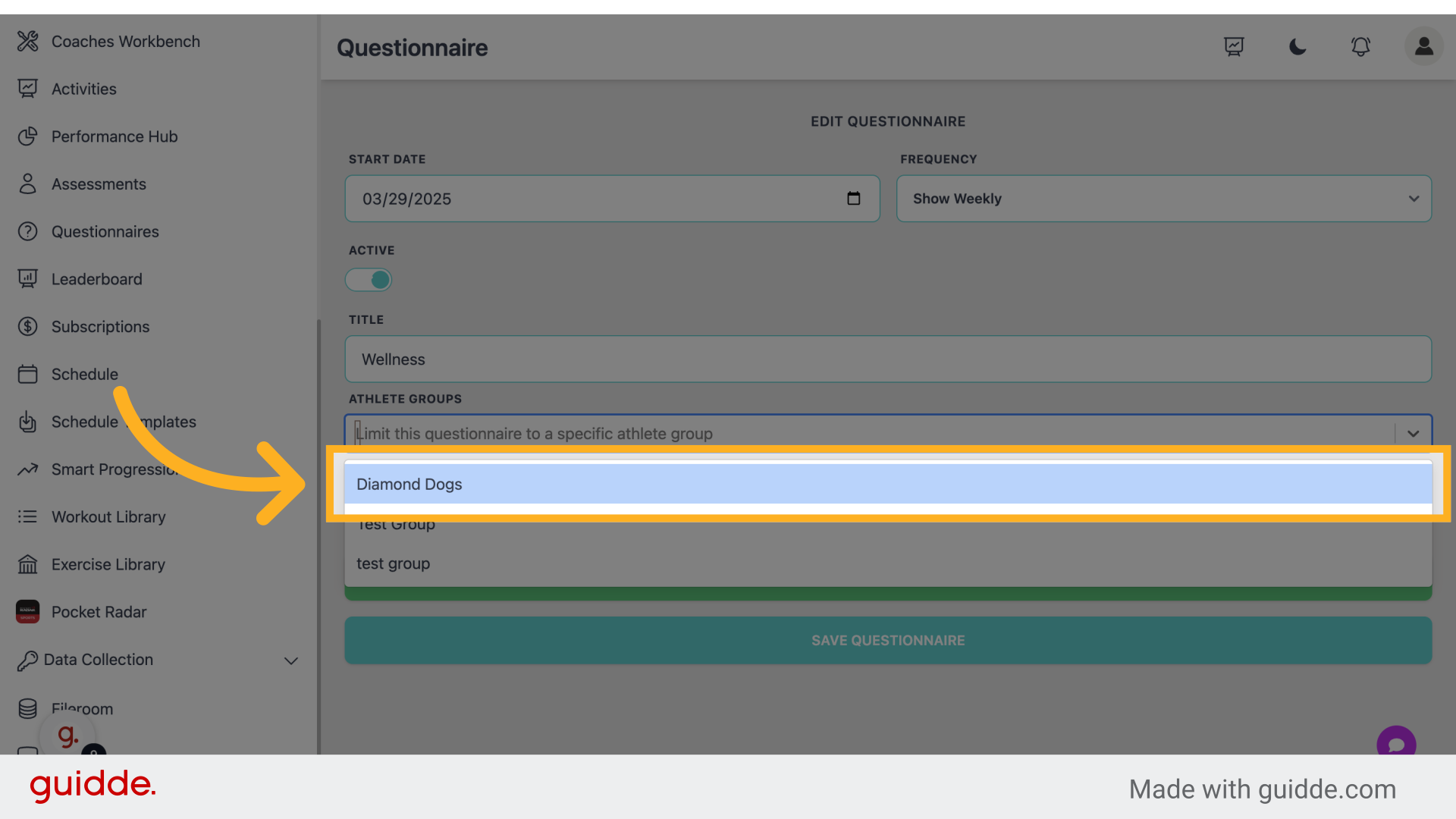
You can either build new questions or leverage previous questions.
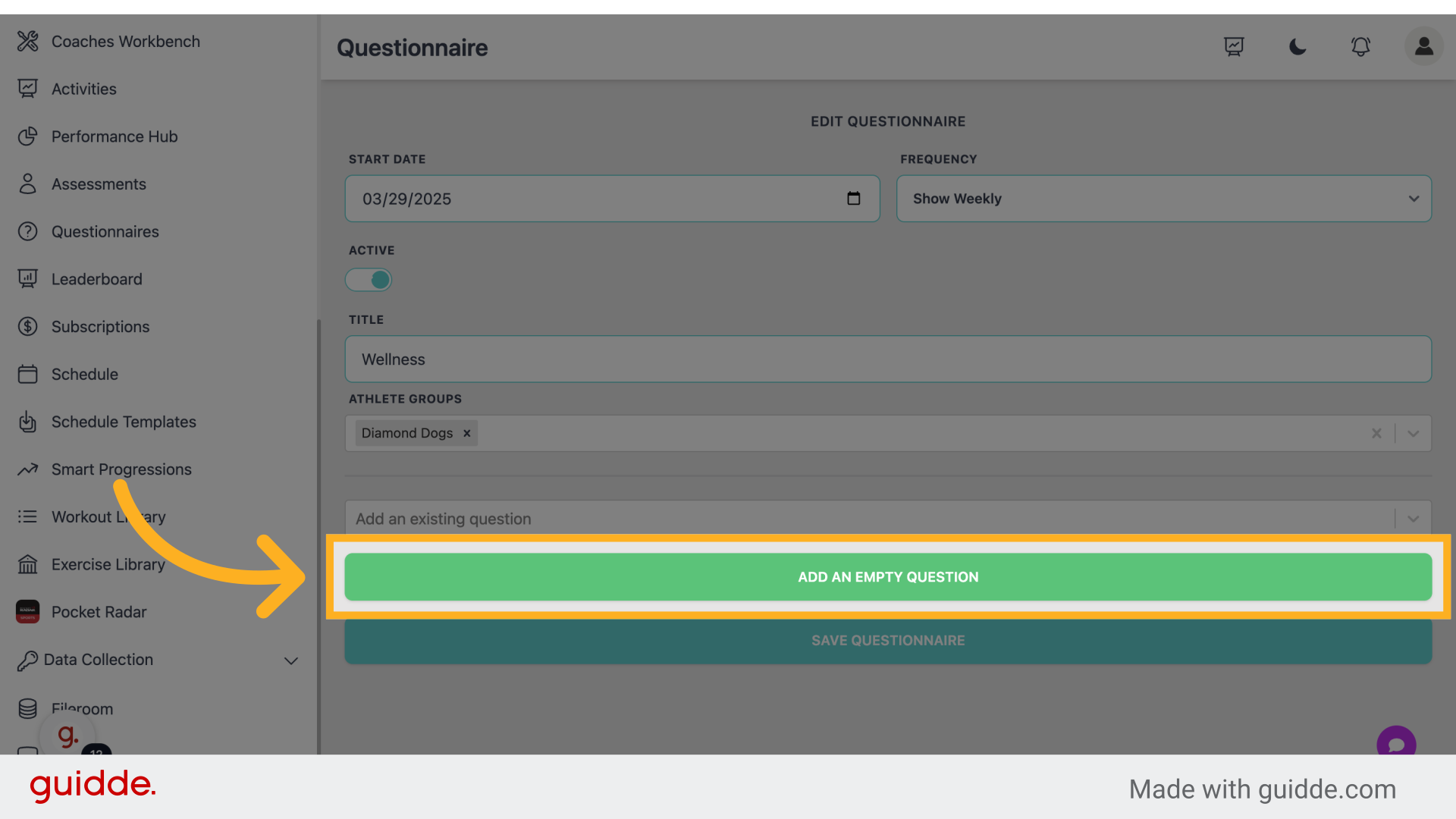
Step 9 — Click "Add an Empty Question"
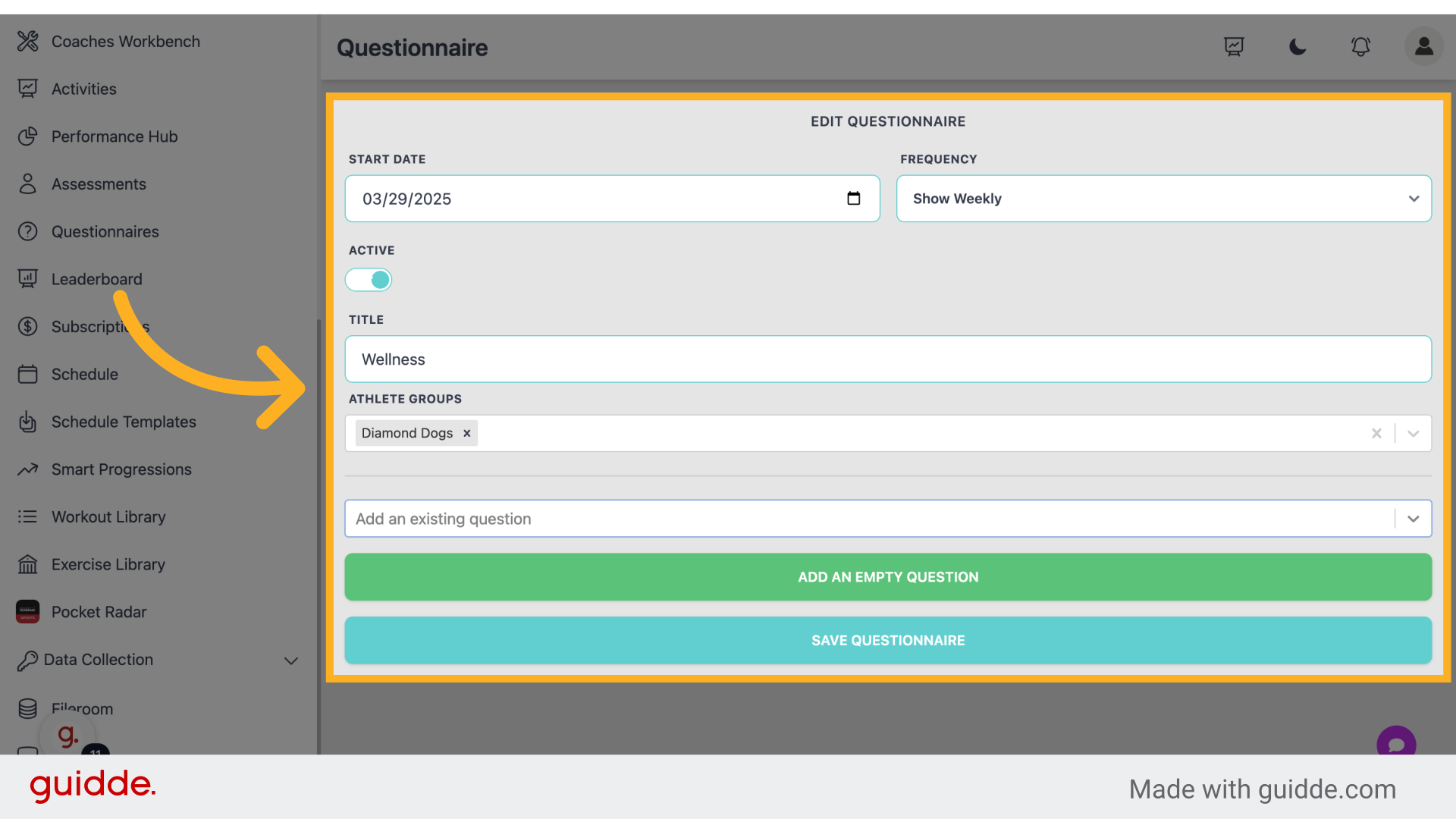
Click on "Add an Empty Question."
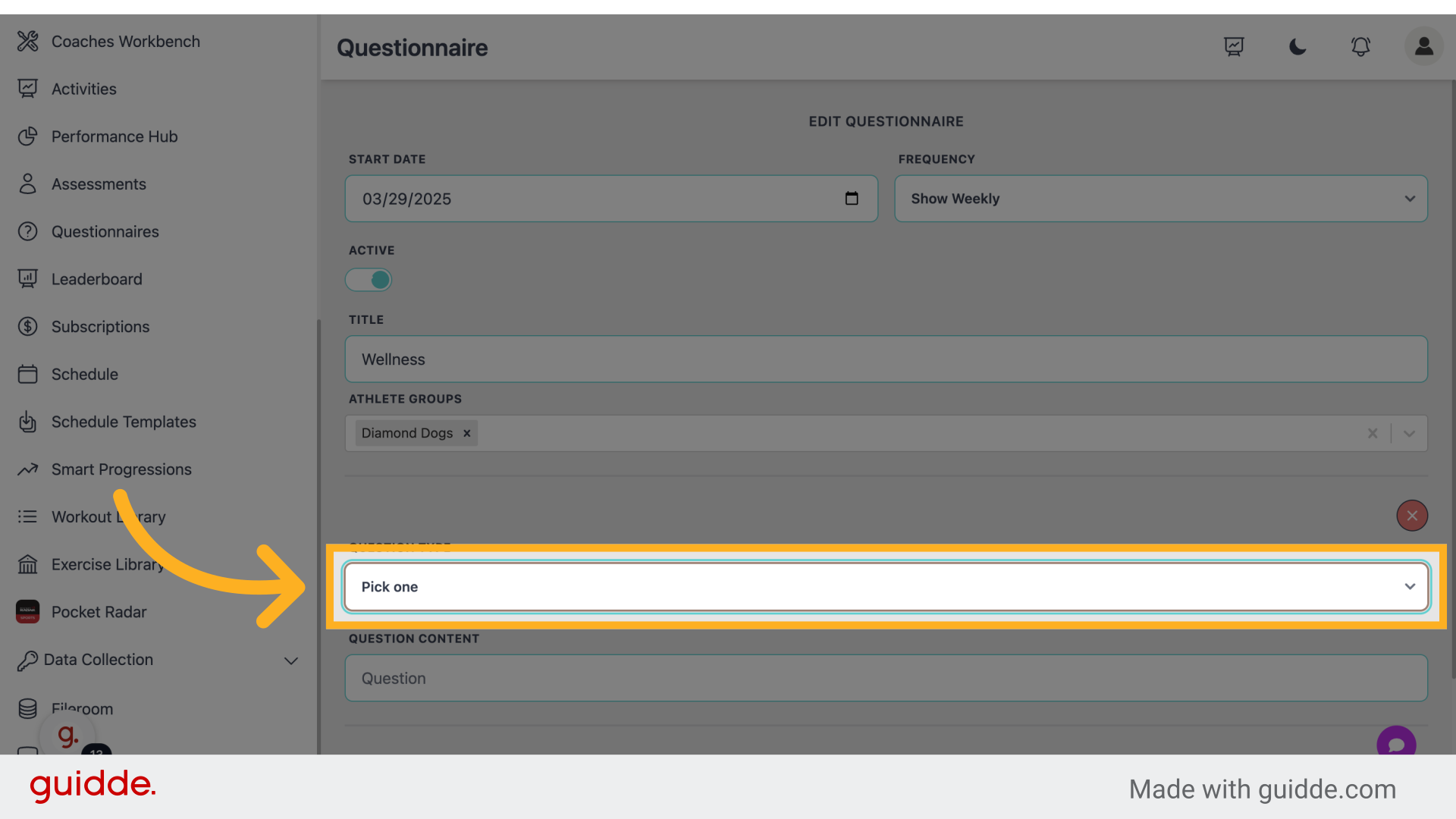
Step 10 — Give your question a response type
Select the type of question.
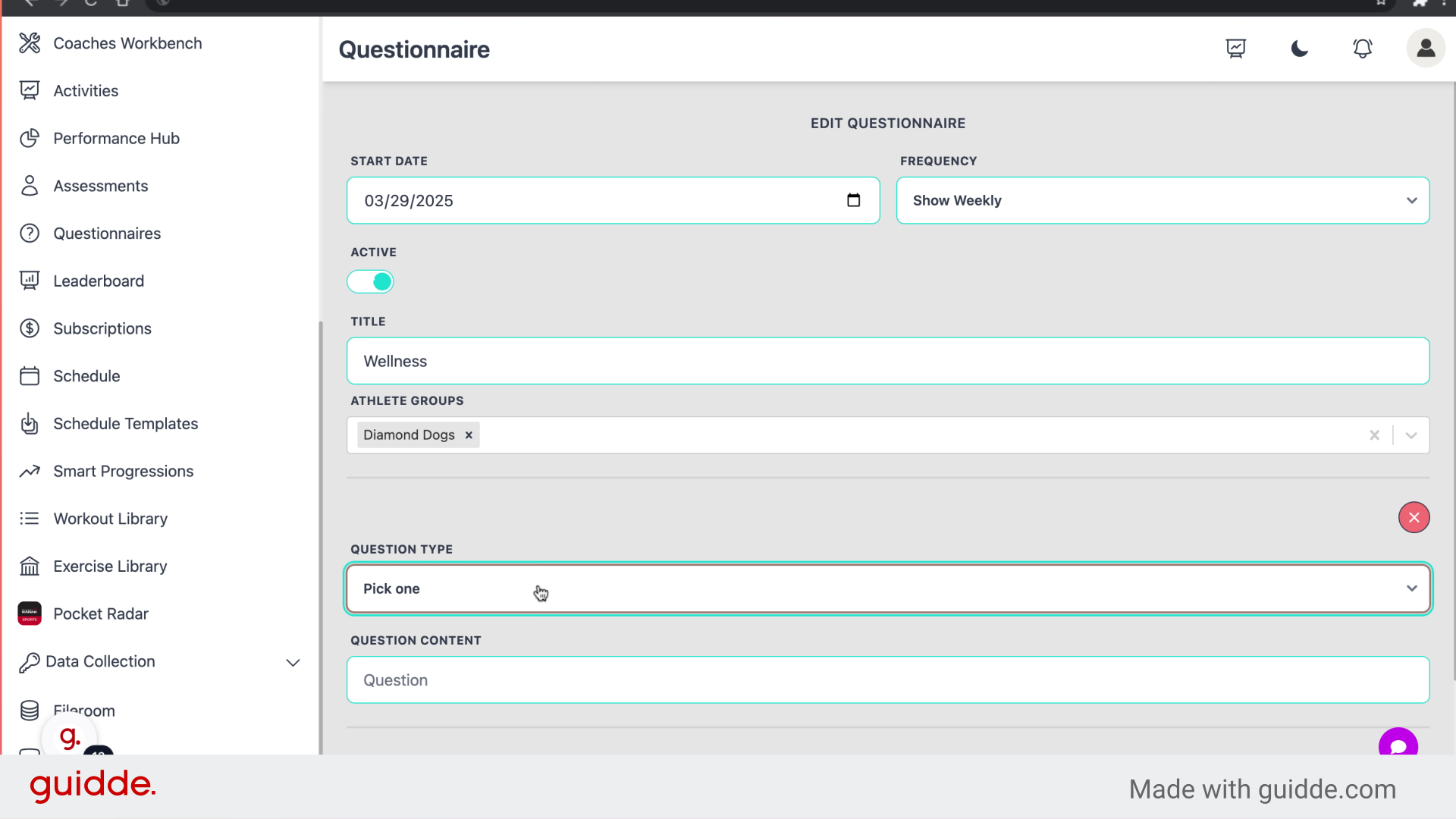
Step 11 — Fill "Pick oneNumberScaleTrue/FalseText Response"
Enter the desired text.
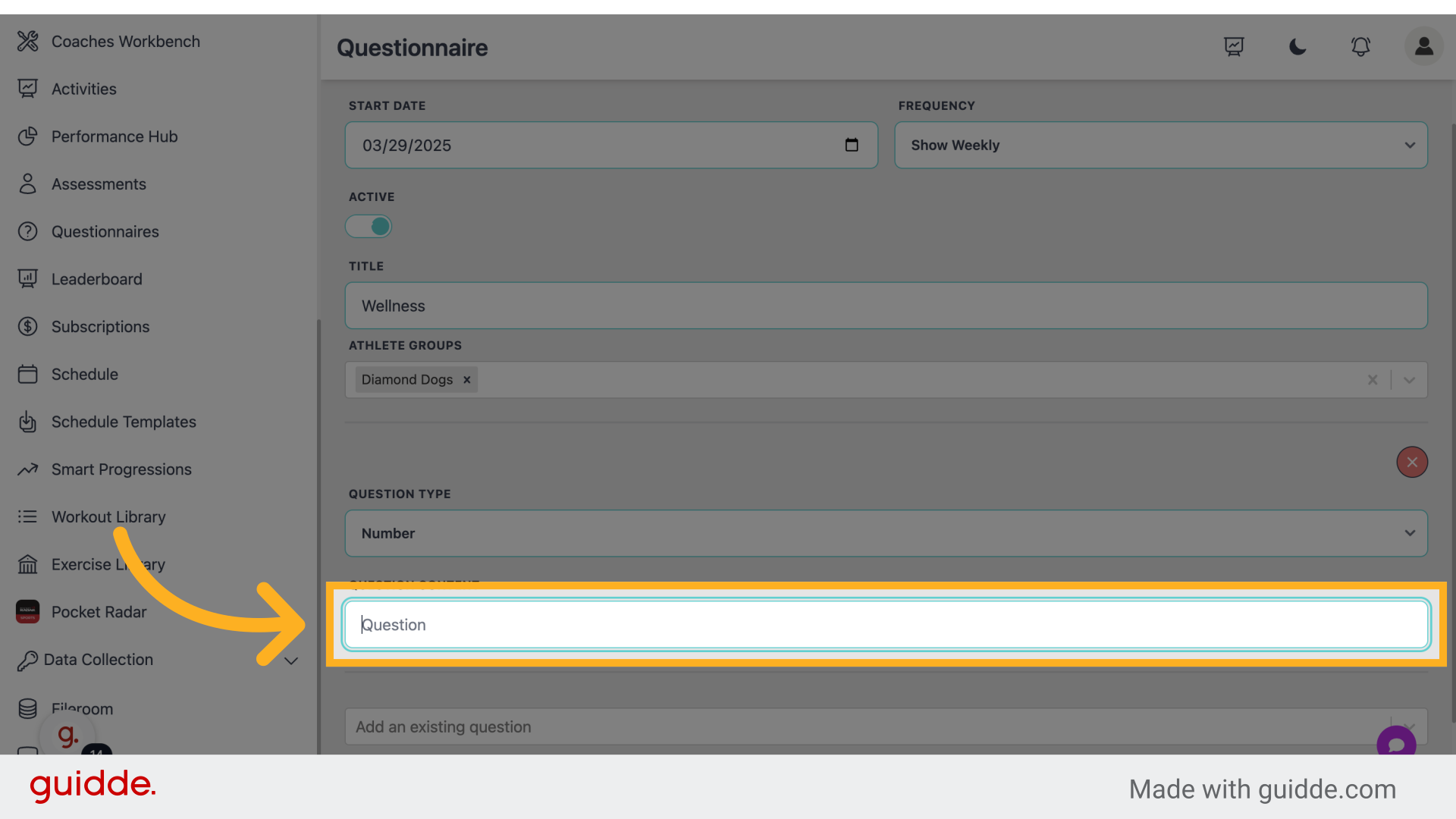
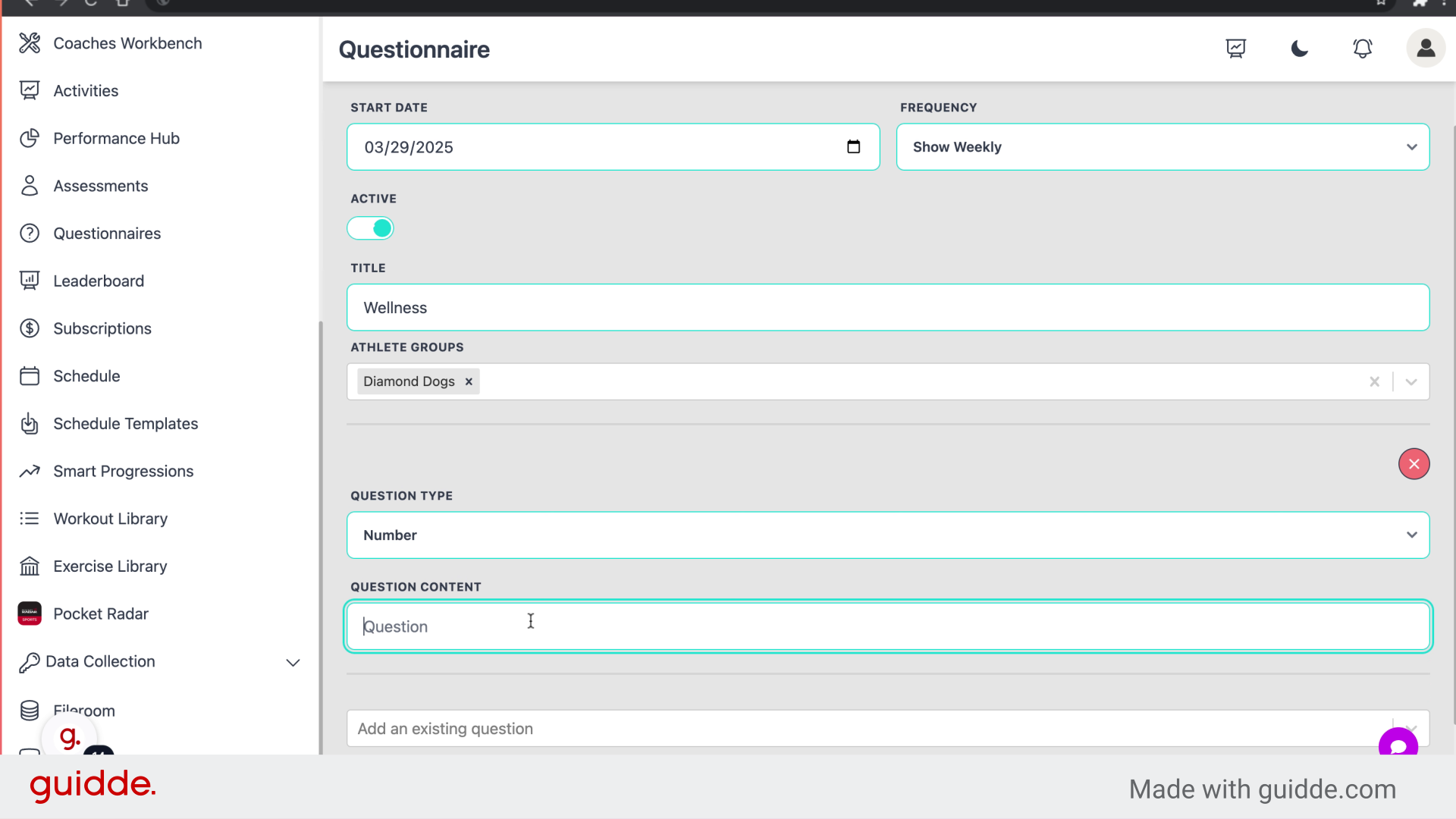
Step 12 — Click "Question"
Enter the question.
Step 13 — Fill "How many hours did you sleep"
Type "How many hours did you sleep" in the given field
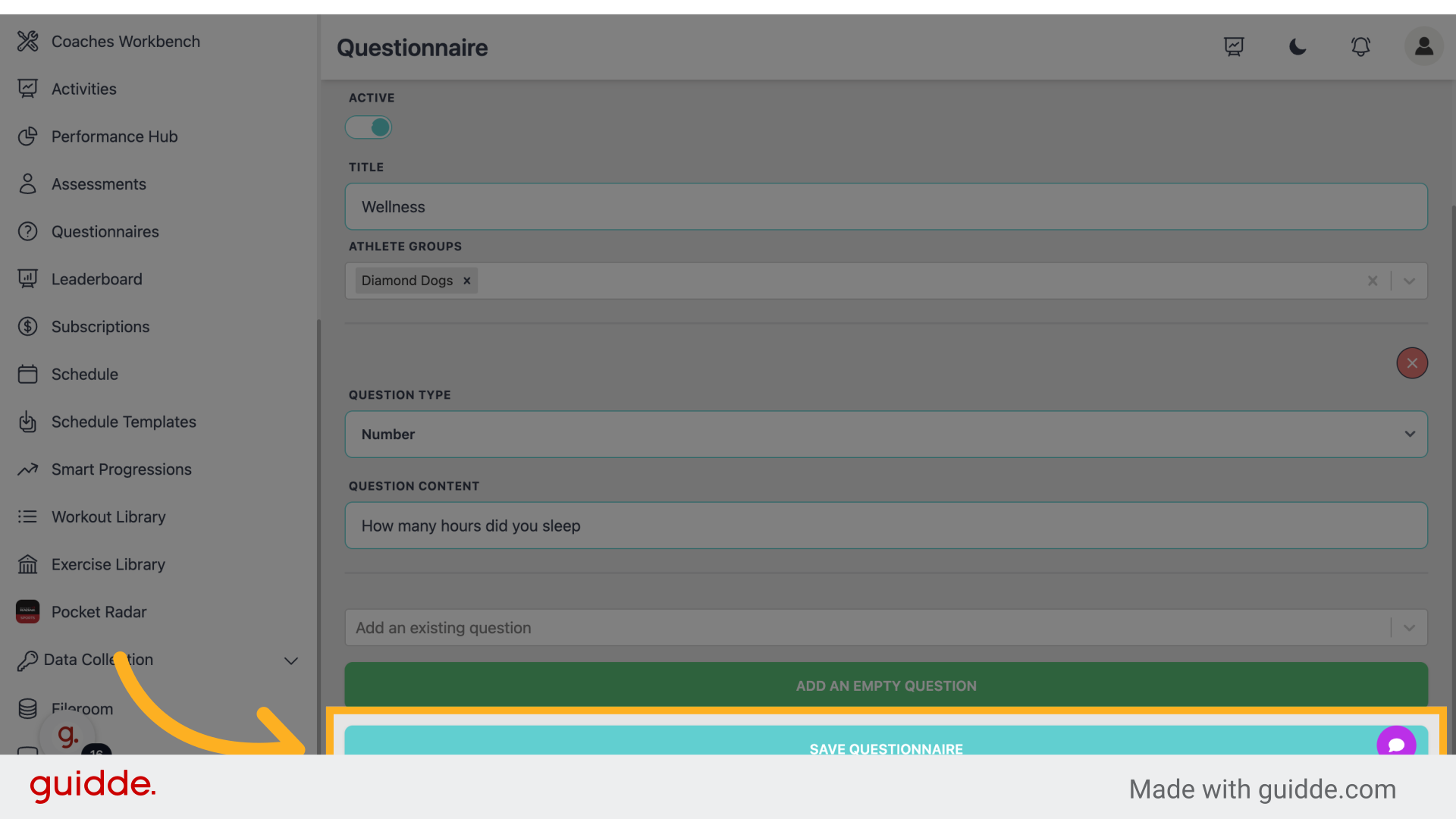
Step 14 — Click "Save Questionnaire"
Click on "Save Questionnaire" to save your changes.
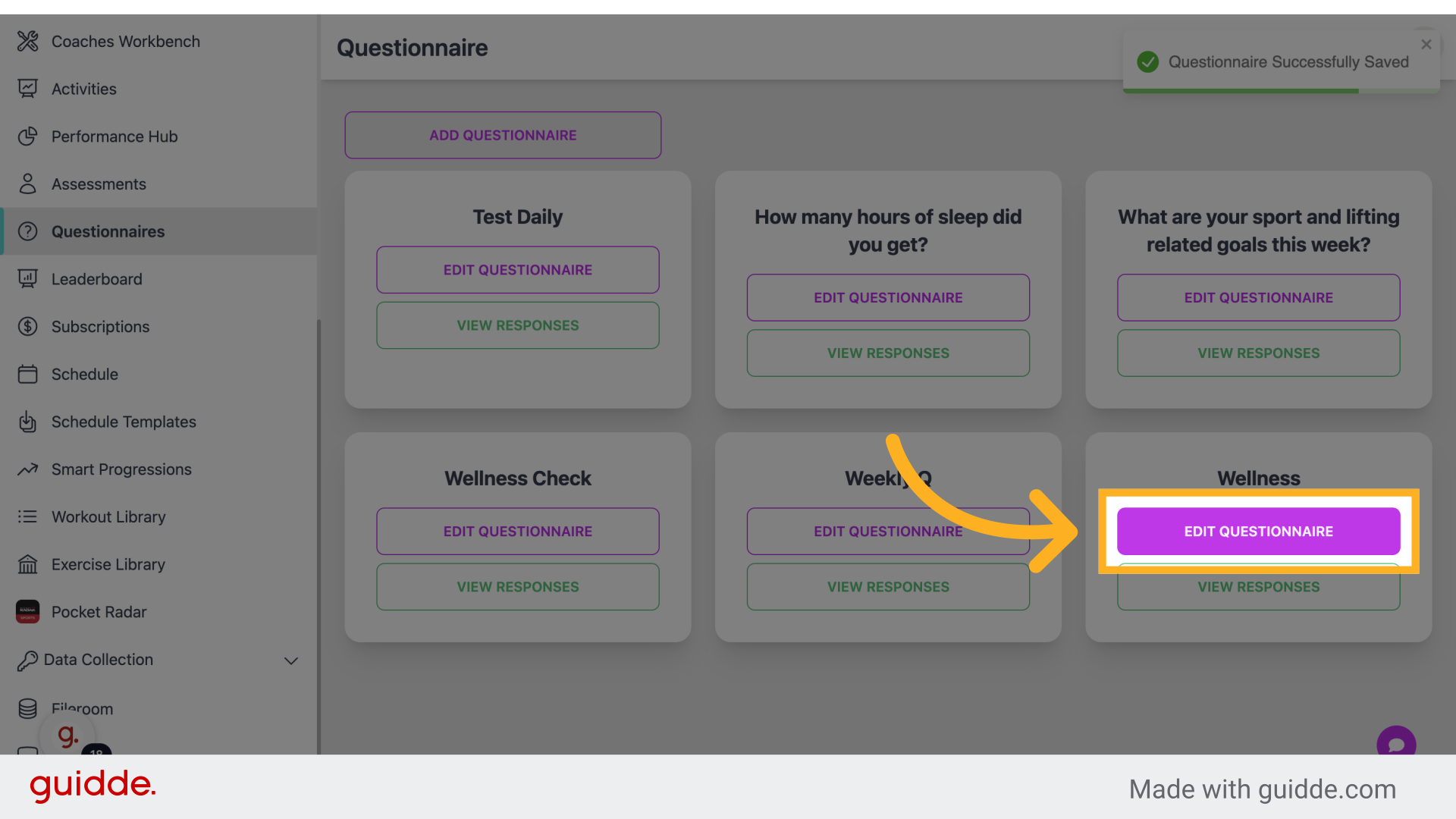
Step 15 — Click "Edit Questionnaire"
Click on "Edit Questionnaire."
Step 16 — Click "Delete questionnaire"
Click on "Delete questionnaire."
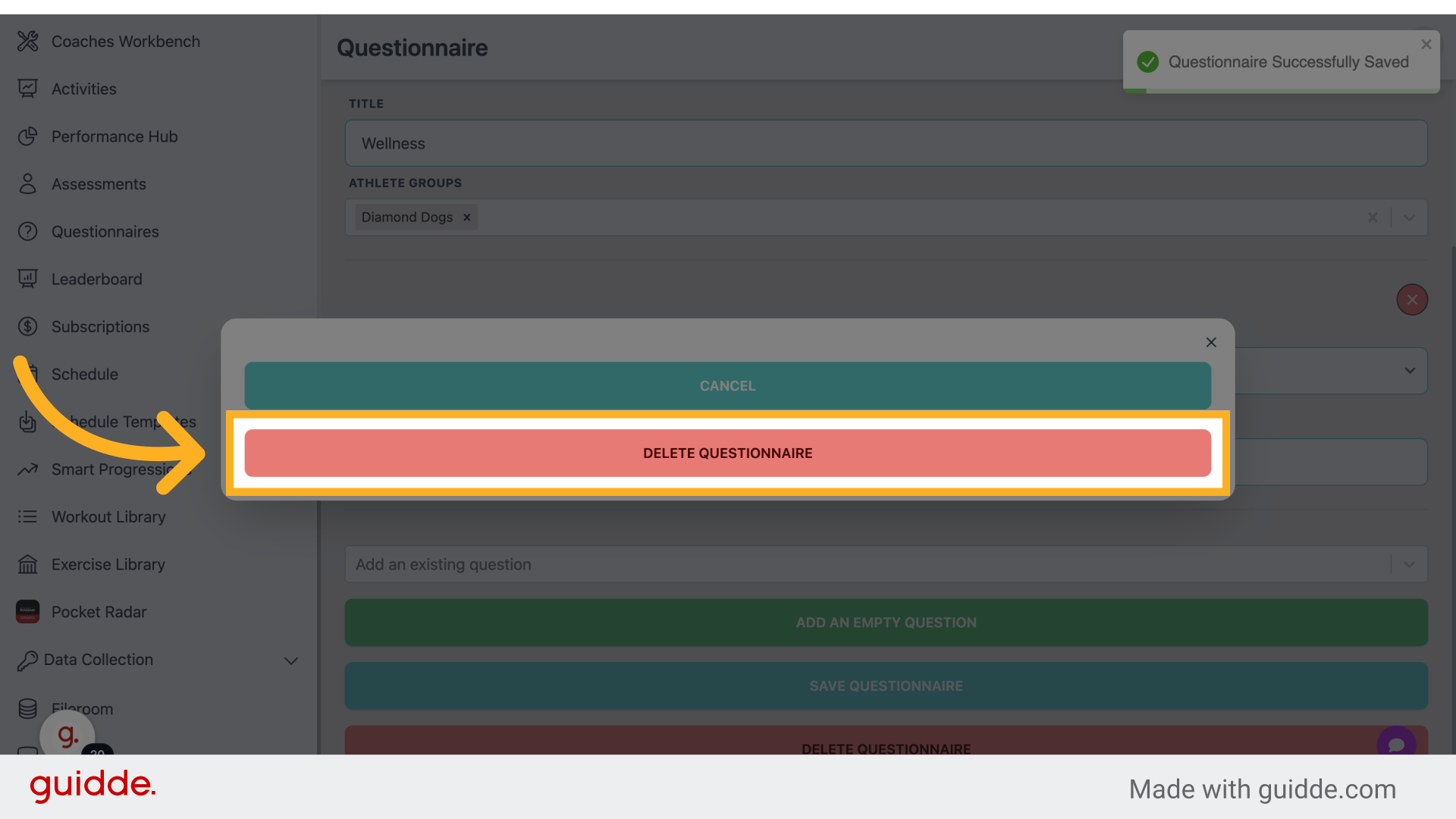
Step 17 — Click "Delete Questionnaire"
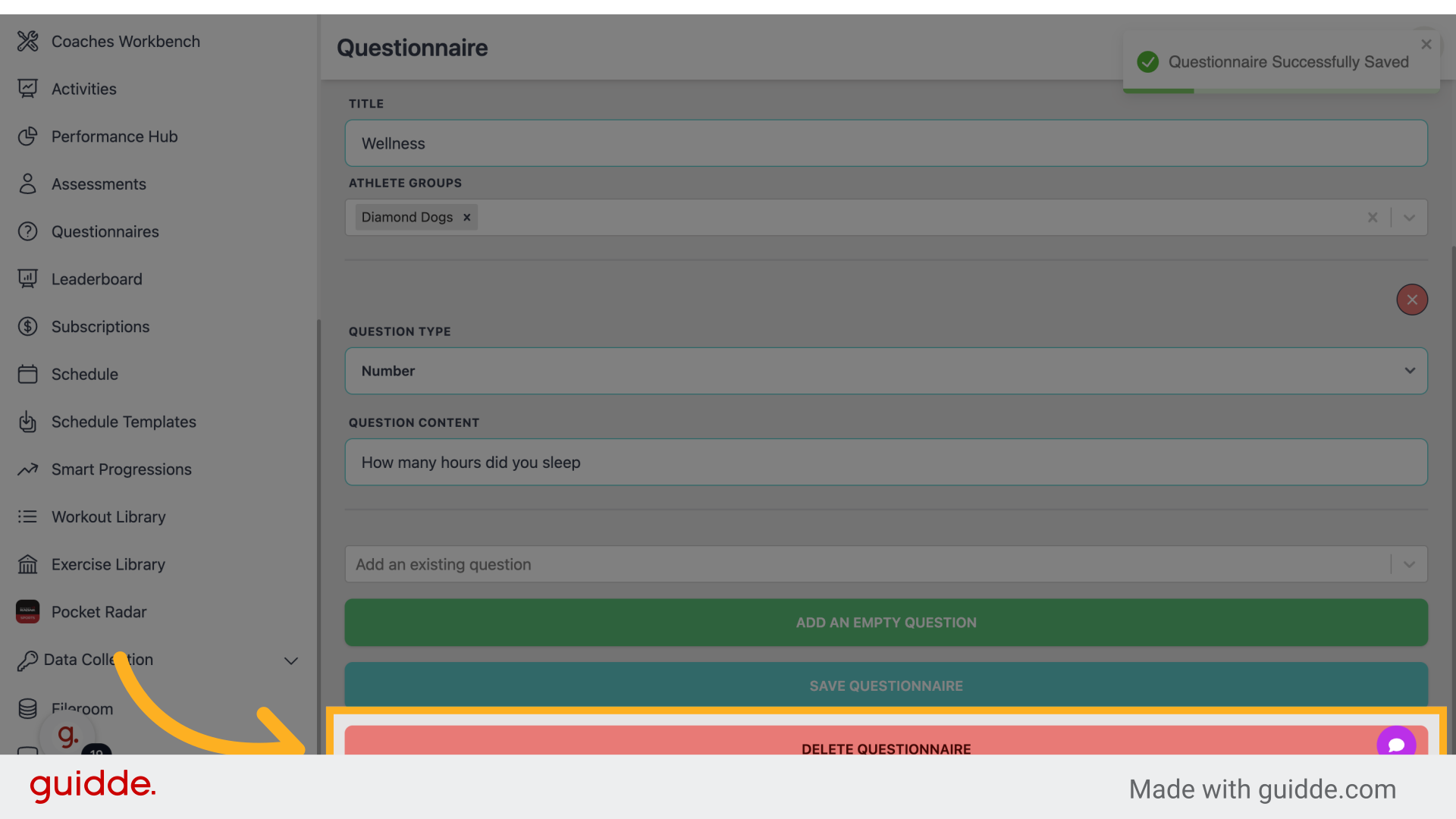
Click on "Delete Questionnaire."
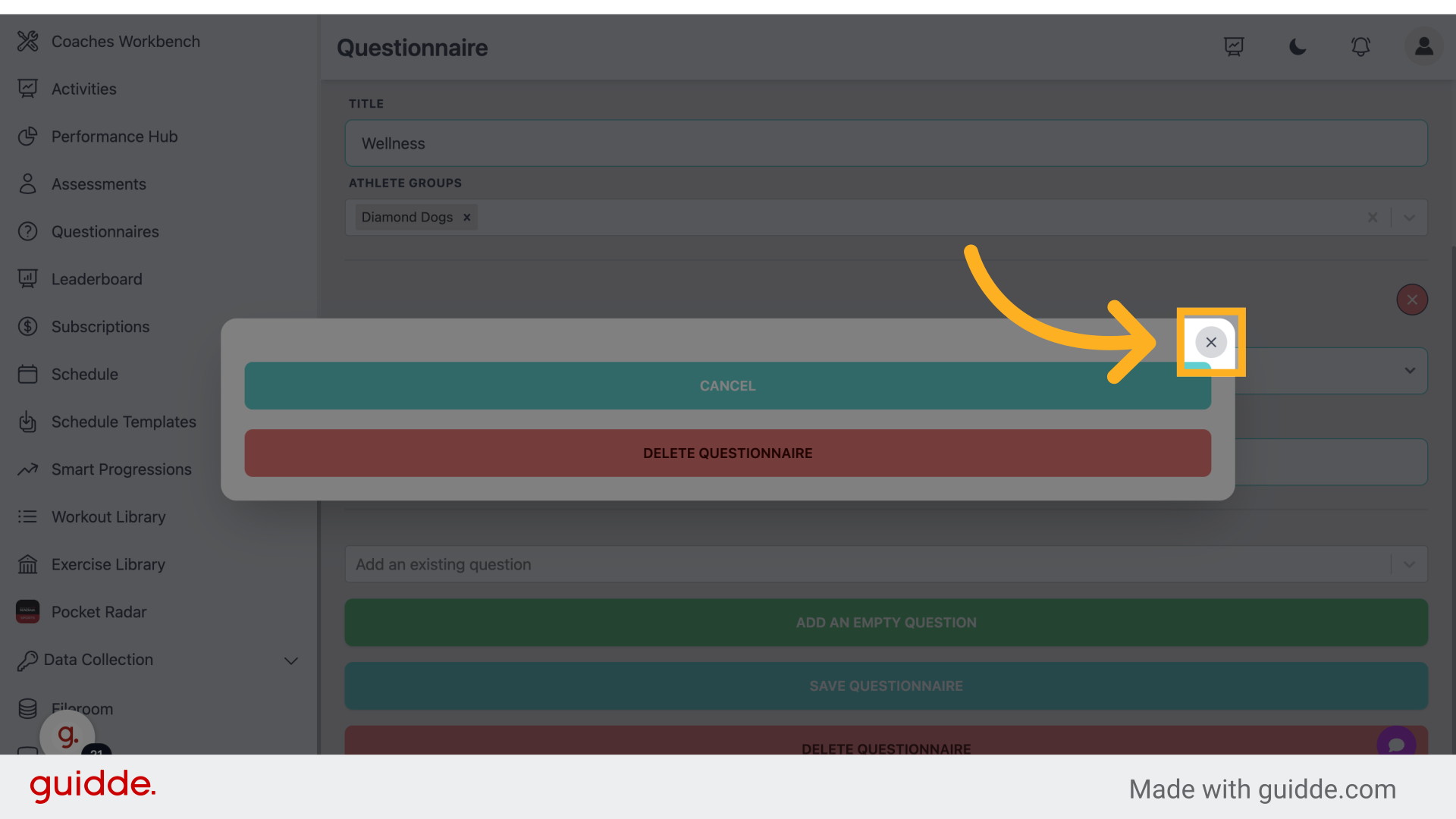
Step 18 — Click "✕"
Click on the "✕" icon to close.
 This guide walks you through the process of creating questionnaires for employee training on Connected-performance. From adding questions to saving and deleting questionnaires, you now have the tools to streamline your training processes effectively.
Referenced by
- 'Creating & Managing Assessments'assessments questionnaires
- 'Setting Up Automations'automation