 Connected Performance
Install the App on Your Phone
Add your organization's app to your iPhone or Android home screen so it opens like a regular app.
The app runs in your phone's browser, and you can add it to your home screen. Once added, it opens full screen without the browser address bar, keeps you signed in, and can send you notifications.
There is nothing to download from the App Store or Google Play. The icon and name on your home screen are your organization's, so the screenshots below use an example organization called "Acme Athletics".
Before you start
- Open the link your organization sent you, for example
https://yourclub.connected-performance.com. Use the same address you sign in with. - On iPhone, use Safari. On Android, use Chrome. Other browsers may not offer the install option.
- Sign in once in the browser first. You will stay signed in when you open the app from your home screen.
iPhone (Safari)
Step 1: Open the Safari menu
With the app open in Safari, tap the ⋯ button next to the address bar at the bottom of the screen.
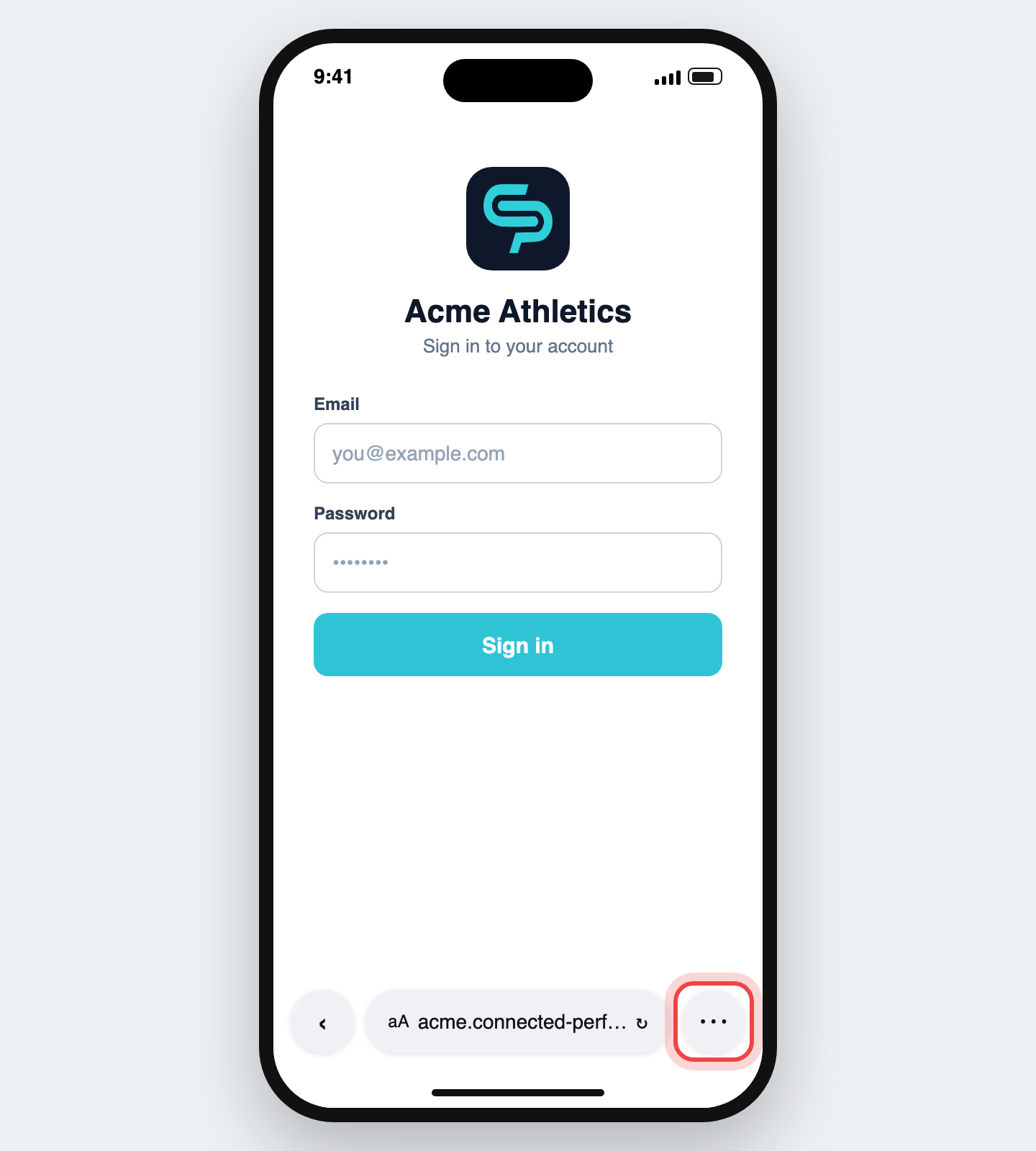
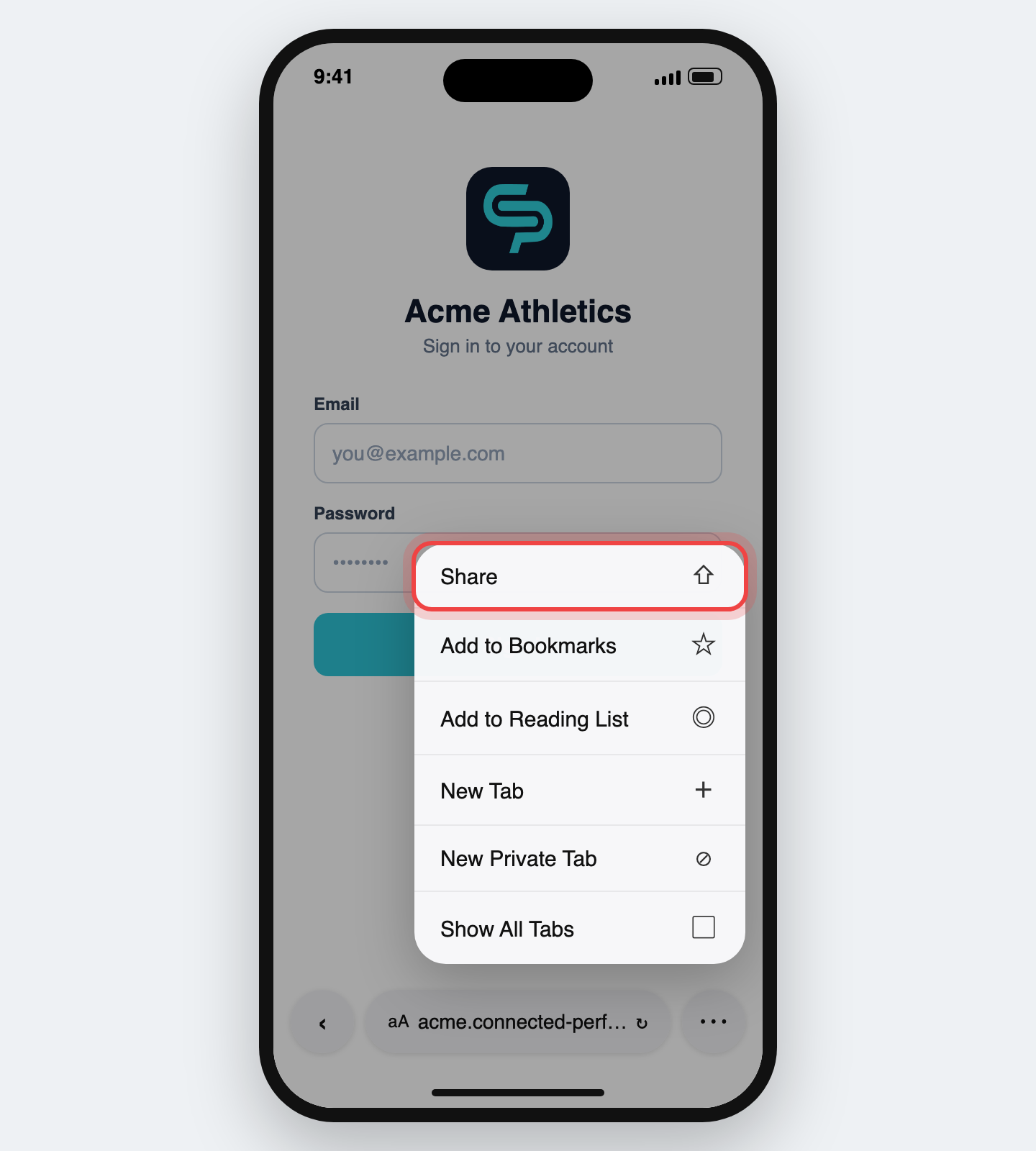
On older versions of iOS there is no ⋯ button. Tap the Share button (a square with an arrow pointing up) in the bottom toolbar and skip to Step 3.
Step 2: Tap Share
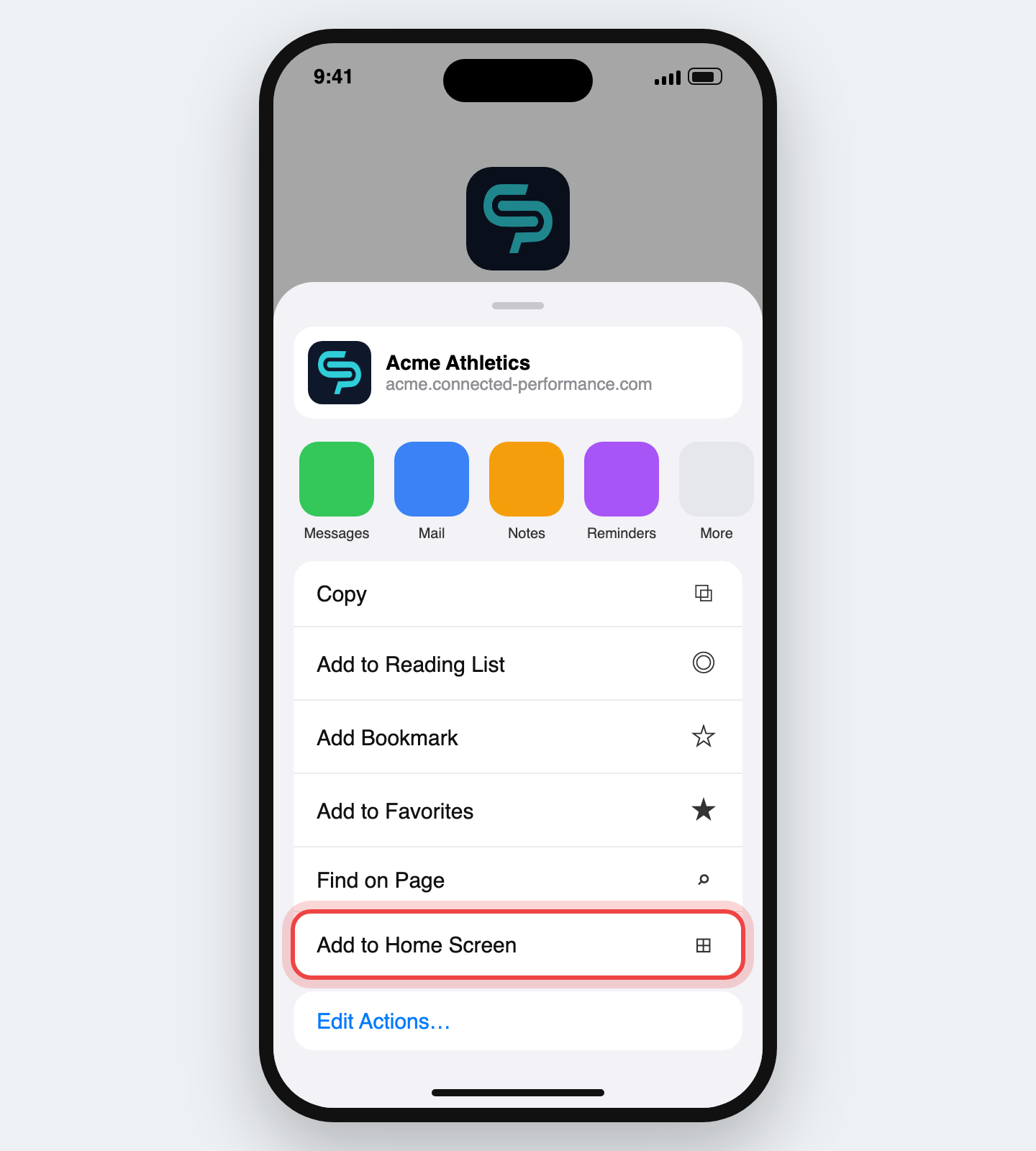
Step 3: Tap Add to Home Screen
Scroll down the share sheet and tap Add to Home Screen. If you don't see it, tap View More or Edit Actions… at the bottom of the list to find it.
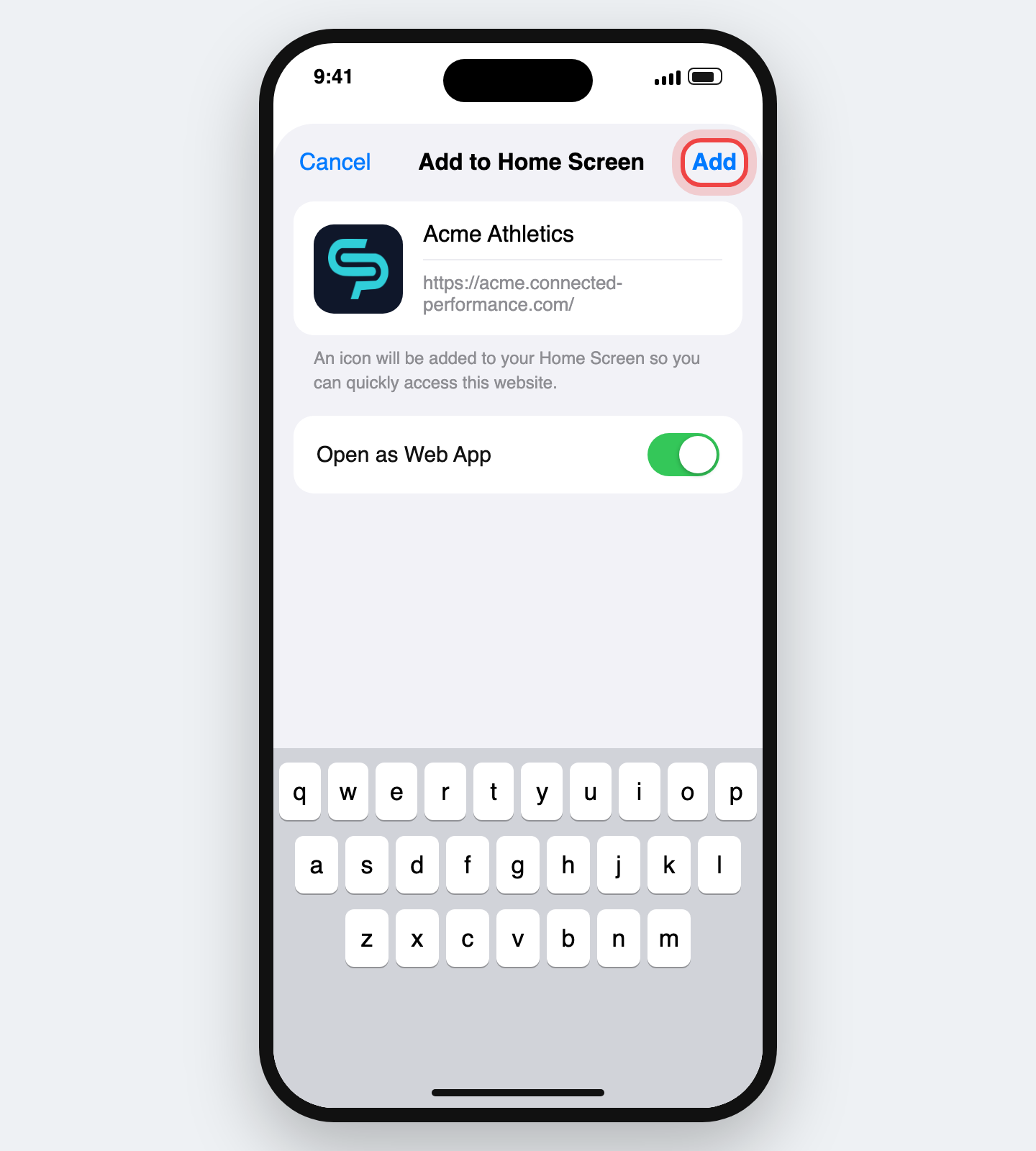
Step 4: Tap Add
You can change the name if you want. Leave Open as Web App turned on, then tap Add in the top right corner.
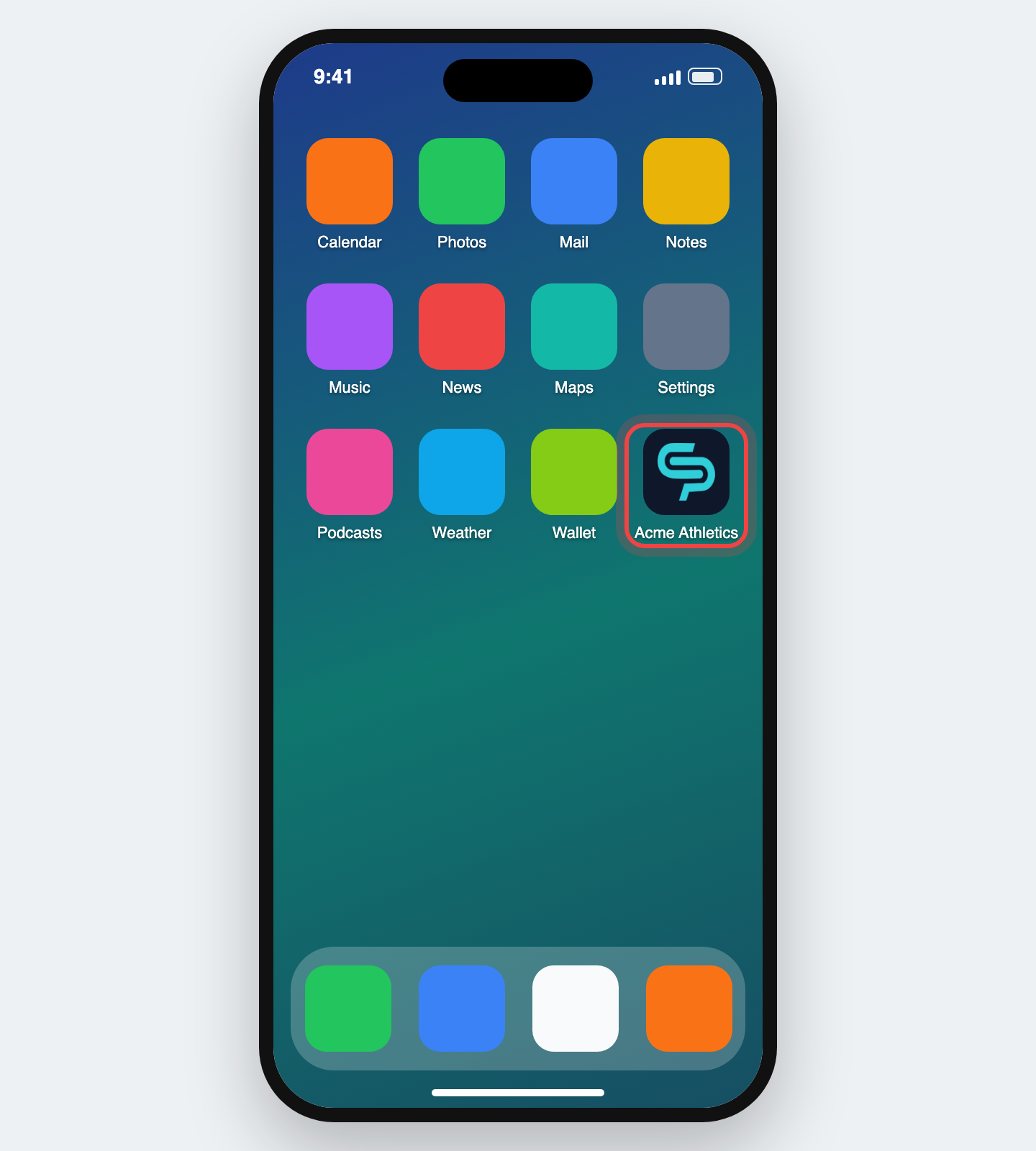
Step 5: Open the app from your home screen
The icon appears on your home screen. Tap it to open the app.
Android (Chrome)
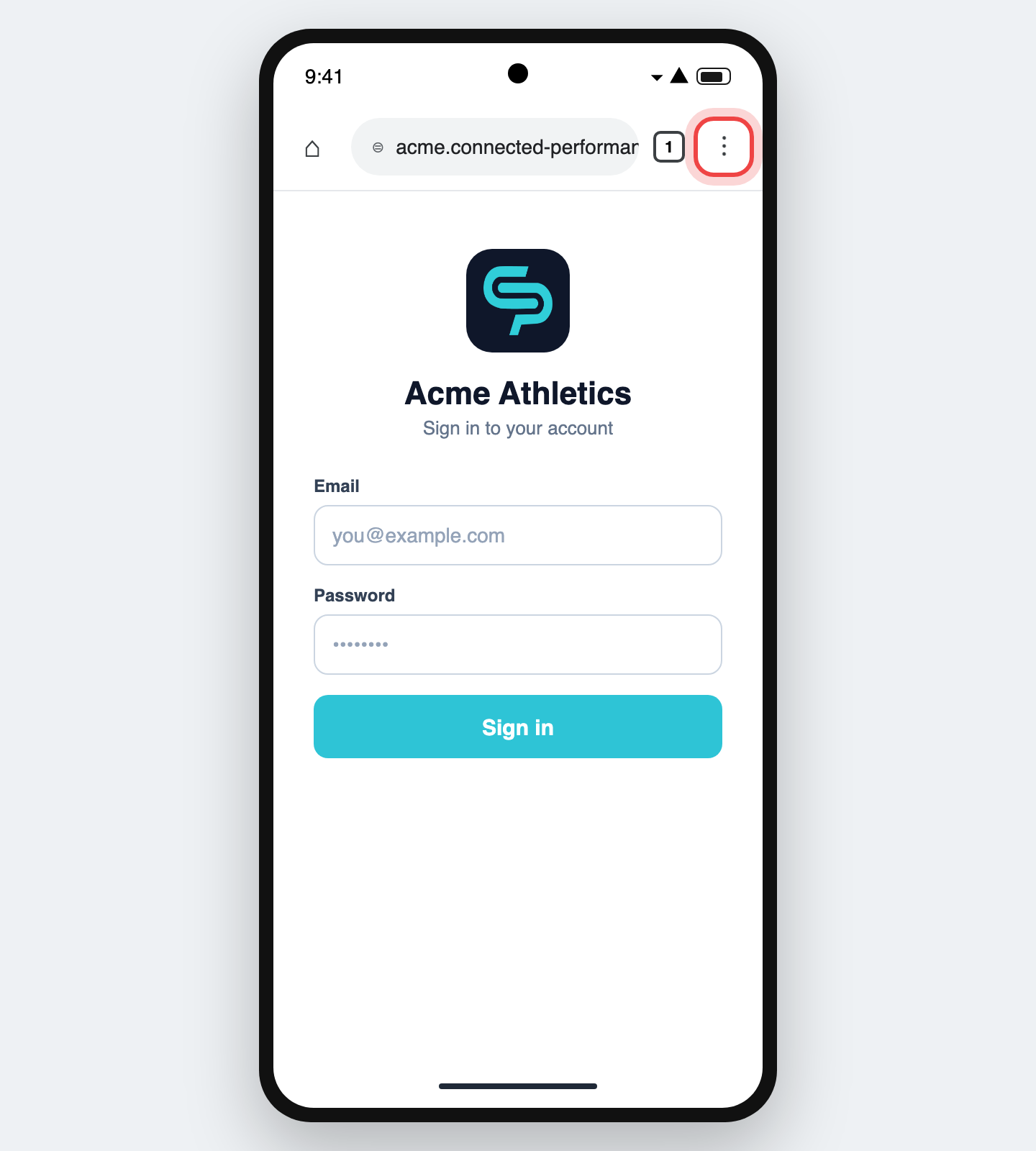
Step 1: Open the Chrome menu
With the app open in Chrome, tap the ⋮ button in the top right corner.
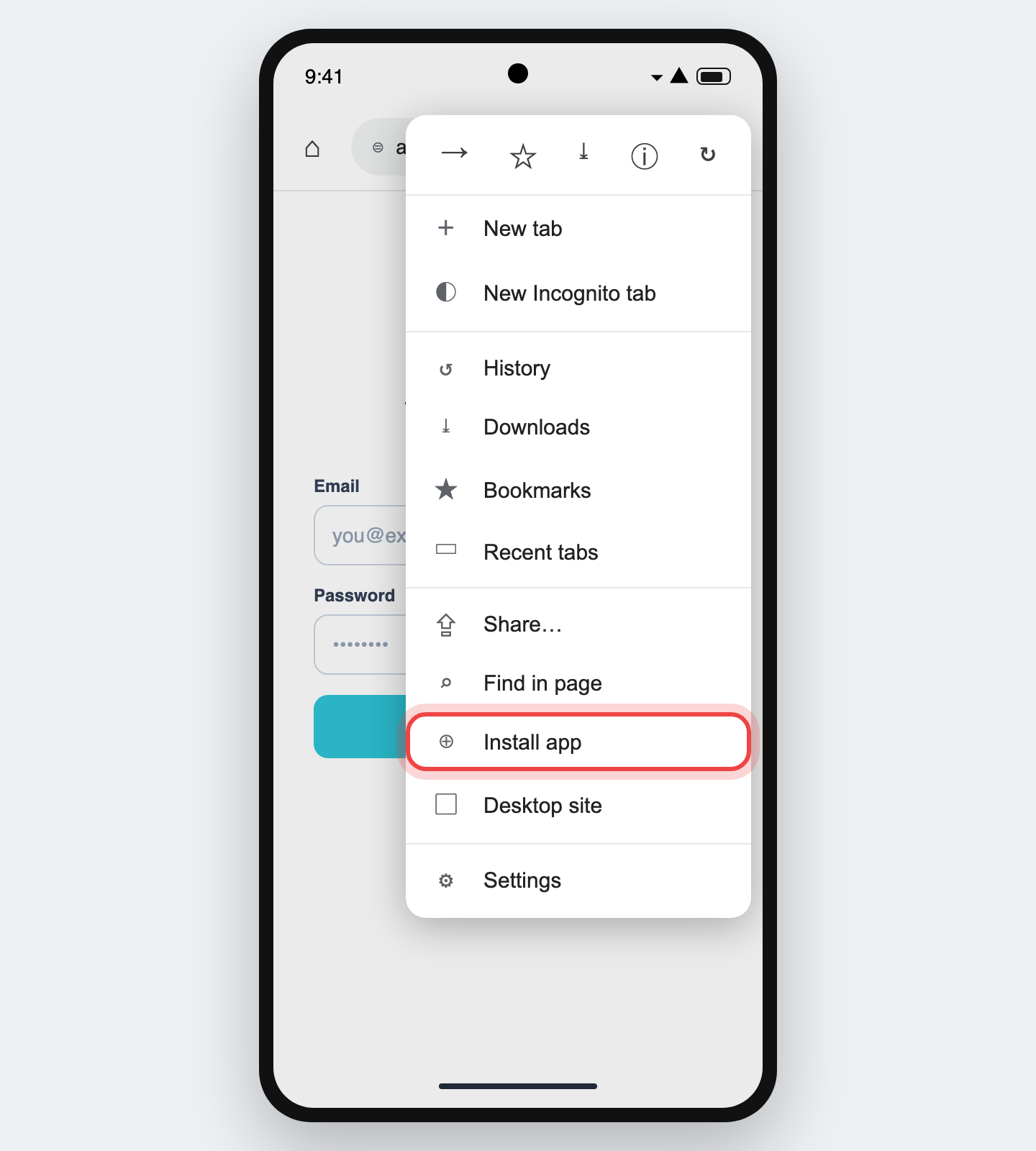
Step 2: Tap Install app
Tap Install app. On some phones this option is called Add to Home screen.
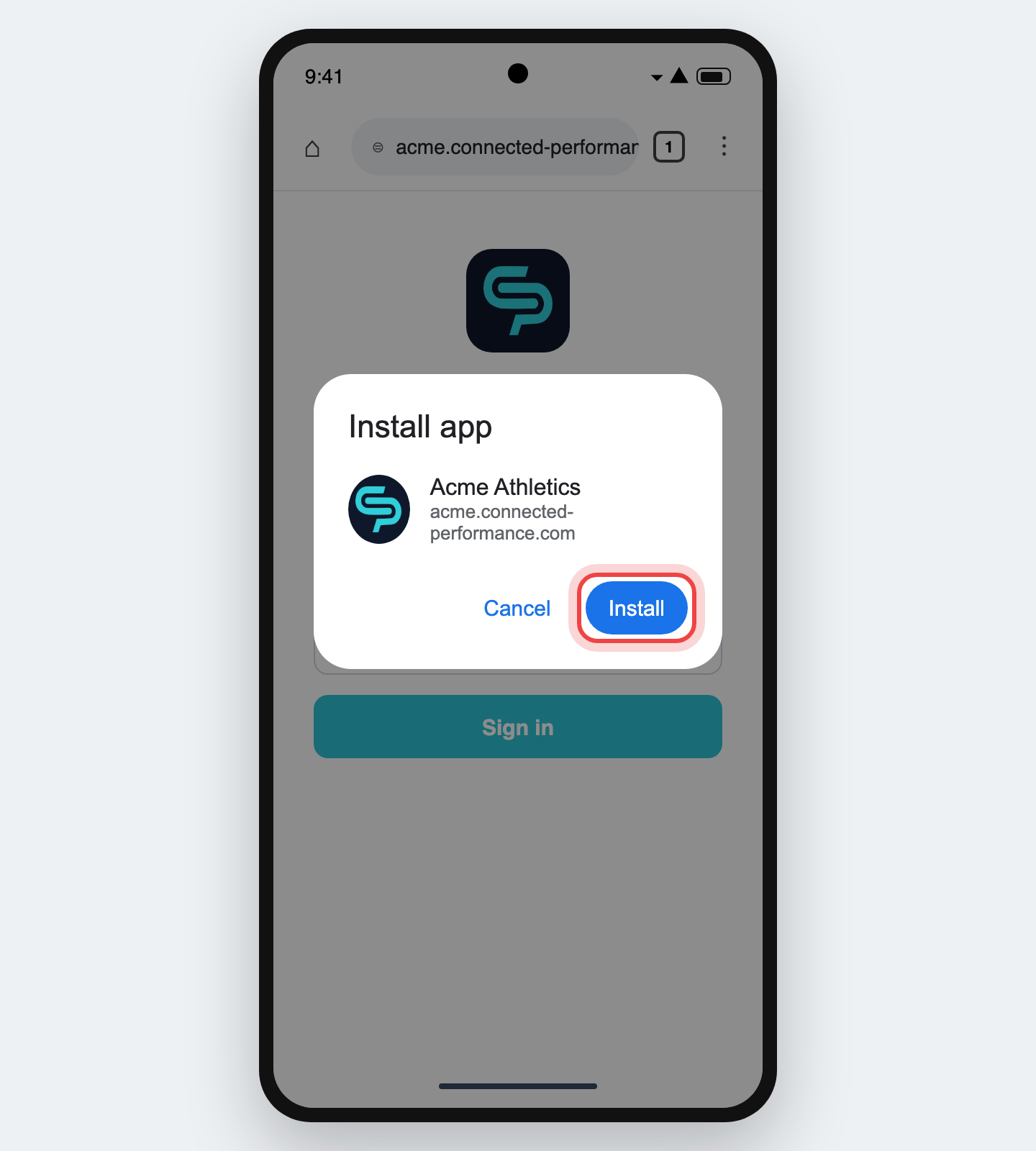
Chrome may also show an install banner at the bottom of the page. Tapping Install there does the same thing.
Step 3: Tap Install
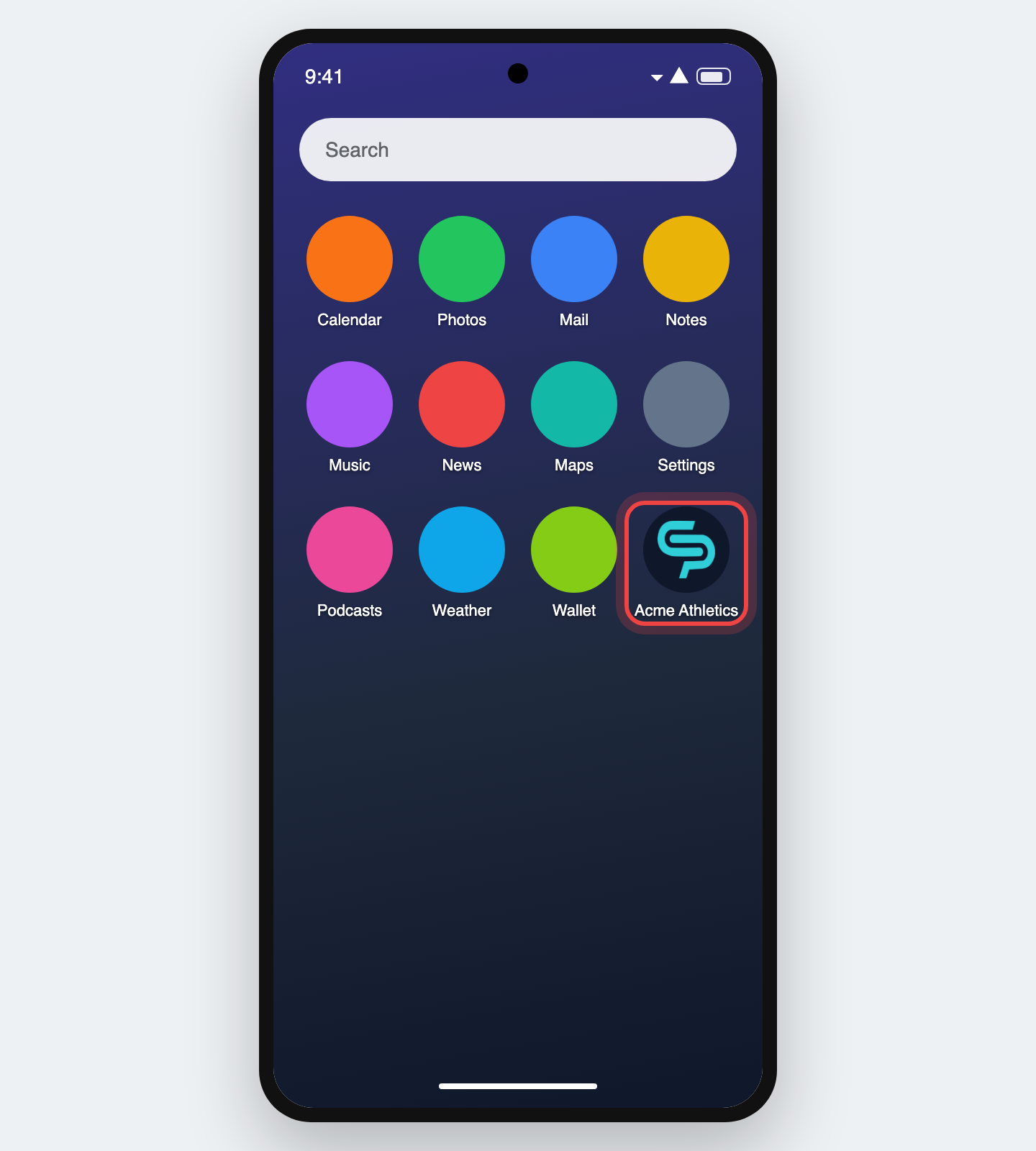
Step 4: Open the app from your home screen
The icon appears on your home screen or in your app drawer. Tap it to open the app.
Troubleshooting
I don't see Add to Home Screen or Install app. Check that you are in Safari on iPhone or Chrome on Android. If you opened the link from inside another app, such as email, Instagram or a text message, it may have opened in that app's built-in browser. Copy the link and paste it into Safari or Chrome.
The app opens with the browser address bar. On iPhone, delete the icon and add it again with Open as Web App turned on.
The icon shows the wrong name or logo. Your organization sets the name and icon. Delete the icon from your home screen and add it again to pick up the latest version.
I want to remove the app. Press and hold the icon, then choose Remove App (iPhone) or Uninstall (Android). This does not delete your account or any of your data.