 Connected Performance
Creating & Managing Assessments
Assessments measure athlete performance on specific tests or movements. Coaches create assessment templates, assign them to athletes, then grade the results.
Overview
Assessments measure athlete performance on specific tests or movements. Coaches create assessment templates, assign them to athletes, then grade the results.
How To
Accessing Assessments
- Navigate to Data Tracking > Assessments in the sidebar
- View existing assessments or create new ones
Creating an Assessment Template
- Click Create Assessment or + New
- Enter assessment details:
- Name - Clear, descriptive name (e.g., "10-Yard Sprint Test")
- Description - Instructions for athletes
- Category - Group similar assessments
- Add assessment items (what you're measuring)
- Configure scoring or grading criteria
- Click Save
Adding Assessment Items
For each thing you want to measure:
- Click Add Item
- Set the item type:
- Numeric (time, distance, weight)
- Text response
- Multiple choice
- File upload (video, image)
- Add instructions or criteria
- Set any target values or benchmarks
Assigning Assessments
- Open an assessment template
- Click Assign to Athletes
- Select athletes or groups
- Set due date (optional)
- Click Assign
Athletes receive notification and see the assessment in their schedule.
Grading Assessments
When athletes complete assessments:
- Go to Assessments and filter by "Needs Grading"
- Click an assessment to review
- View athlete responses and submissions
- Enter grades or scores for each item
- Add feedback comments (optional)
- Click Submit Grade
Viewing Results
- See individual results on athlete profiles
- Compare results across athletes in reports
- Track progress over time with assessment history
Editing Assessment Templates
- Find the assessment in your list
- Click Edit
- Modify items, criteria, or details
- Click Save
Note: Changes don't affect already-assigned assessments.
Tips
- Include clear instructions so athletes understand expectations
- Use video uploads for movement assessments to review technique
- Create assessments for key benchmarks and reassess periodically
Troubleshooting
Athletes can't see assigned assessment? Check the assignment was saved. Verify athlete has app access.
Grades not saving? Ensure all required fields are complete before submitting.
Related
- Creating & Managing Questionnaires
- Single Athlete Reports
- Organization Reports
Video Walkthrough
How To Create Assessments
Enhance your employee training program by mastering the creation of assessments in Connected-performance
This guide will walk you through the steps to efficiently set up evaluation criteria, add assessment items, and save your assessment configurations.
Step 2 — Click "Assessments"
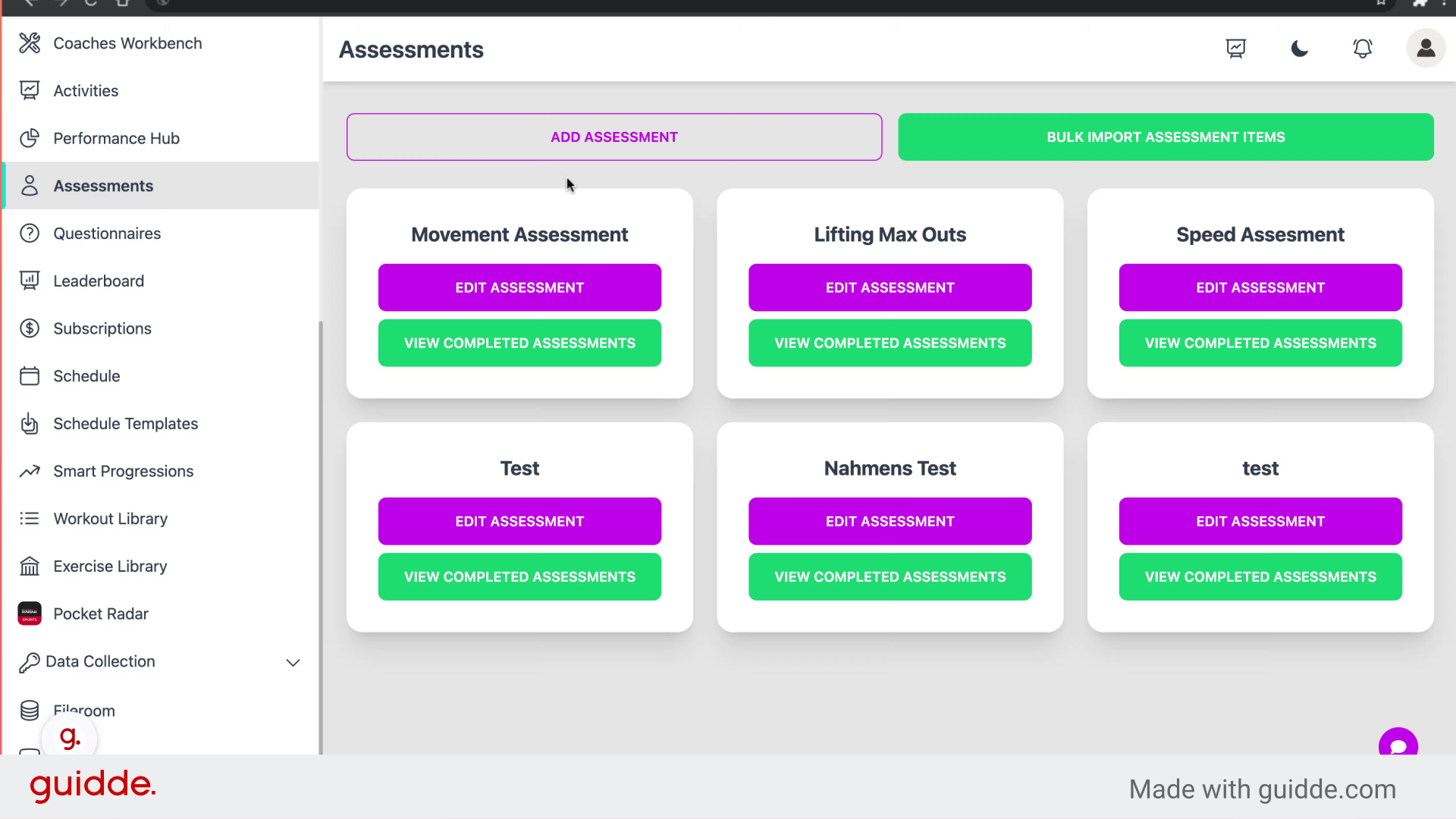
Access the assessment feature.
Step 3 — Fill "on"
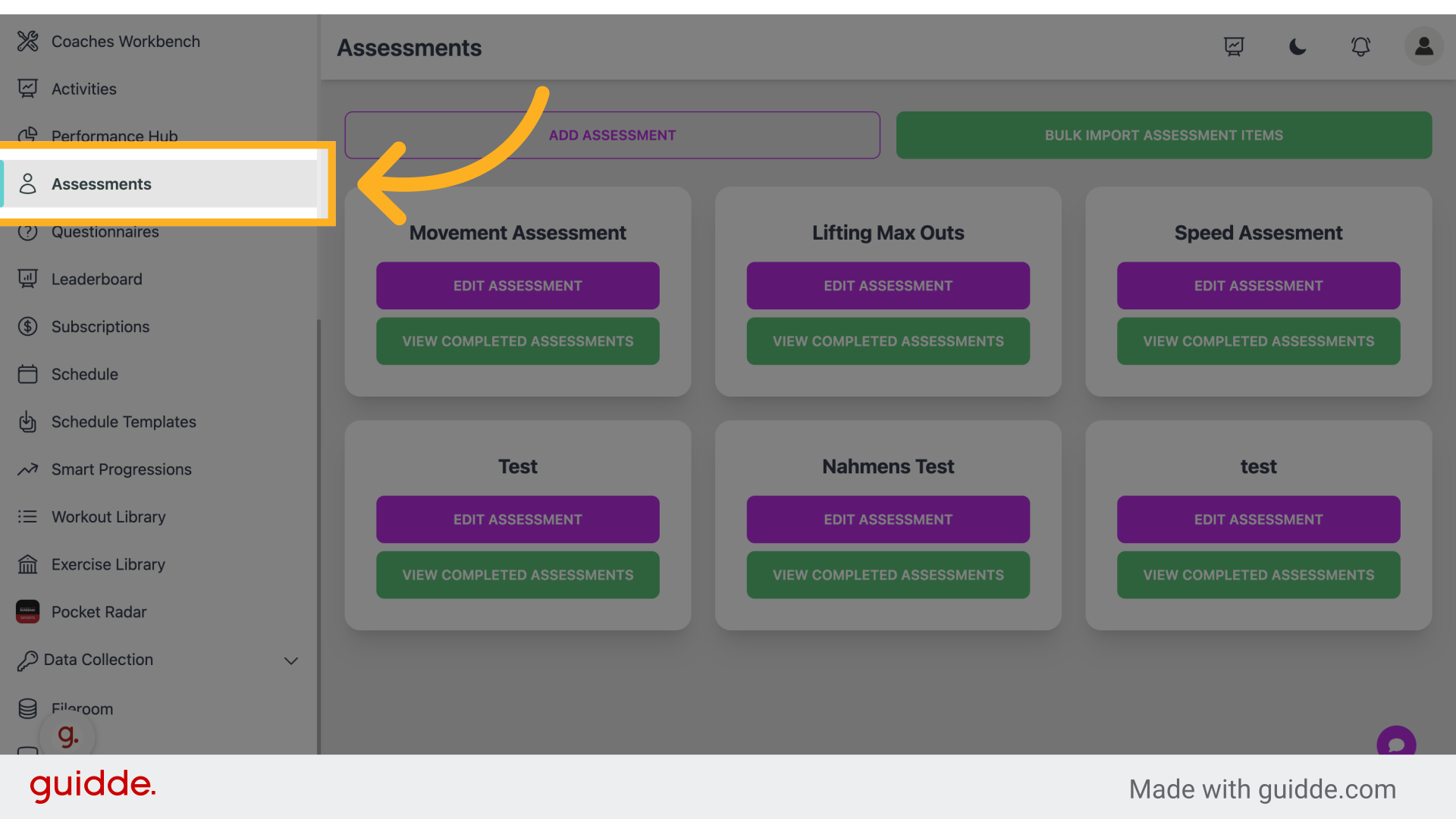
Fill in "on"
Step 4 — Click "Add Assessment"
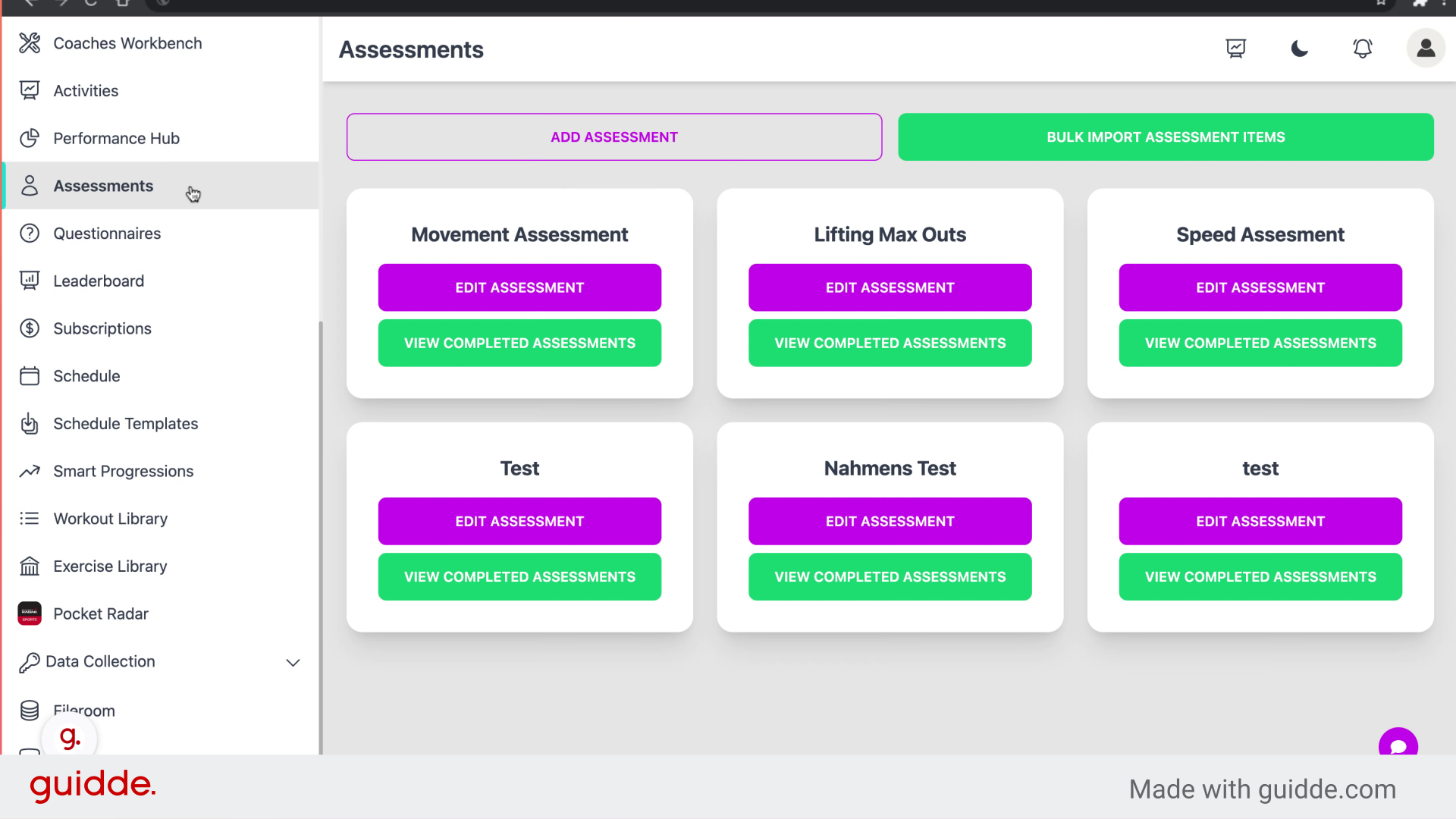
Begin creating a new assessment.
Step 5 — Click here
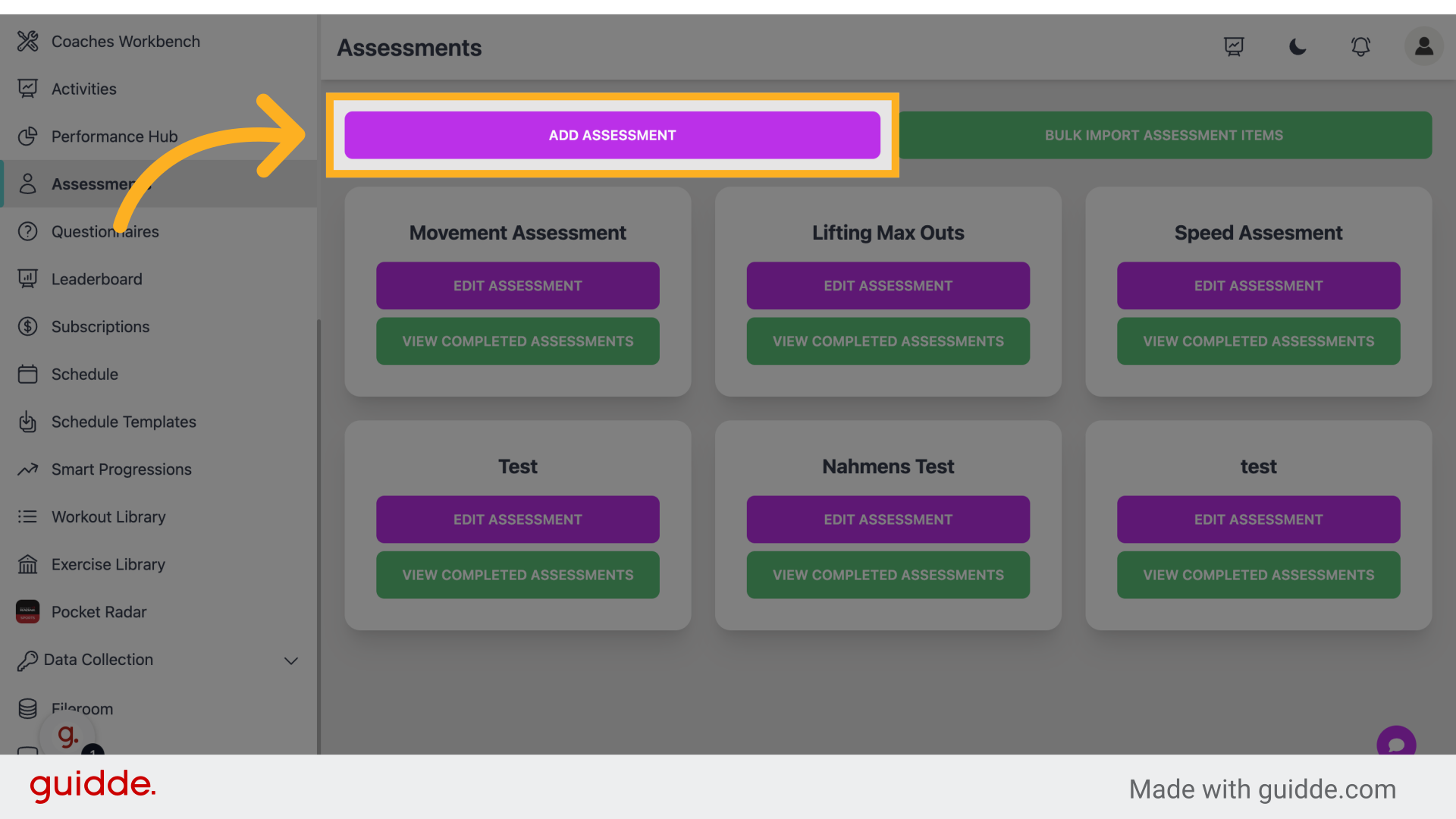
Fill in the assessment details.
Step 6 — Click here
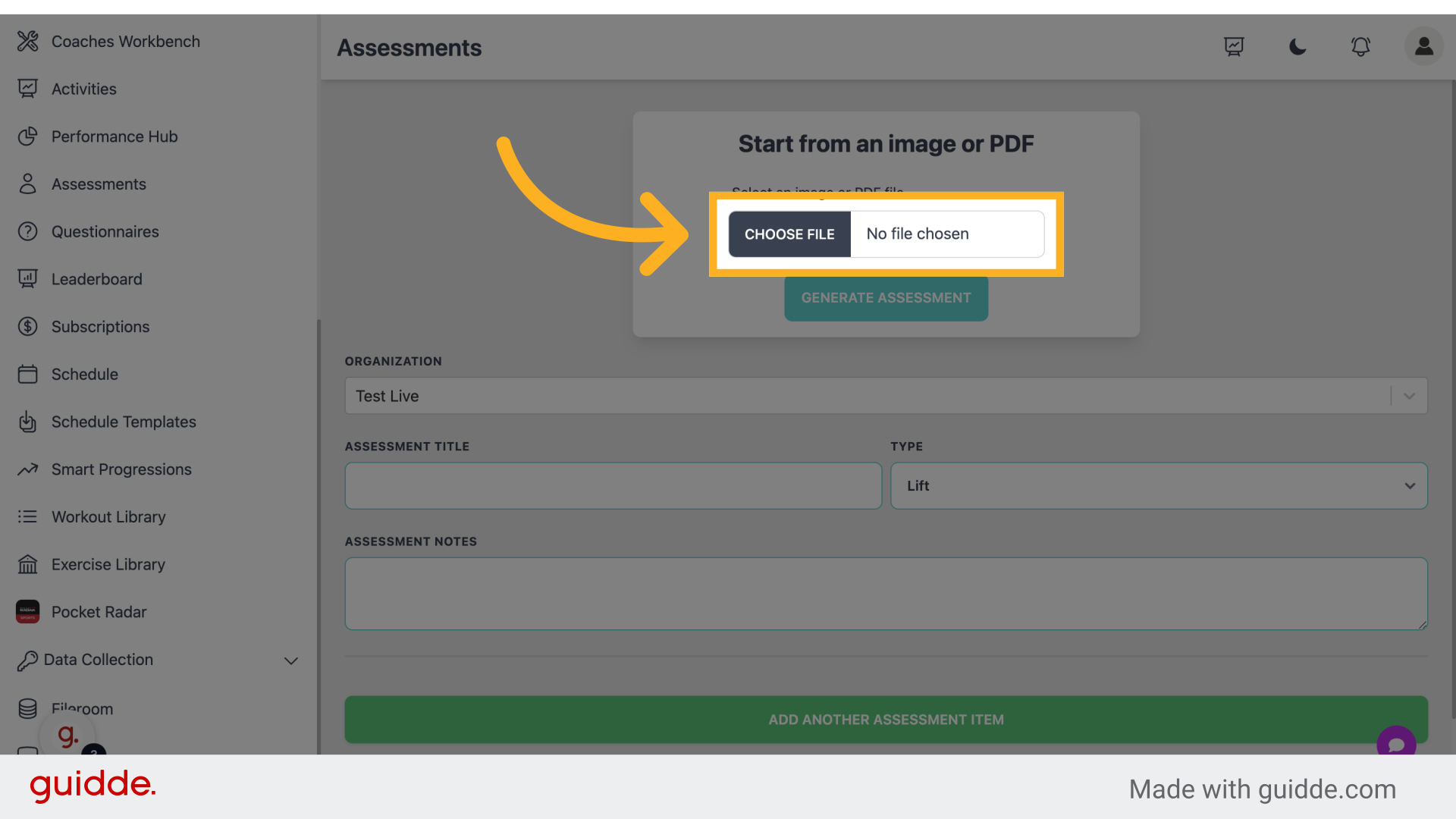
Enter assessment criteria.
Step 7 — Fill "Mobility"
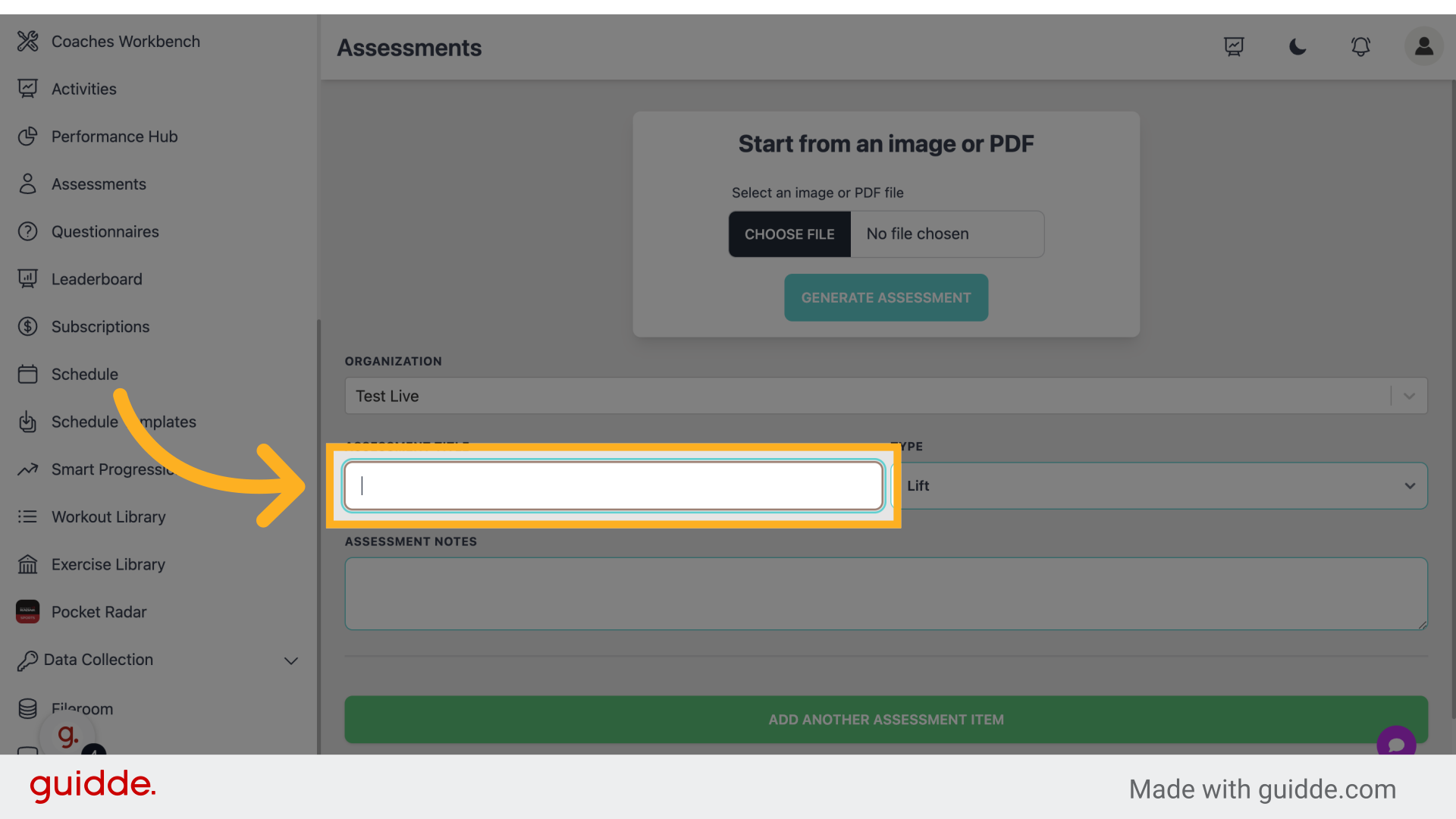
Enter "Mobility" in the provided field
Step 8 — Click "TypeLiftMobilitySprintThrowMeasureables"
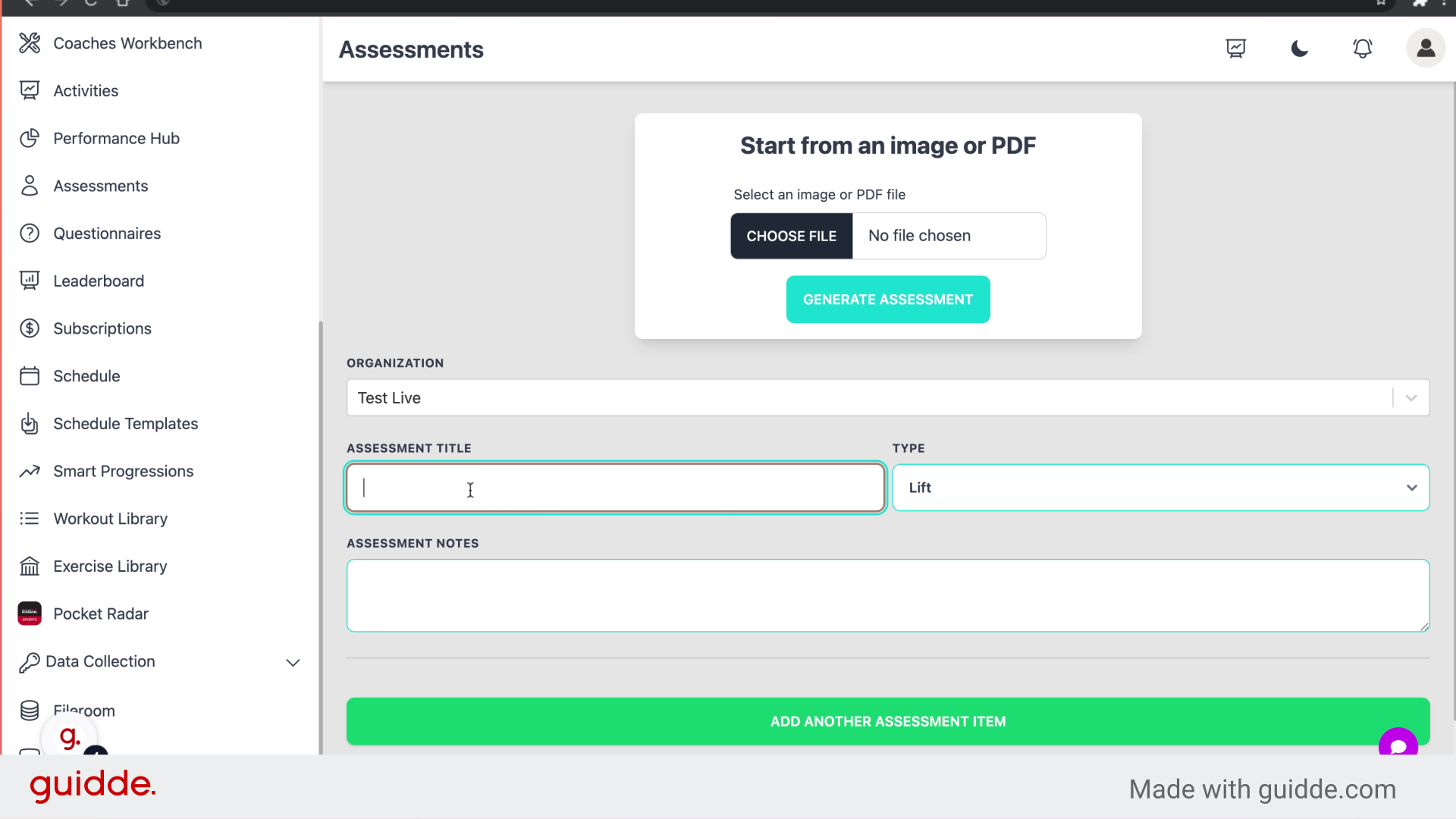
Select assessment type.
Step 9 — Fill "Type"
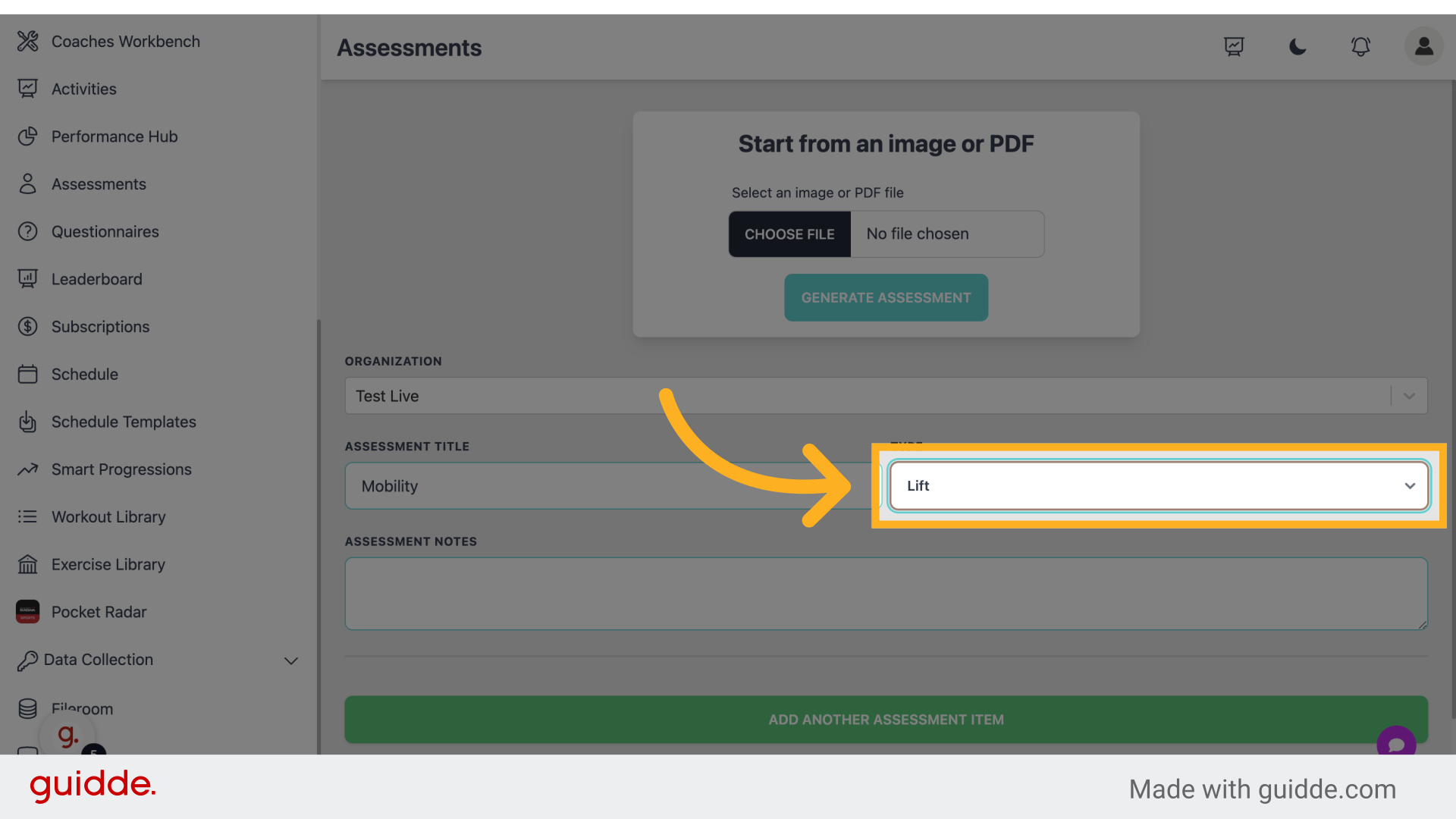
Fill in the text box with your desired type
Step 10 — Click "Add Another Assessment Item"
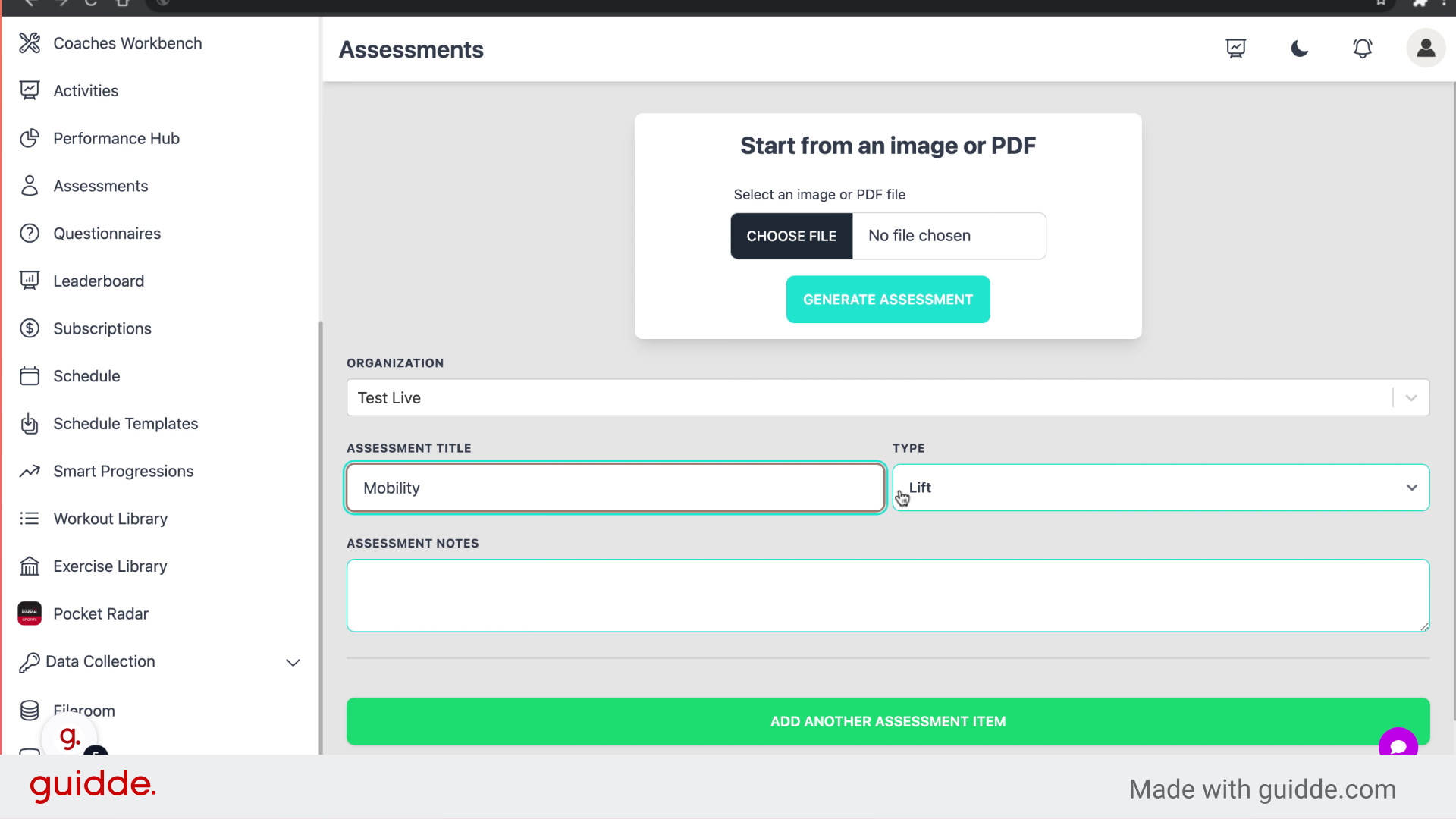
Include additional assessment components.
Step 11 — Click here
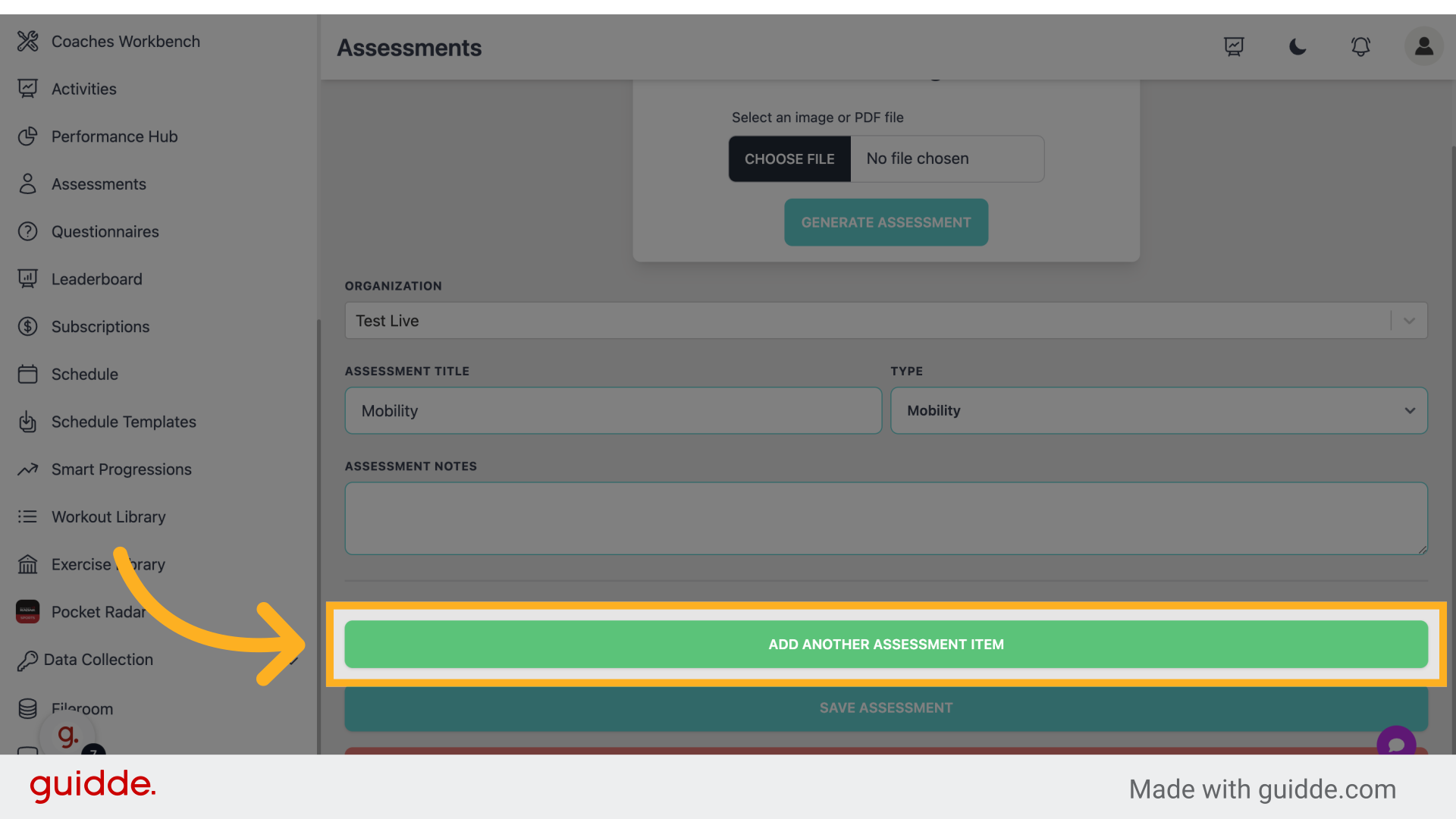
Provide more assessment details.
Step 12 — Choose A Previously Used Assessment
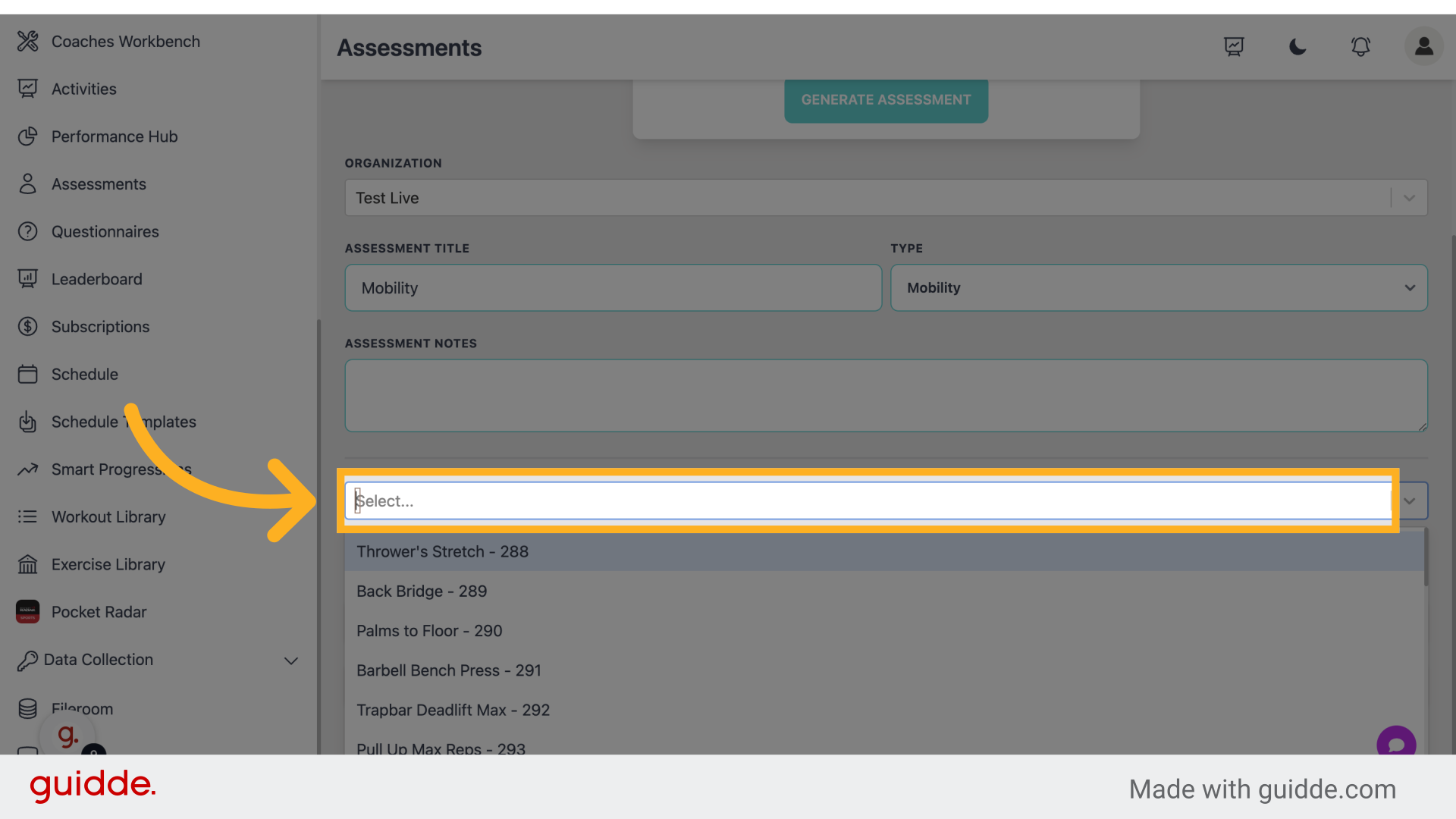
Specify assessment title.
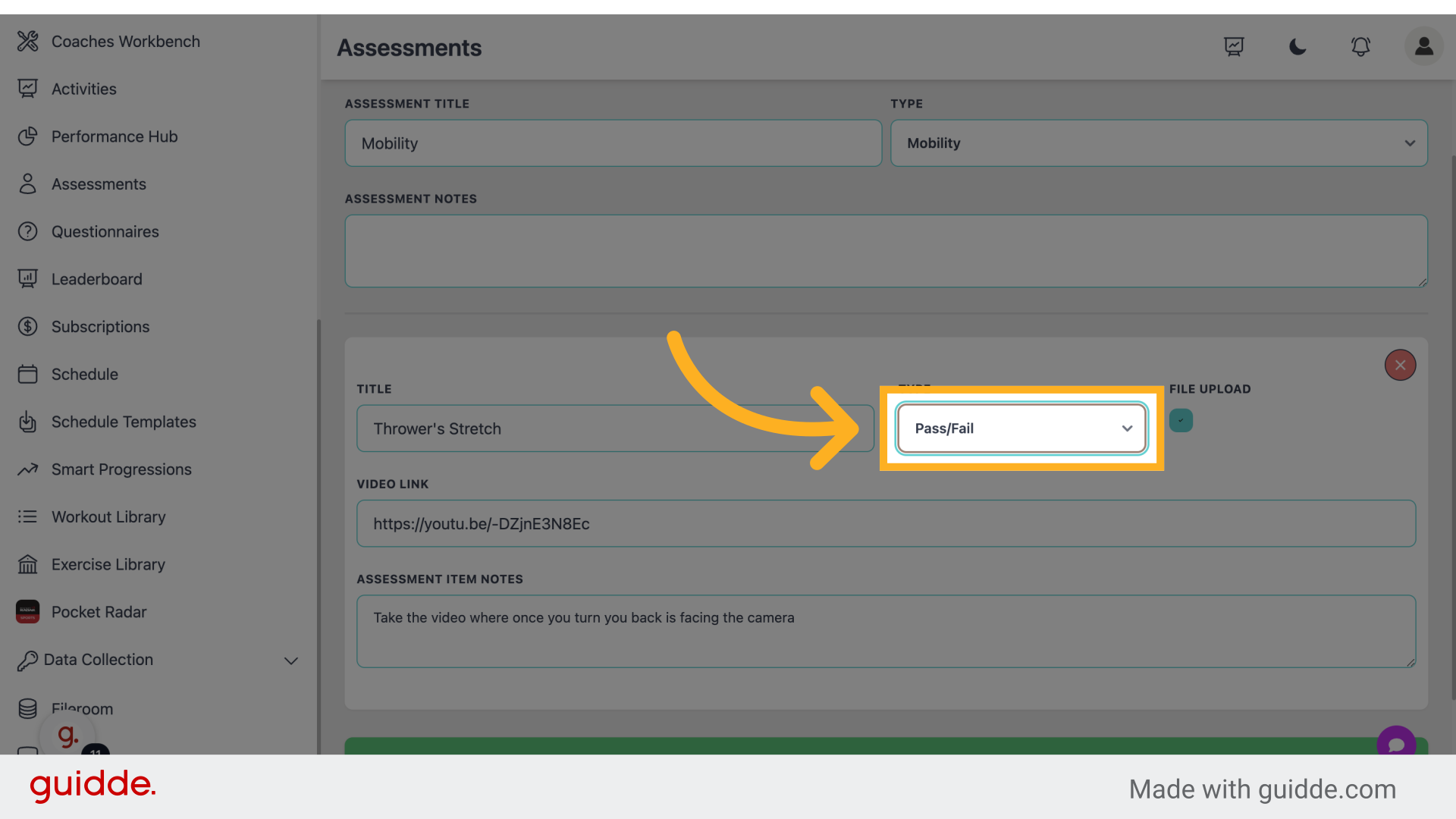
Step 13 — Click "Type"
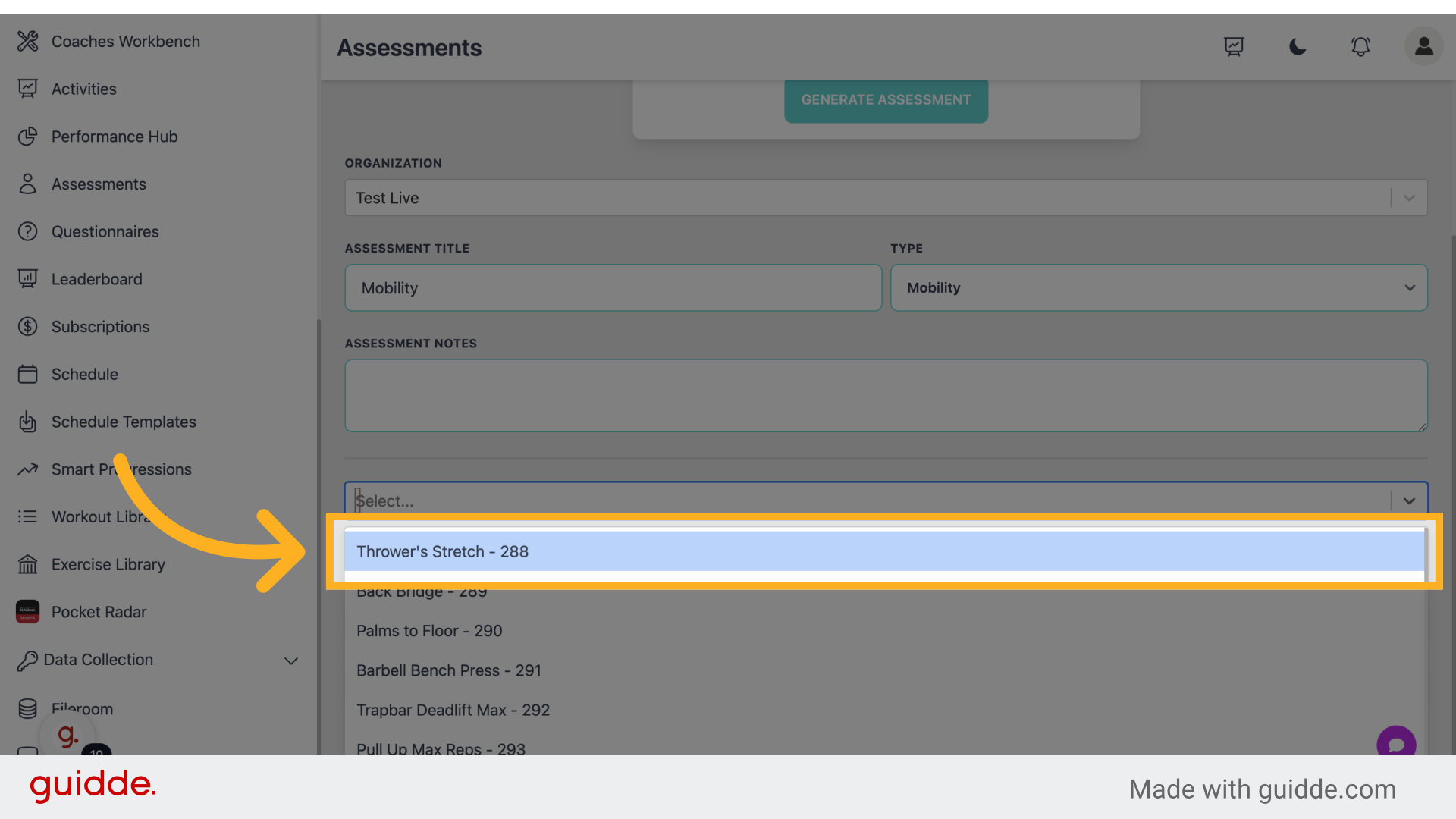
Set assessment parameters.
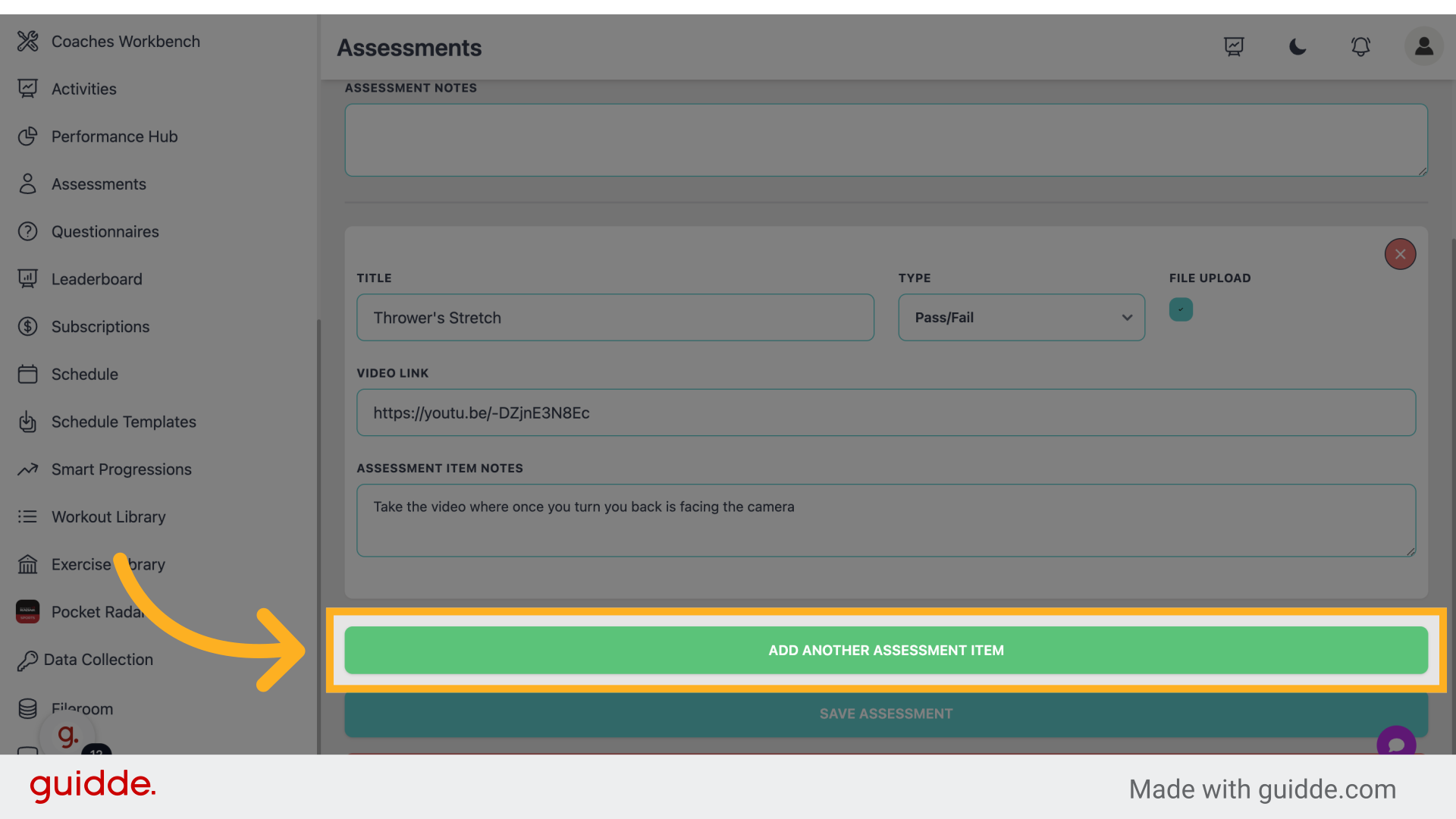
Step 14 — Click "Add Another Assessment Item"
Add another evaluation criterion.
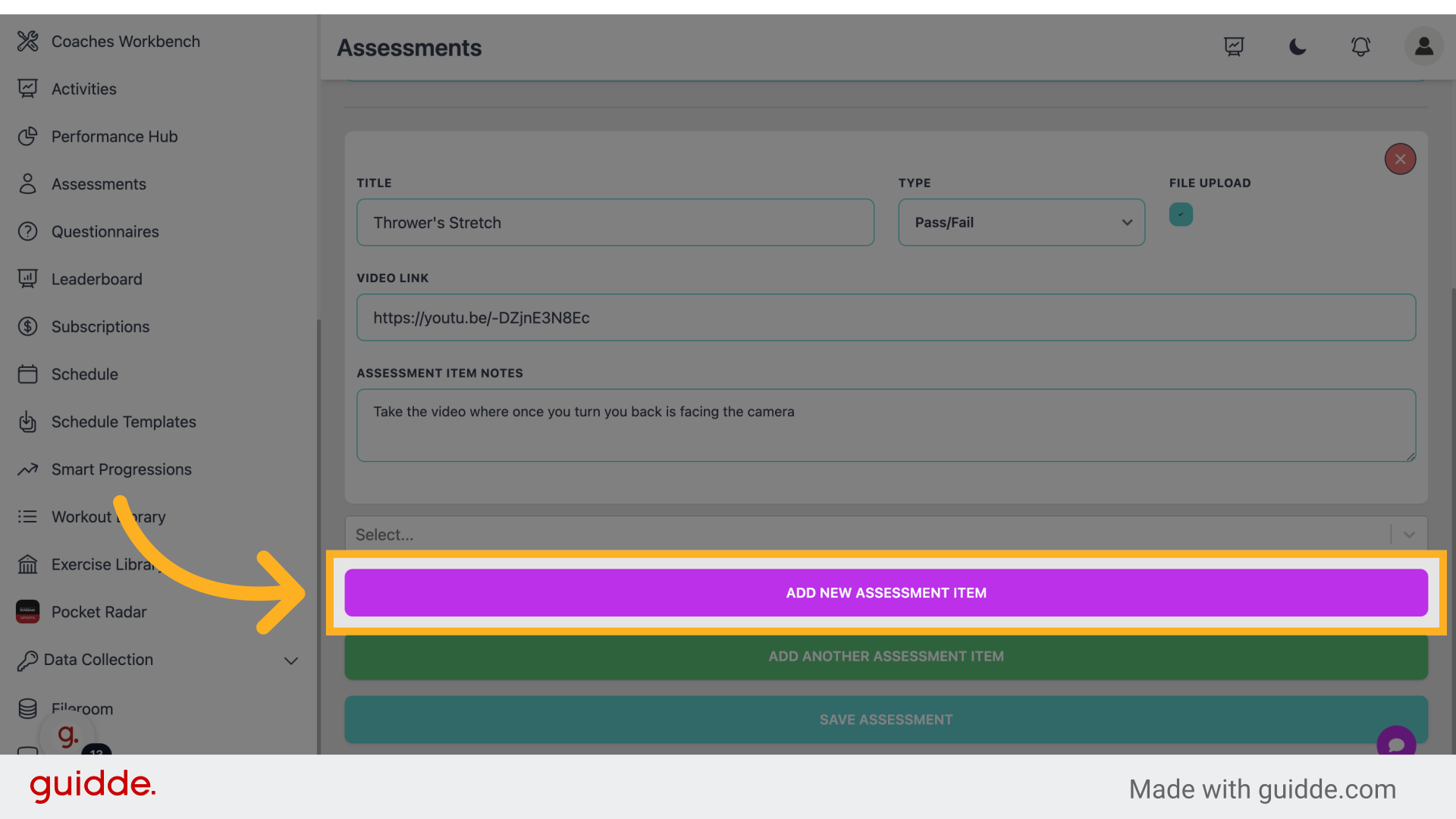
Step 15 — Click "Add New Assessment Item"
Introduce a new assessment aspect.
Step 16 — Click here
Fill in additional assessment details.
Step 17 — Type In Your Assessment
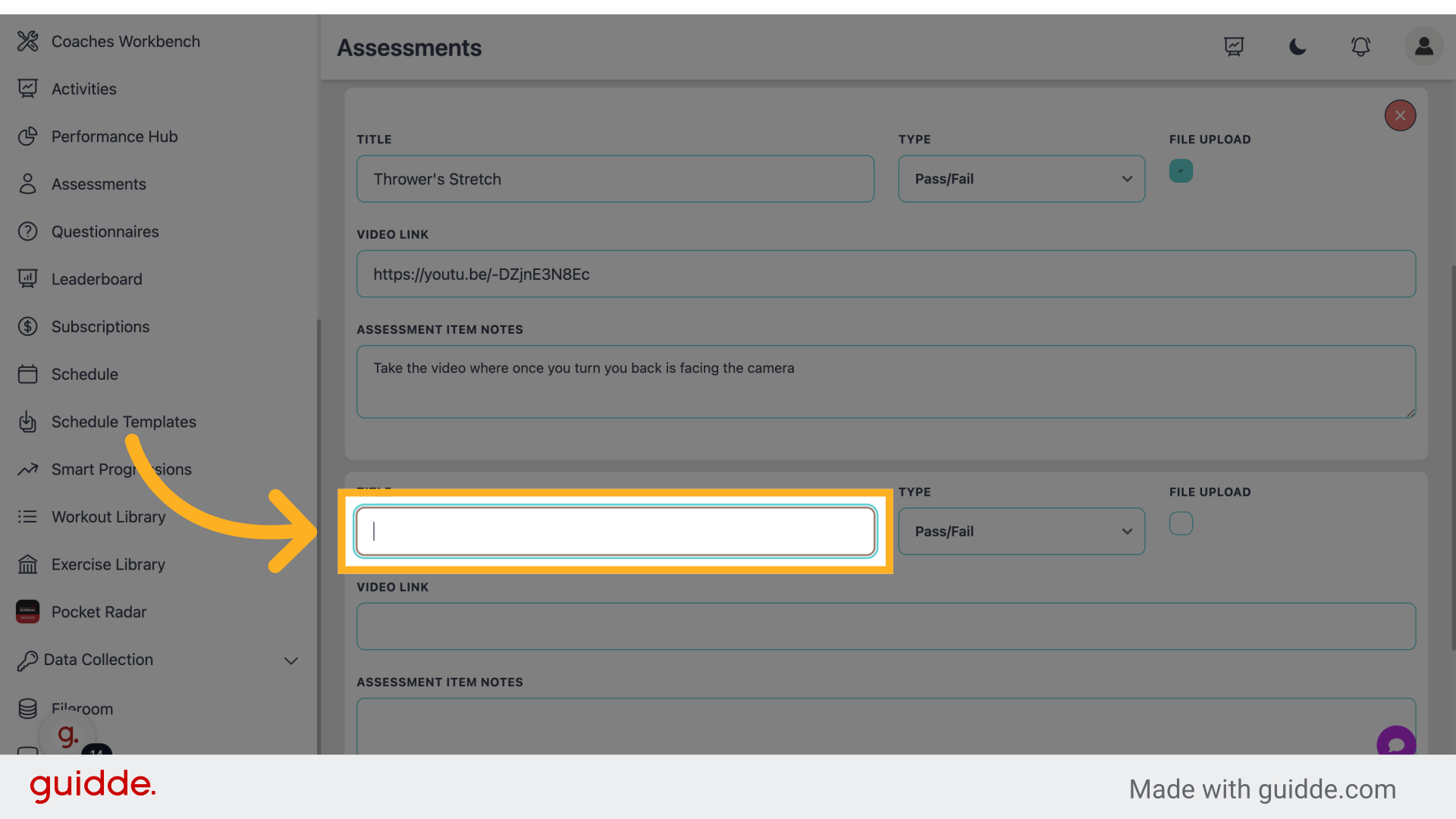
Enter the desired text.
Step 18 — Specify The Type of Assessment
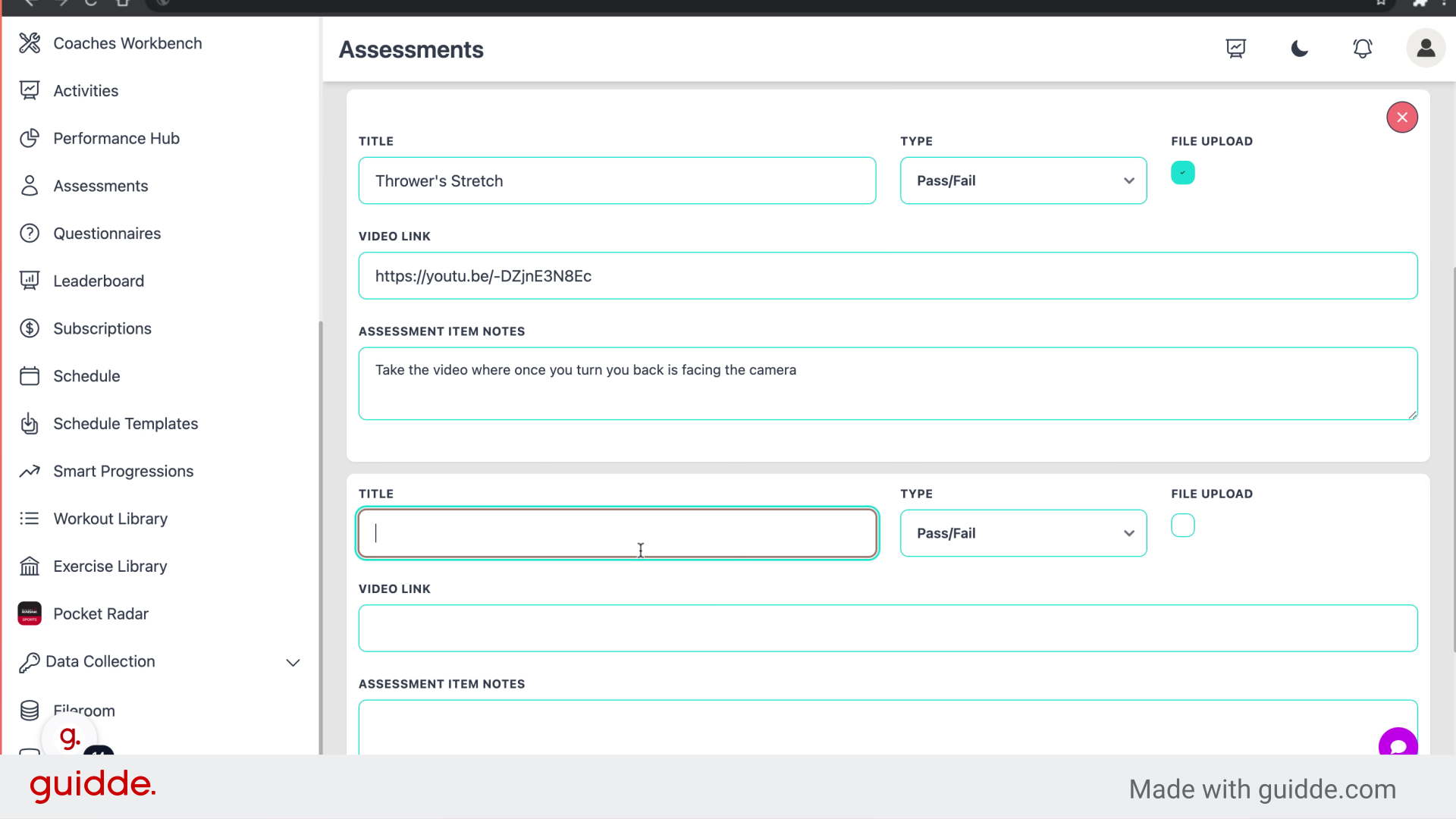
Specify further evaluation criteria.
Step 19 — Click On or Off
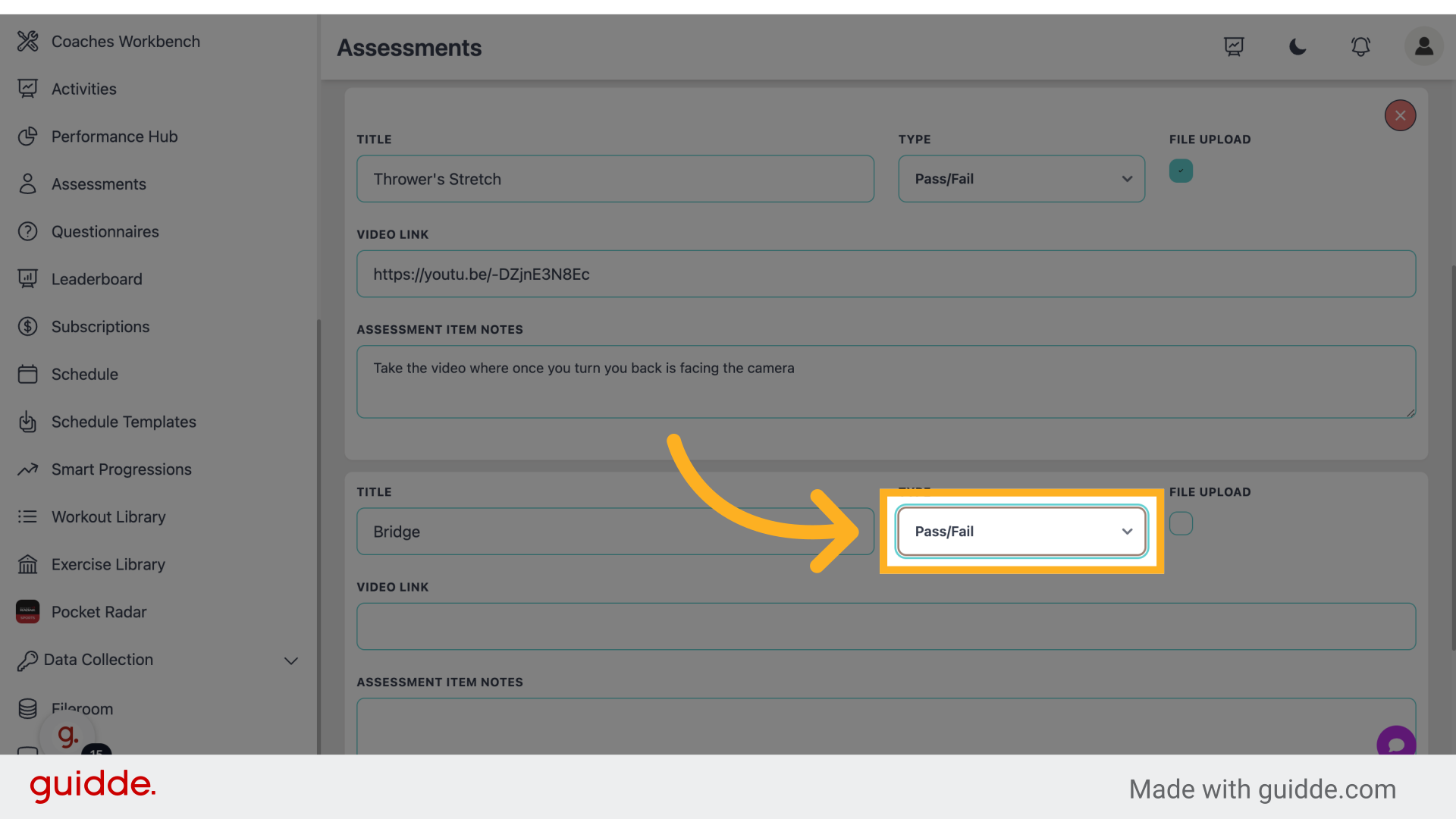
Enable assessment settings to allow video upload or not.
Step 20 — Click To Add A Hyperlink
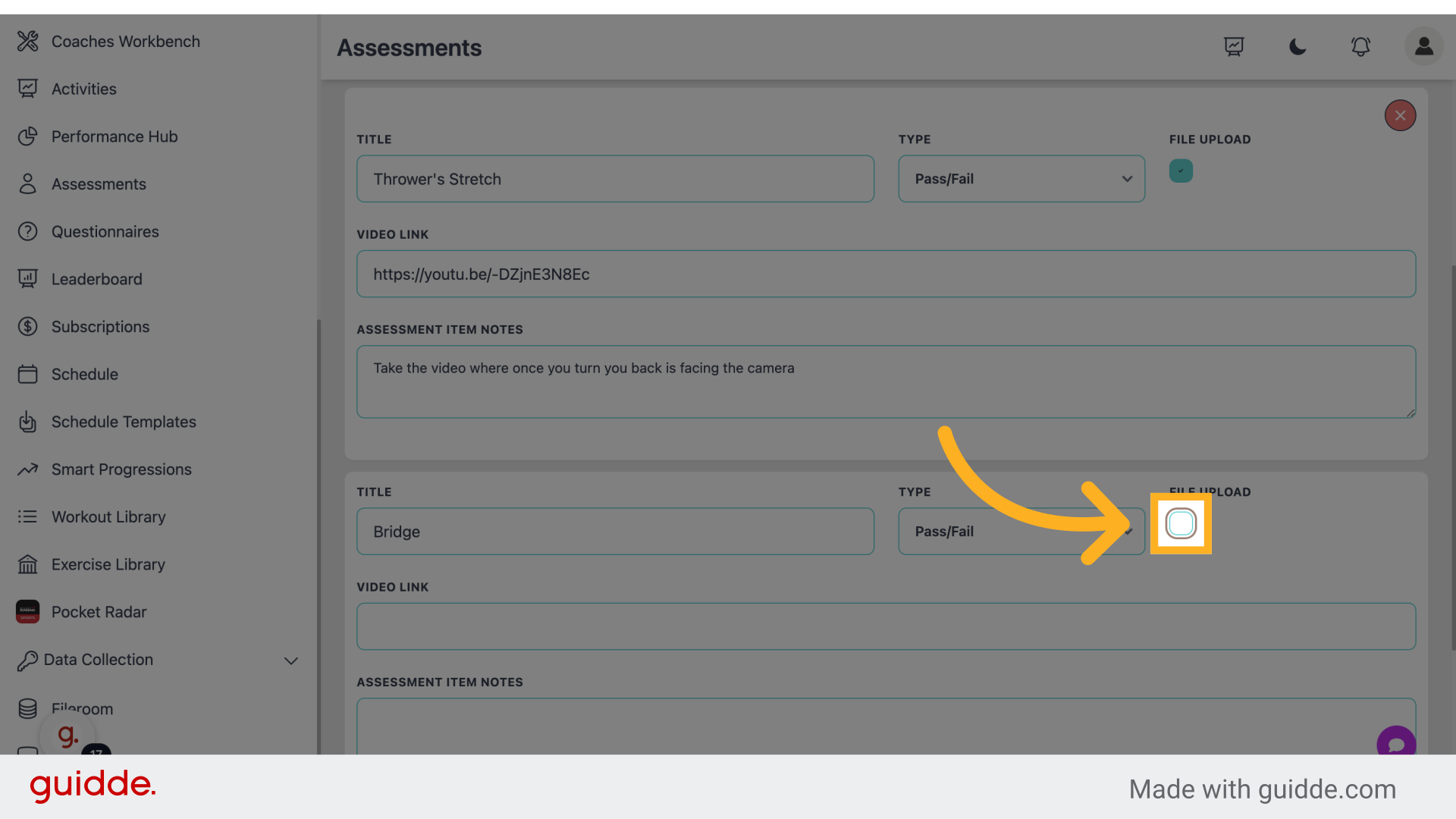
Add video links to showcase assessment.
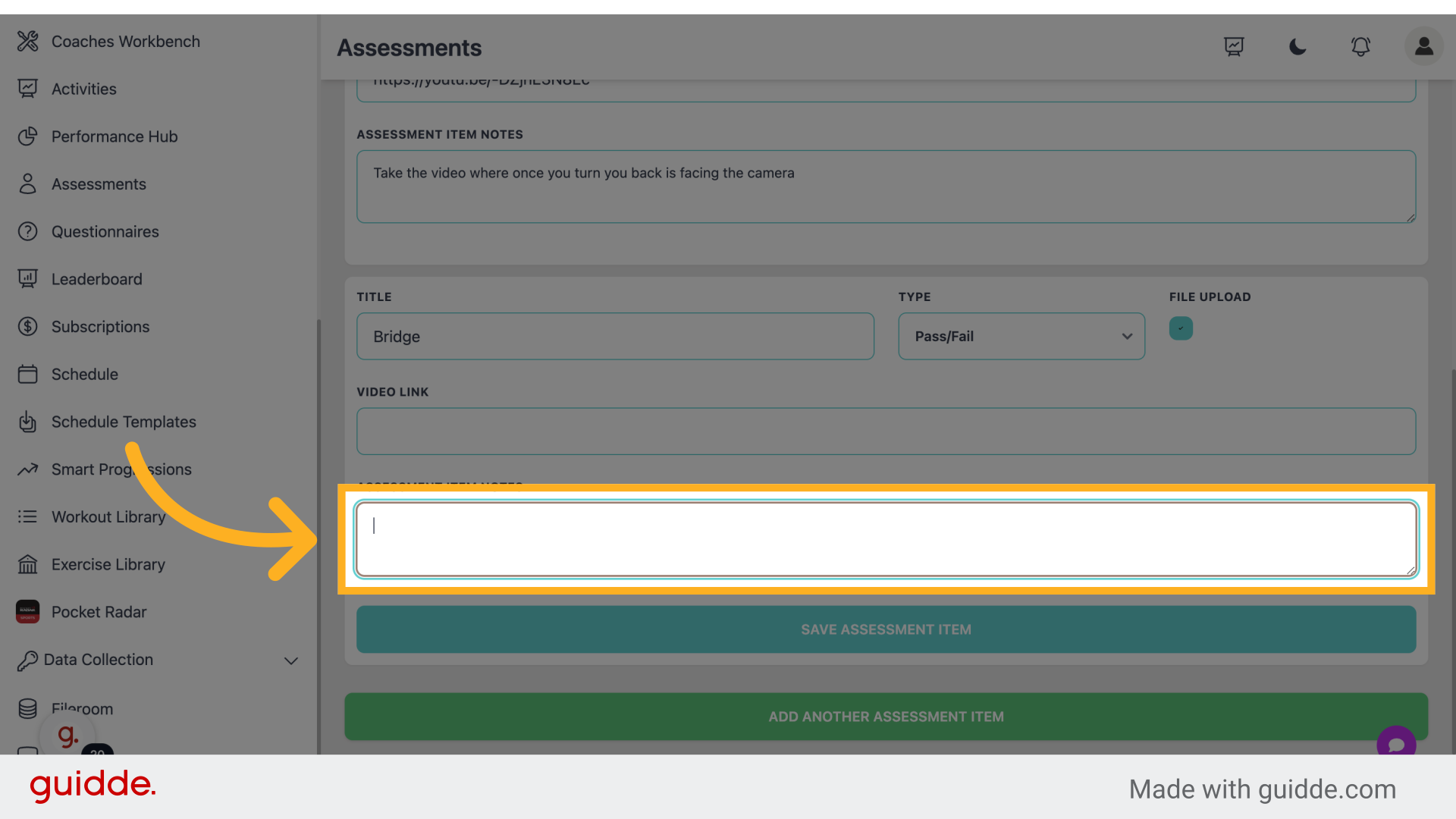
Step 21 — Include Notes
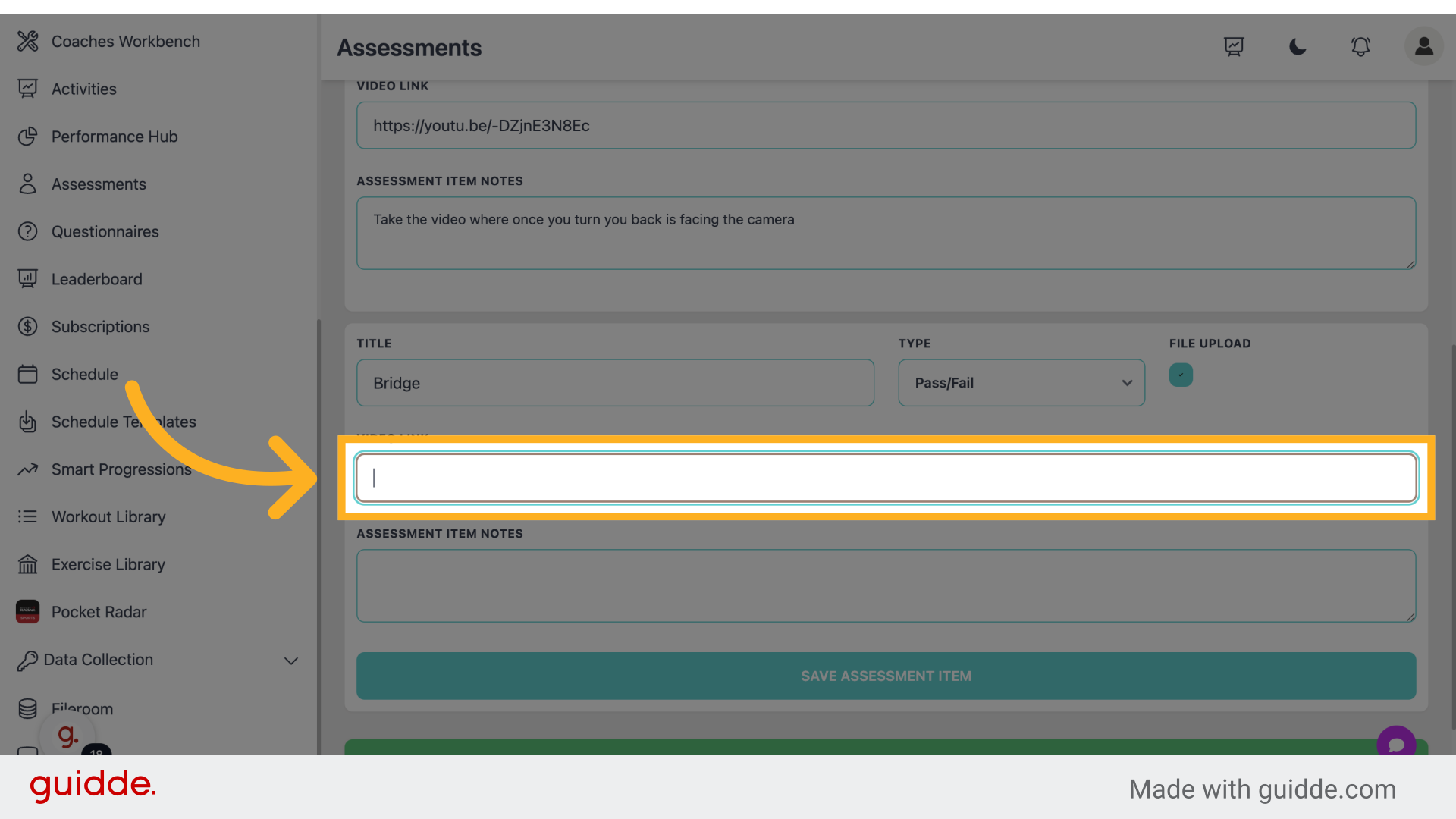
Include extra assessment details.
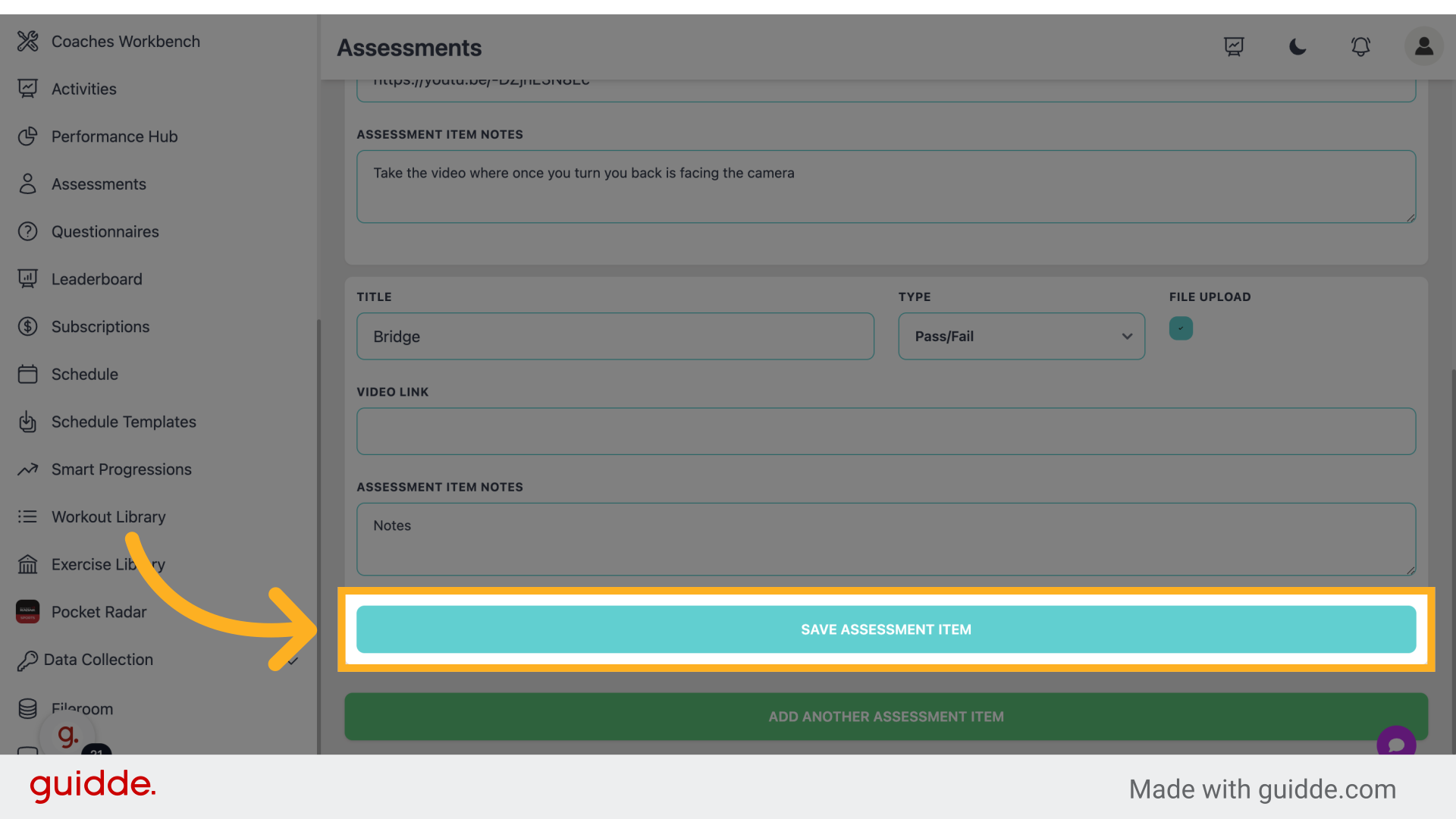
Step 22 — Click "Save Assessment Item"
Save the assessment component.
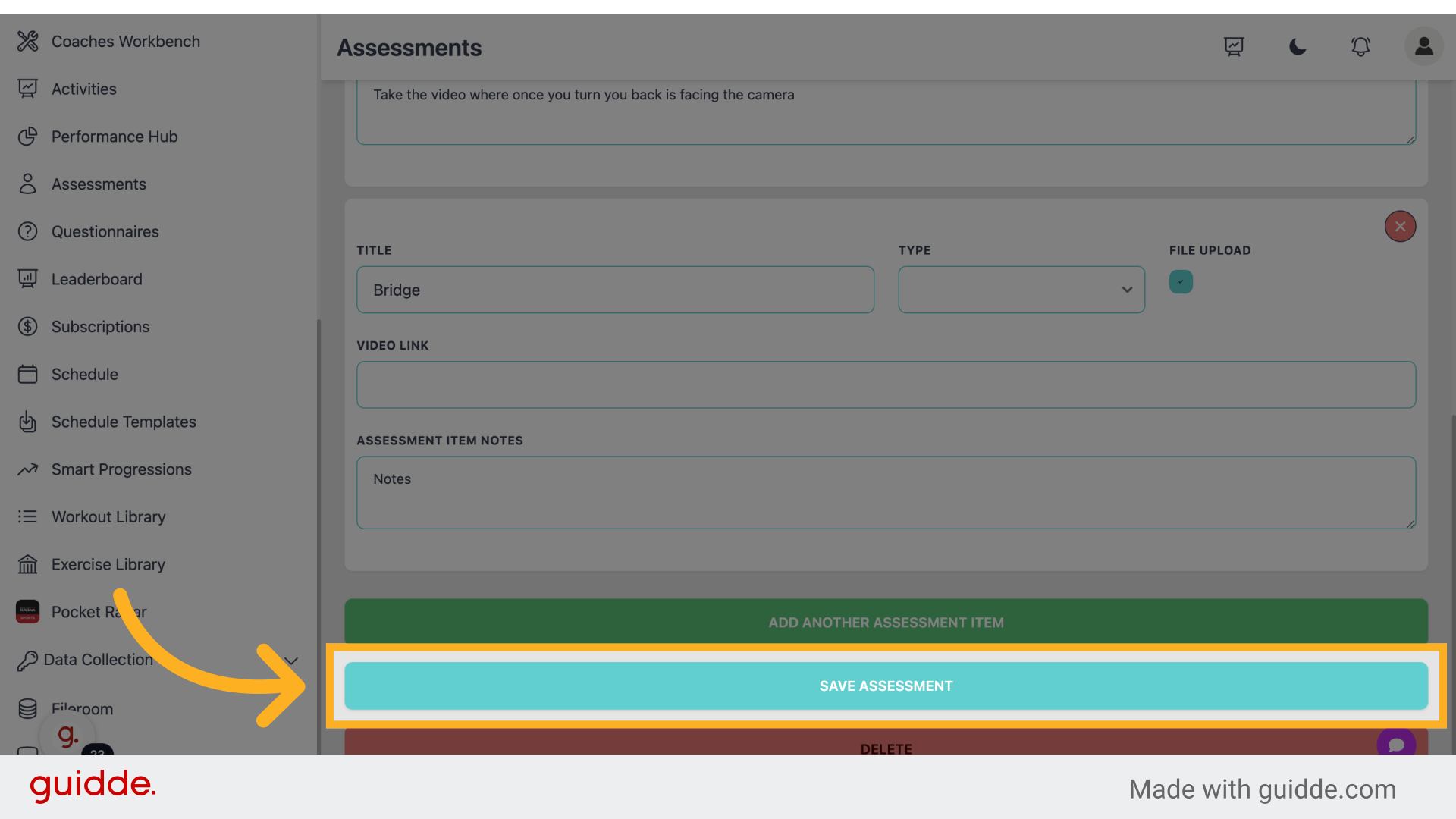
Step 23 — Click "Save Assessment"
Save the entire assessment configuration.
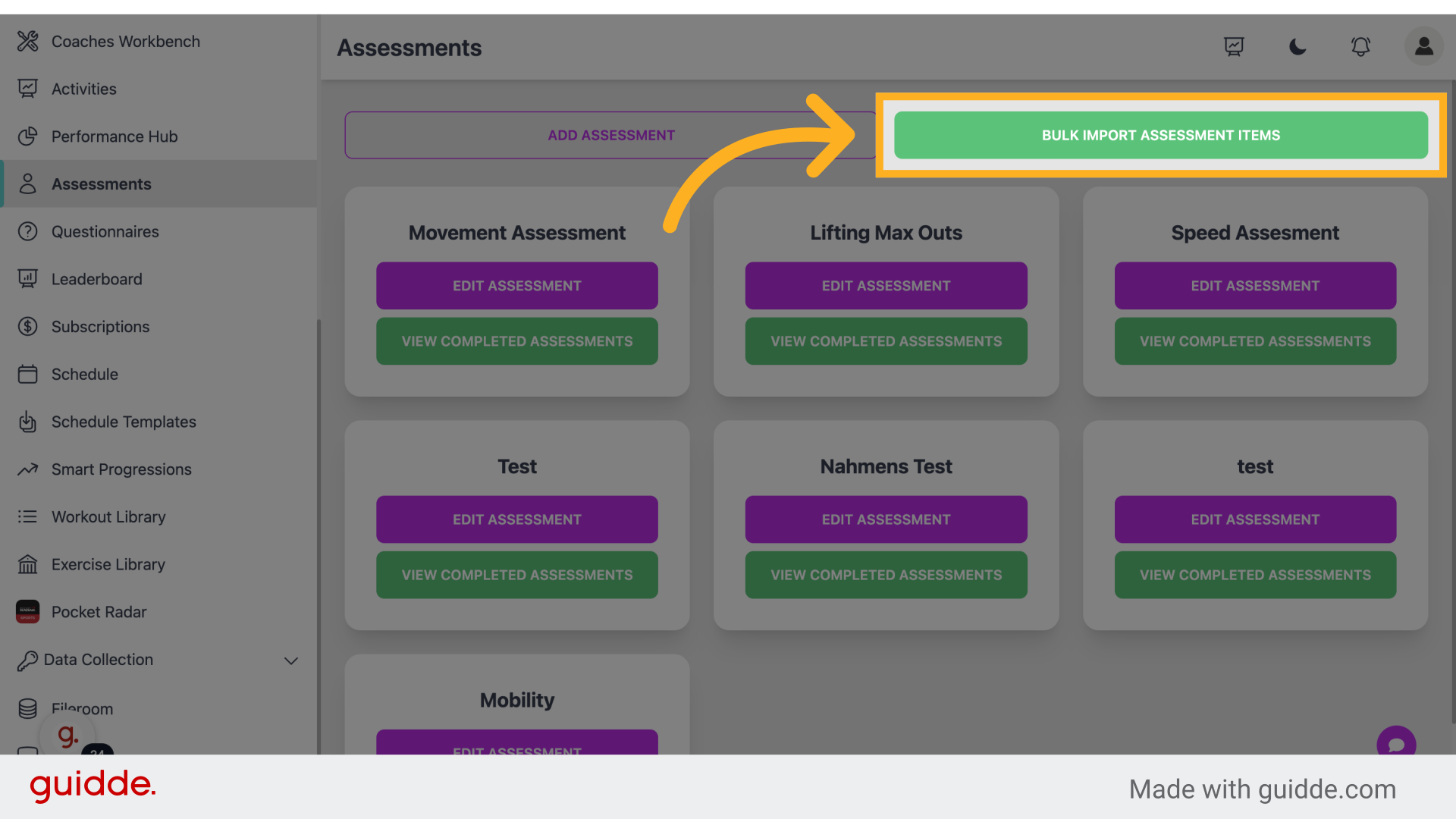
Step 24 — Click "Bulk import assessment items"
Import assessment components in bulk.
Step 25 — Click "Drag 'n' drop some files here, or click to select files"
Upload assessment files effortlessly.
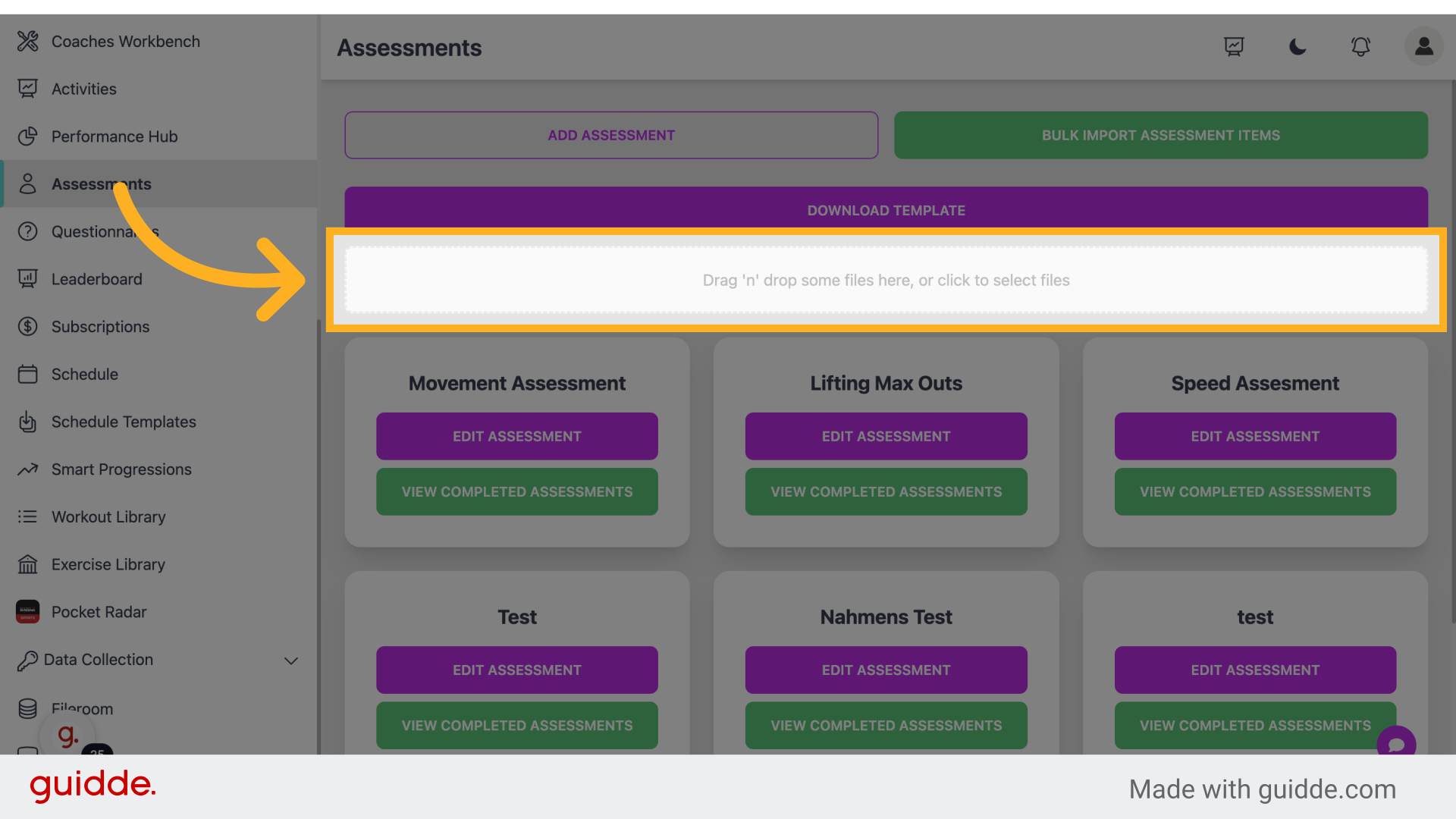 This guide covered the process of creating assessments in Connected-performance, from accessing the assessment feature to uploading files for bulk import. Master assessment creation to optimize your employee training program.
Referenced by
- 'Athlete Profile'user management
- 'Command Sessions'assessments questionnaires
- 'Creating & Managing Questionnaires'assessments questionnaires
- 'Exercise Tags & Types'workouts
- 'Performance Dashboards'reports analytics
- 'Report Builder'reports analytics
- 'Setting Up Automations'automation
- 'Single Athlete Reports'reports analytics
- 'Video Room'communication