 Connected Performance
Coaches Workbench
Coaches Workbench is your central hub for monitoring athlete progress and managing programming. See which athletes need attention, track completion rates, and manage workouts efficiently.
Overview
Coaches Workbench is your central hub for monitoring athlete progress and managing programming. See which athletes need attention, track completion rates, and manage workouts efficiently.
How To
Accessing Coaches Workbench
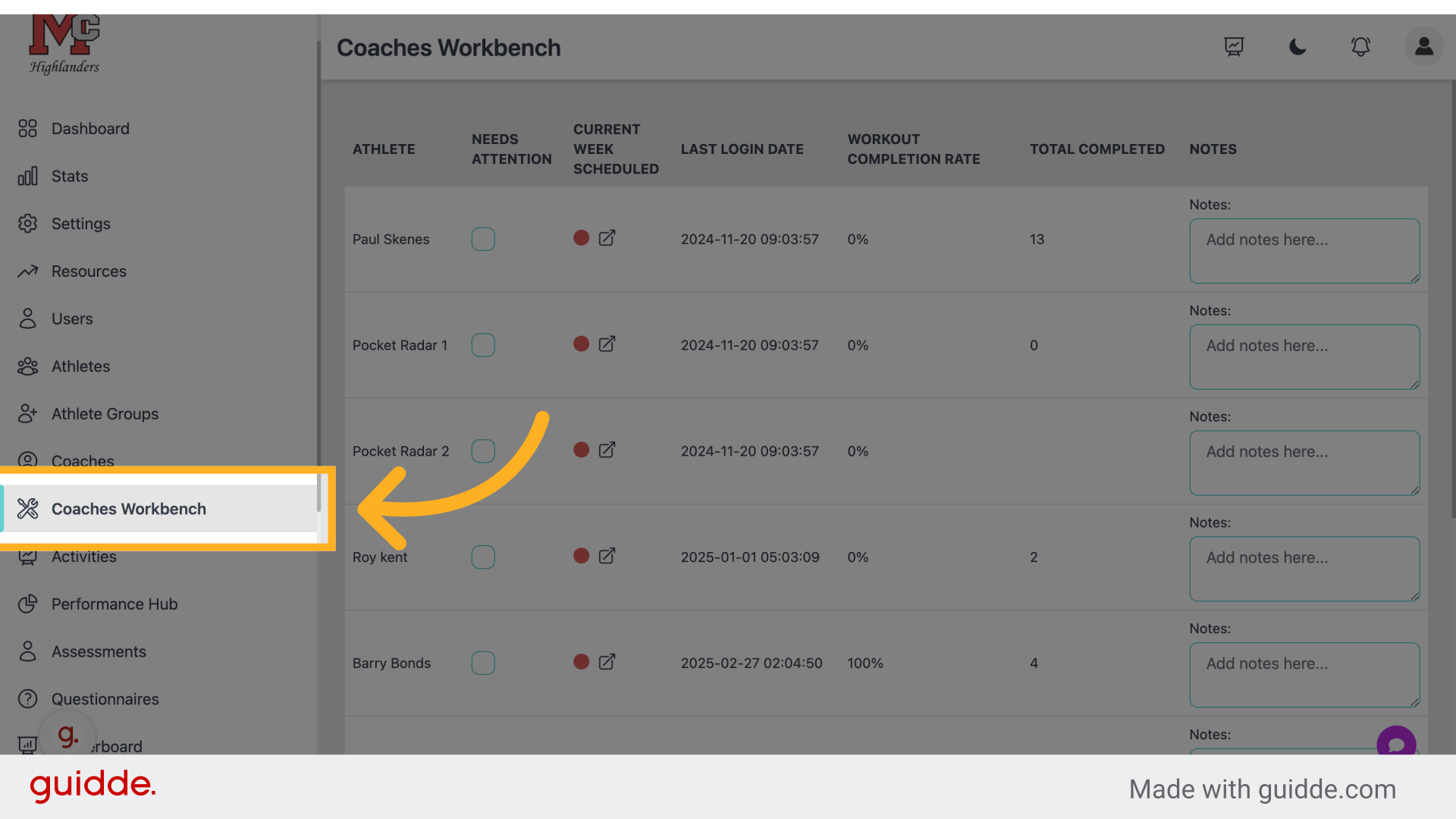
- Click Coaches Workbench in the left sidebar
- View the summary dashboard
Understanding the Dashboard
Key Metrics
- Total Athletes - Number of athletes you manage
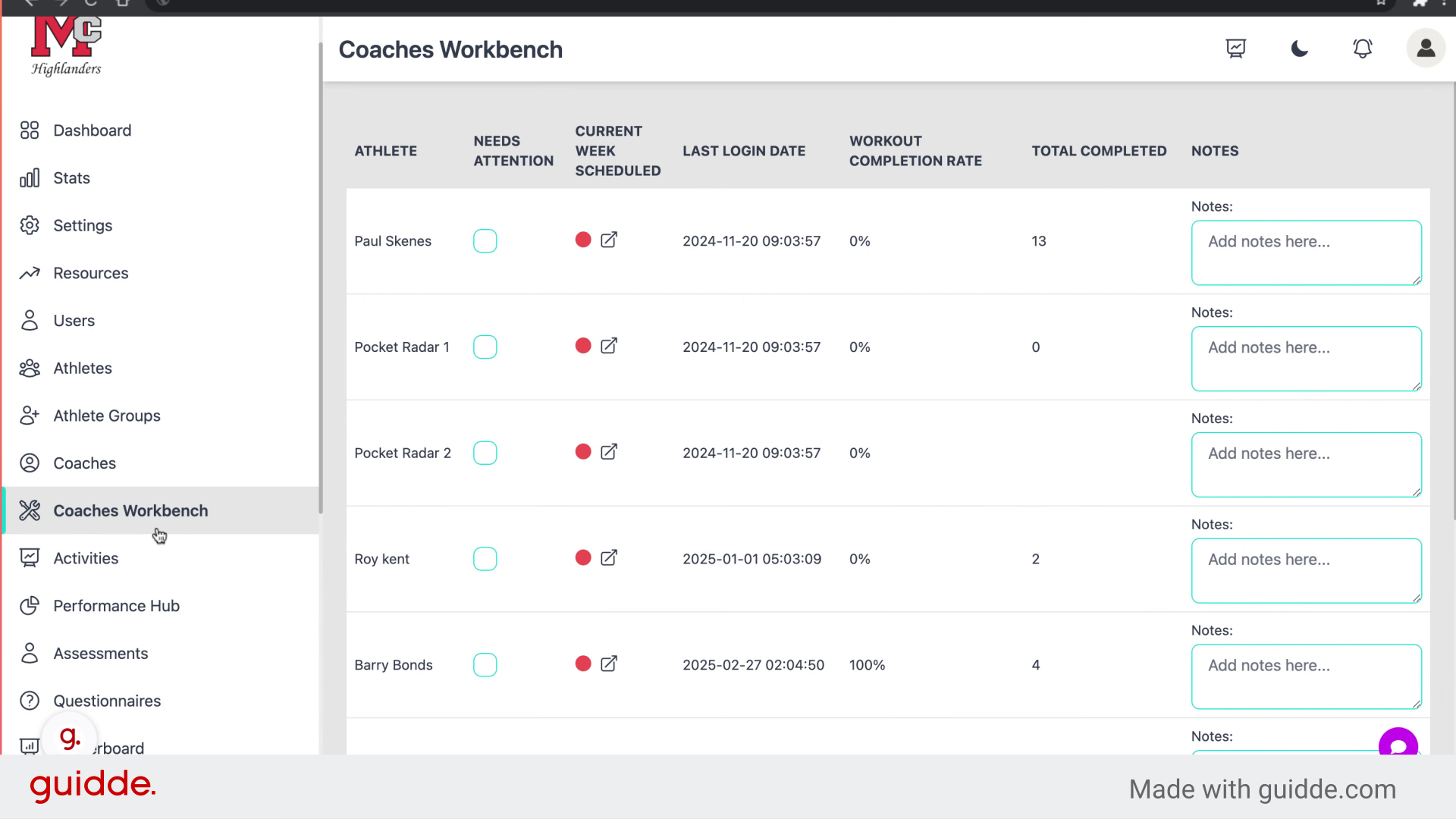
- Needs Attention - Athletes requiring follow-up
- Completion Rate - Overall workout completion percentage
Athlete List Shows each athlete with their:
- Name and profile
- Recent workout completions
- Outstanding items
- Attention flags
Filtering Athletes
- Search - Find athletes by name
- Coach Filter - View athletes by assigned coach
- Status - Filter by needs attention, on track, etc.
Managing Individual Athletes
- Click an athlete's name to expand details
- View their recent activity
- See pending assessments or questionnaires
- Access quick actions:
- Schedule workout
- Send message
- View profile
Identifying Athletes Needing Attention
Athletes are flagged when:
- Workouts are overdue
- Completion rate drops below threshold
- Assessments need review
- Messages await response
Red or yellow indicators show priority level.
Taking Action
From the workbench, quickly:
- Reschedule missed workouts
- Send check-in messages
- Review completed sessions
- Grade assessments
Batch Operations
Select multiple athletes to:
- Assign workouts in bulk
- Send group messages
- Apply schedule templates
Tips
- Check Coaches Workbench daily to catch issues early
- Use the "Needs Attention" filter to prioritize your time
- Set completion rate thresholds that match your expectations
Troubleshooting
Athletes not showing in workbench? Verify you're assigned as their coach. Check athlete filters.
Completion rate seems wrong? Rate calculates based on scheduled vs. completed workouts in the current period.
Related
- Scheduling Workouts for Athletes
- Managing Athletes & Groups
- Single Athlete Reports
Video Walkthrough
Enhance employee training using the Coaches Workbench application with these straightforward instructions
1. Introduction
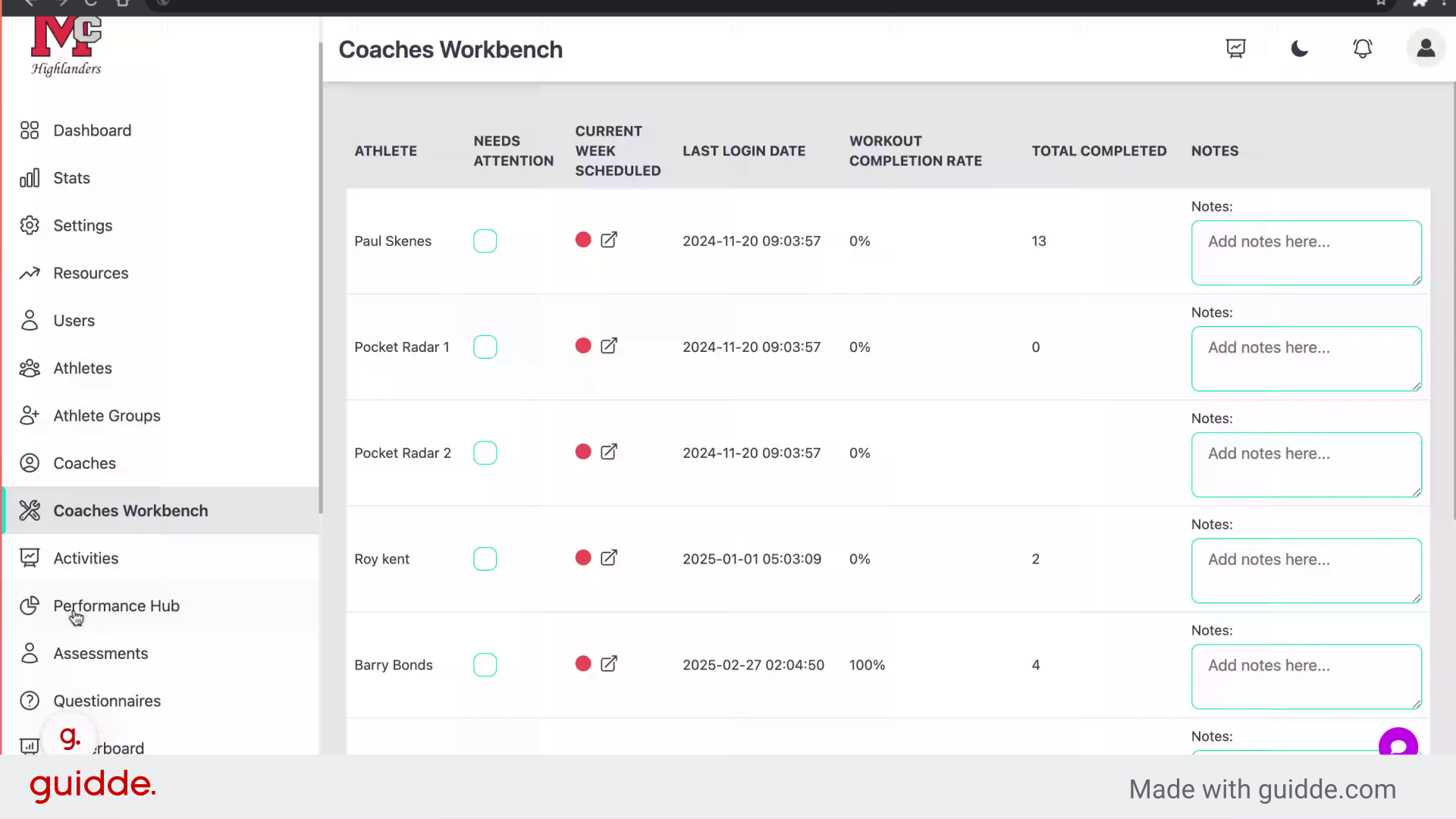
2. Click "Coaches Workbench"
Access the Coaches Workbench.
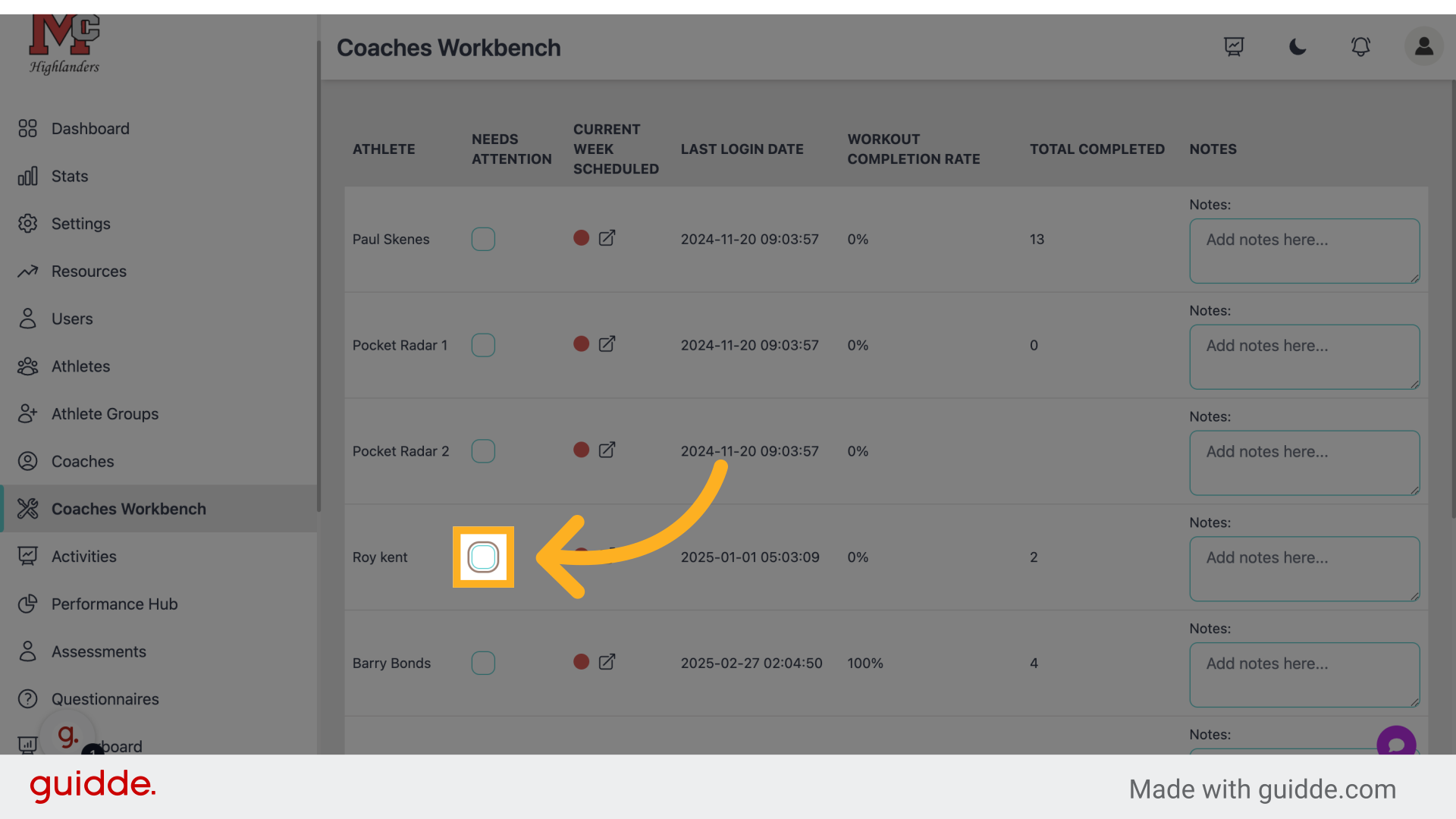
3. Fill "on" to signify an athlete needing attention
4. Click "on"
Select the designated option.
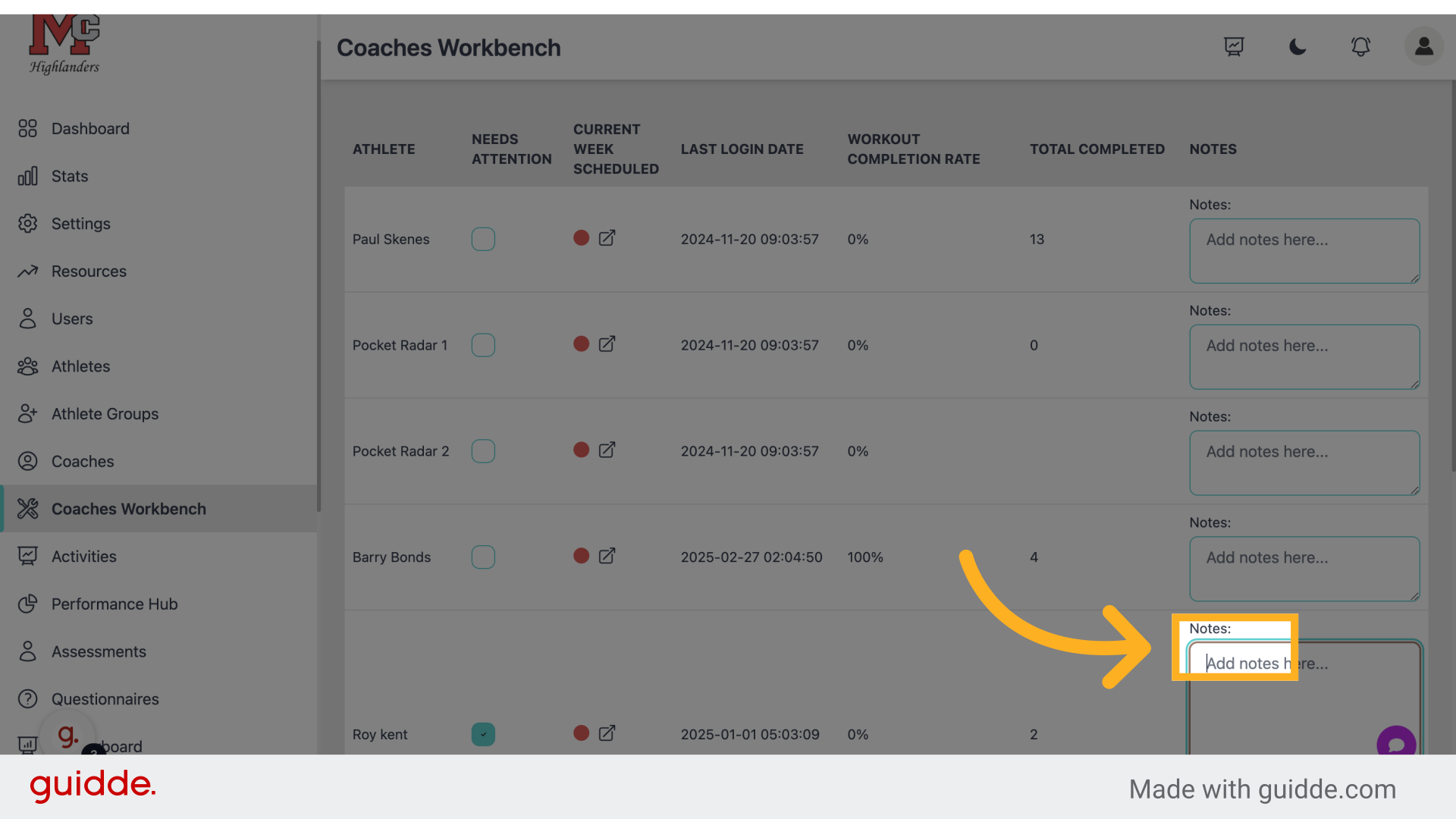
5. Click "Add notes here..."
Input additional notes.
6. Type Your Notes
Fill in the text box with your desired notes to be saved
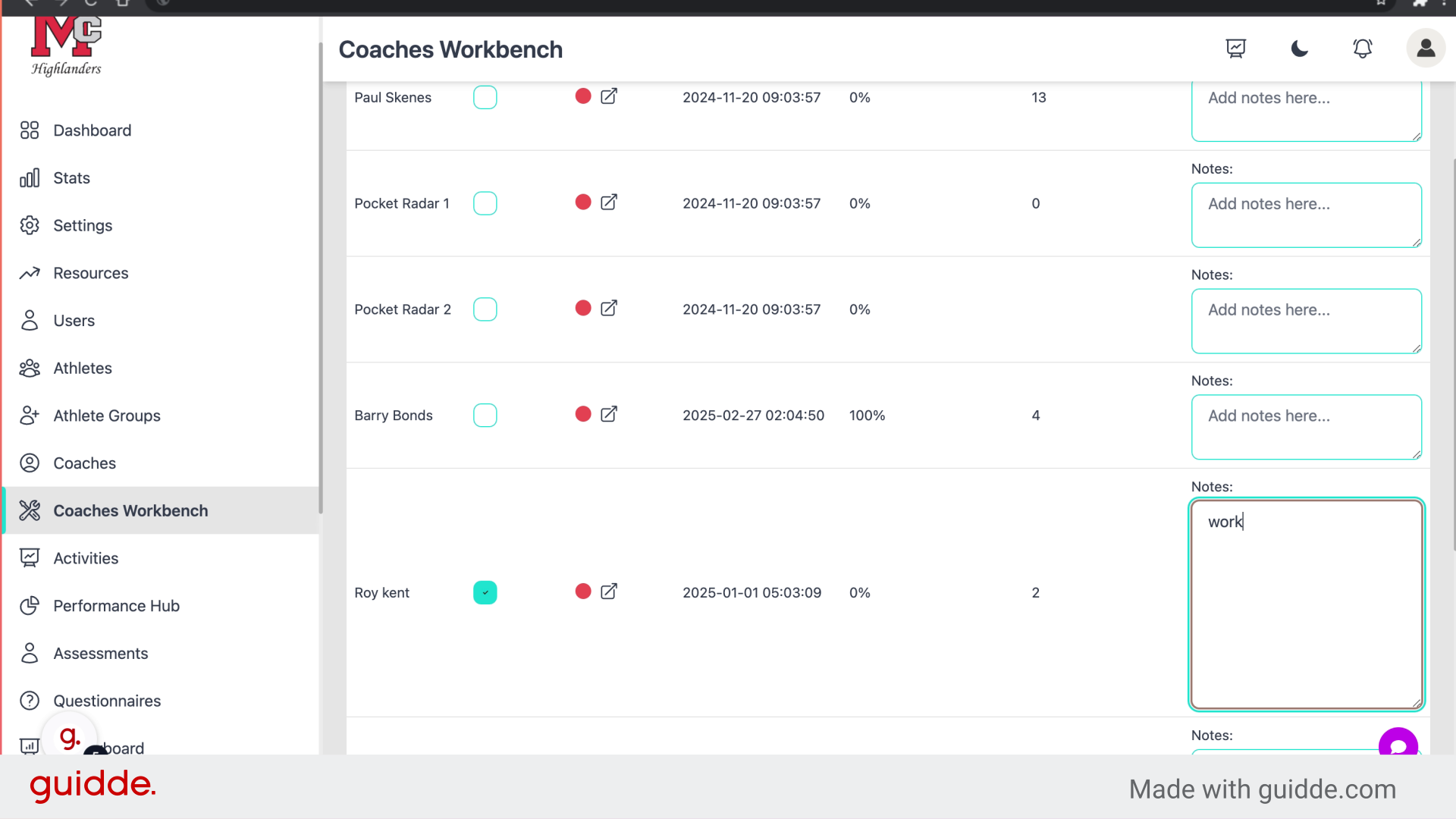
This guide walks through using the Coaches Workbench in Connected-performance for employee training, including accessing, selecting options, adding notes, and choosing tasks.
Referenced by
- 'Managing Athletes & Groups'user management
- 'Scheduling Workouts for Athletes'scheduling
- 'Understanding Your Dashboard (Coaches)'getting started