 Connected Performance
Import Third Party Data
This guide will walk you through importing third-party data into Connected-performance
How to Import Third Party Data
This guide will walk you through importing third-party data into Connected-performance
1. Introduction
By following these instructions, you can efficiently manage and utilize external data sources within the application for enhanced performance tracking and analysis.
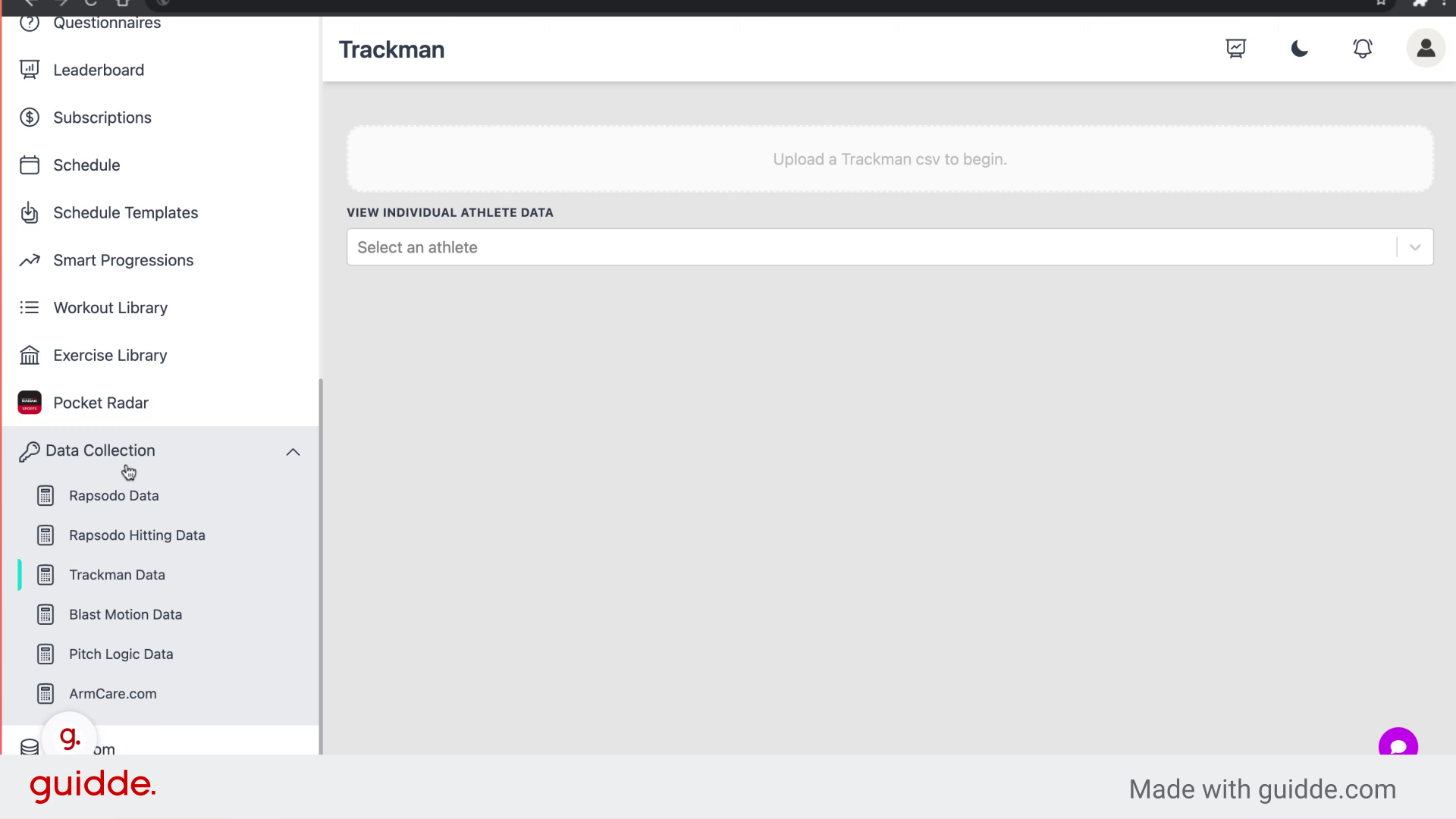
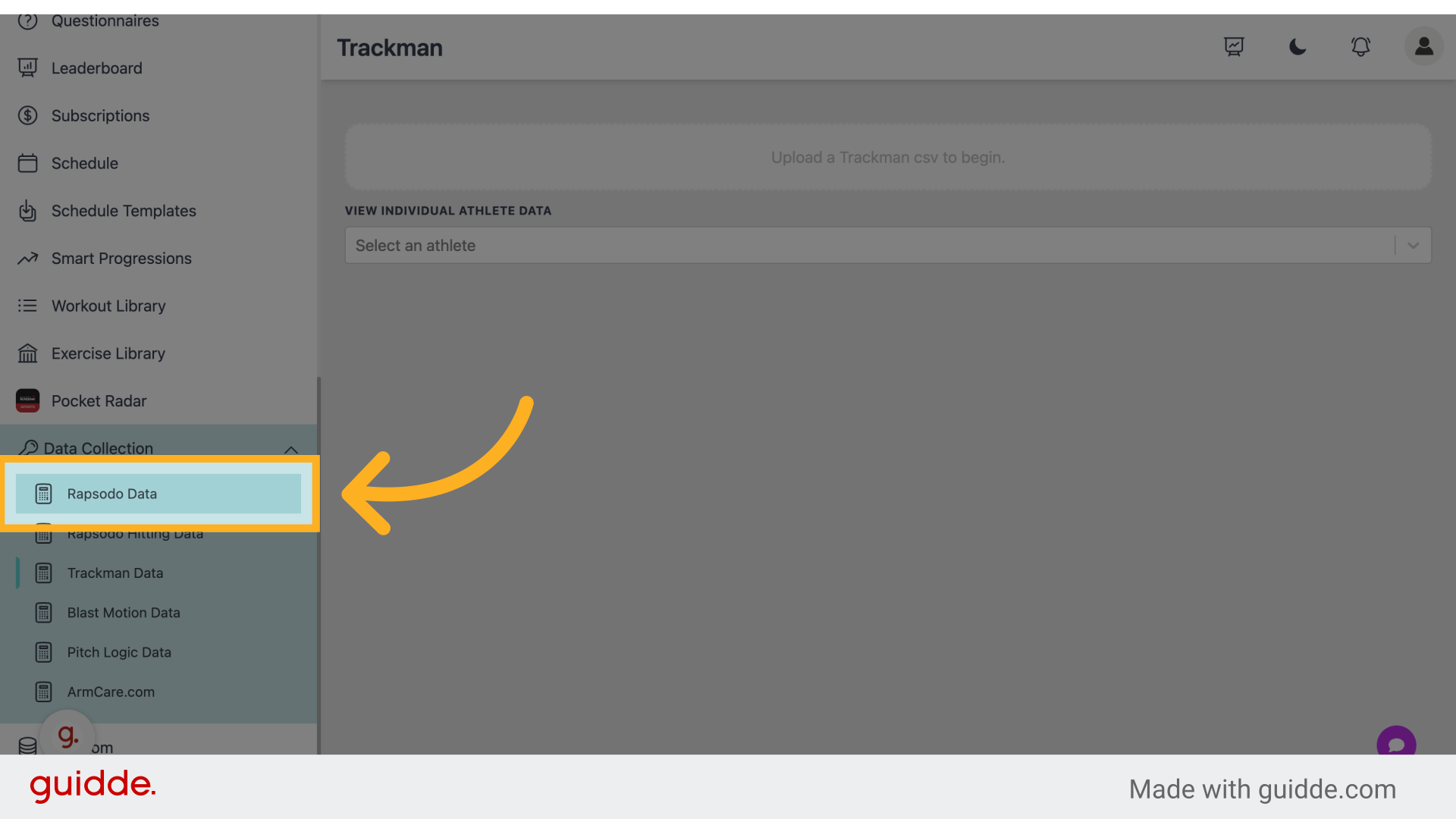
2. Click "Rapsodo Data"
Access the "Rapsodo Data" option.
3. Fill "on"
Fill in "on"
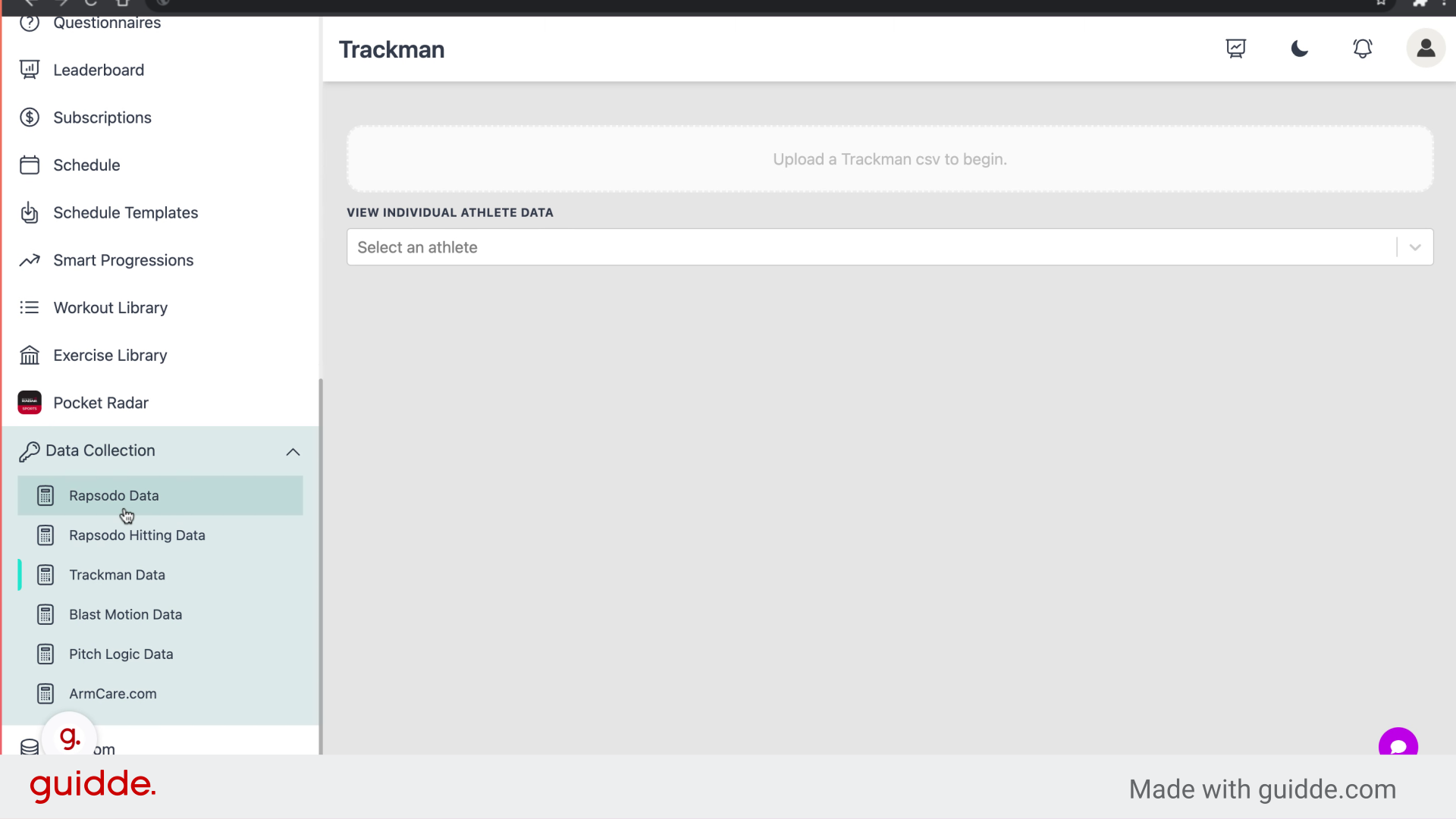
4. Click "Upload a rapsodo csv to begin"
Select "Upload a rapsodo csv to begin."
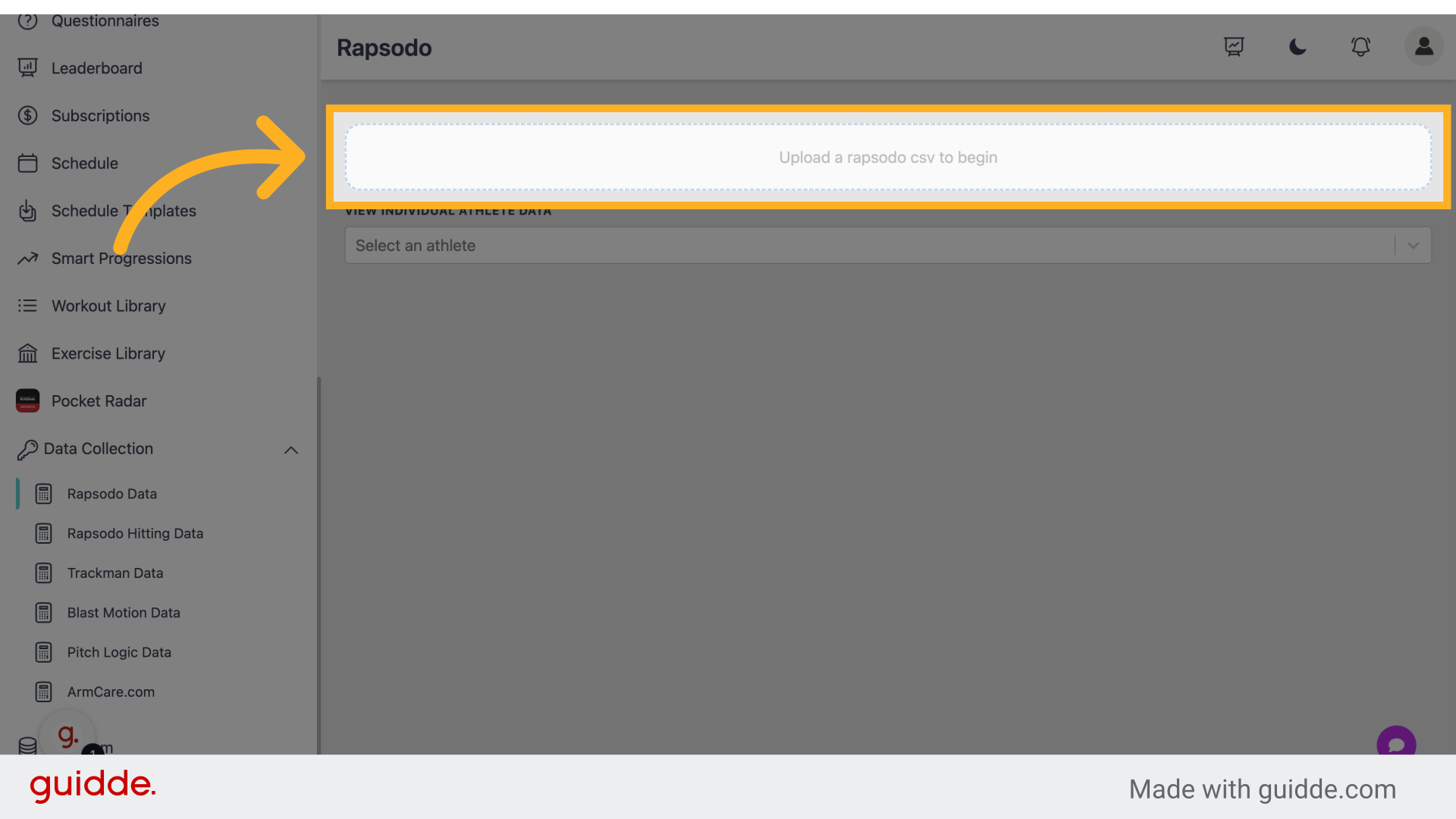
5. Fill "C:\fakepath\Alec - Rapsodo.csv"
Enter "C:\fakepath\Alec - Rapsodo.csv" in the provided field
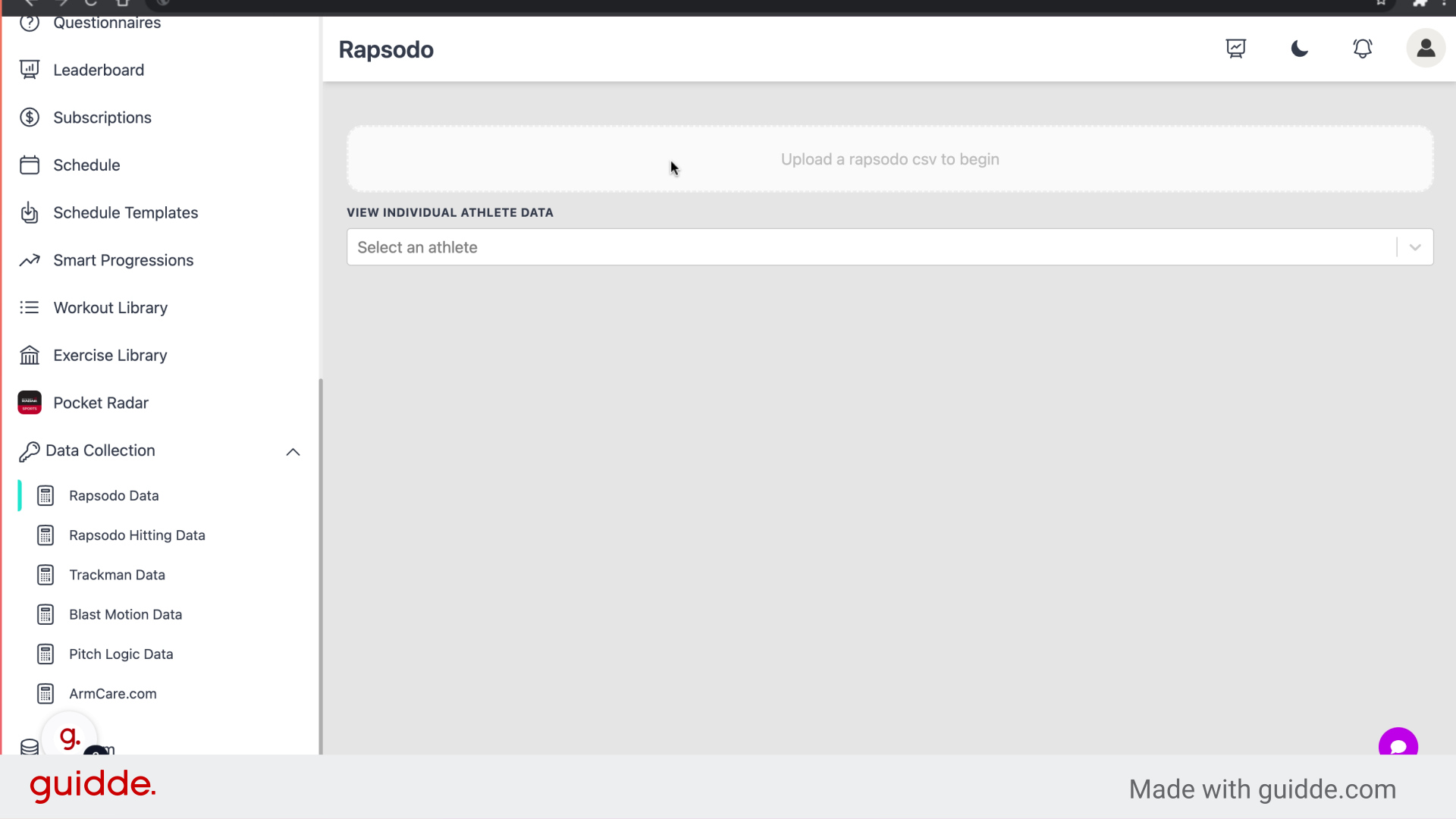
6. Click here
Navigate to the specified location.
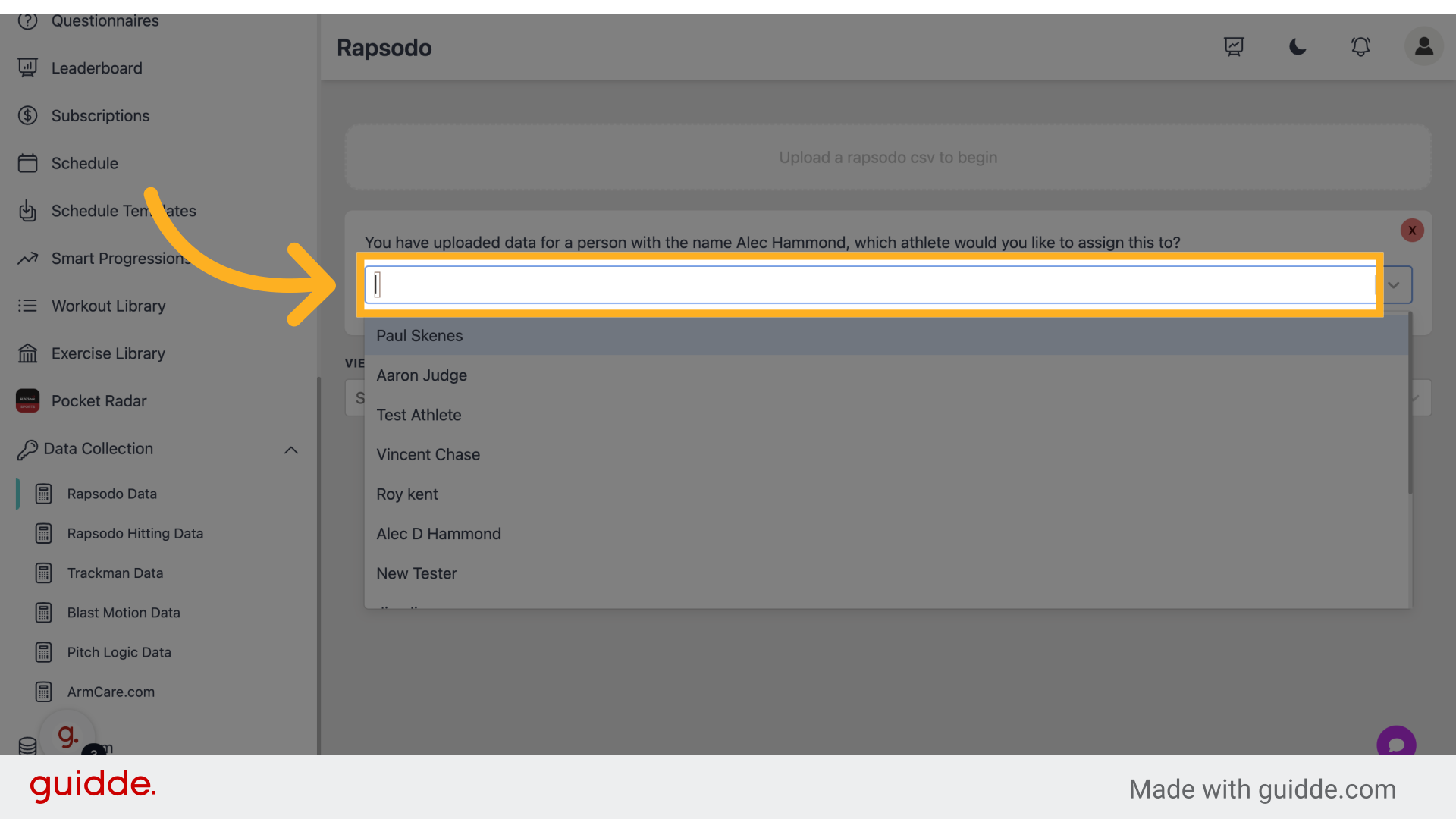
7. Click "Vincent Chase"
Choose "Vincent Chase" from the options.
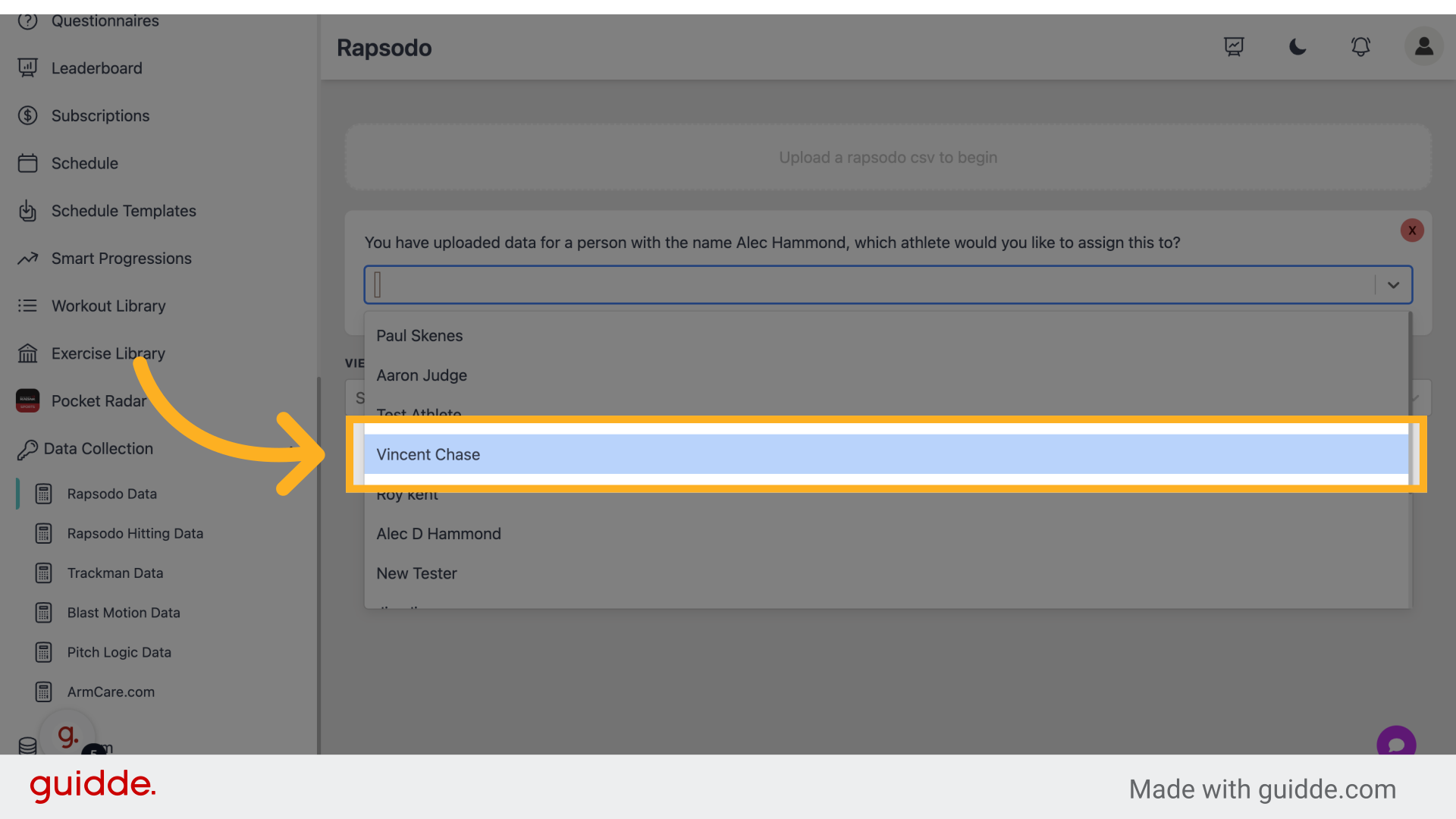
8. Click "Save to player"
Opt for "Save to player."
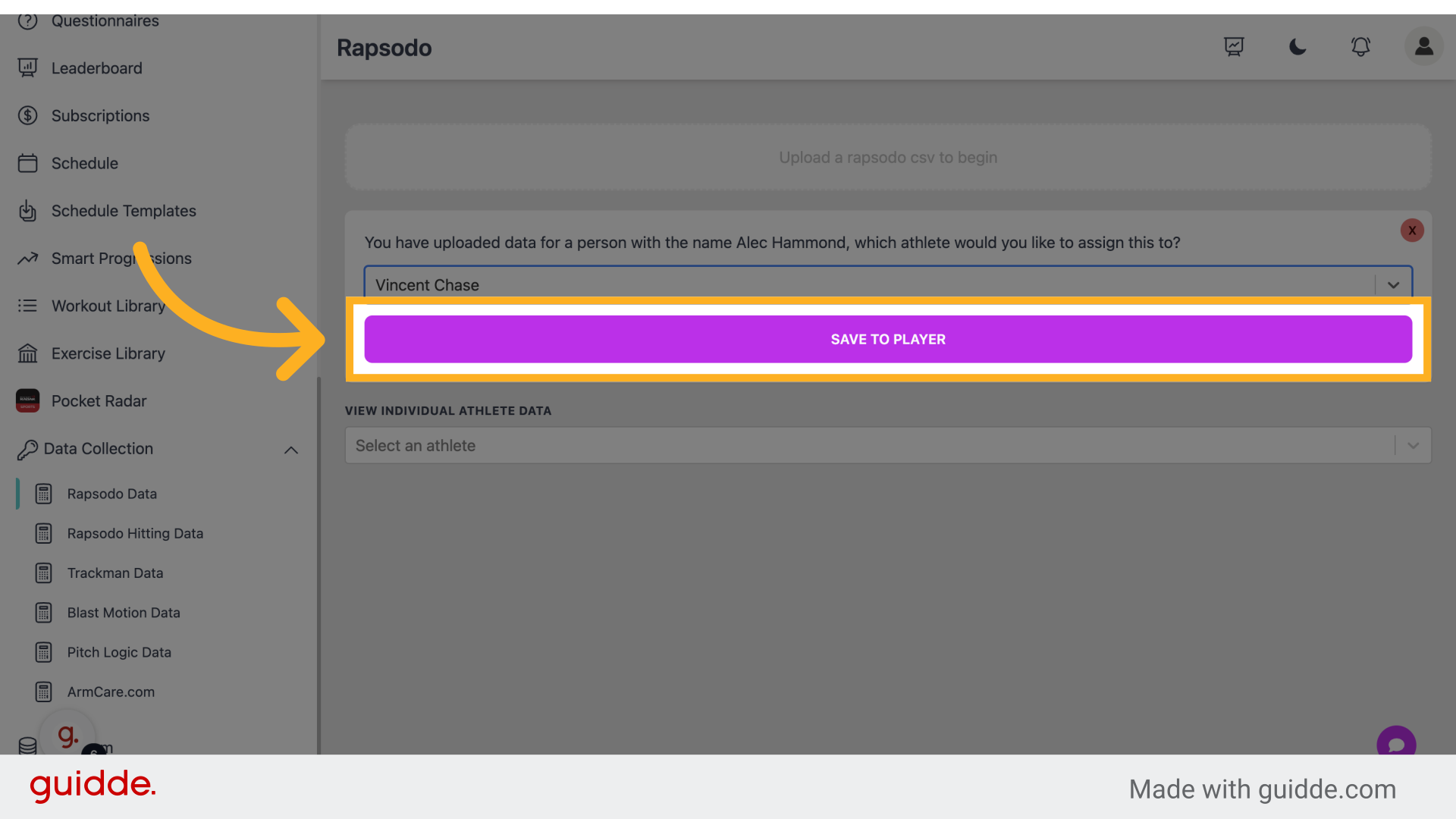
9. Click here
Proceed to the designated area.
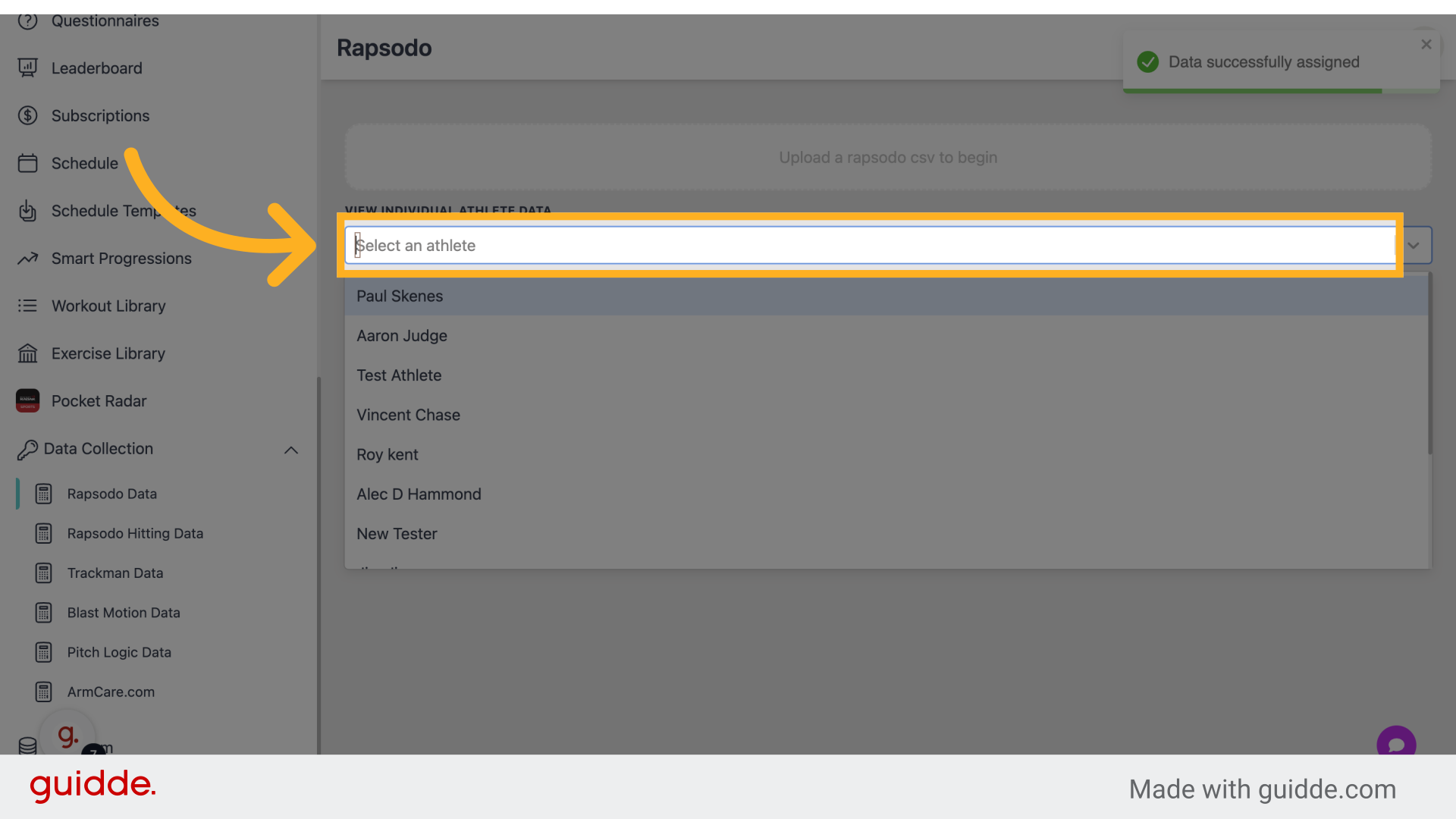
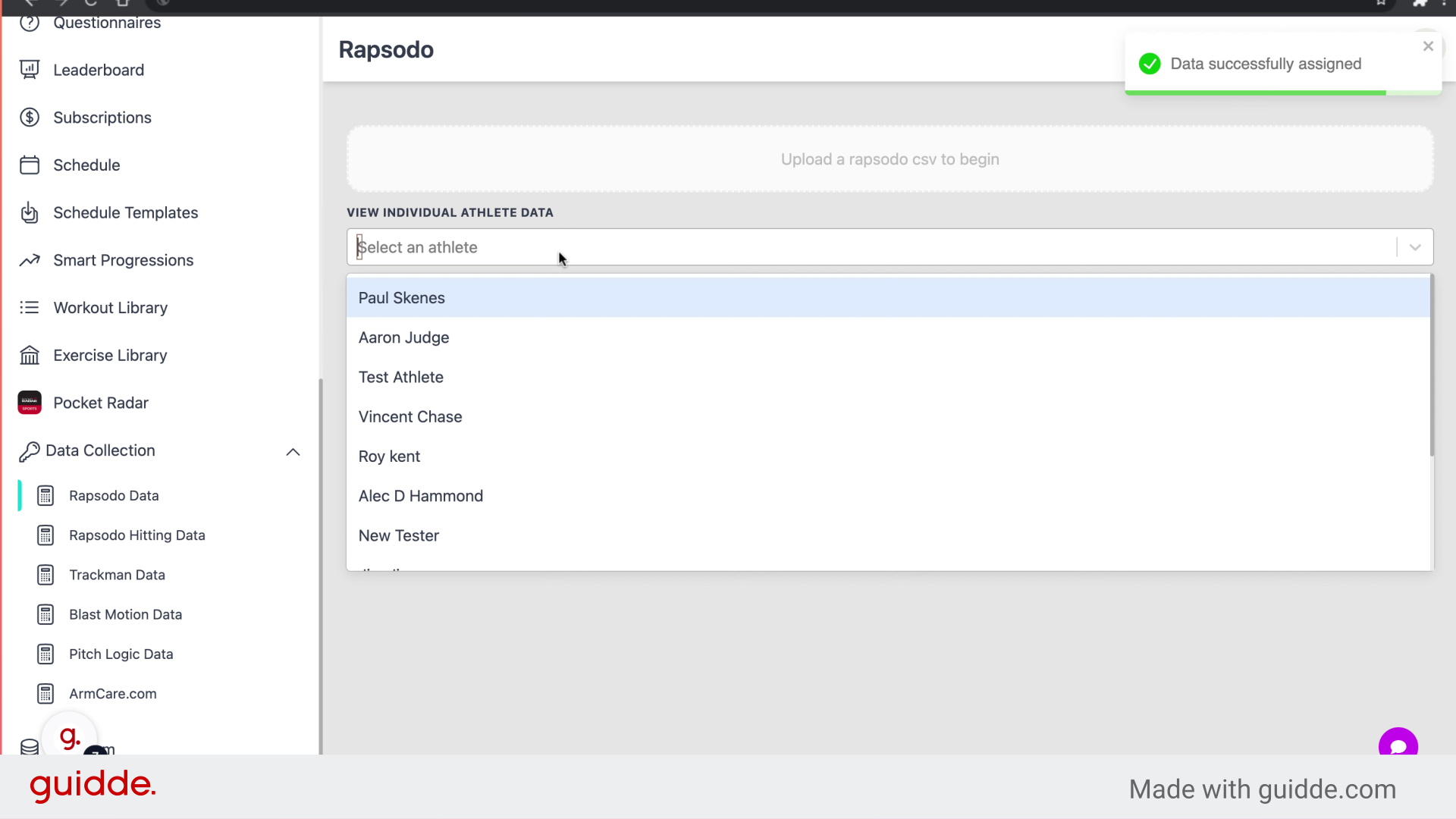
10. Fill "vin"
Fill in the text box with "vin"
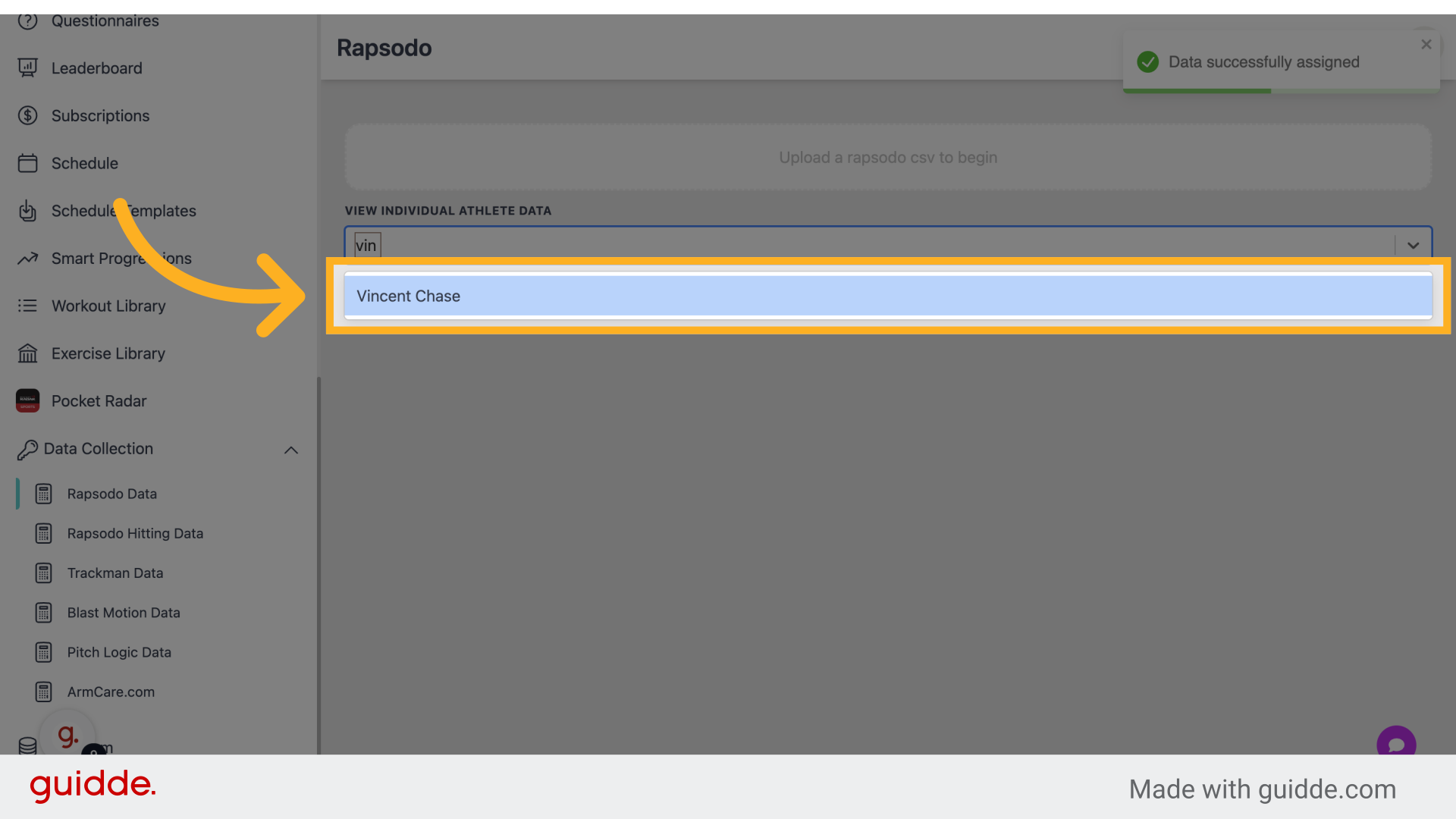
11. Click "Vincent Chase"
Select "Vincent Chase" once more.
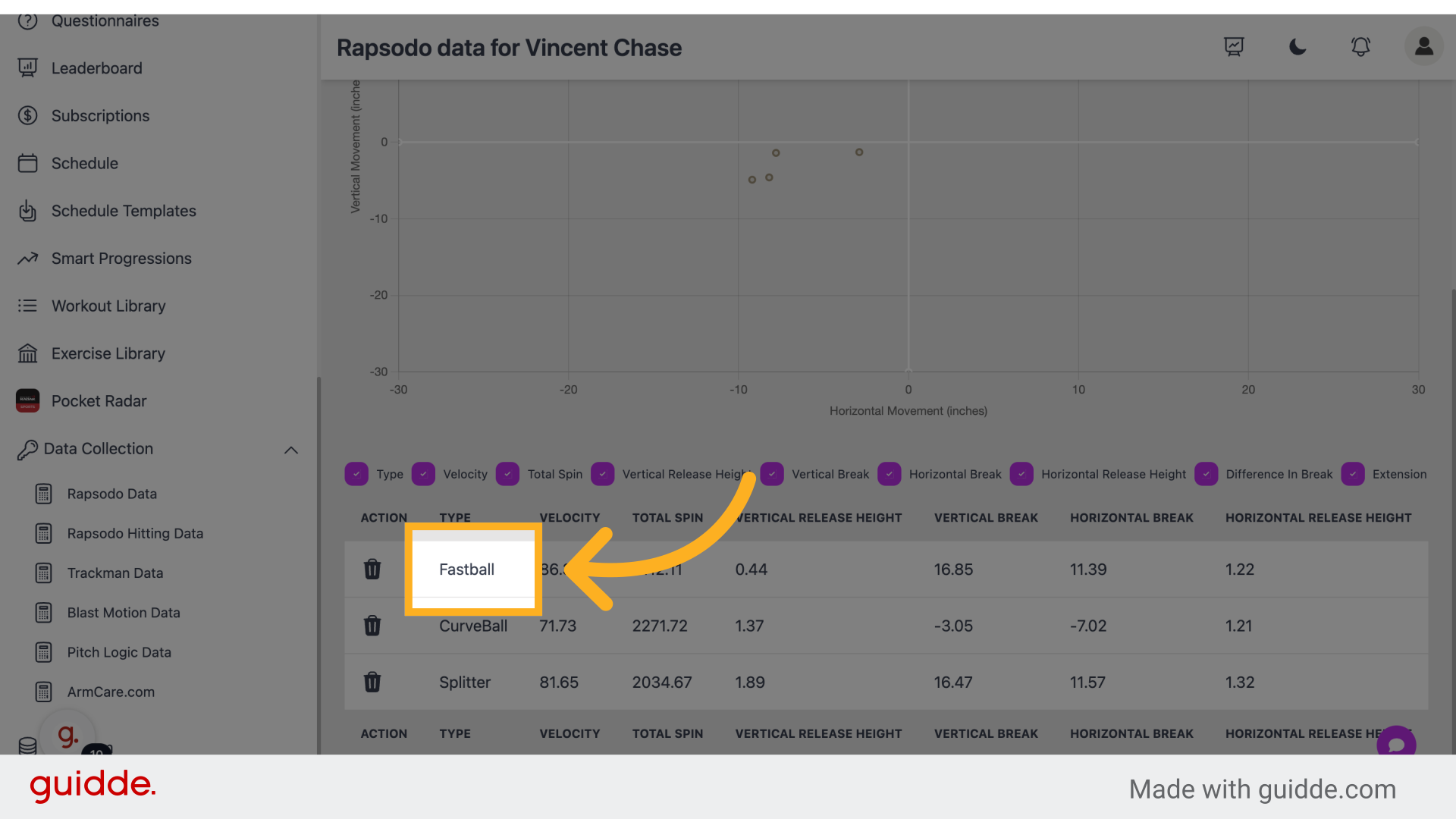
12. Click "Fastball"
Click on "Fastball."
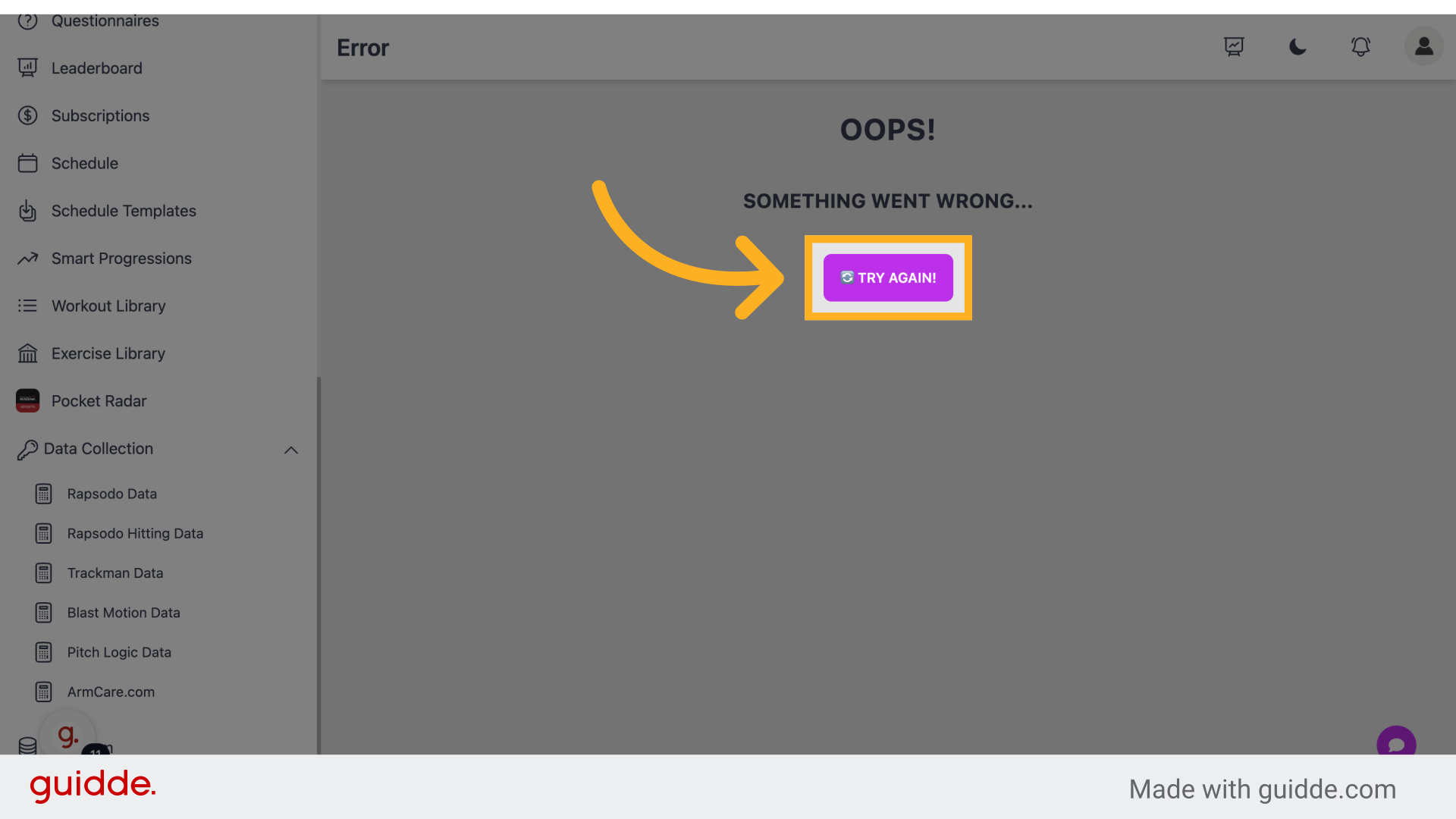
13. Click "🔄 Try Again!"
Click on "🔄 Try Again!"
This guide covered the process of importing third-party data into Connected-performance. From accessing specific options to selecting and saving data, each step was outlined to streamline the data integration process for effective employee training.
Referenced by
- 'API Access for Developers'integrations
- 'Connected Apps (MCP)'integrations
- 'Pitch Logic Integration'integrations