 Connected Performance
Chat
Send direct messages to athletes, coaches, and groups. Chat keeps communication centralized within Connected Performance.
Overview
Send direct messages to athletes, coaches, and groups. Chat keeps communication centralized within Connected Performance.
How To
Accessing Chat
- Click Chat in the left sidebar
- View your conversations
Starting a Conversation
- Click New Message or +
- Search for a person by name
- Select the recipient
- Type your message
- Press Enter or click Send
Group Conversations
To message multiple people:
- Click New Message
- Add multiple recipients
- Or select an existing athlete group
- Messages go to all members
Sending Messages
- Type in the message field
- Press Enter to send
- Use Shift+Enter for new lines
Attaching Files
- Click the attachment icon
- Select a file from your device
- File uploads and sends with message
Reading Messages
- Unread conversations show indicators
- Click a conversation to open
- Scroll to read message history
Notifications
You receive notifications for:
- New messages
- Mentions in group chats
- Messages from coaches (athletes)
Configure notification preferences in Settings.
Searching Conversations
- Use the search bar in Chat
- Search by person name or message content
- Click results to jump to conversation
Managing Conversations
- Archive - Hide inactive conversations
- Mute - Stop notifications for a chat
- Delete - Remove conversation (cannot undo)
Quick Actions
From chat, quickly:
- View recipient's profile
- Schedule a workout for them
- Access their reports
Mobile Chat
Chat works on mobile devices:
- Same functionality as desktop
- Push notifications for new messages
- Quick reply from notification
Tips
- Keep messages concise and actionable
- Use group chats for team announcements
- Check chat daily for athlete questions
- Use @mentions to get someone's attention in groups
Troubleshooting
Messages not sending? Check internet connection. Try refreshing the page.
Not receiving notifications? Check notification settings. Verify notifications are enabled on device.
Can't find a conversation? Check archived chats. Search by name or content.
Related
- Managing Athletes & Groups
- Videos
- Notifications
Video Walkthrough
How to Use The Chat
Enhance your employee training experience on Connected-performance by following these interactive instructions
1. Introduction
From creating groups to sending broadcast messages, this guide will walk you through each essential step seamlessly.
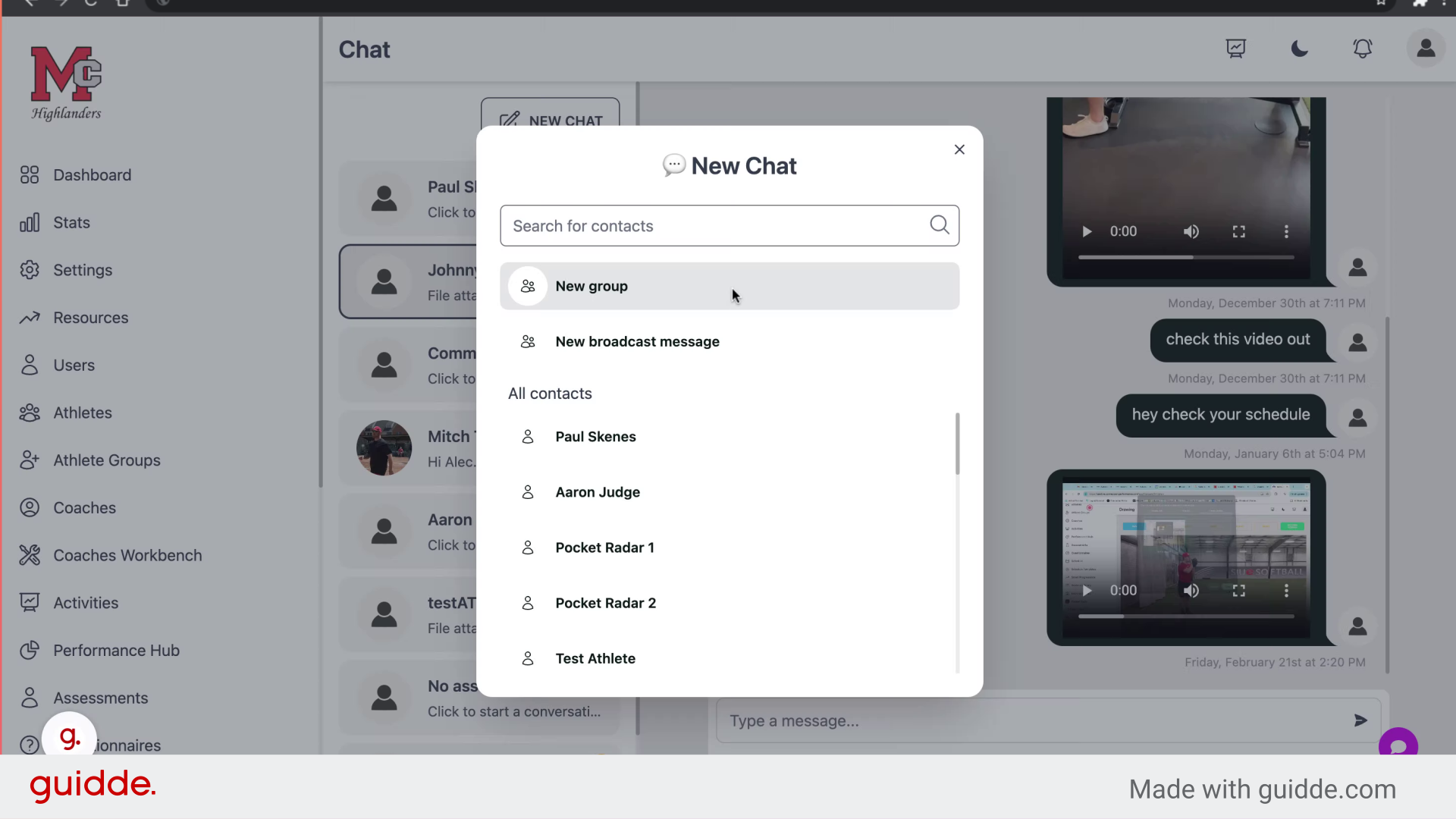
2. Click "New group"
Create a new group by clicking on the "New group" button.
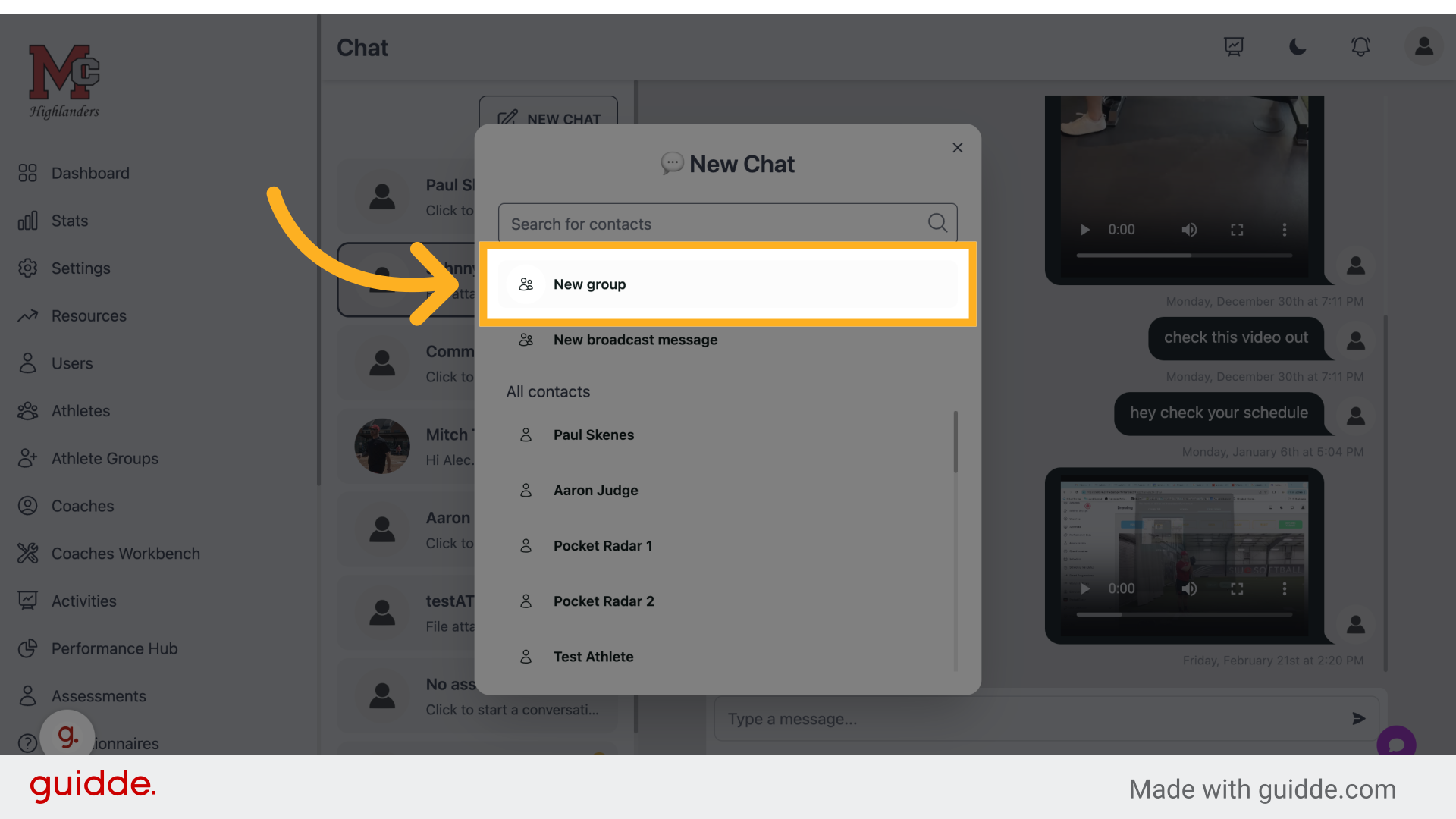
3. Click "Enter group name"
Enter the desired group name by clicking on the "Enter group name" field.
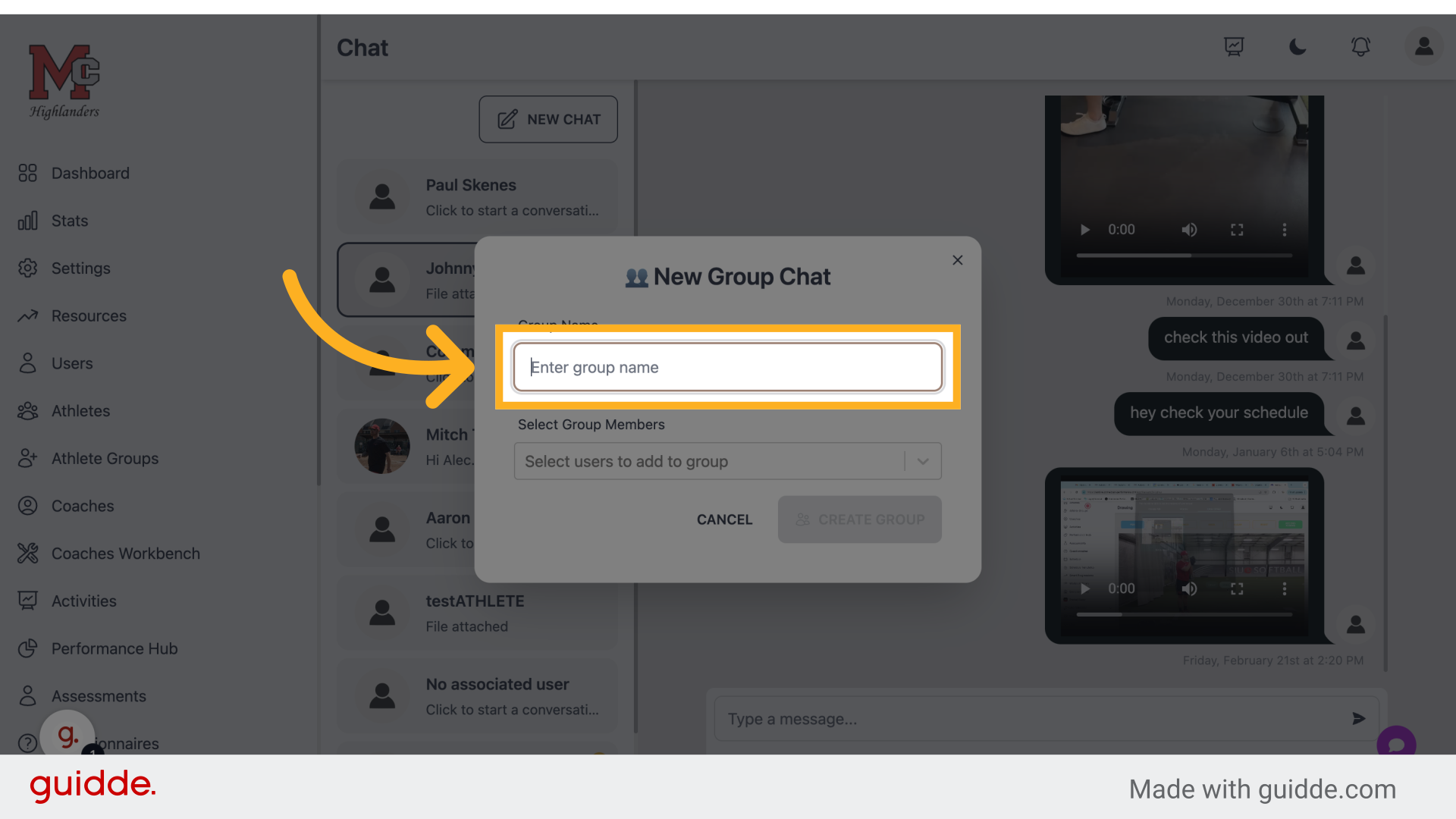
4. Fill "Youth Athletes"
Fill in "Youth Athletes"
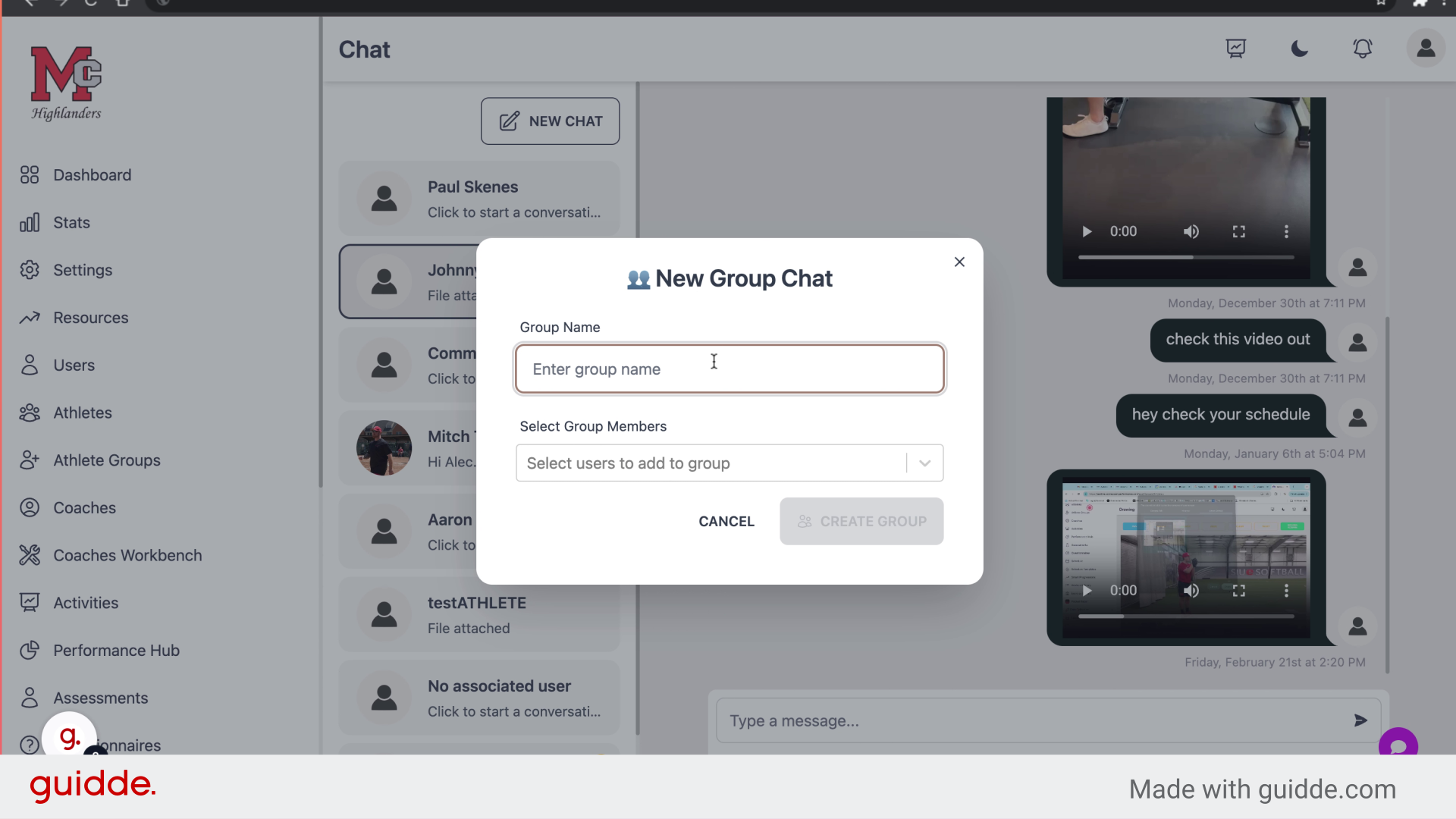
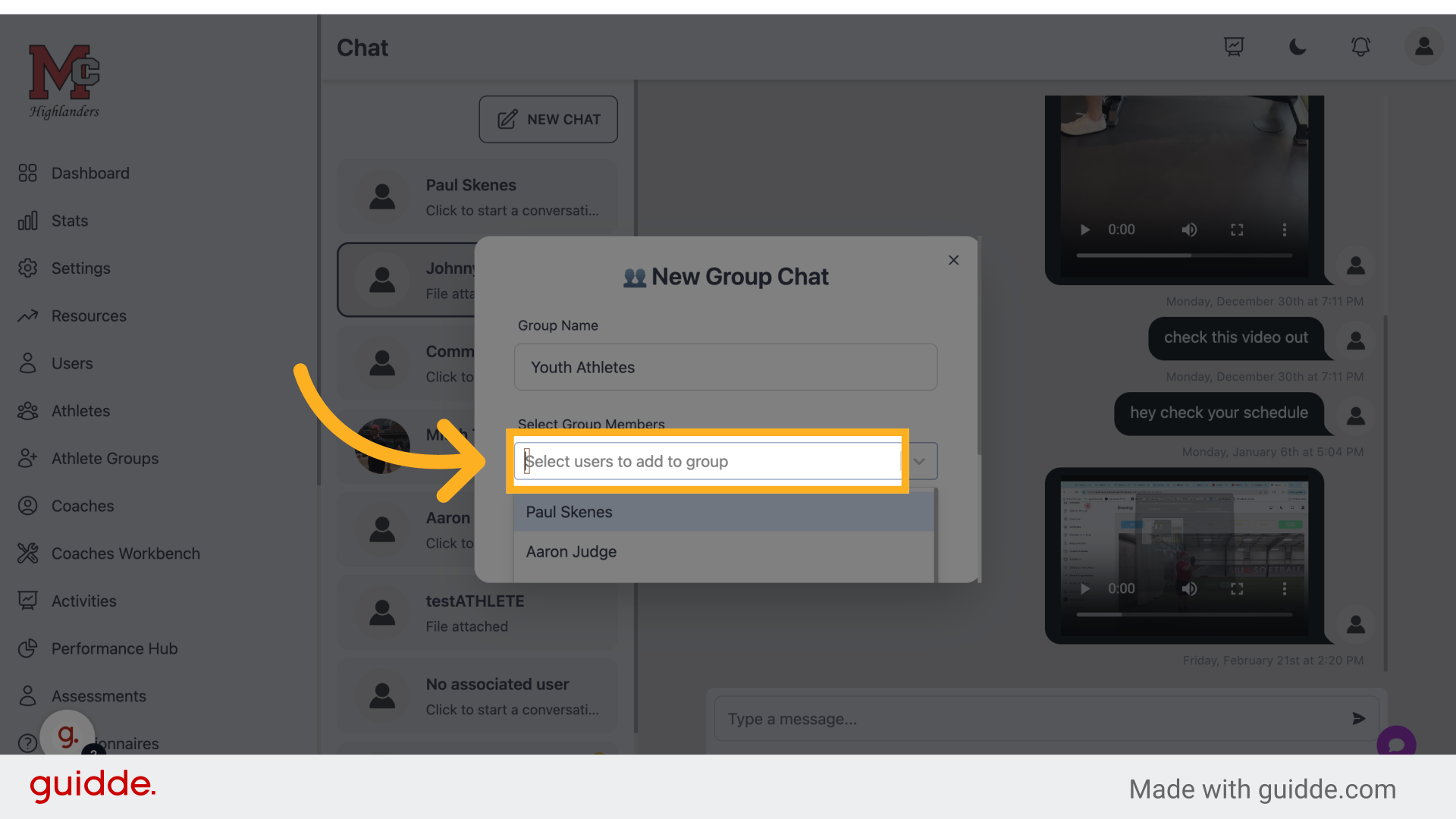
5. Click here To Select Users
Navigate to the specified location by clicking on the provided link.
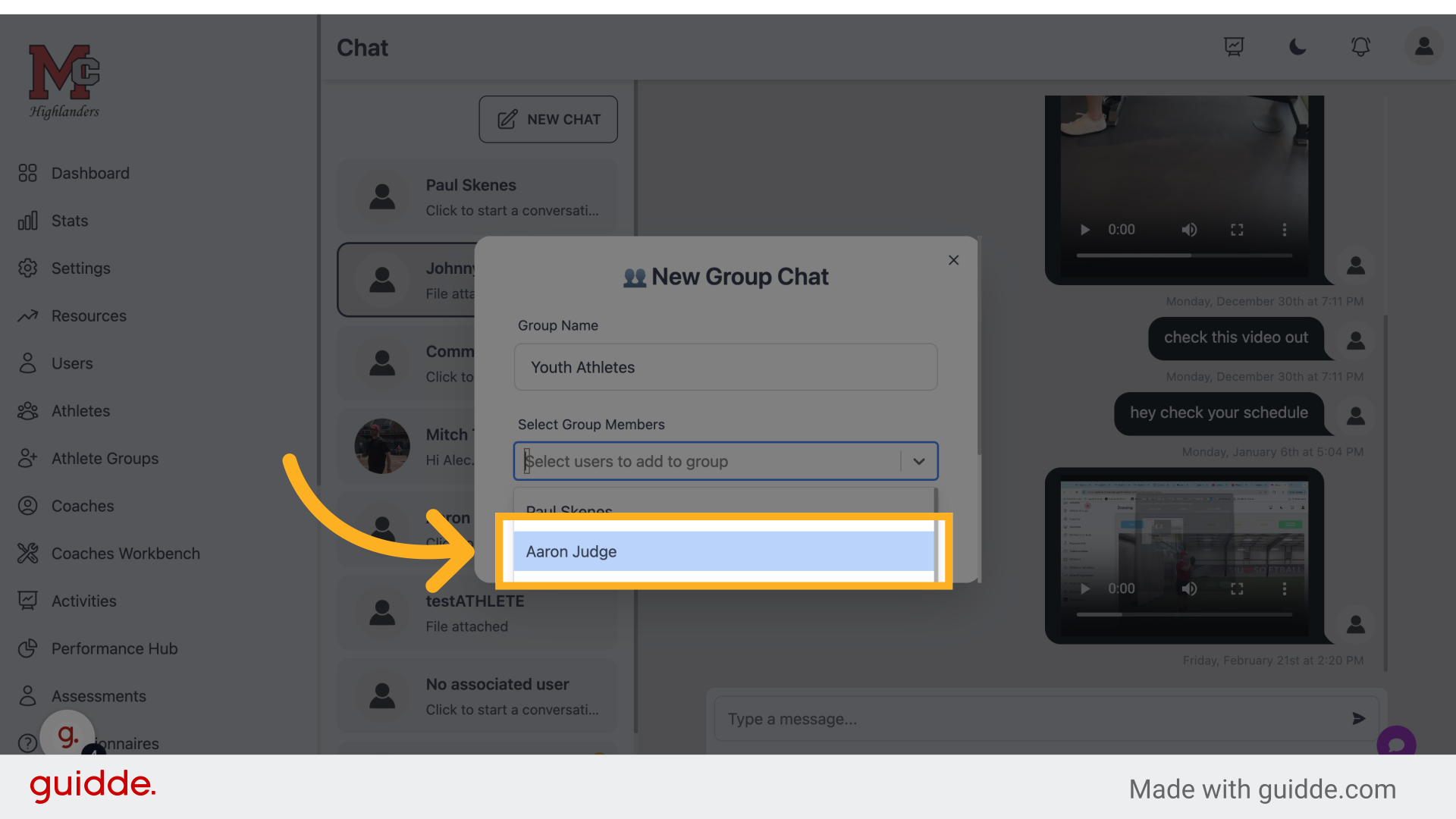
6. Click "Aaron Judge"
Select "Aaron Judge" from the options by clicking on the name.
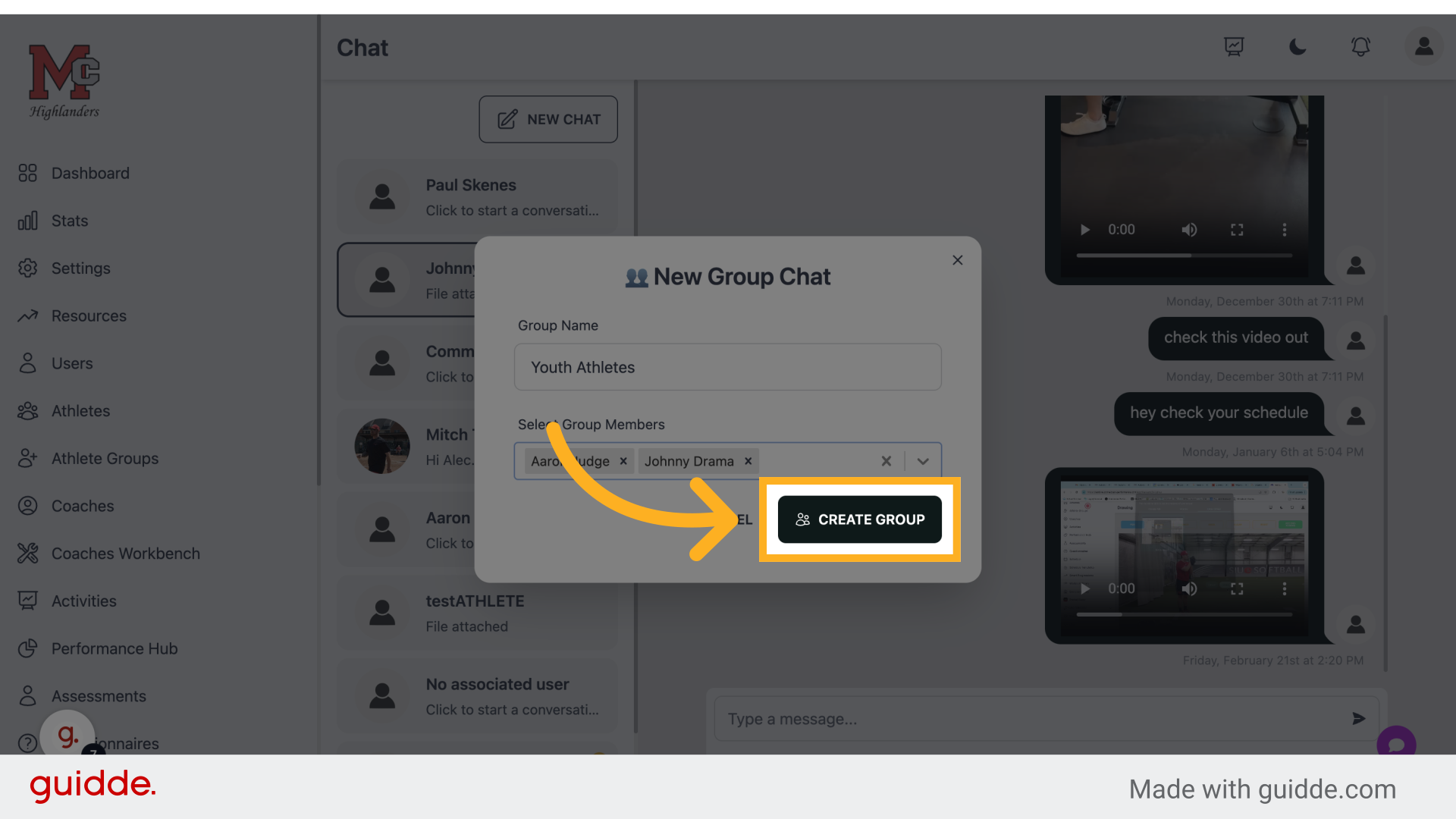
7. Click "Create Group"
Finalize and create the group by clicking on the "Create Group" button.
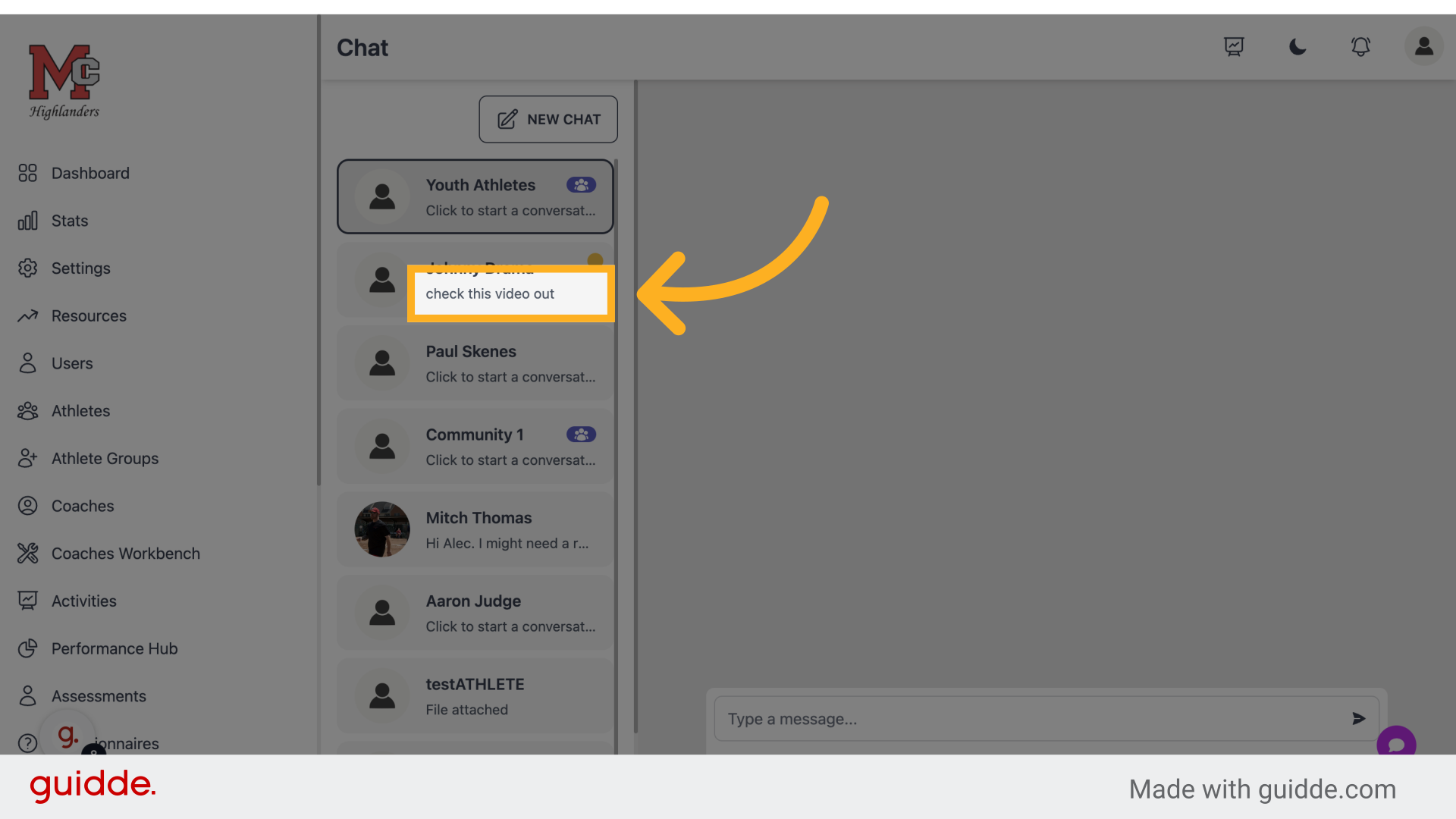
8. Click A User to Direct Message
Click the user directly to send them a message
9. Click "Type a message..."
Compose a message by clicking on the "Type a message..." field.
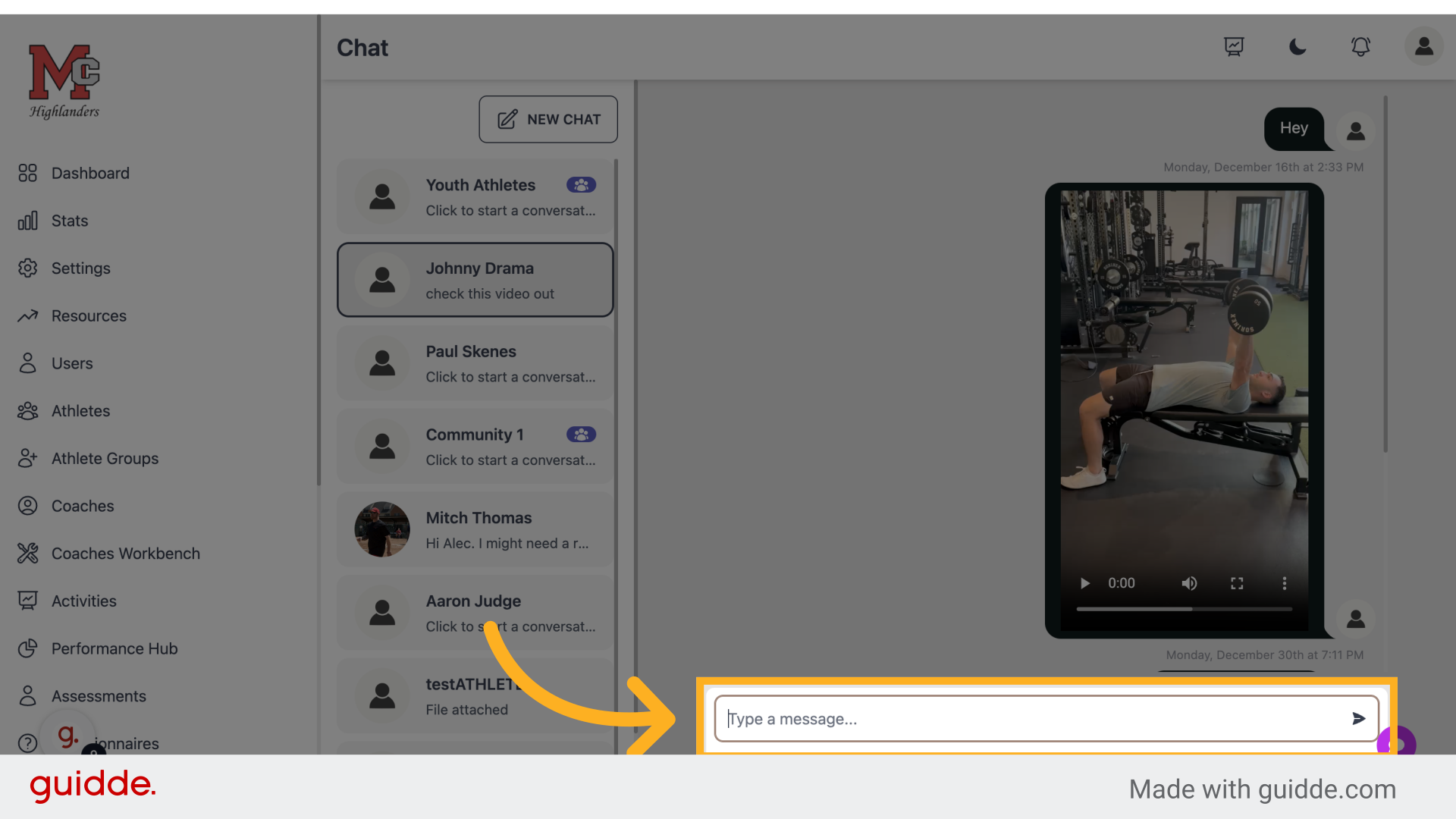
10. Add Your Text
Enter your message in the provided field
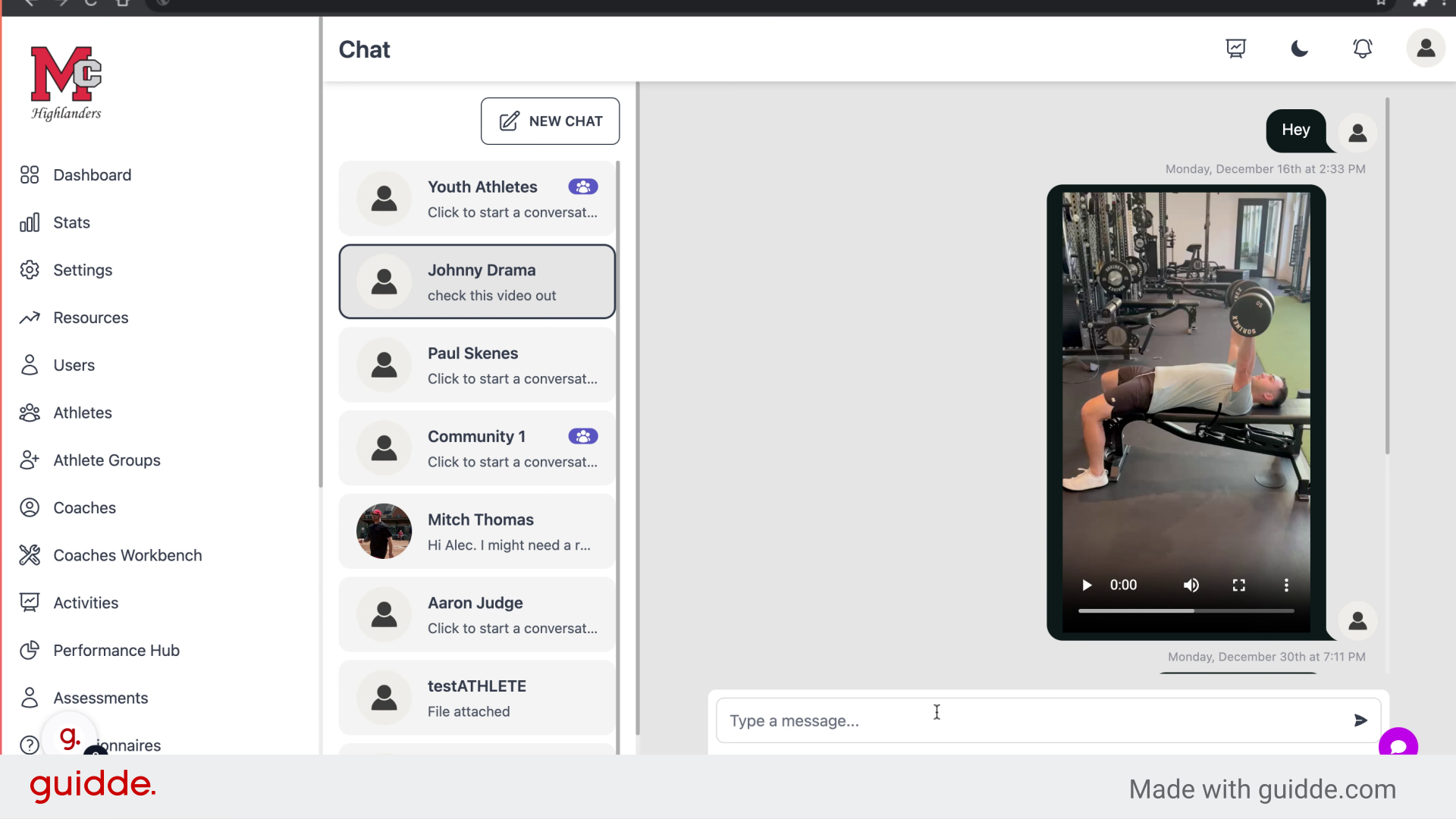
11. Go here
Navigate to the indicated location by clicking on the provided directive.
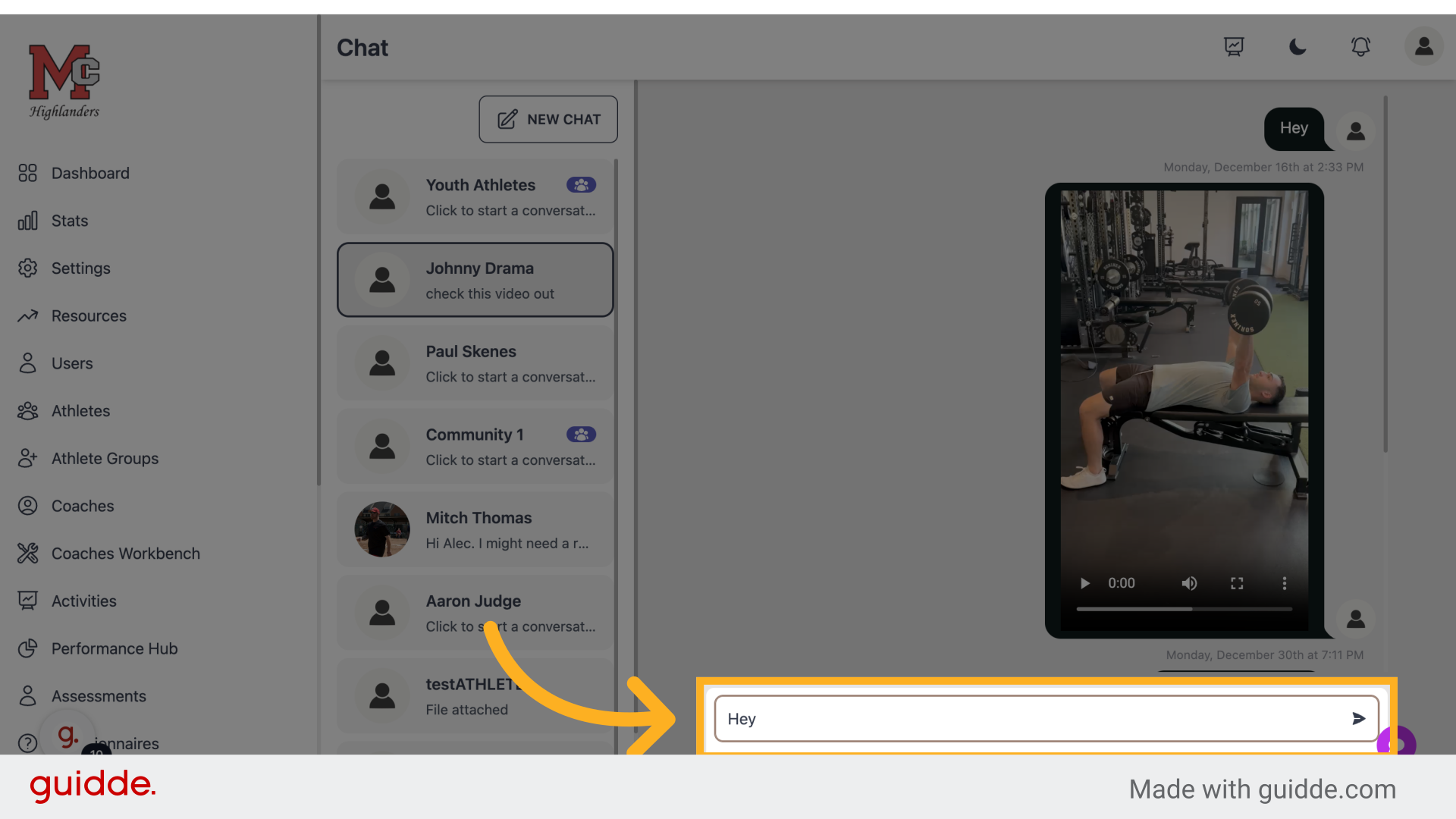
12. Click The Paperclip To Attach a Document
Proceed to the next step by clicking on the specified link.
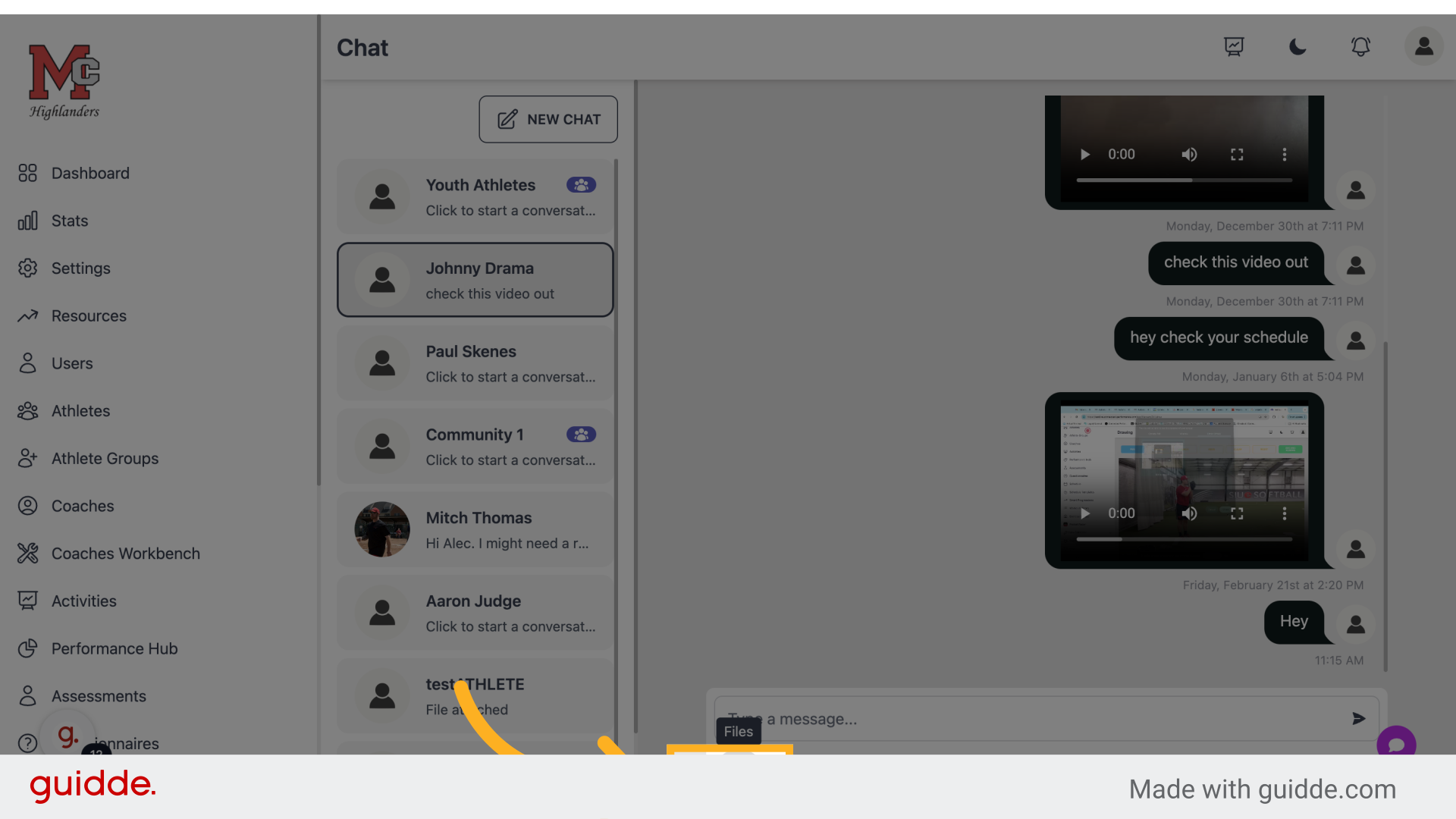
13. Click "Choose a file"
Select a file by clicking on the "Choose a file" button.
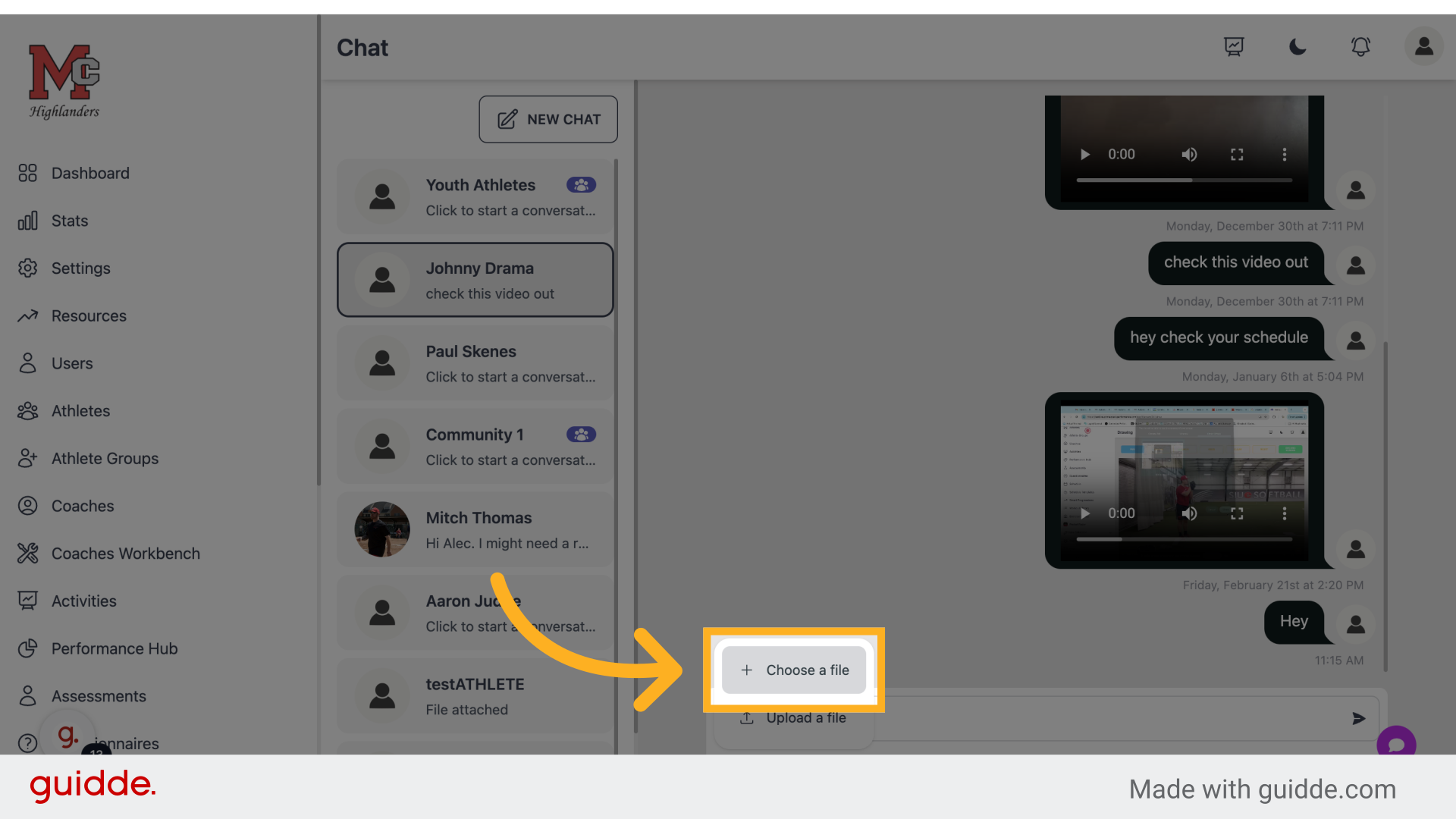
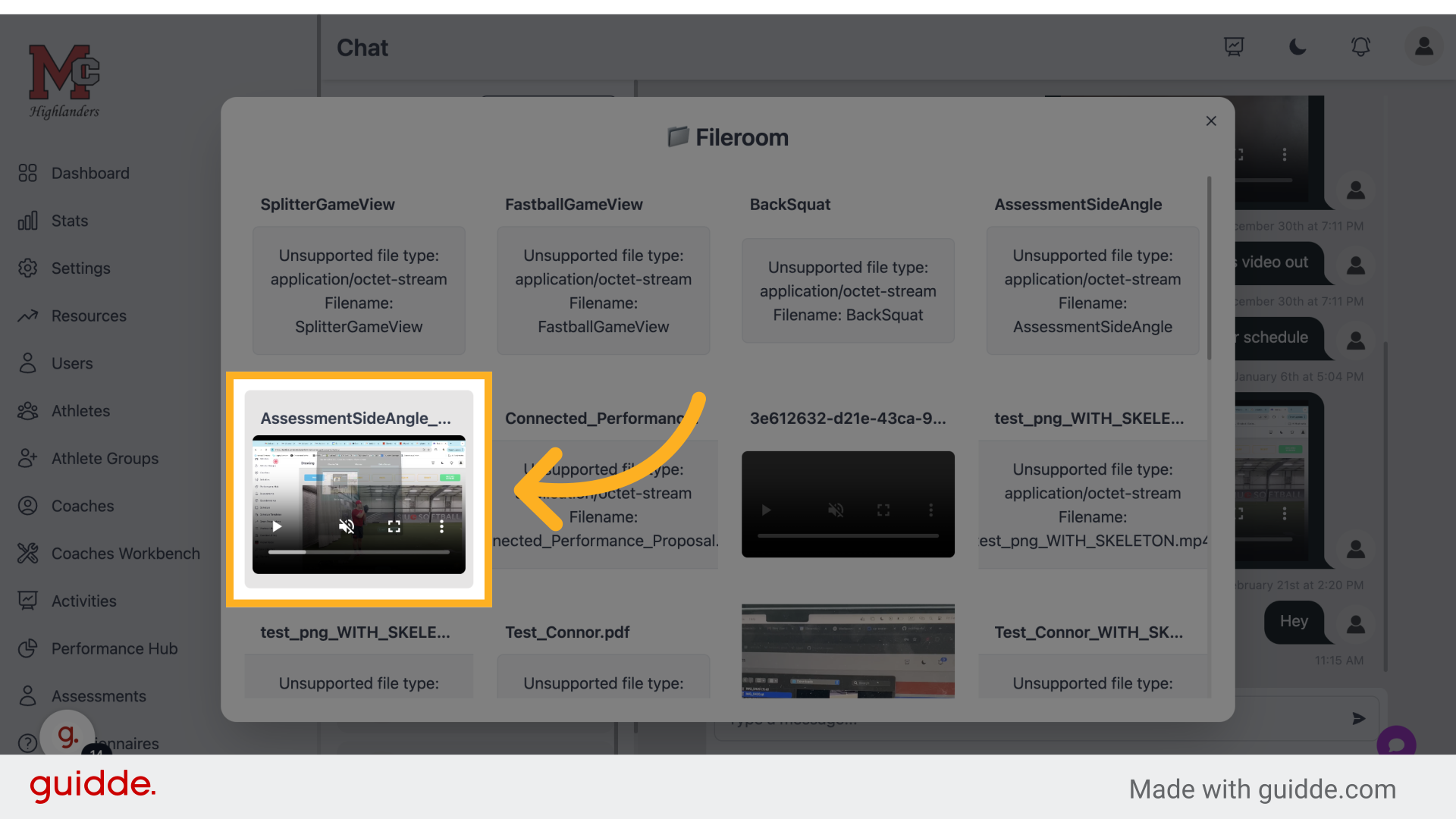
14. Click The File You Want
Choose the specific file by clicking on it.
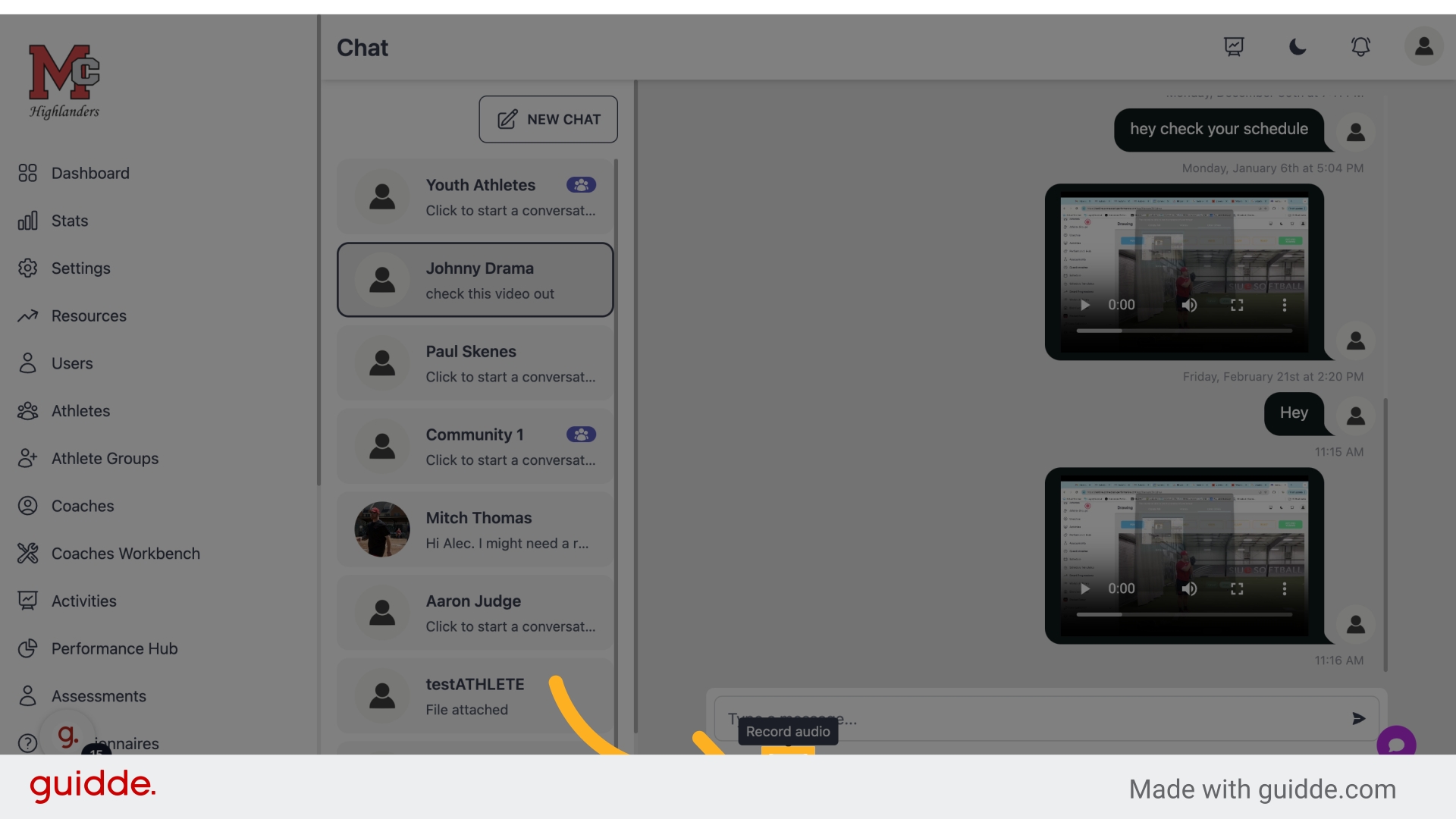
15. Click The Microphone To Send Voice Audio
Proceed to the next step by clicking on the specified link.
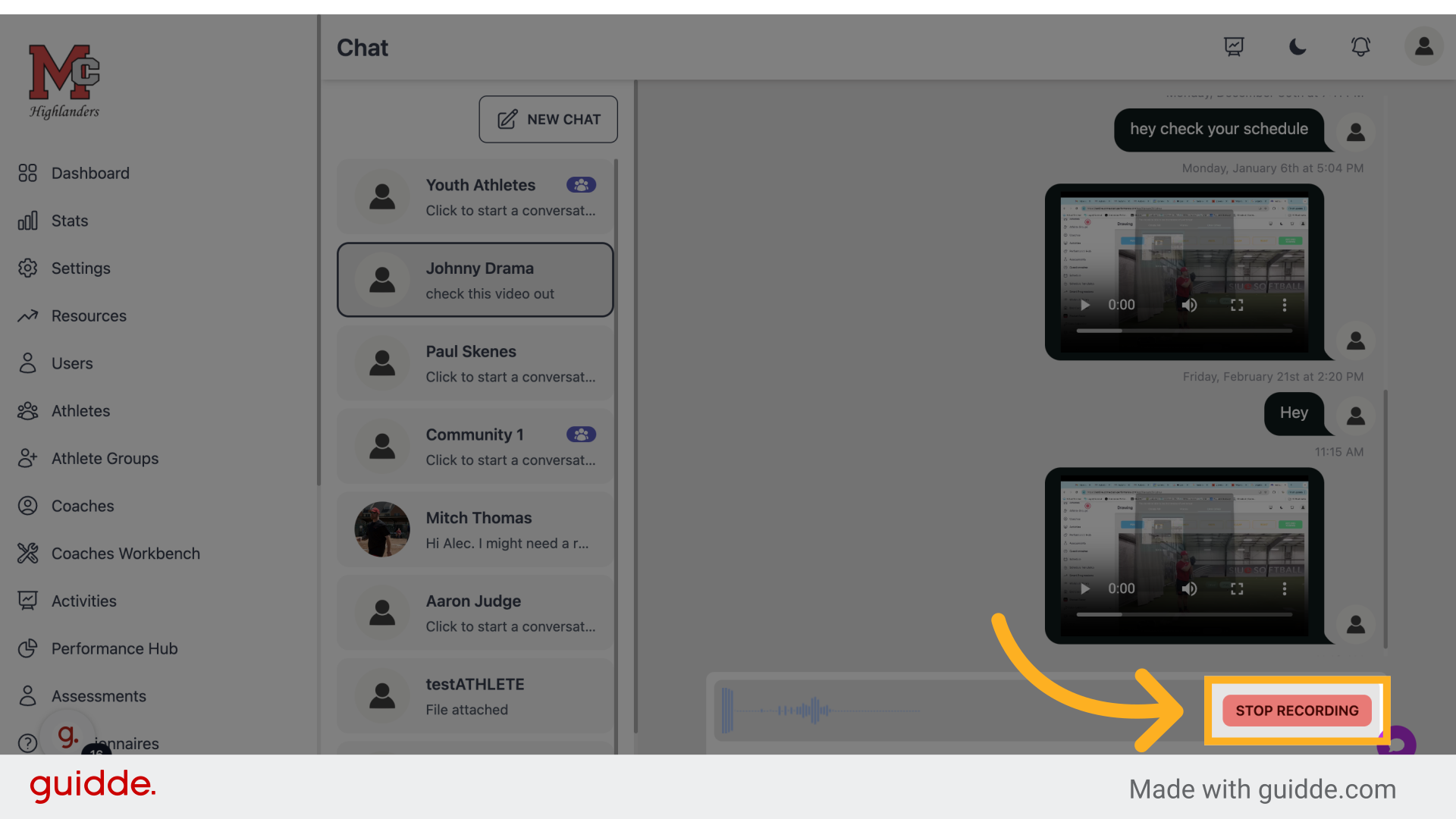
16. Click "Stop Recording"
End the recording process by clicking on "Stop Recording."
17. Click here
Proceed to the next step by clicking on the specified link.
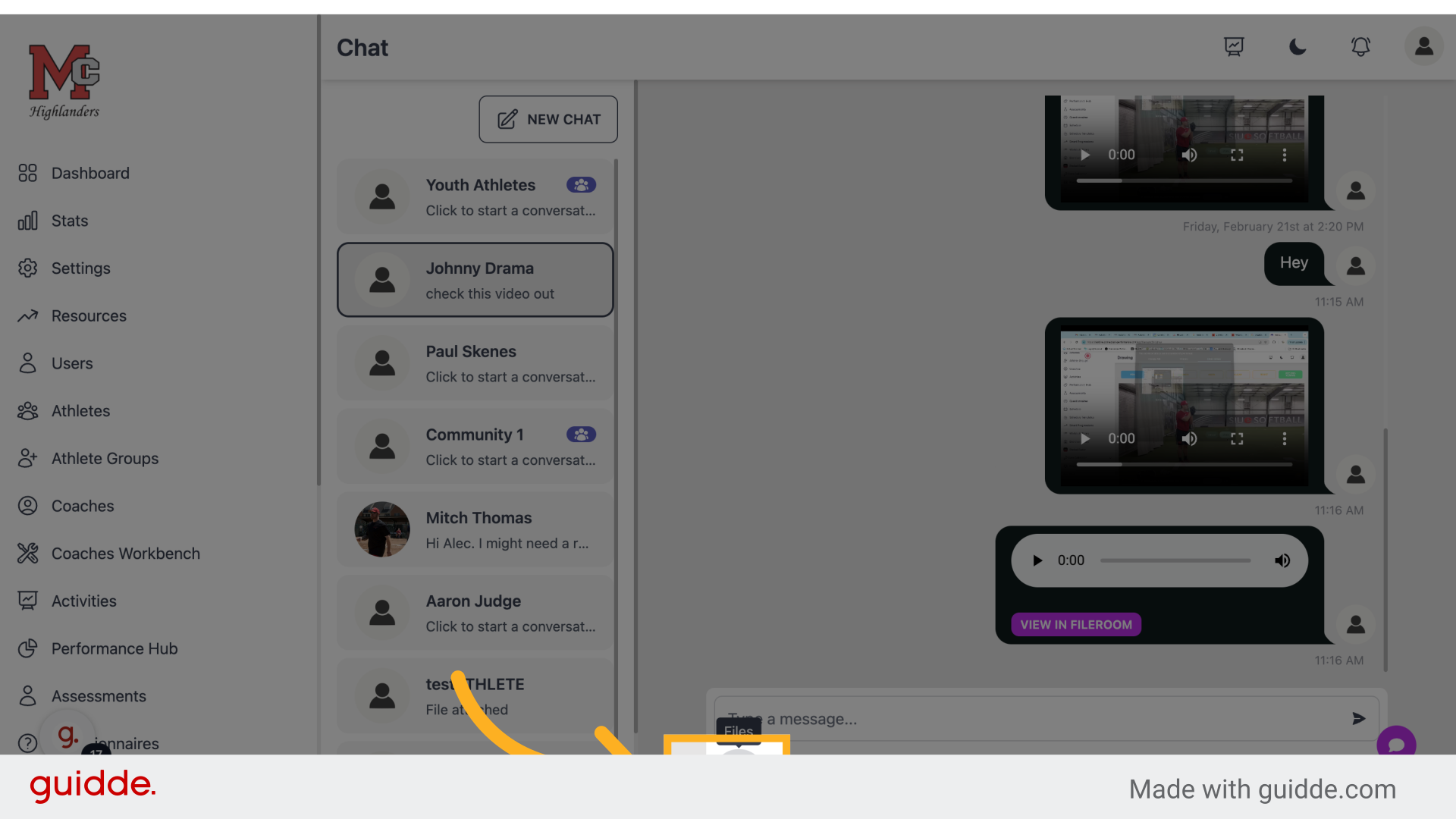
18. Click here
Navigate to the specified location by clicking on the provided link.
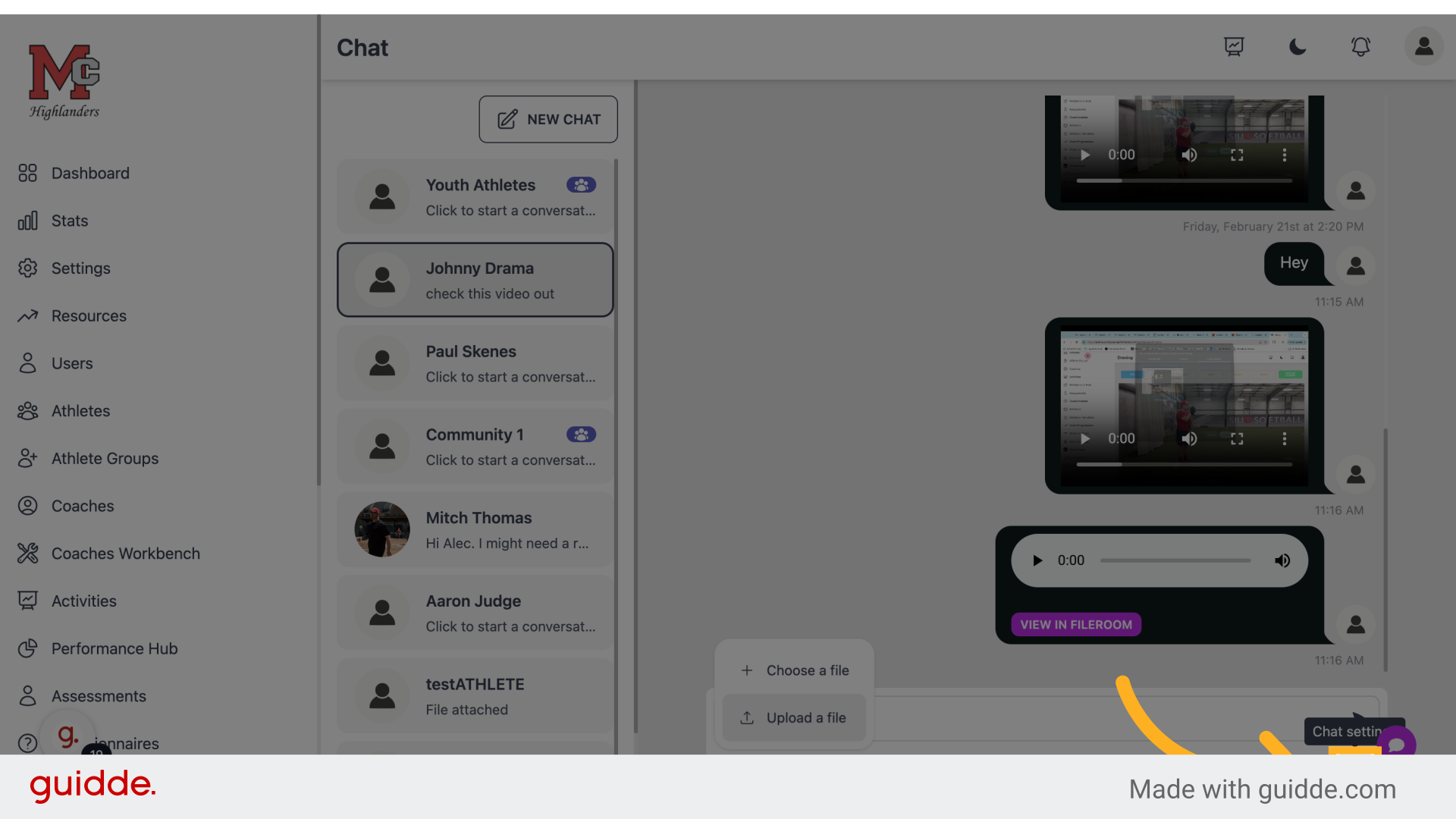
19. Click Here To Create A New Message
Proceed to the next step by clicking on the specified link.
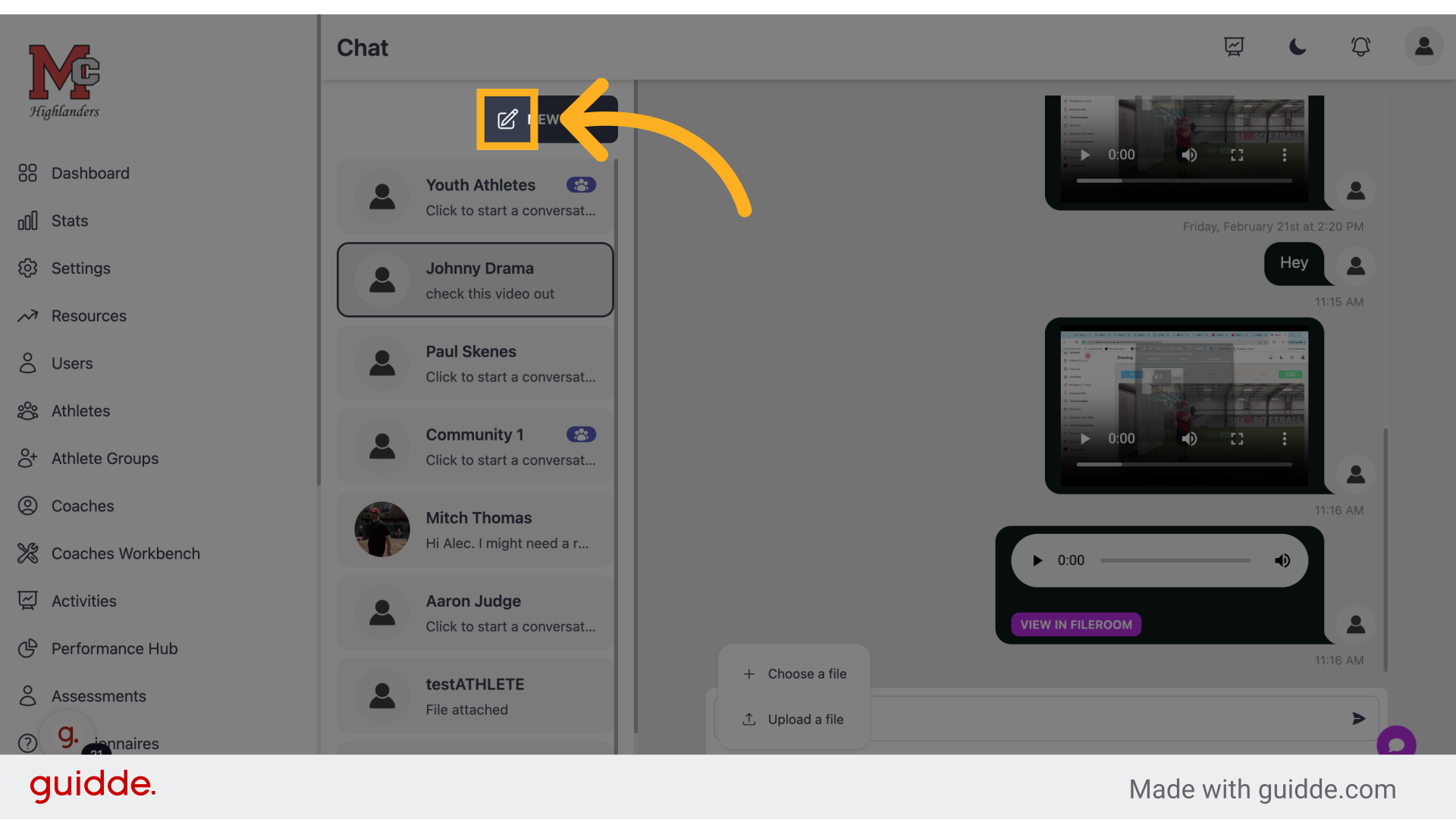
20. Click "New broadcast message"
Create a new broadcast message by clicking on the "New broadcast message" option.
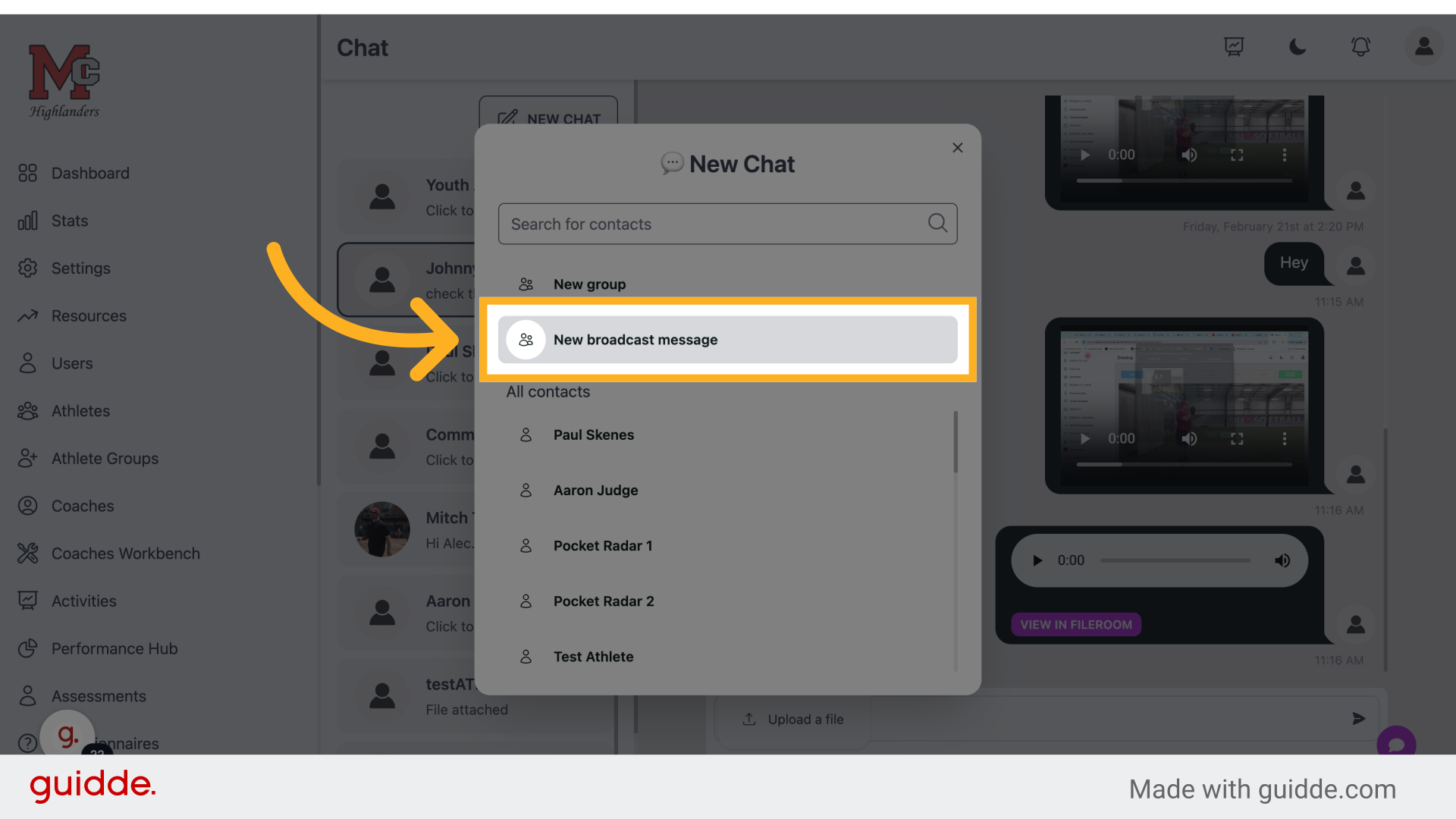
21. Click "Type your broadcast message here"
Enter the broadcast message by clicking on the text field.
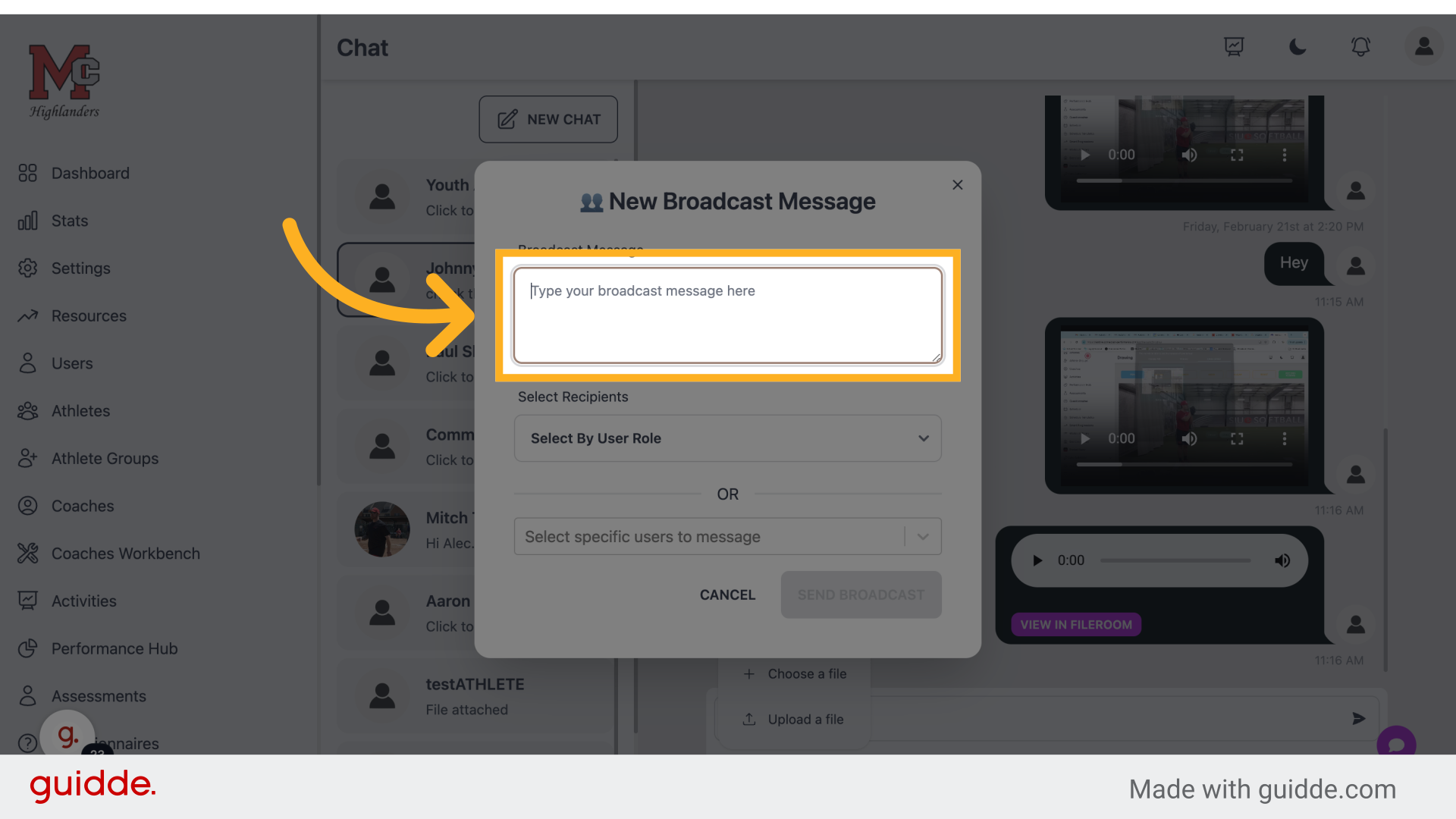
22. Enter Your Text
Fill in the text box with your text
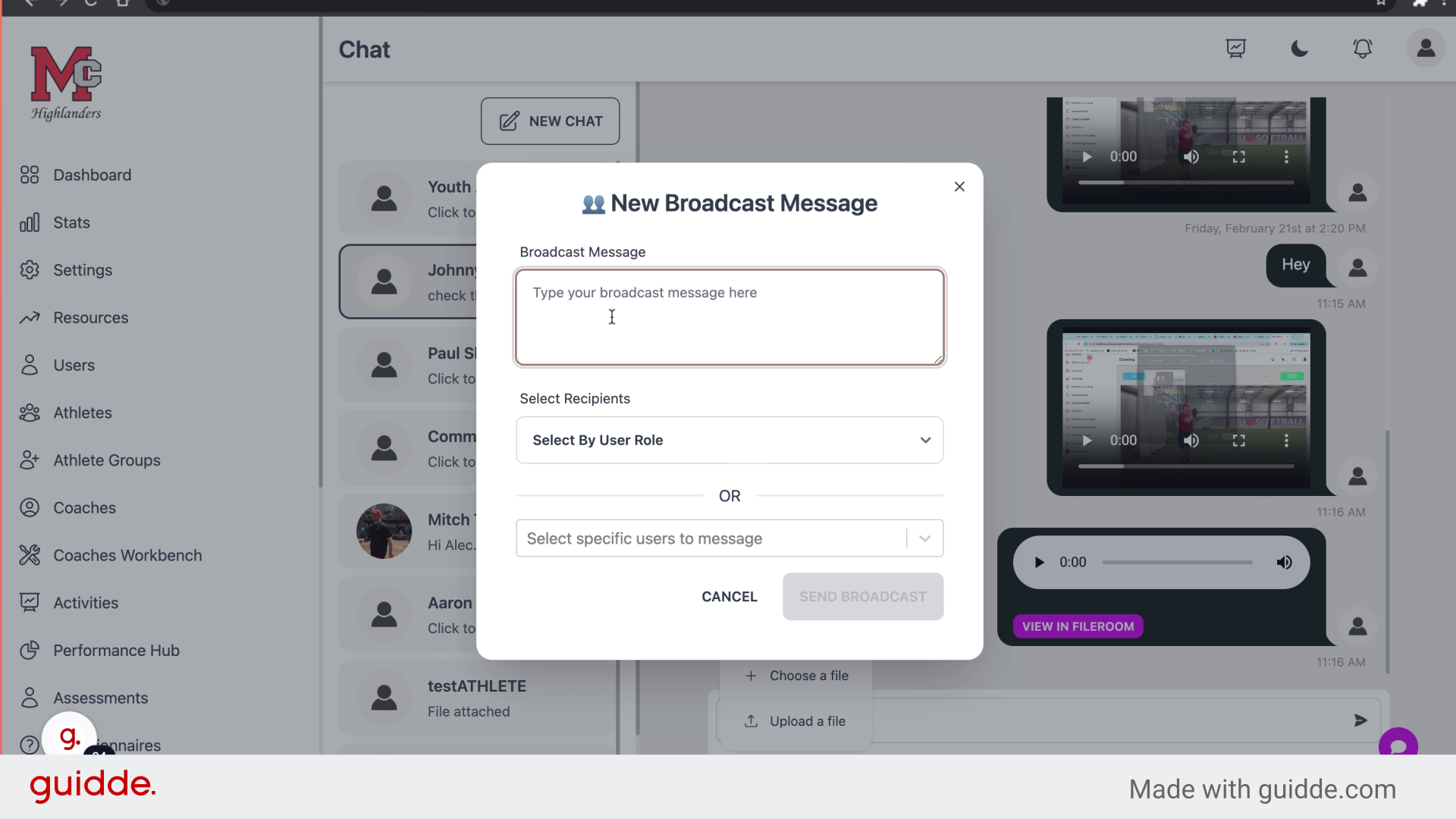
23. Click The Role To Send To
Choose the recipients by clicking on their role
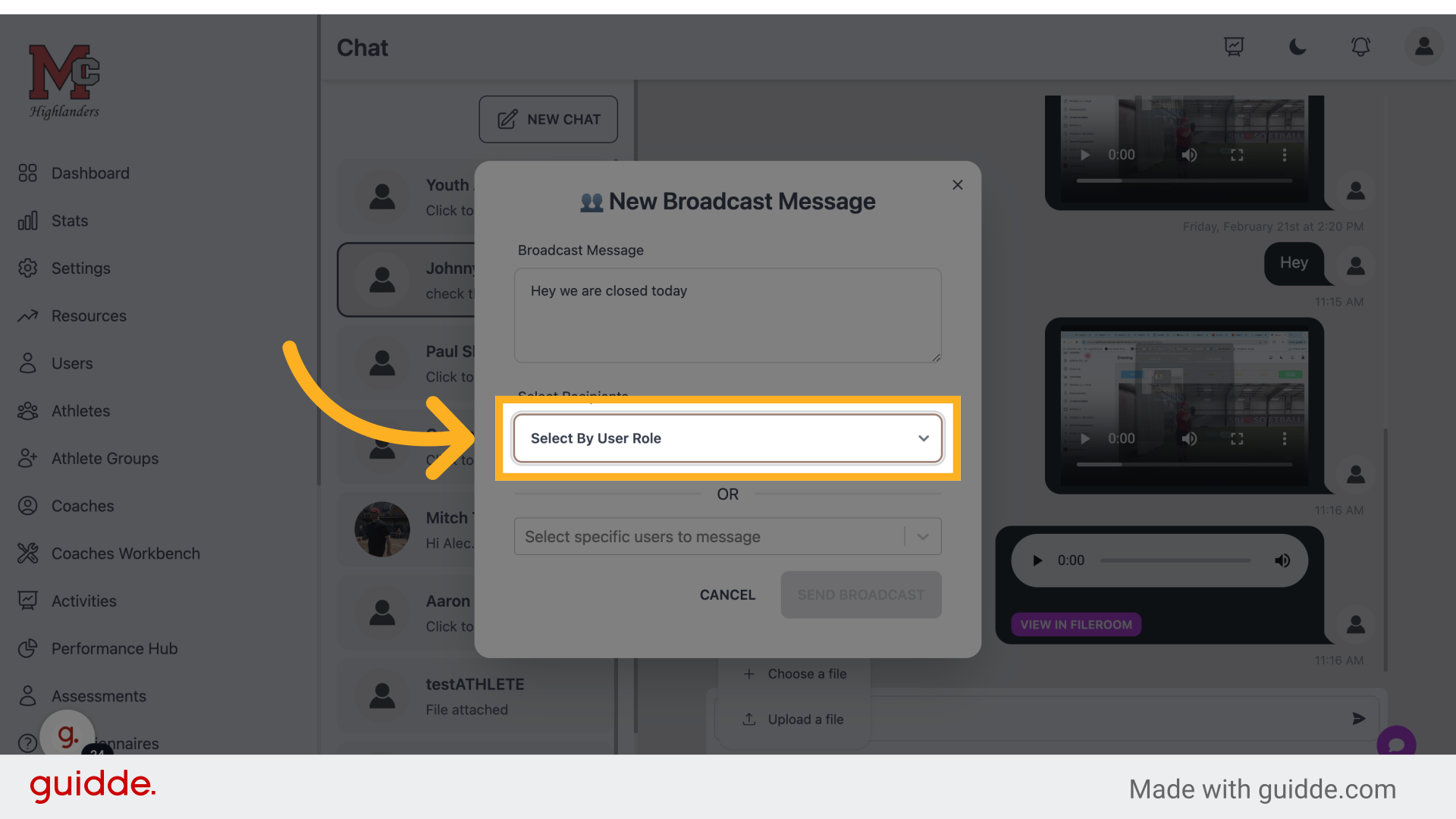
24. Select Recipients
Enter the desired text.
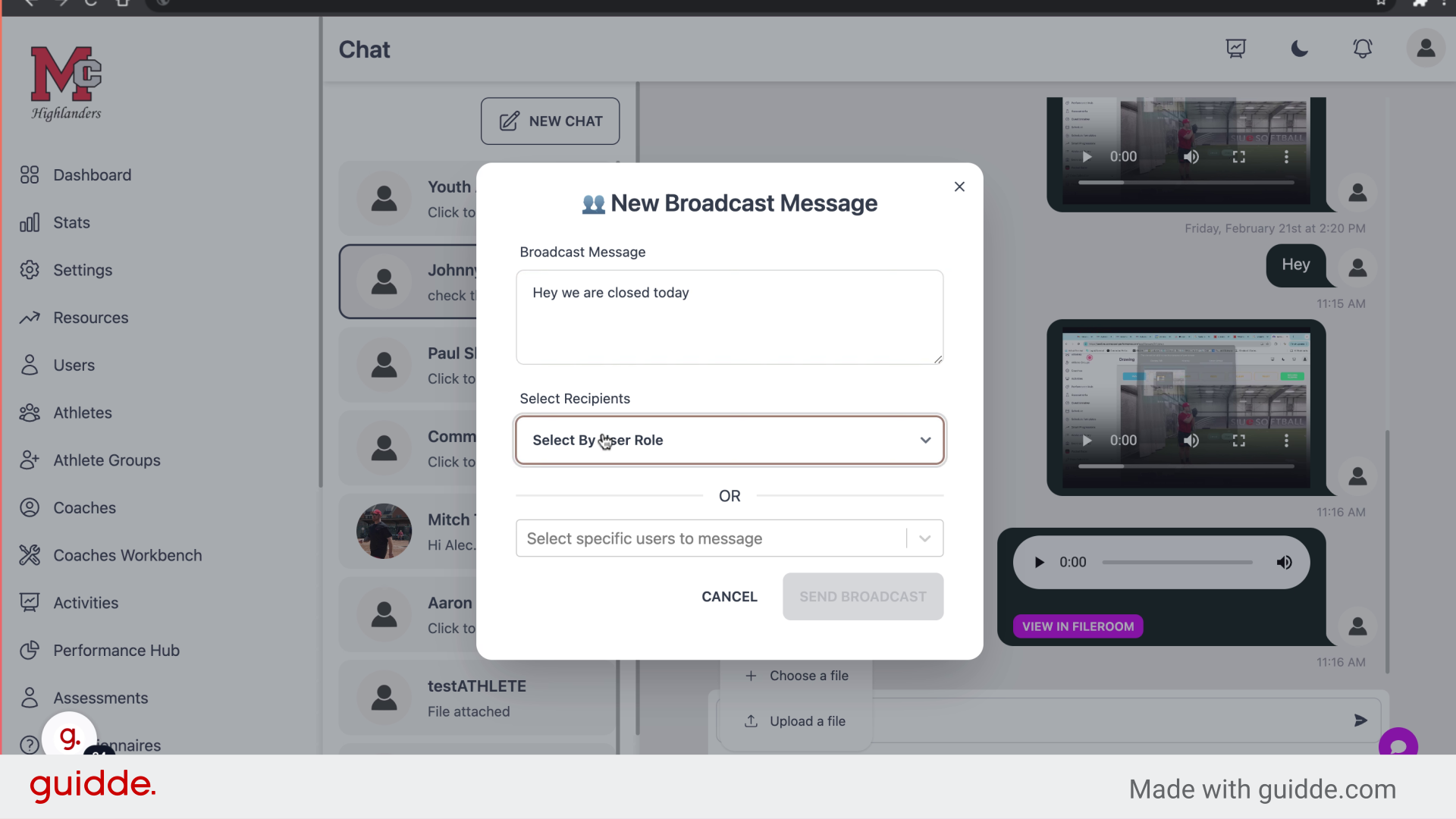
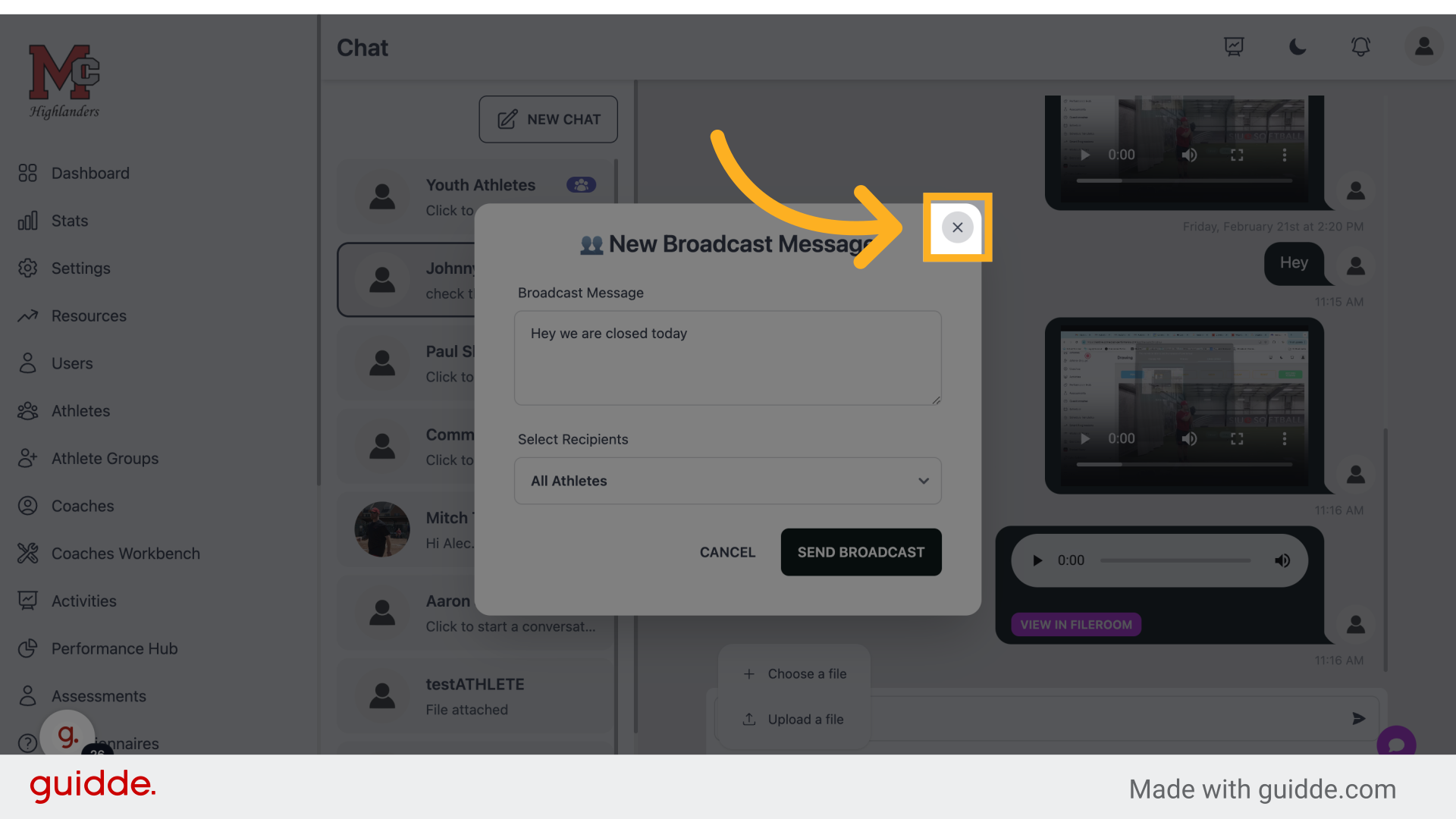
25. Click "✕"
Close the current window by clicking on the "close" icon.
This guide has covered various actions on Connected-performance, such as creating groups, sending messages, and uploading files. By following these precise instructions, you can effectively navigate through the platform for optimal employee training.
Referenced by
- 'Google Calendar Integration'integrations
- 'Notifications'communication
- 'Resources'communication
- 'Texting'communication
- 'Video Room'communication