 Connected Performance
How To Use Analytics
Learn how to efficiently run reports using Analytics
Run Reports with Analytics
Learn how to efficiently run reports using Analytics. The sidebar item used to be called Performance Hub.
The steps outlined below will guide you through the process of accessing athlete data, generating reports, and utilizing essential features within the application.
Step 2 — Select An Athlete
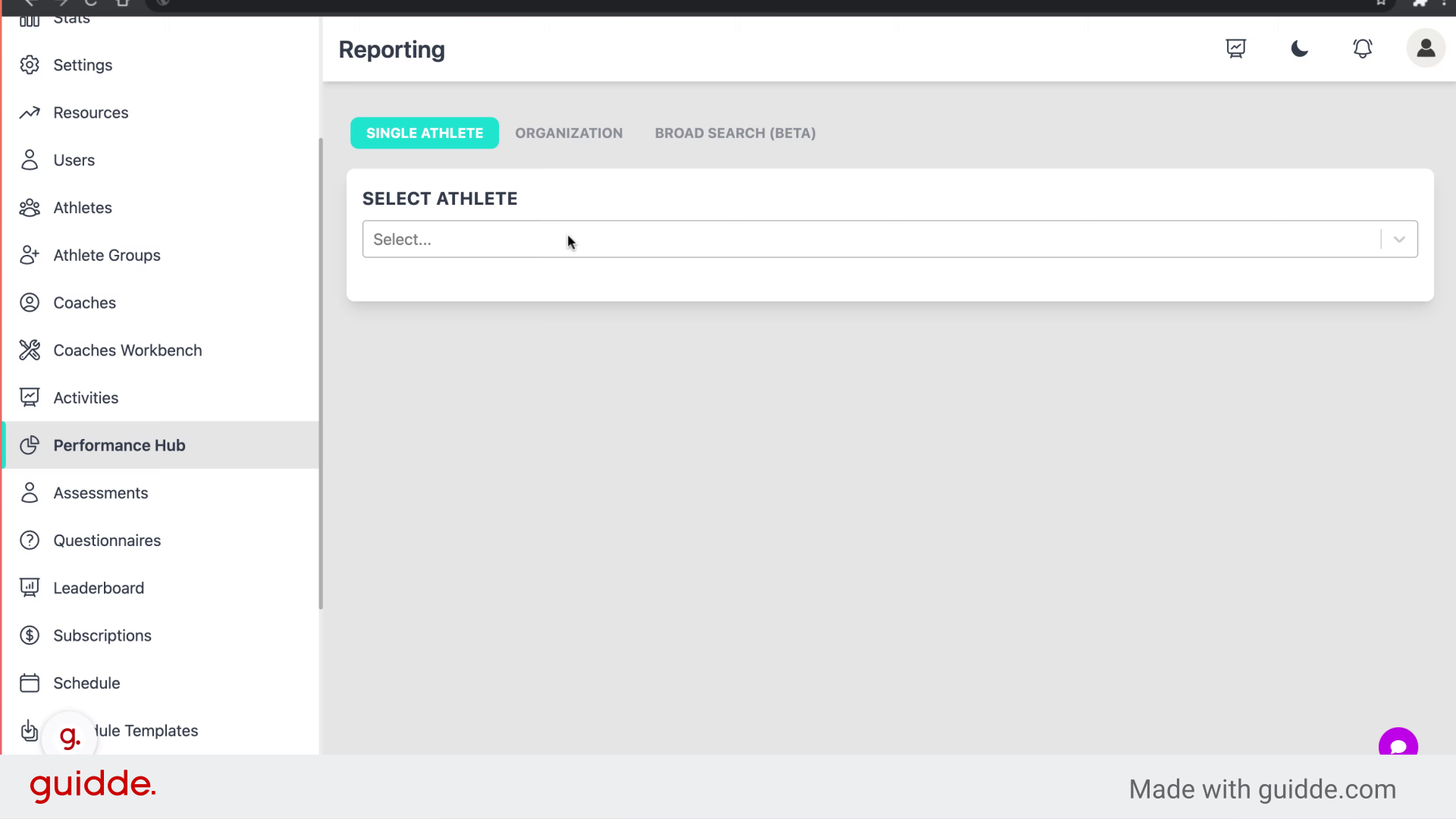
Click on the athlete drop down
Step 3 — Click "Select AthleteSelect..."
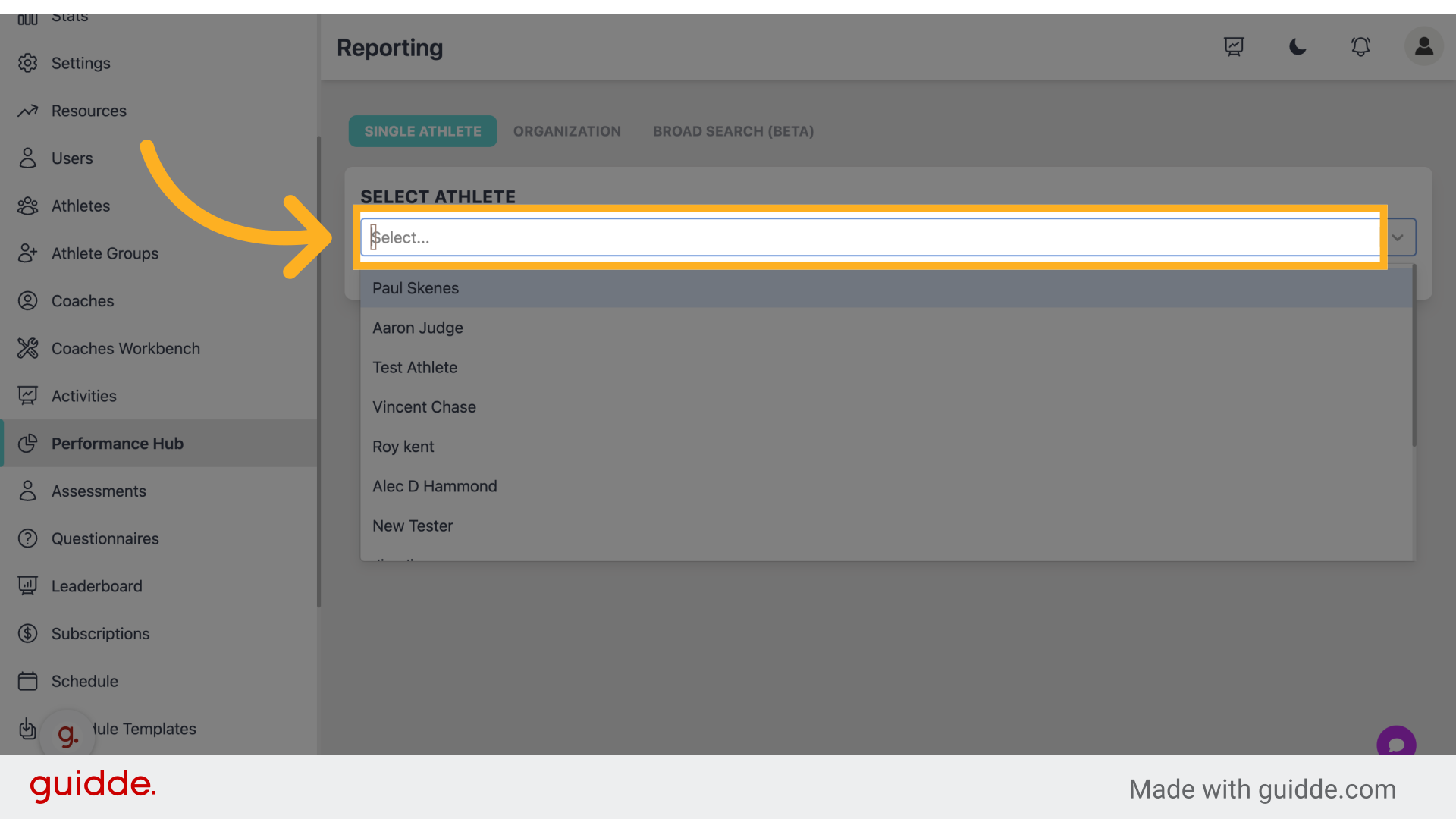
Select the desired athlete from the dropdown menu.
Step 4 — Click Select An Athlete
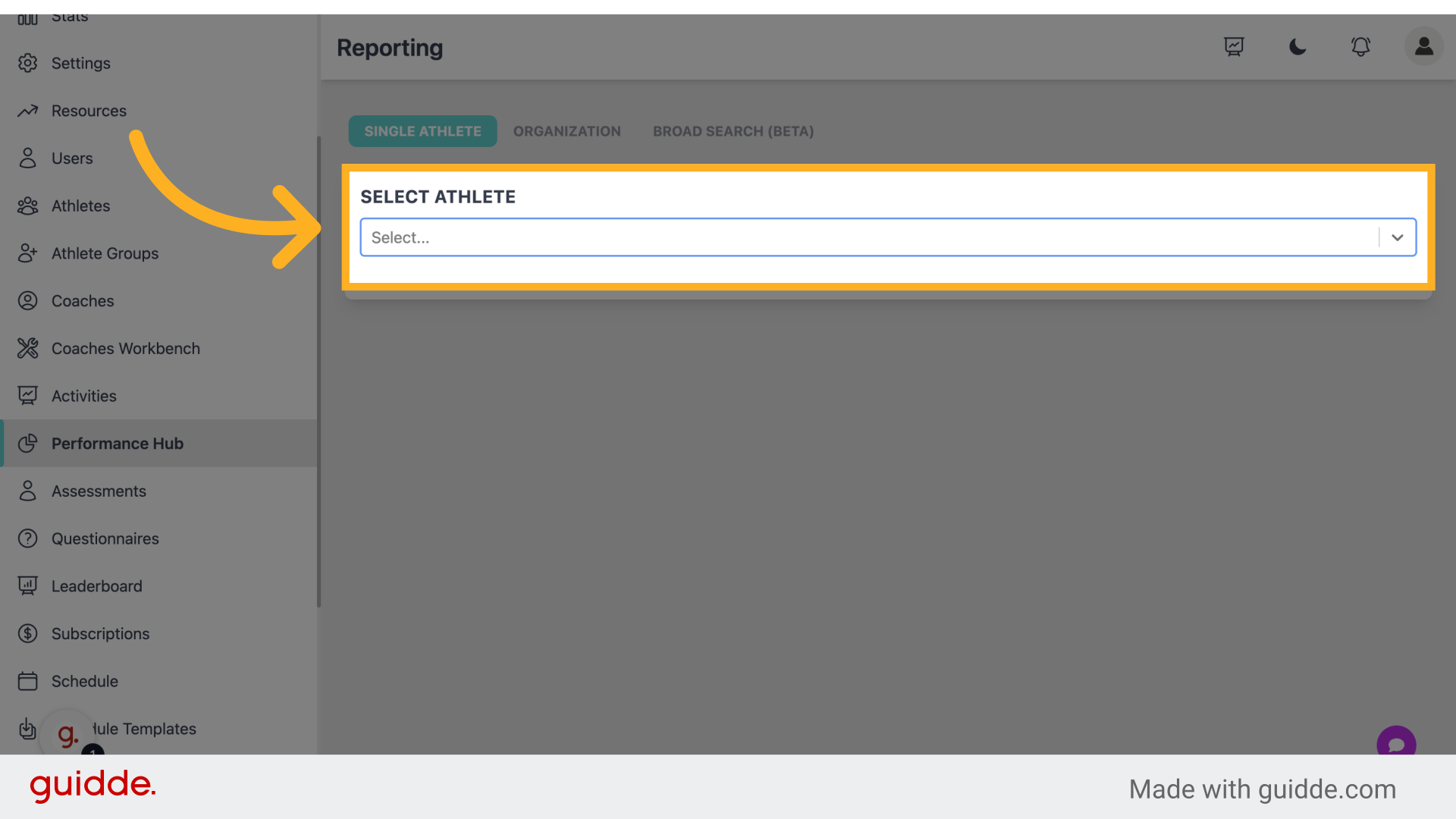
Choose an athlete from the list.
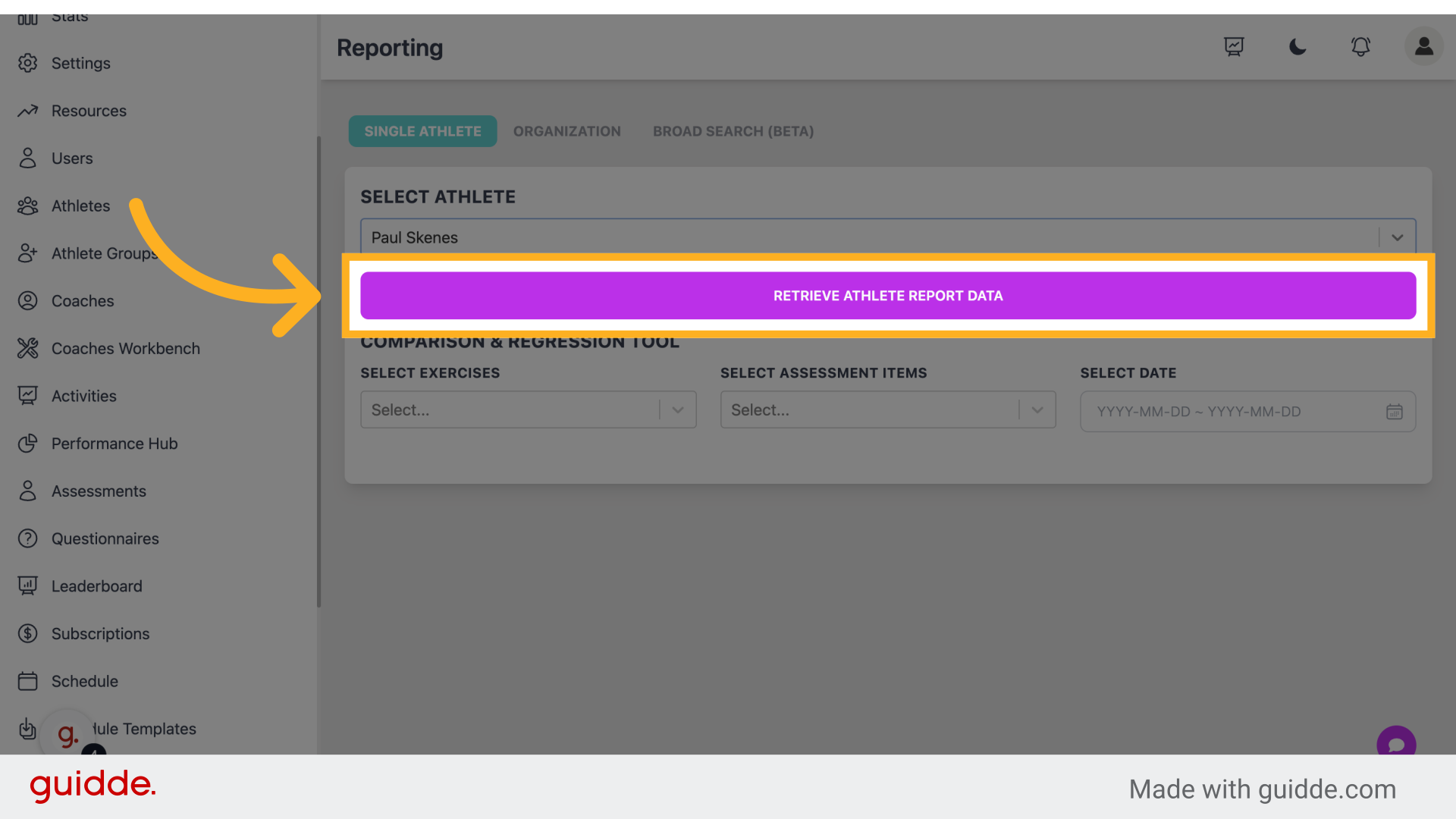
Step 5 — Click "Retrieve Athlete Report Data"
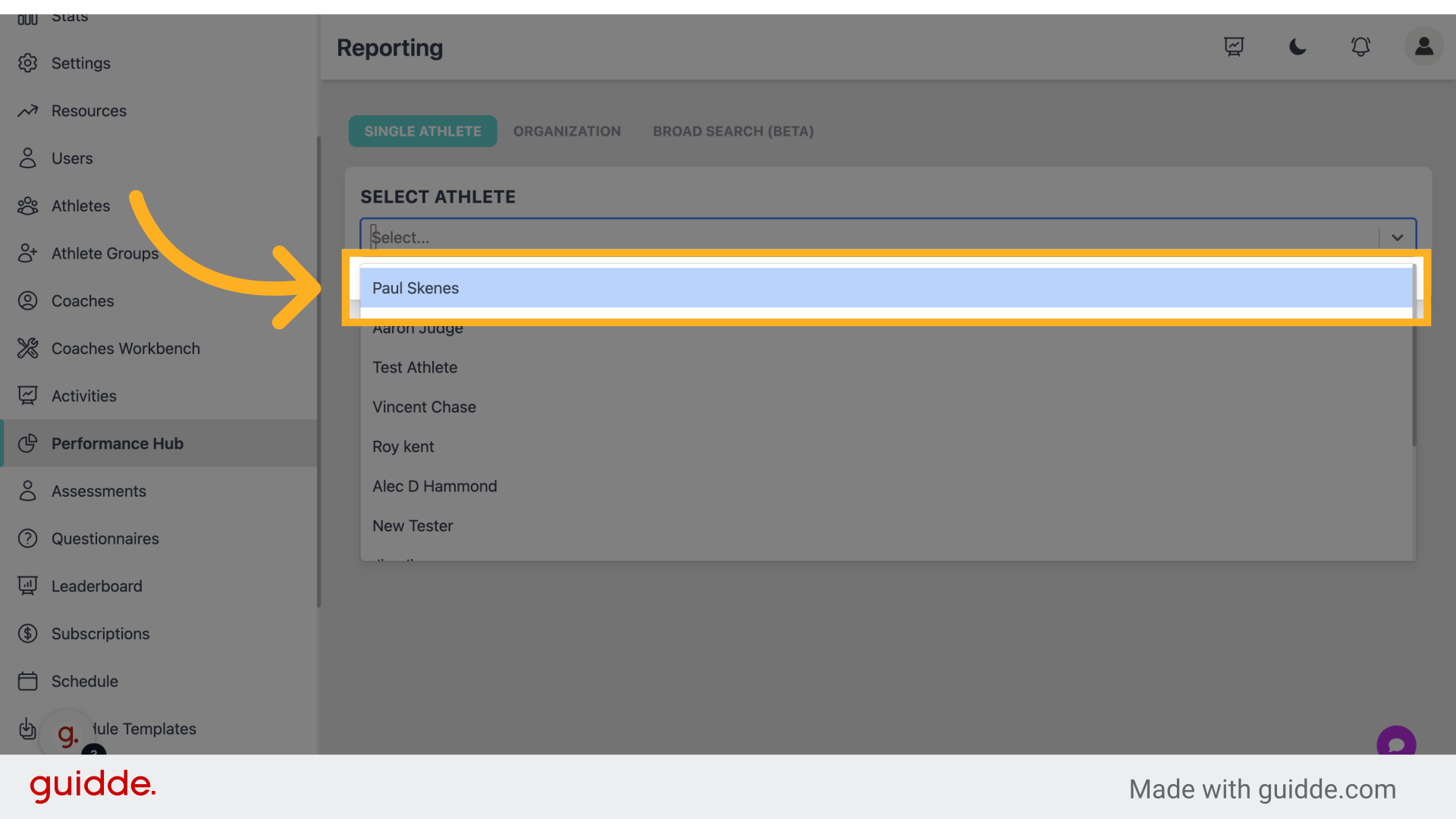
Initiate the process to retrieve athlete report data on assessments and questionnaires.
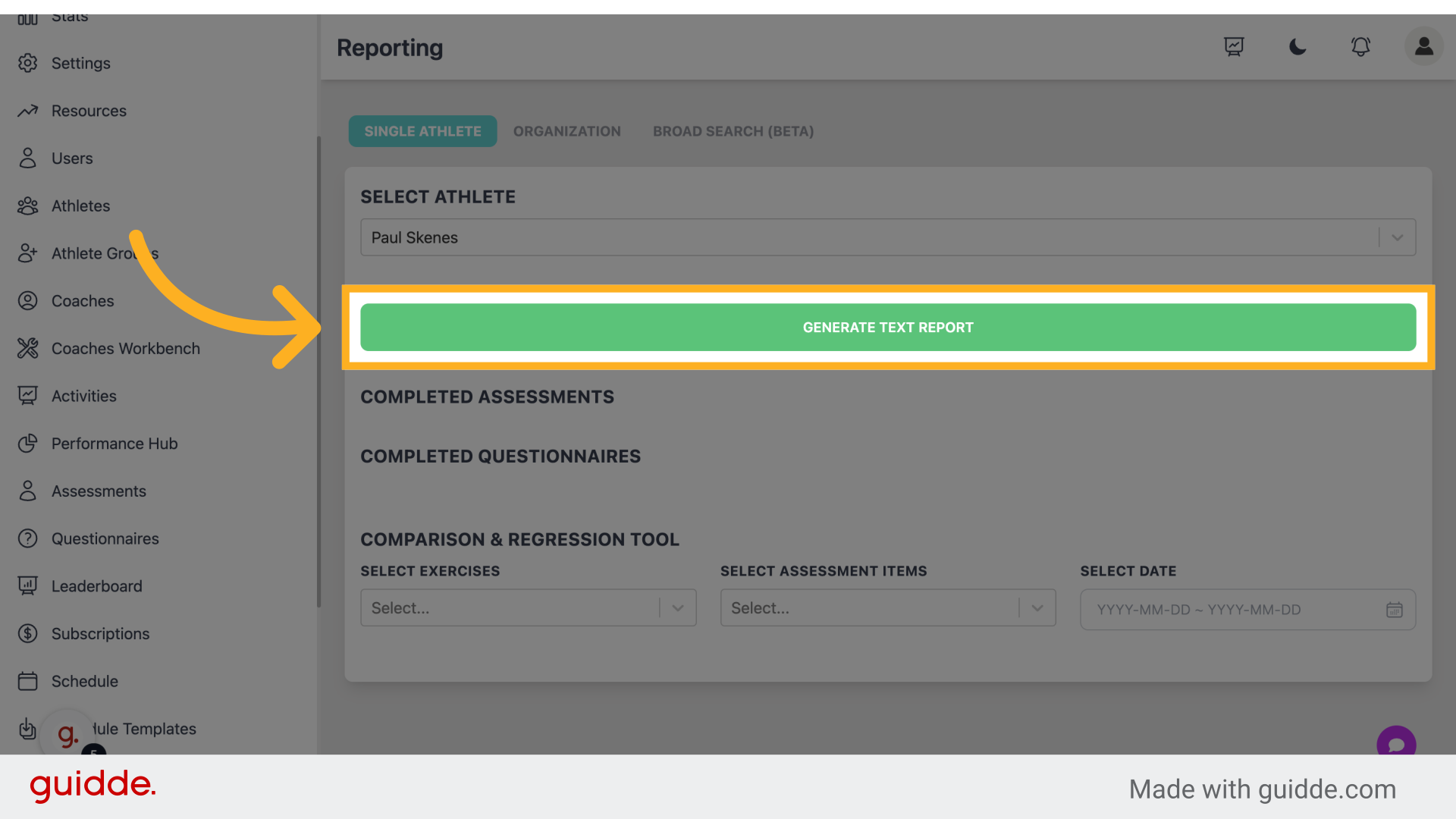
Step 6 — Click "Generate Text Report"
Generate an AI text report based on the available data.
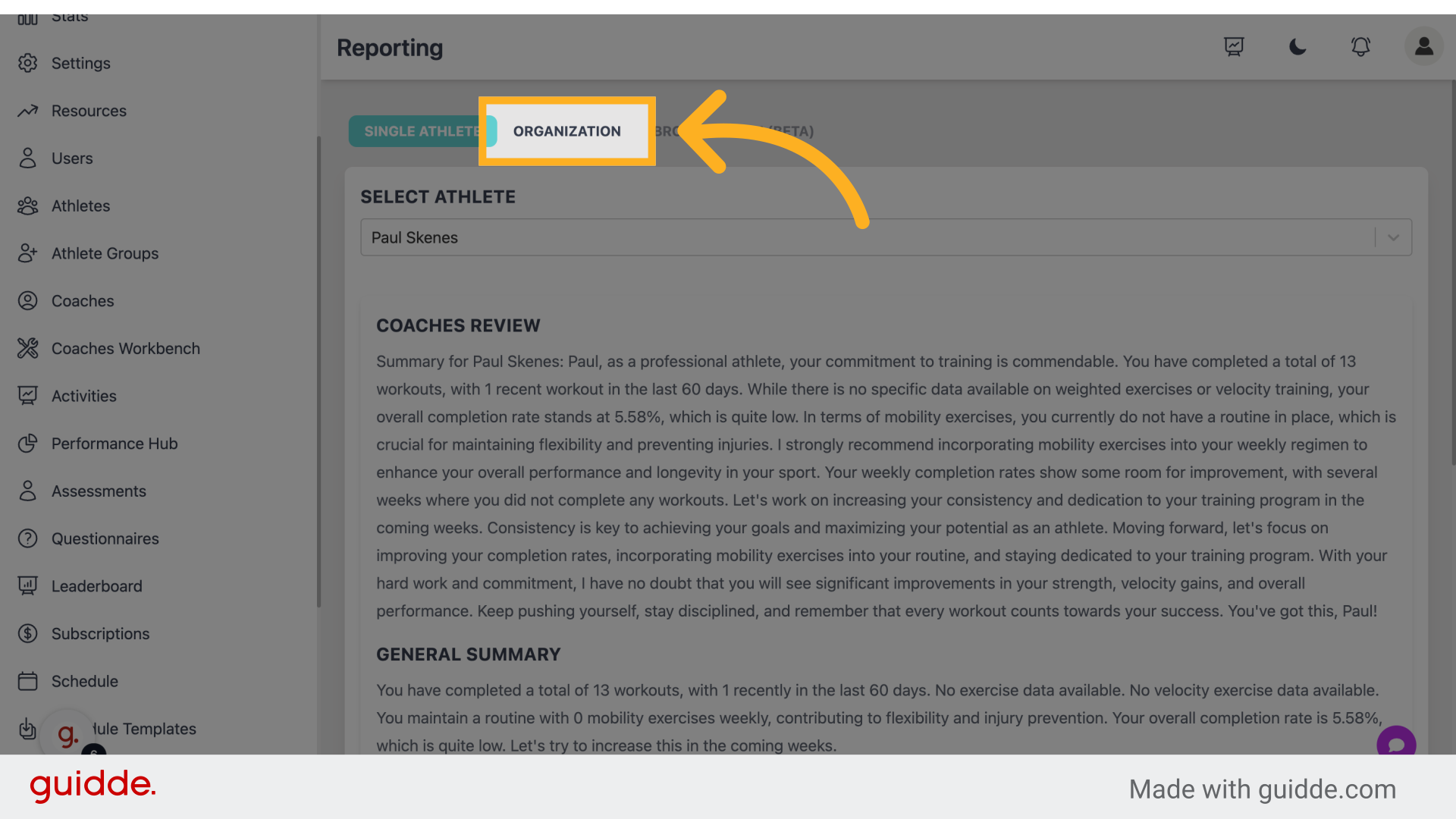
Step 7 — Click "Organization" to view data from an organizational view
Access the organization section.
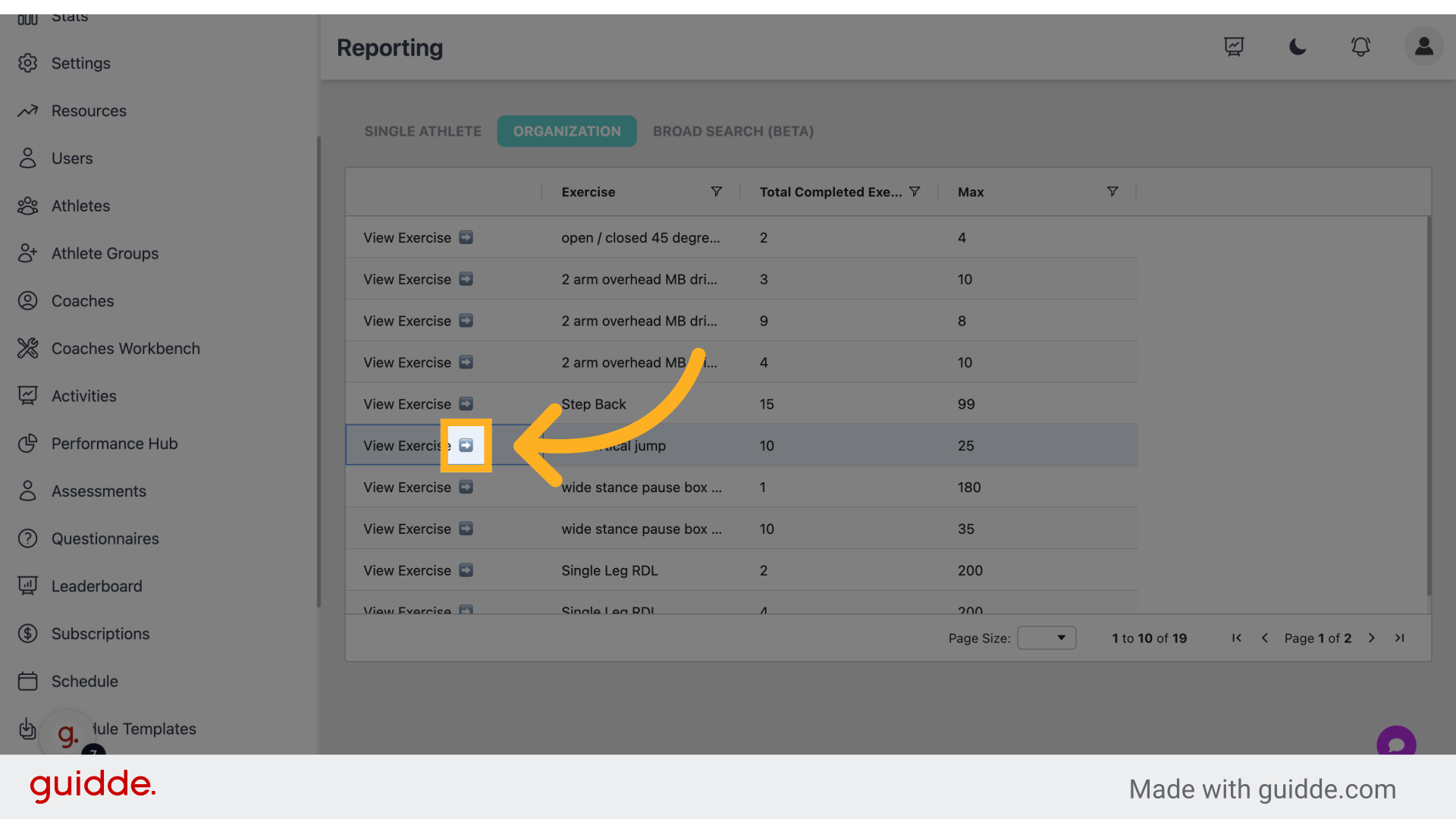
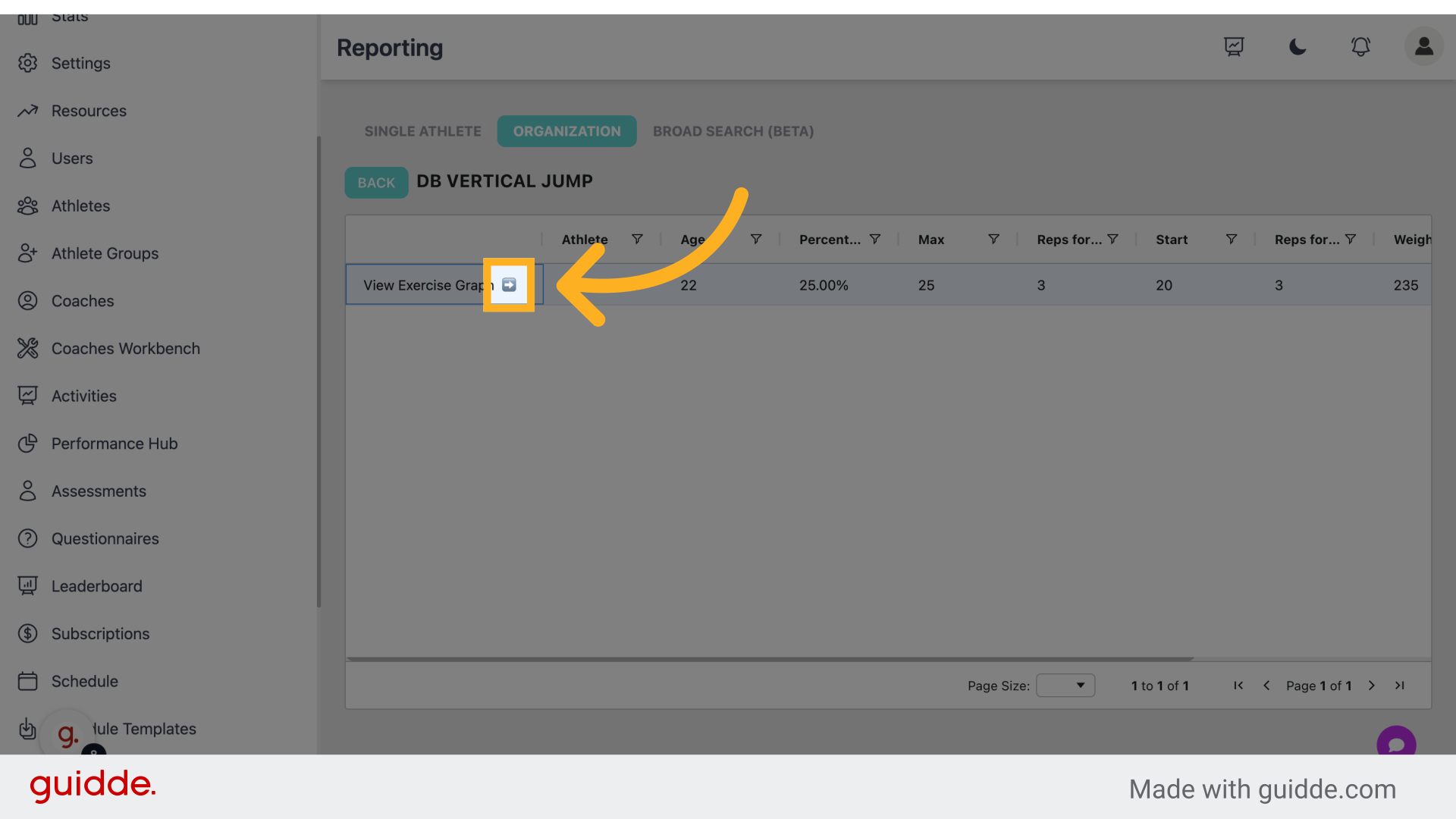
Step 8 — Click "➡️" to view data on any exercise
Navigate to the next page.
Step 9 — Click "➡️"
Move to the subsequent section.
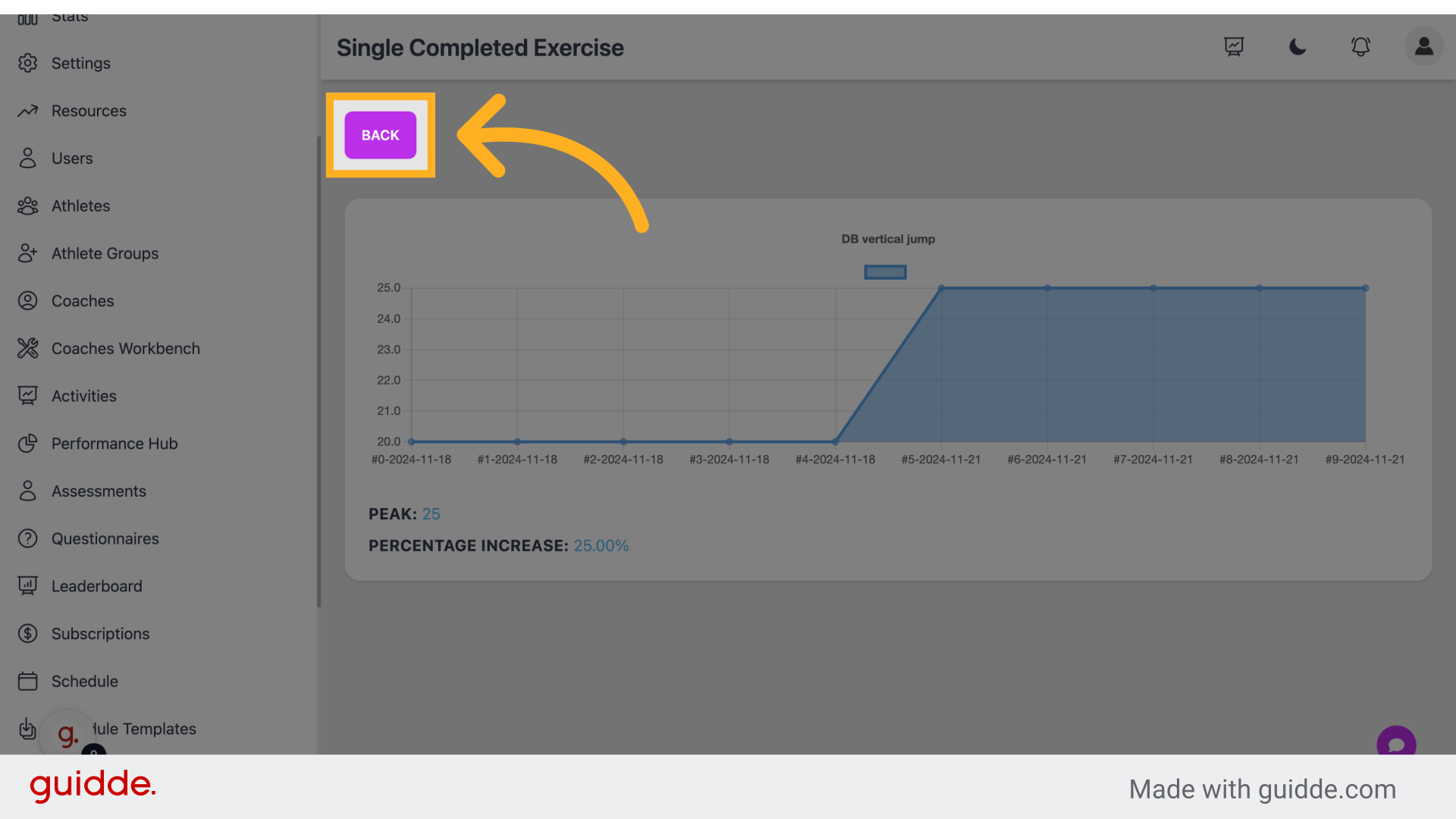
Step 10 — This Page Showcases Overall Performance Data
Return to the previous page.
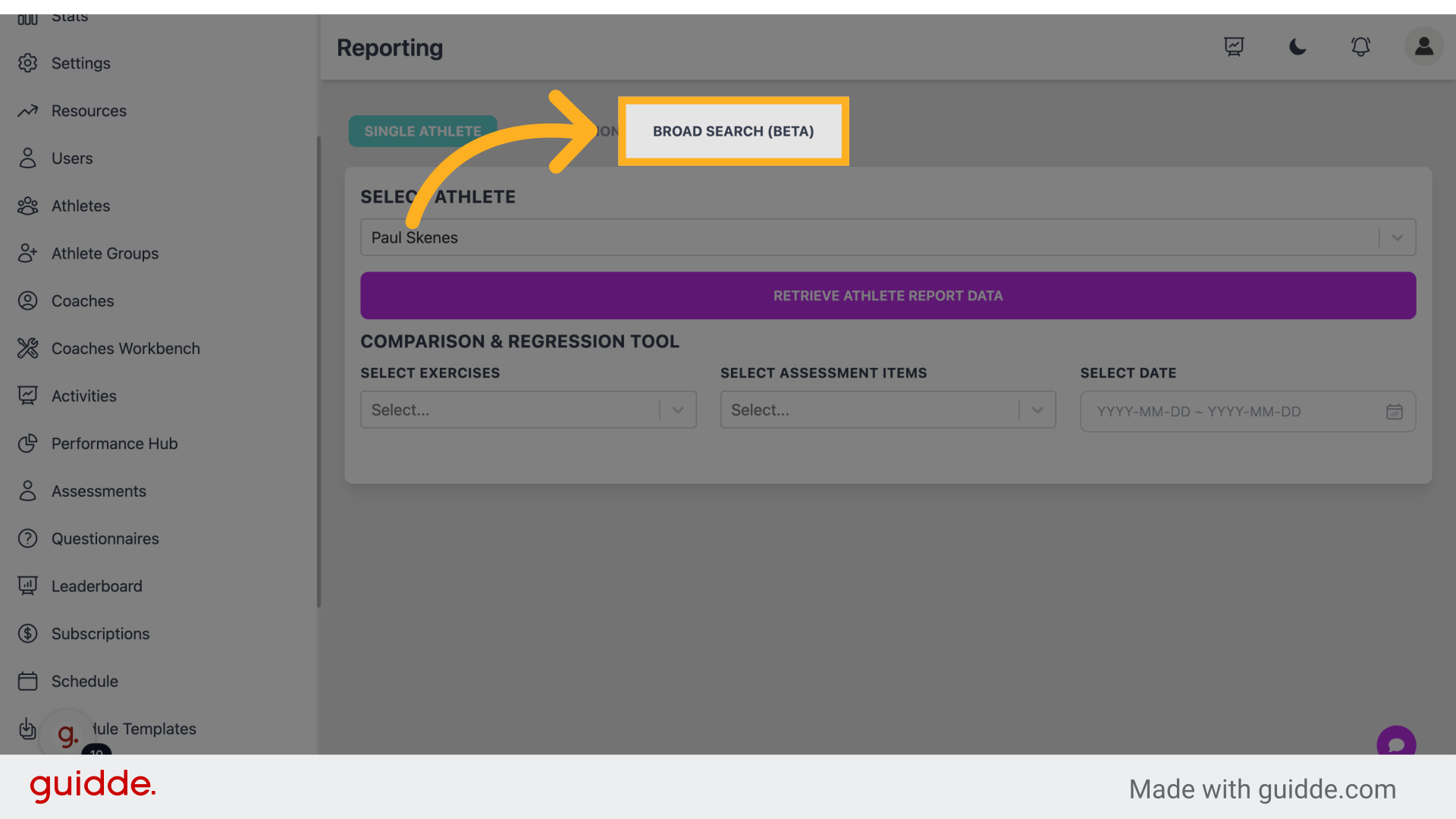
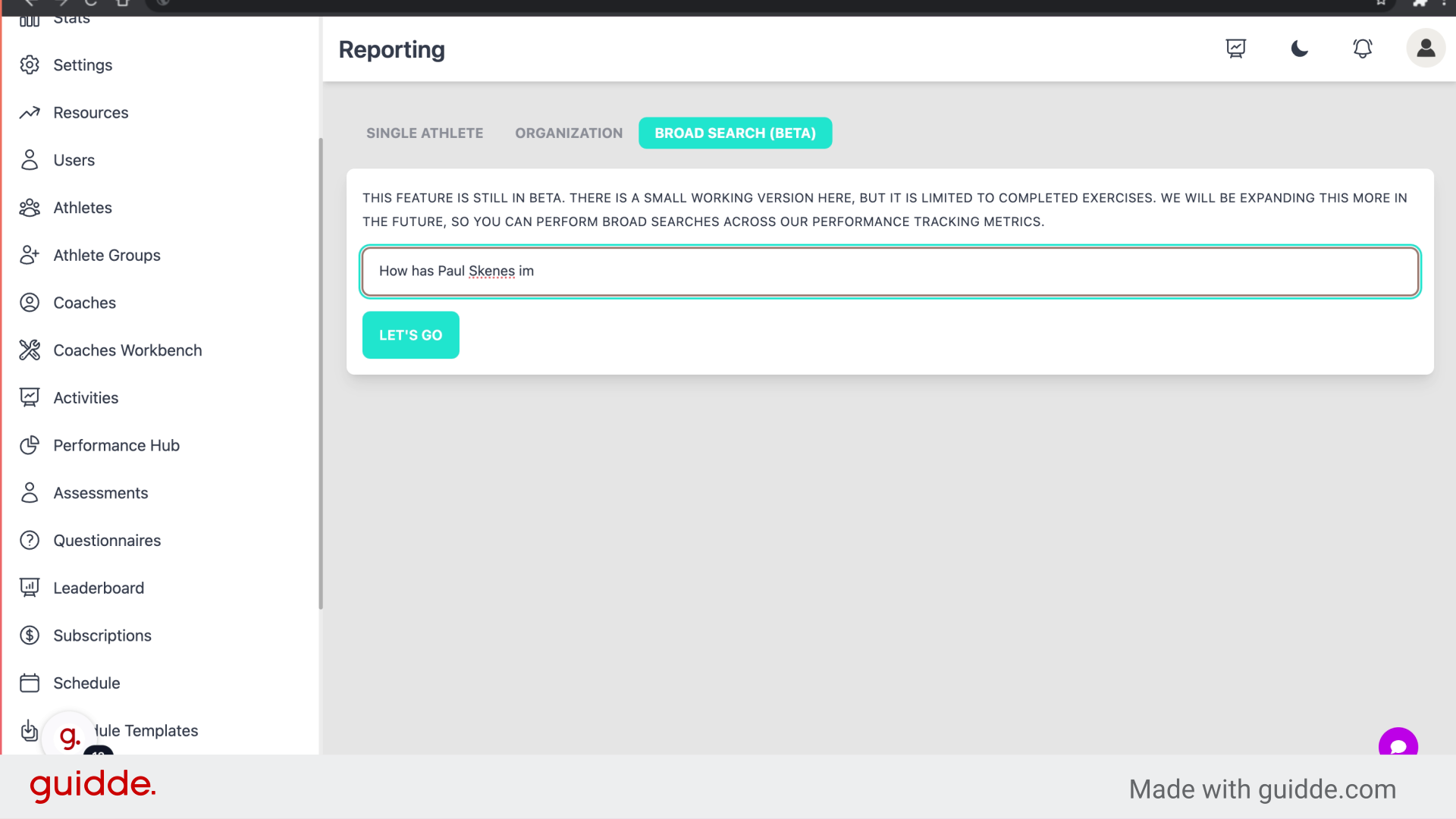
Step 11 — Click "Ask your data"
Open Ask your data (the screenshot may still show the old "Broad Search" label).
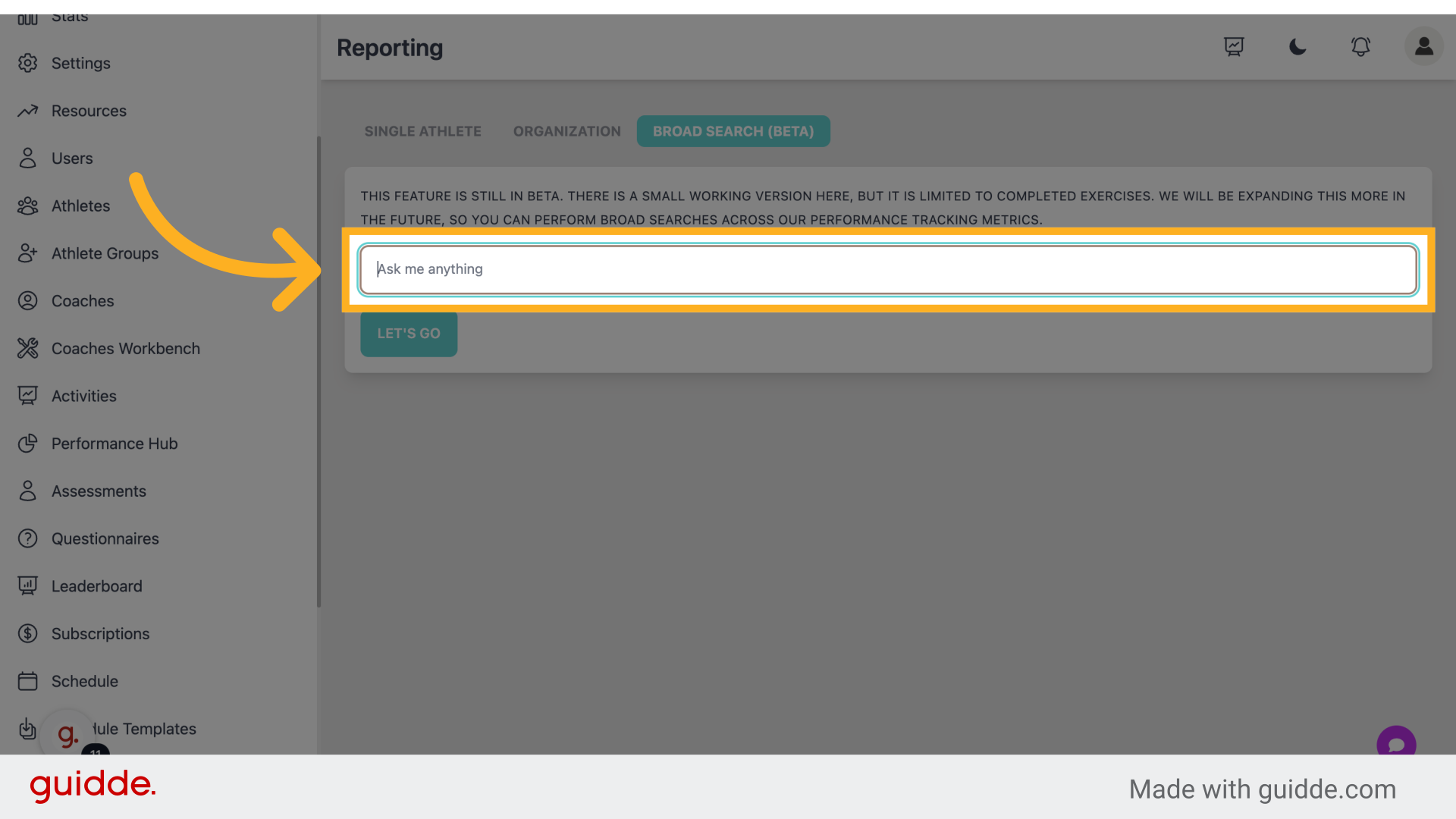
Step 12 — Click "Ask me anything"
Enter your query in the search bar.
Step 13 — Ask Any Questions
Type in any performance related data.
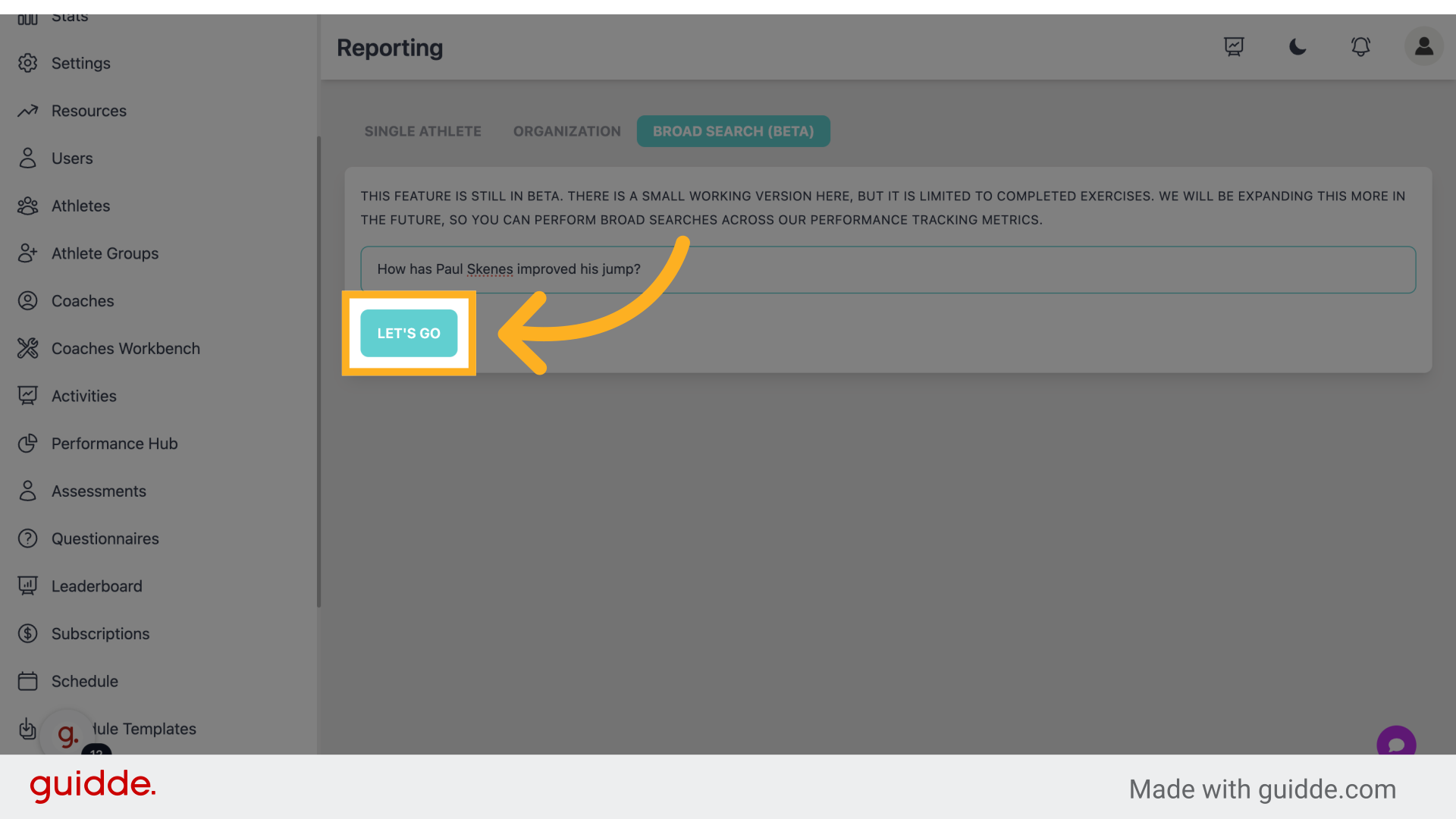
Step 14 — Click "Let's go"
Initiate the search process.
 This guide walks through Analytics (formerly Performance Hub): pick an athlete, run reports, and ask questions in Ask your data.